



Compare Tool
Introduction:
This tutorial guides you through using the compare feature on mscdirect.com product pages. You will learn how to select multiple items, view their specifications side by side, and identify key differences to make informed purchasing decisions.
Detailed Step by Step Guide:
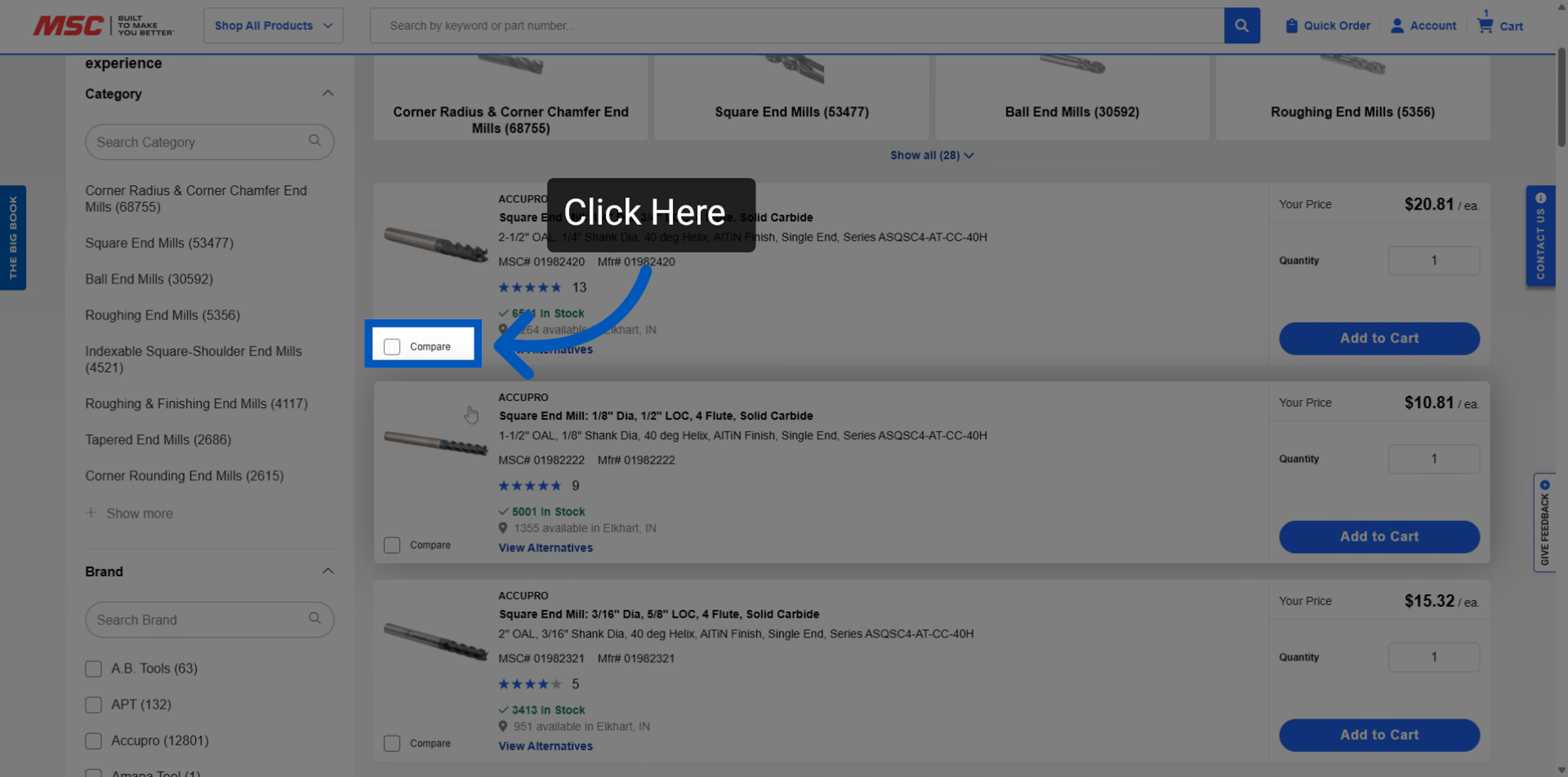
Step 1: After conducting a search for an item, you will be directed to the search results page. Here, you will find a list of items that correspond to your query. For this training, the search results will focus on endmills. Once you have decided which items you would like to compare, you will select the compare button for each individual item. Click here on the item tile to select the items you want to compare. This will appear in the bottom left corner on every item.
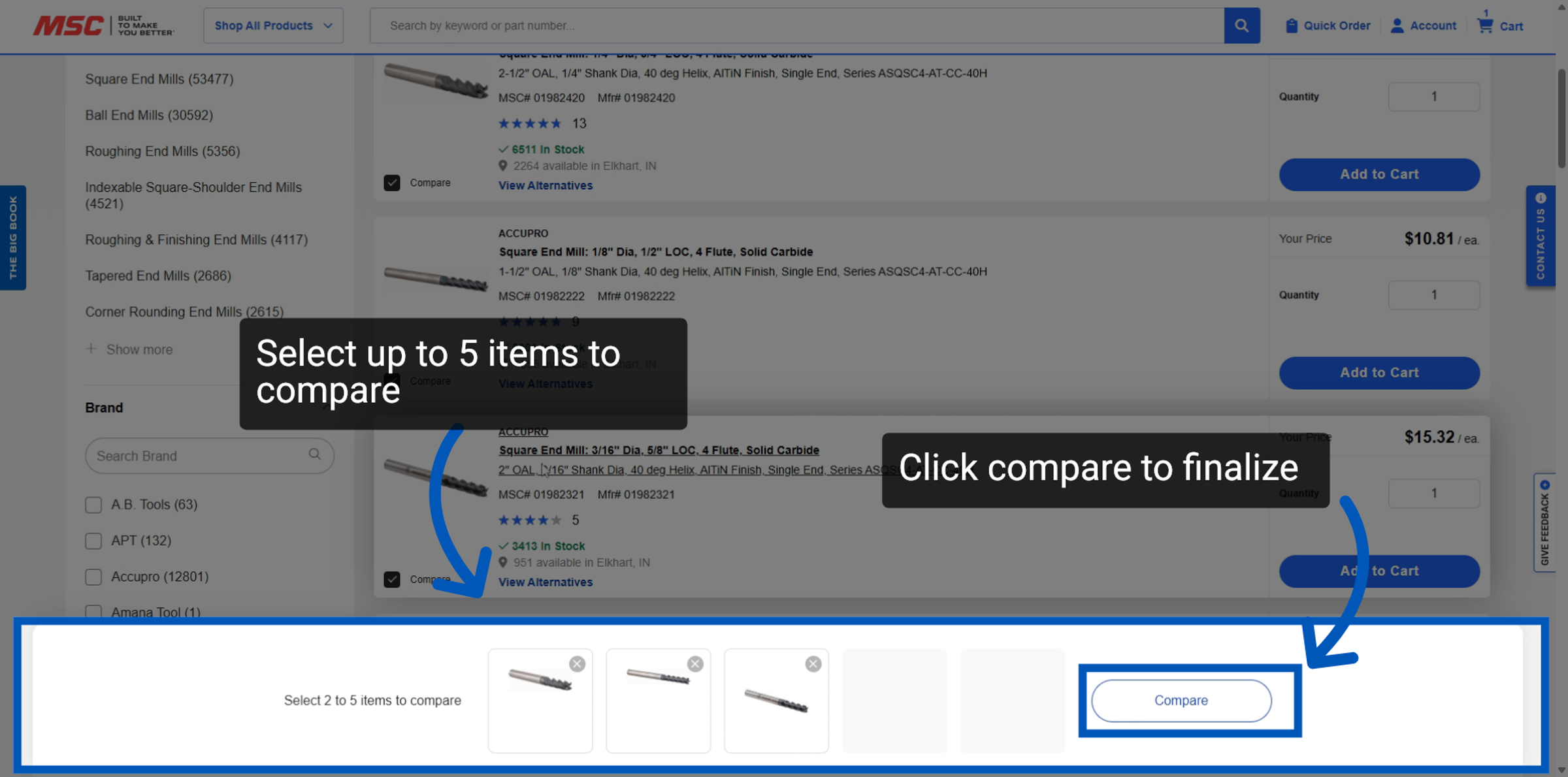
Step 2: Once you have selected the items that you would like to compare, you'll see a pop-up at the bottom that lets you proceed. Once you have selected your items, click Compare to view their details side by side.
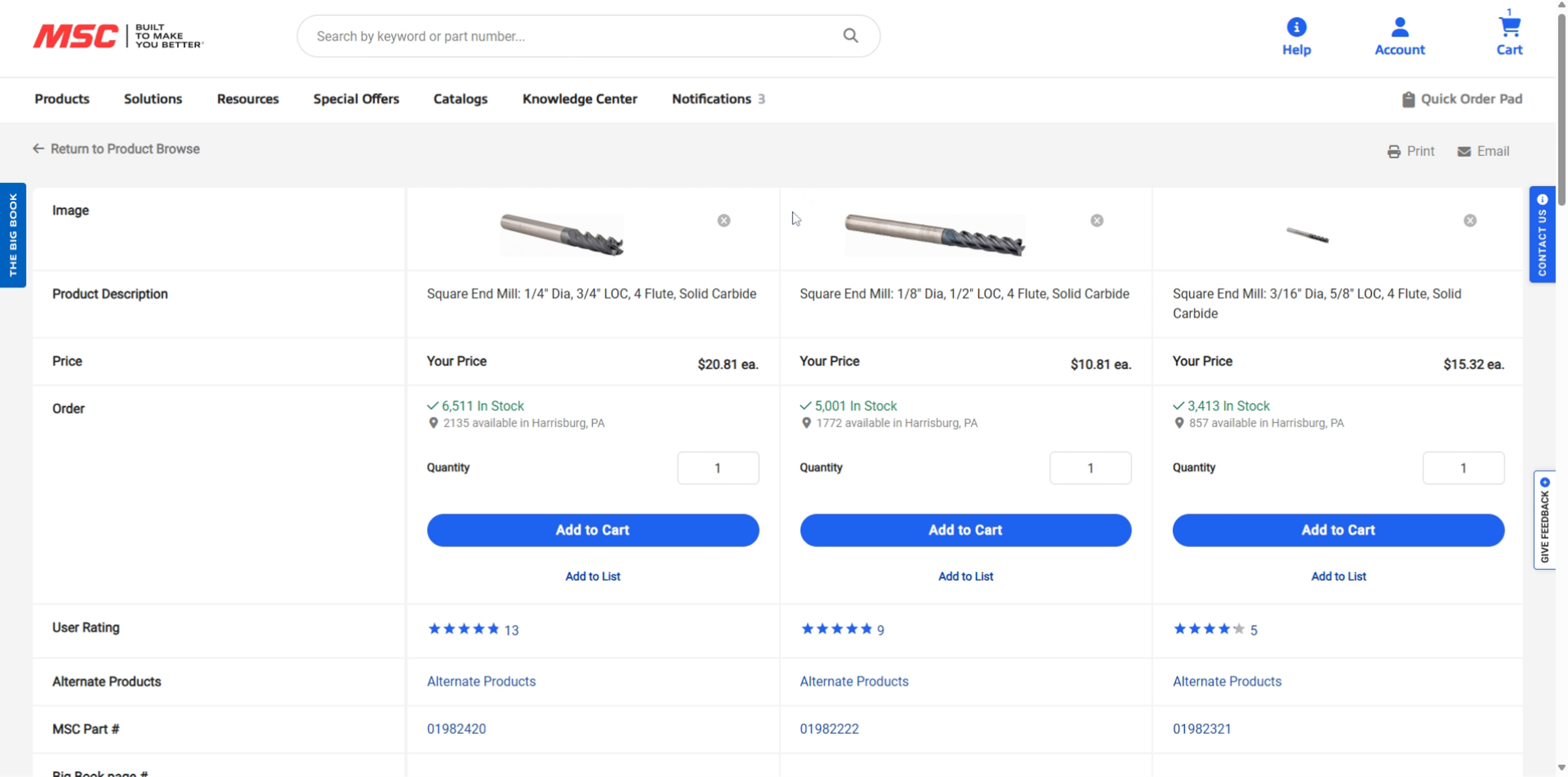
Step 3: On the compare page, you will see the product description and other key specifications about each of the items.
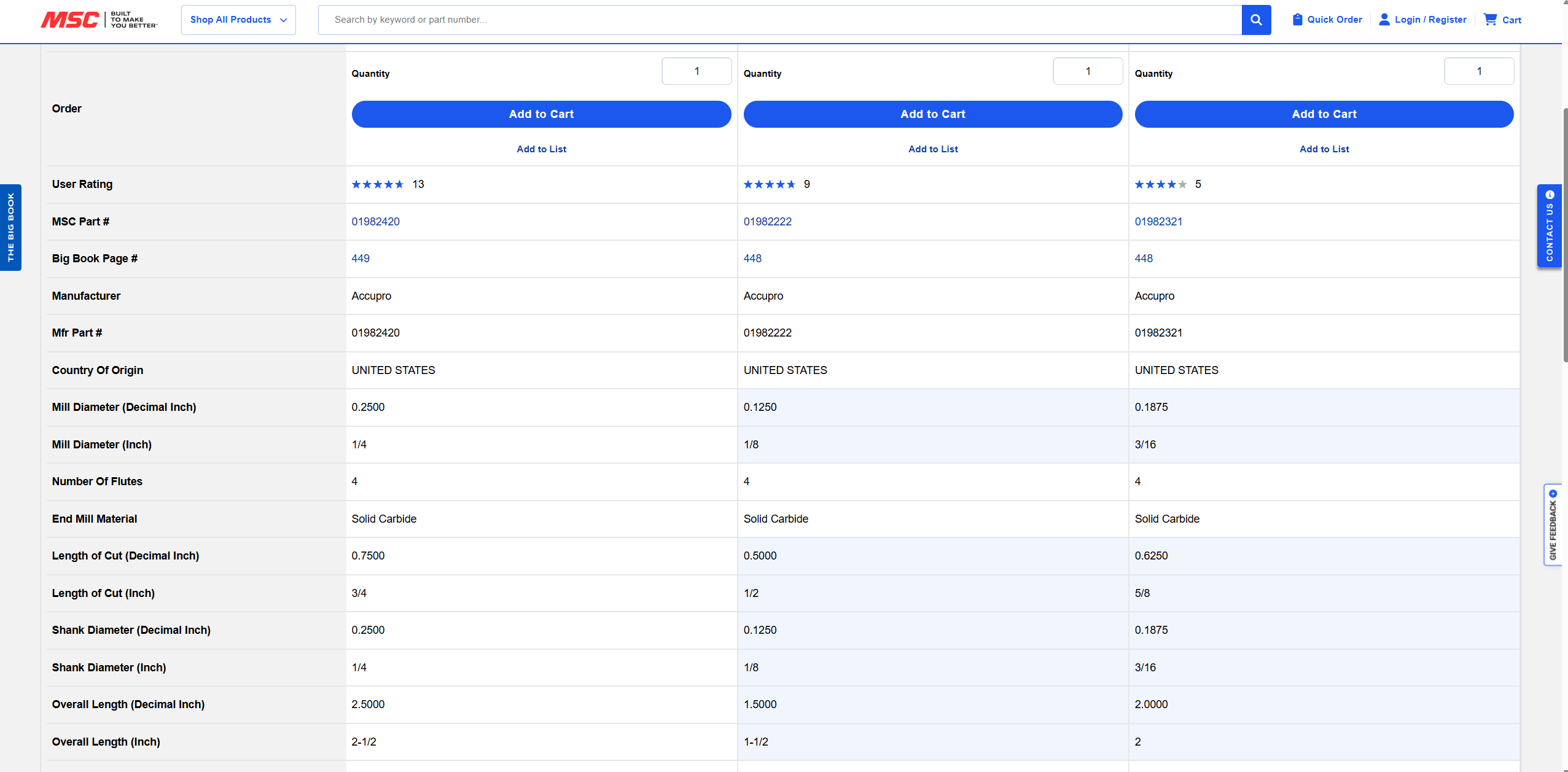
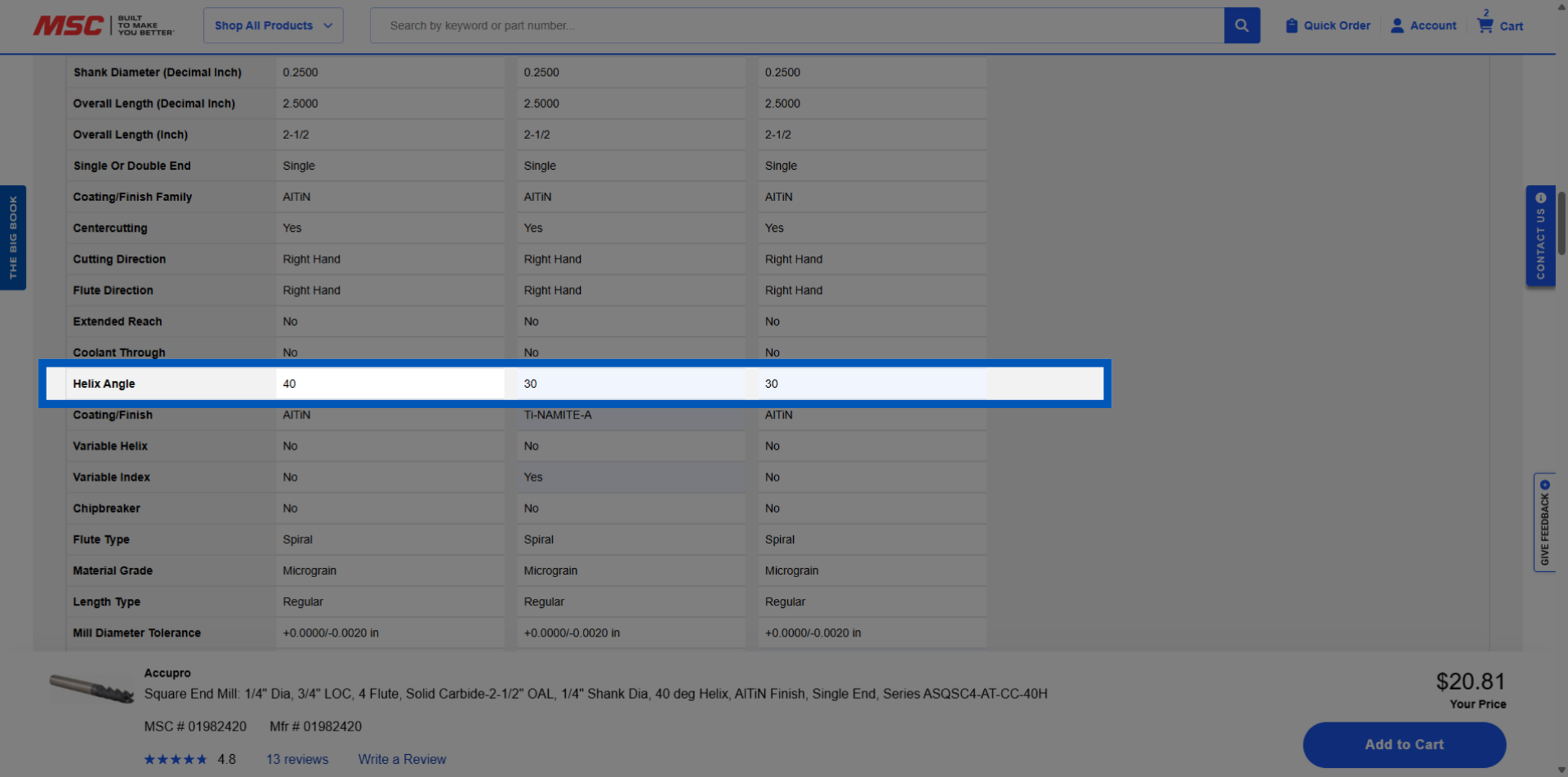
Step 4: If an item has a different specification than another, you will see these highlighted in blue.
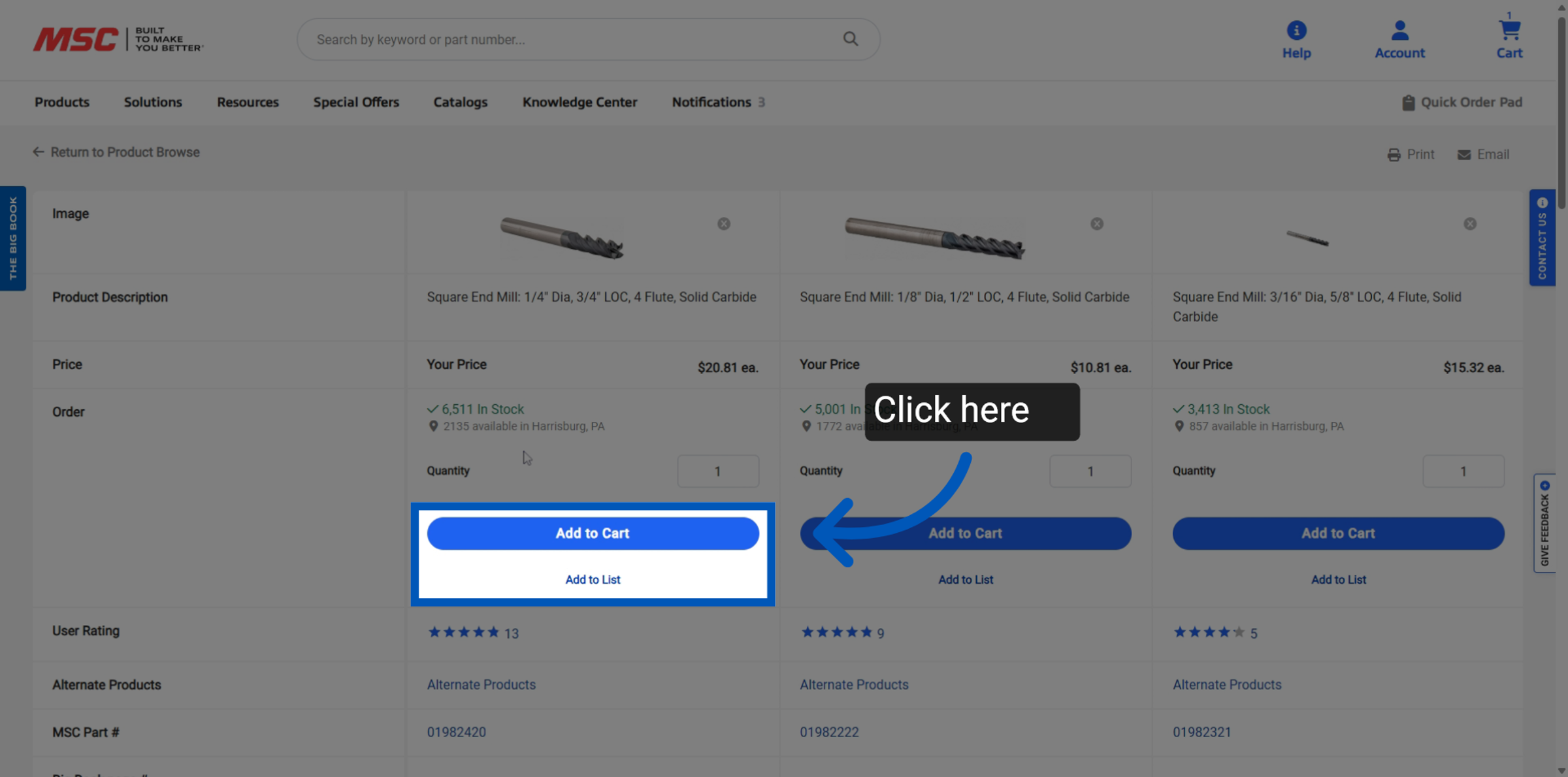
Step 5: Once you have selected the item that you wish to purchase, you can add it to your cart or add it to a list.
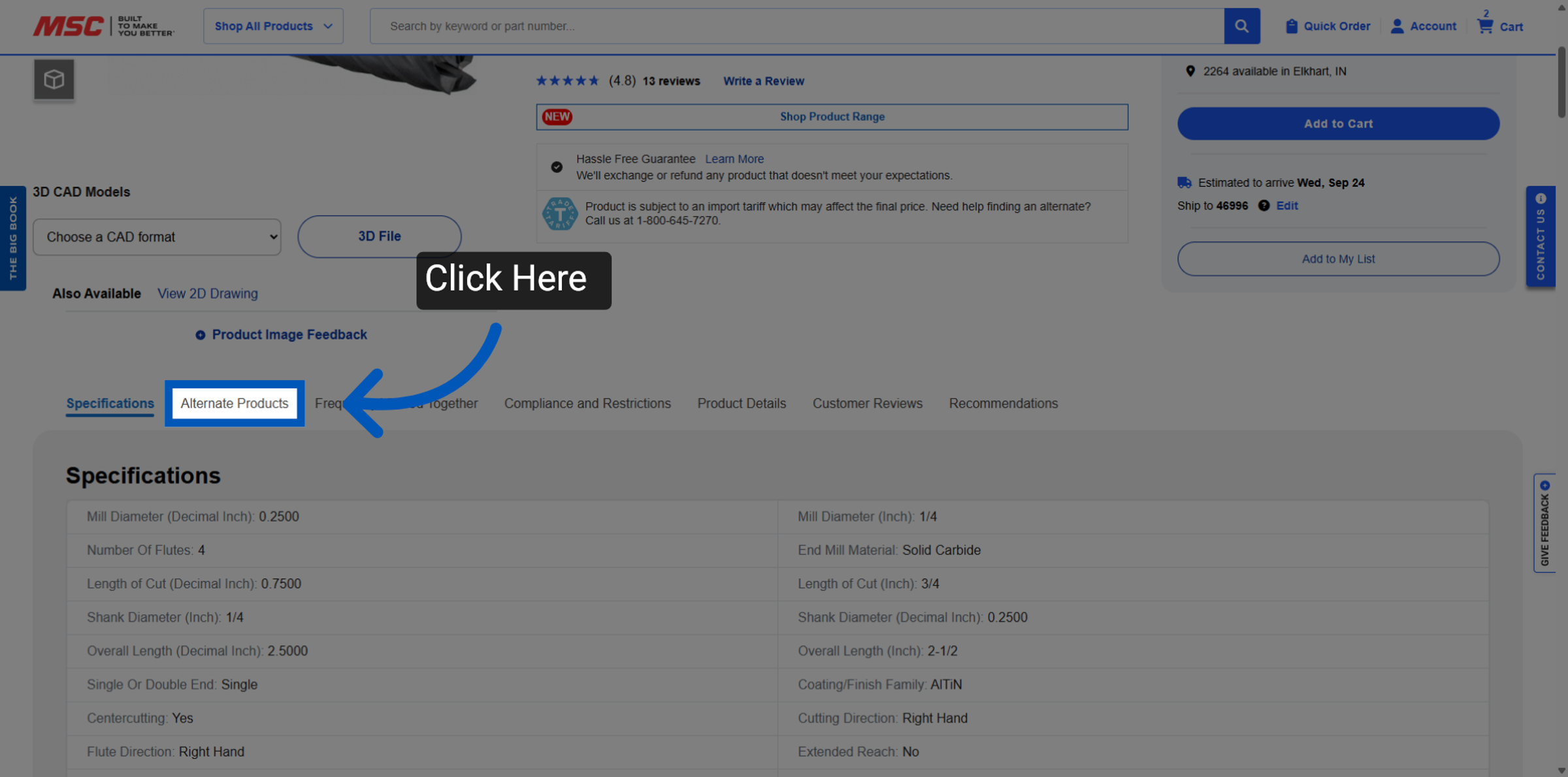
Step 6: Alternatively, you can compare items directly from the product display page for the item you would like to compare, scroll down and look at alternate products.
Click "Alternate Products" to view similar items for comparison.
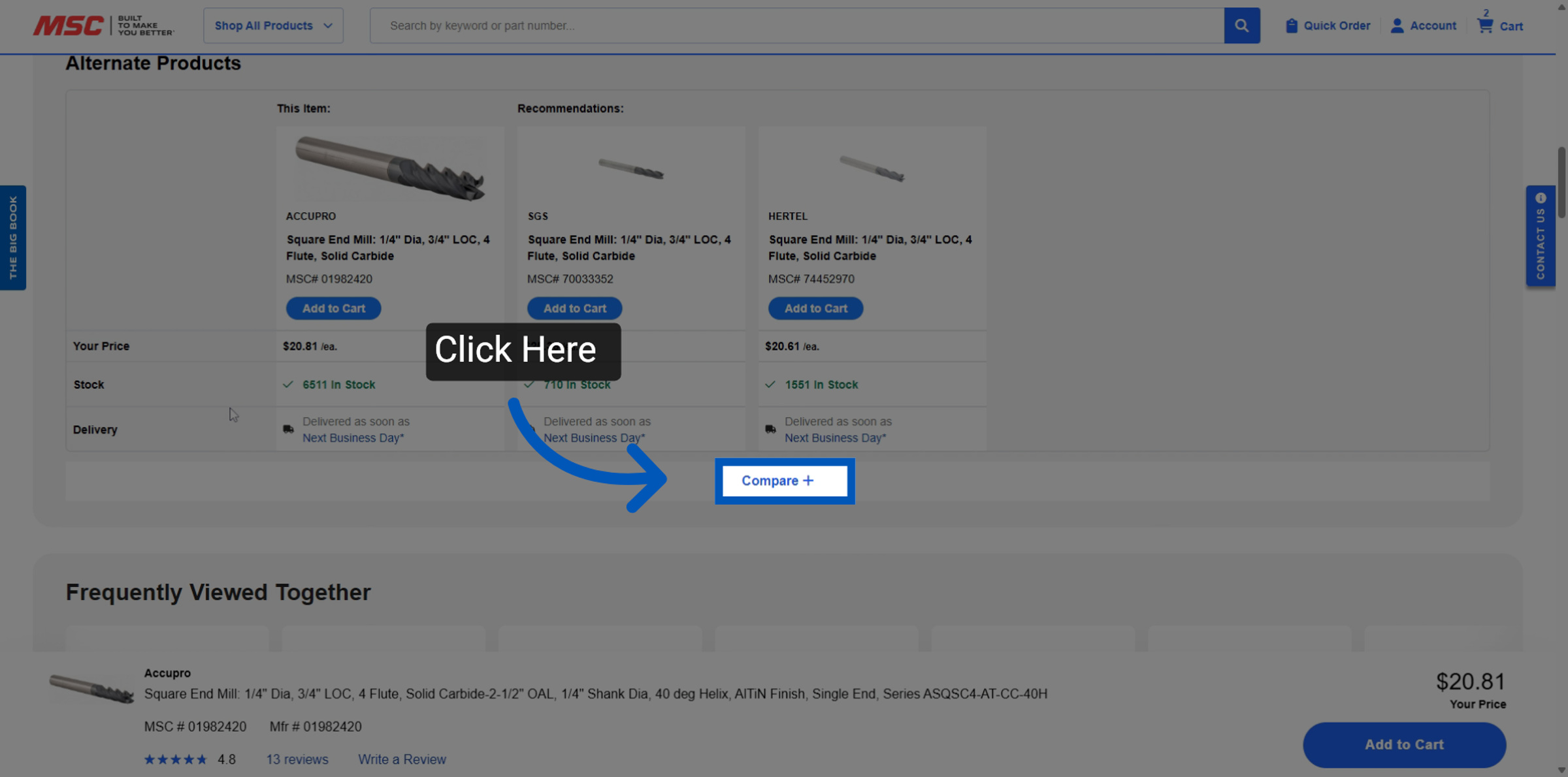
Step 7: Click "Compare" to view a detailed side-by-side comparison of the alternate items.
Step 8: Differences in specifications will be highlighted in blue for easy identification.
More Finding Items Resources
Back to Finding ItemsTo request a quote, please login to your existing account or register a new one. This helps us provide you with a personalized experience and keep track of your requests.