



Customer Part Numbers
This tutorial guides you through processing an order using customer part numbers in the MSC Direct system. Before starting, ensure you have your customer part numbers and MSC part numbers ready to streamline the ordering process.
Detailed Step by Step Guide
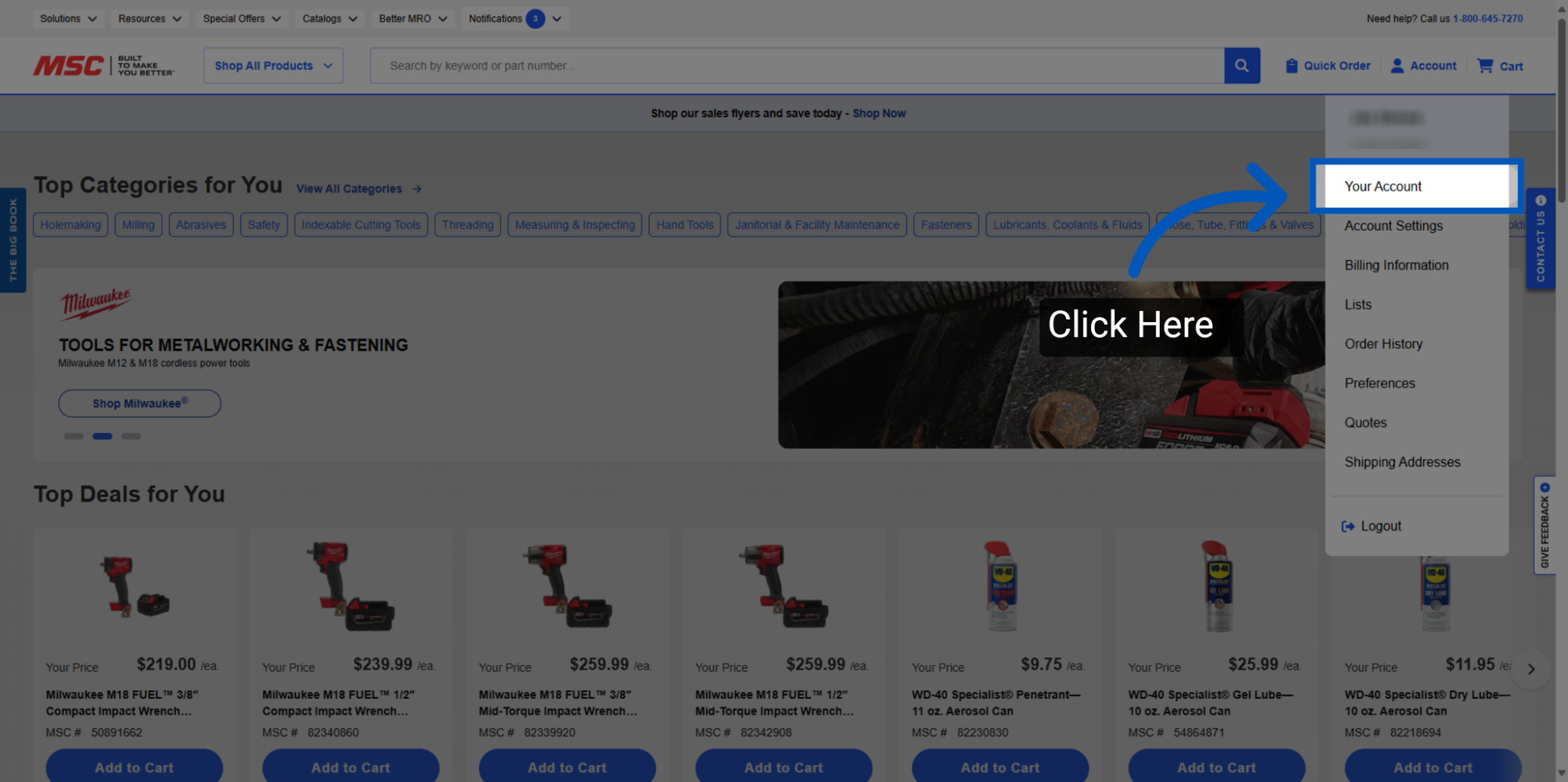
Sign In to Your Account - From the home page, hover over the "Account" icon and then select "Your Account".
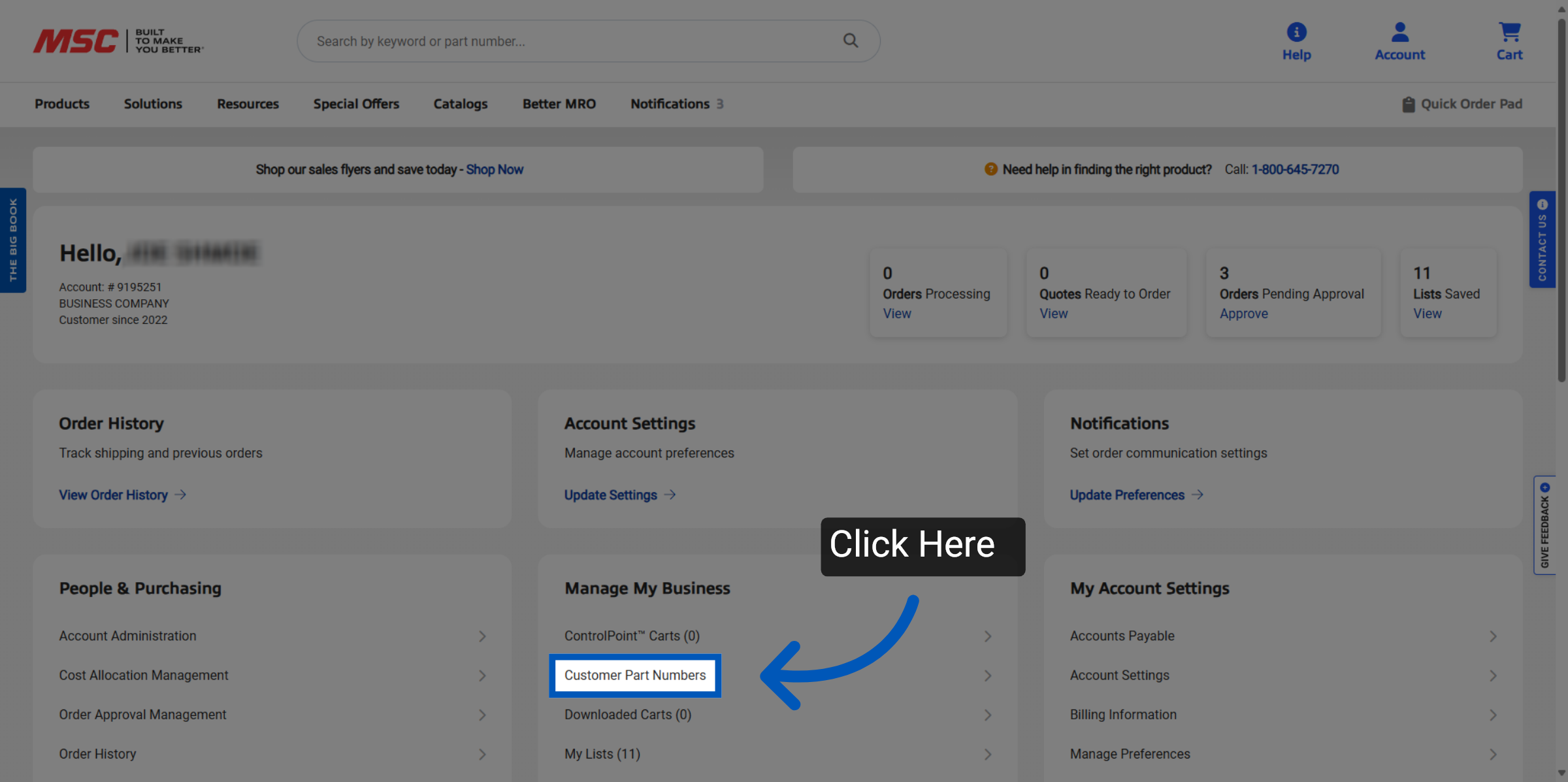
Navigate to Customer Part Numbers - On the "Your Account" page, navigate to "Customer Part Number" under "Manage my business".
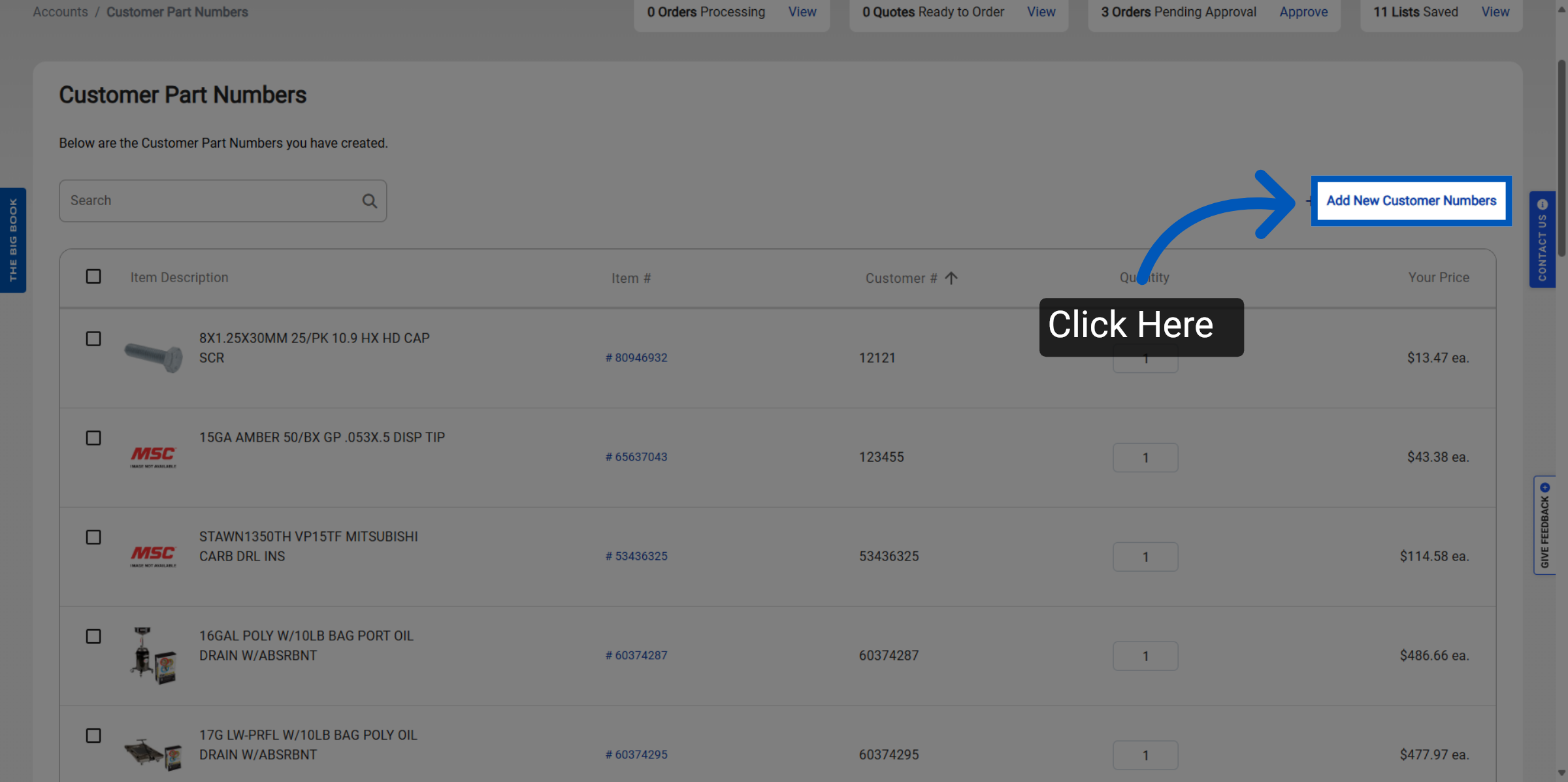
View Customer Part Numbers - Users can view all customer part numbers and use the search functionality to locate specific customer part numbers within the interface. Admins will have the ability to Click "Add New Customer Numbers" to start adding a new customer part number.
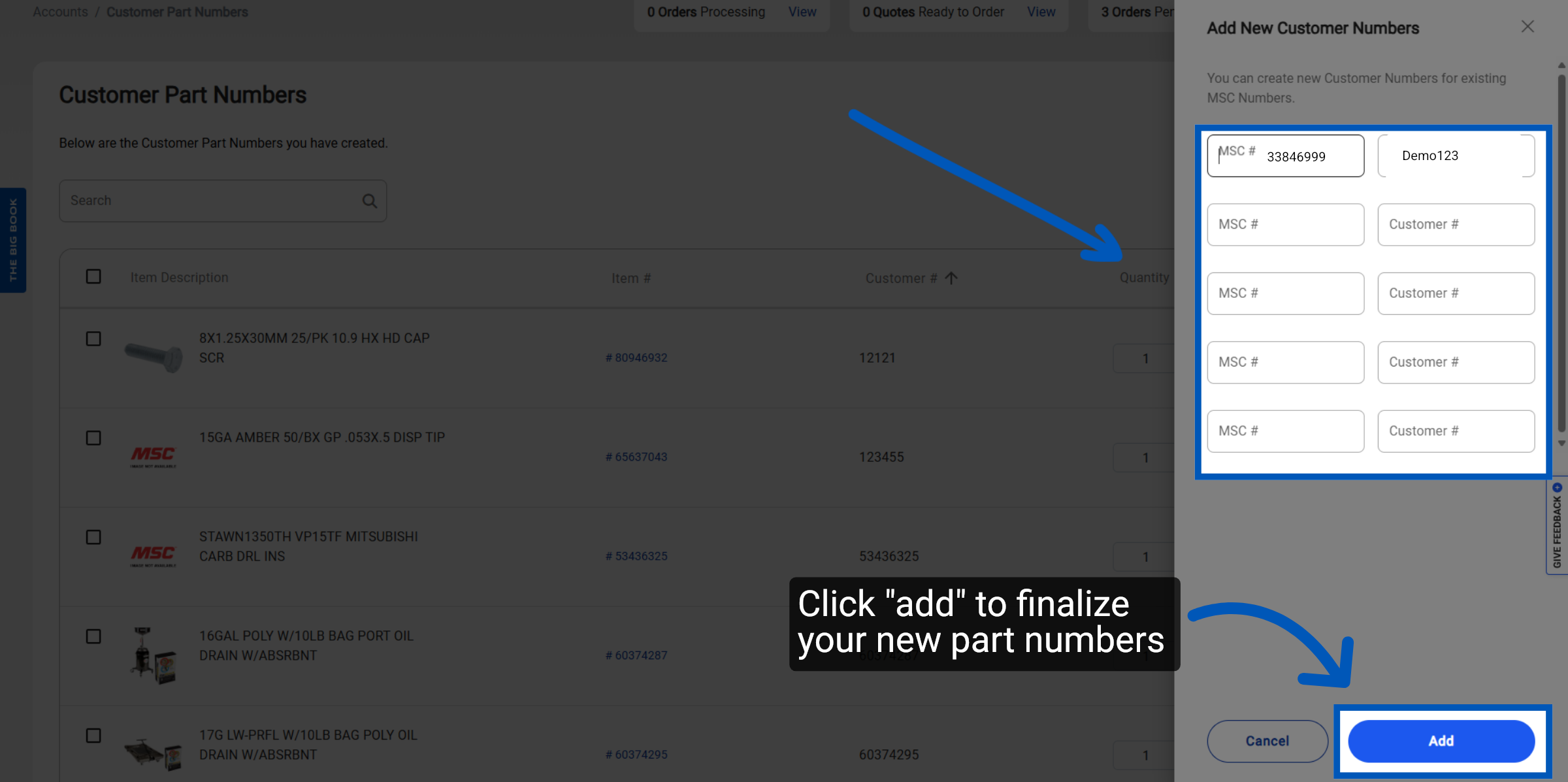
Adding New Customer Numbers - Click “add” to finalize your new part numbers.
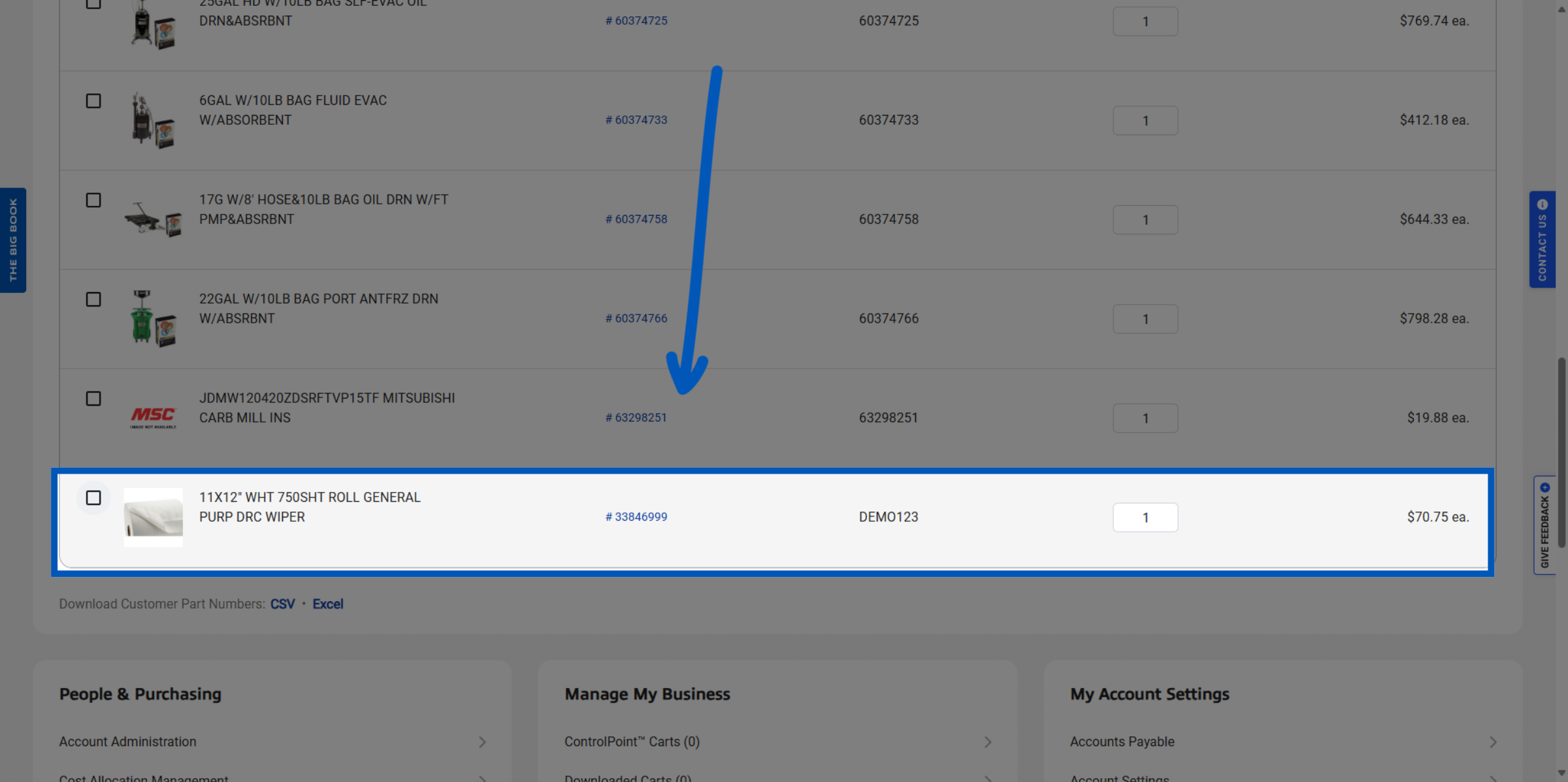
Review Added Entry - Your newly created customer part numbers will appear on the bottom of the page.
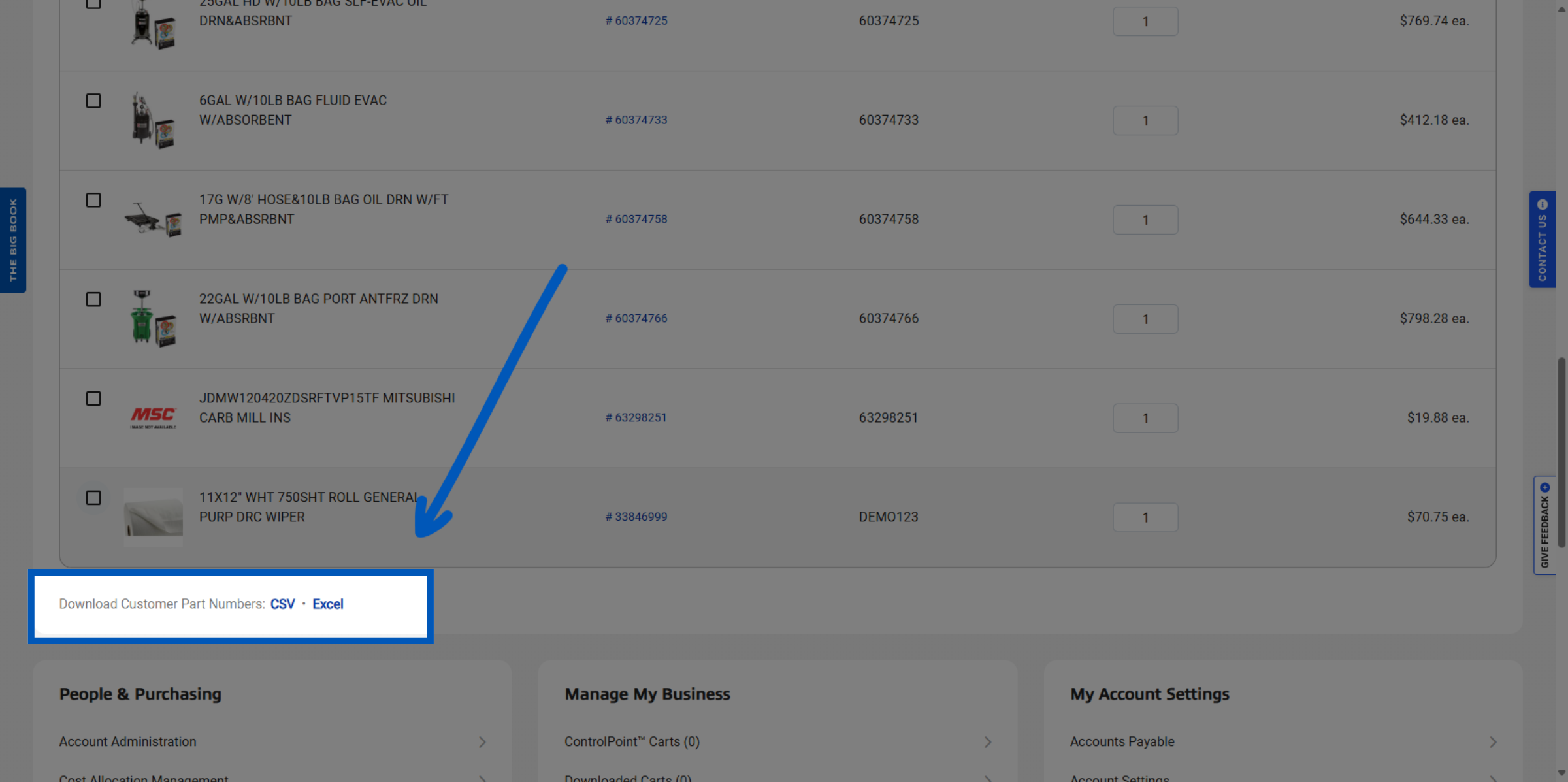
Updating Your Records - Users have the option to download their customer part numbers in CSV or Excel format for external use or record-keeping.
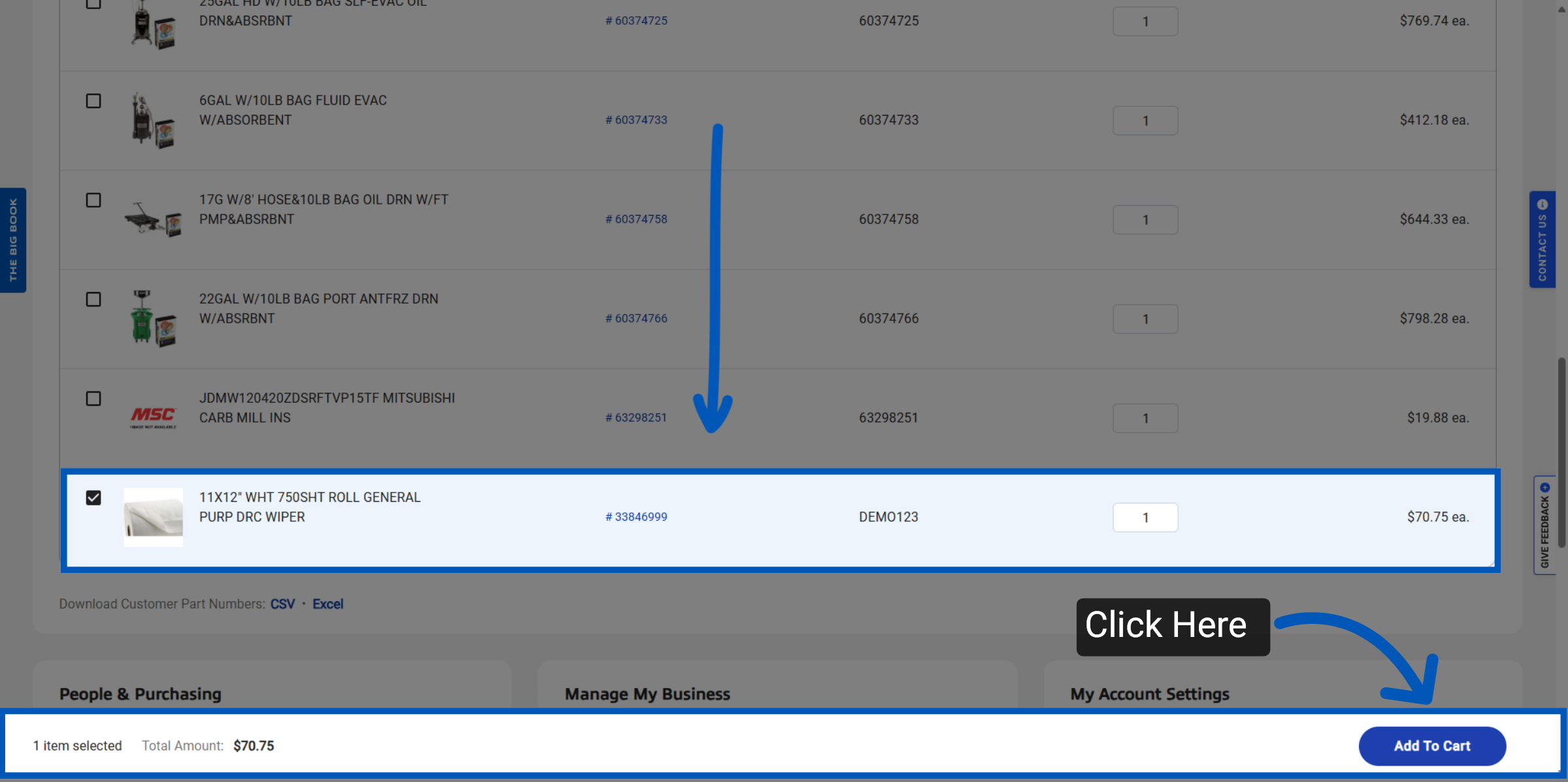
Add to Cart - To add a newly created customer part number to your cart, select the box next to the item and click "Add to Cart".
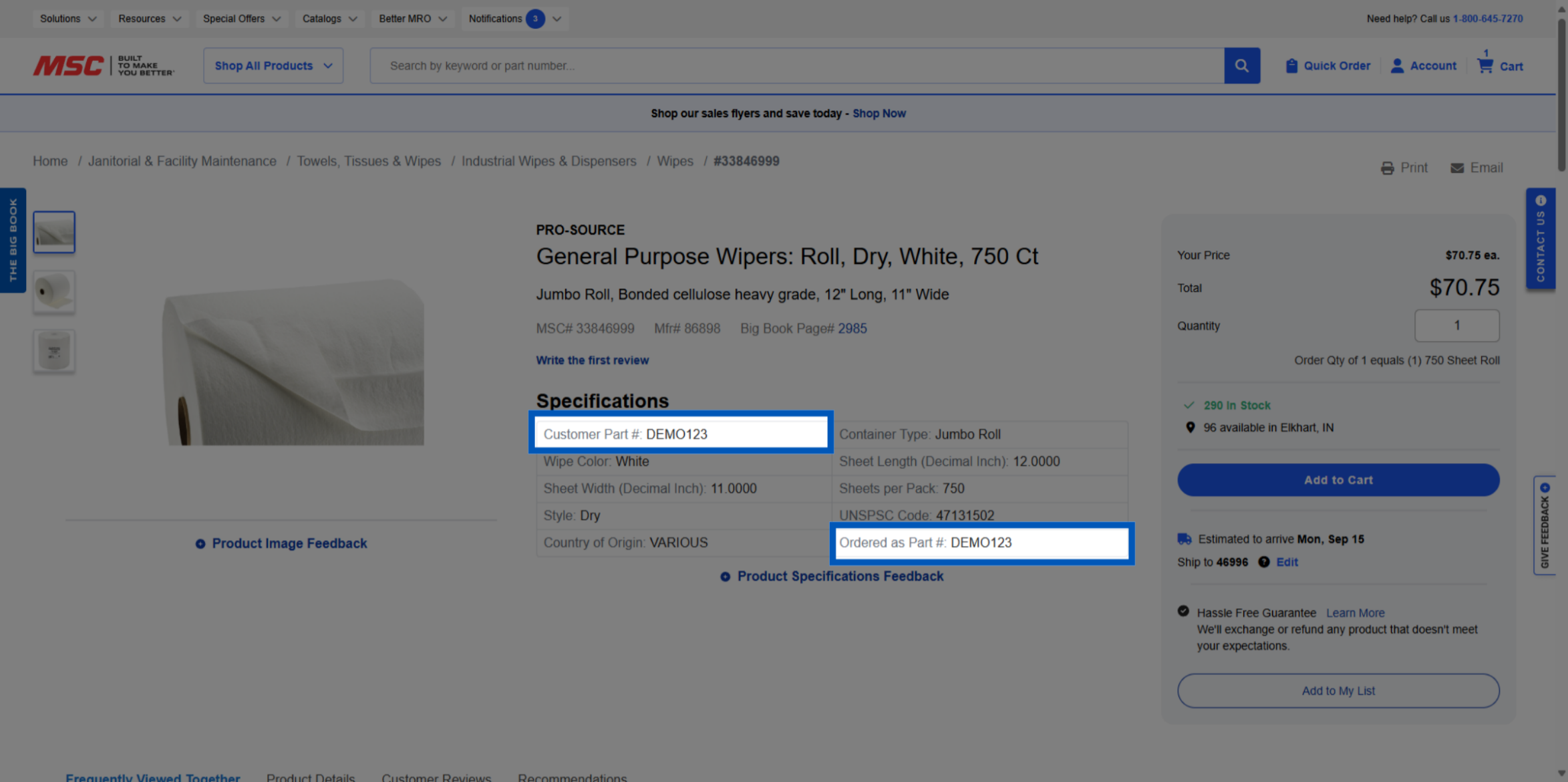
Searched Customer Part Number on Product Detail Page - Searching for a customer part number will bring up the product detail page associated with that CPN. Customer Part Numbers do not over write the MSC Part Number or the Manufactures Part Number. You can see your Customer Part Number on this page in the product specifications section. They will display under the data point "Customer Part #" and "Ordered As Part #".
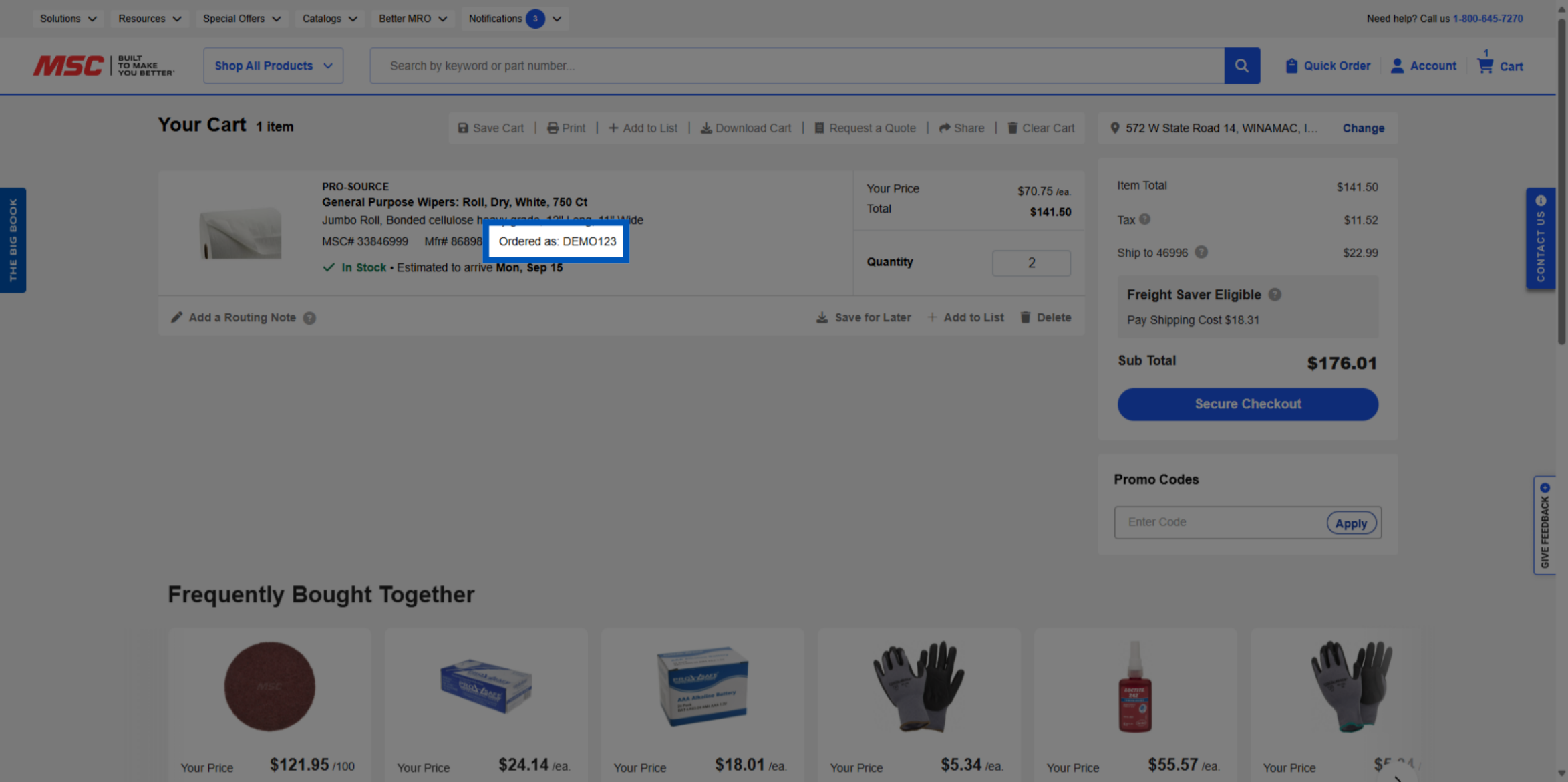
Cart Ordered As Part Number - In cart this will appear as "Ordered As Part #".
To request a quote, please login to your existing account or register a new one. This helps us provide you with a personalized experience and keep track of your requests.