



My Lists
Introduction:
Accessing and Managing Lists on mscdirect.com: This guide will provide a step-by-step walkthrough for accessing, creating, uploading, sharing, and managing lists on mscdirect.com, detailing the available features and actions users can perform within the My List page.
Detailed Step by Step Guide:
Before starting, ensure you have access to your account and any necessary part numbers ready. This guide will walk you through creating, editing, and adding items to your lists for efficient order management.
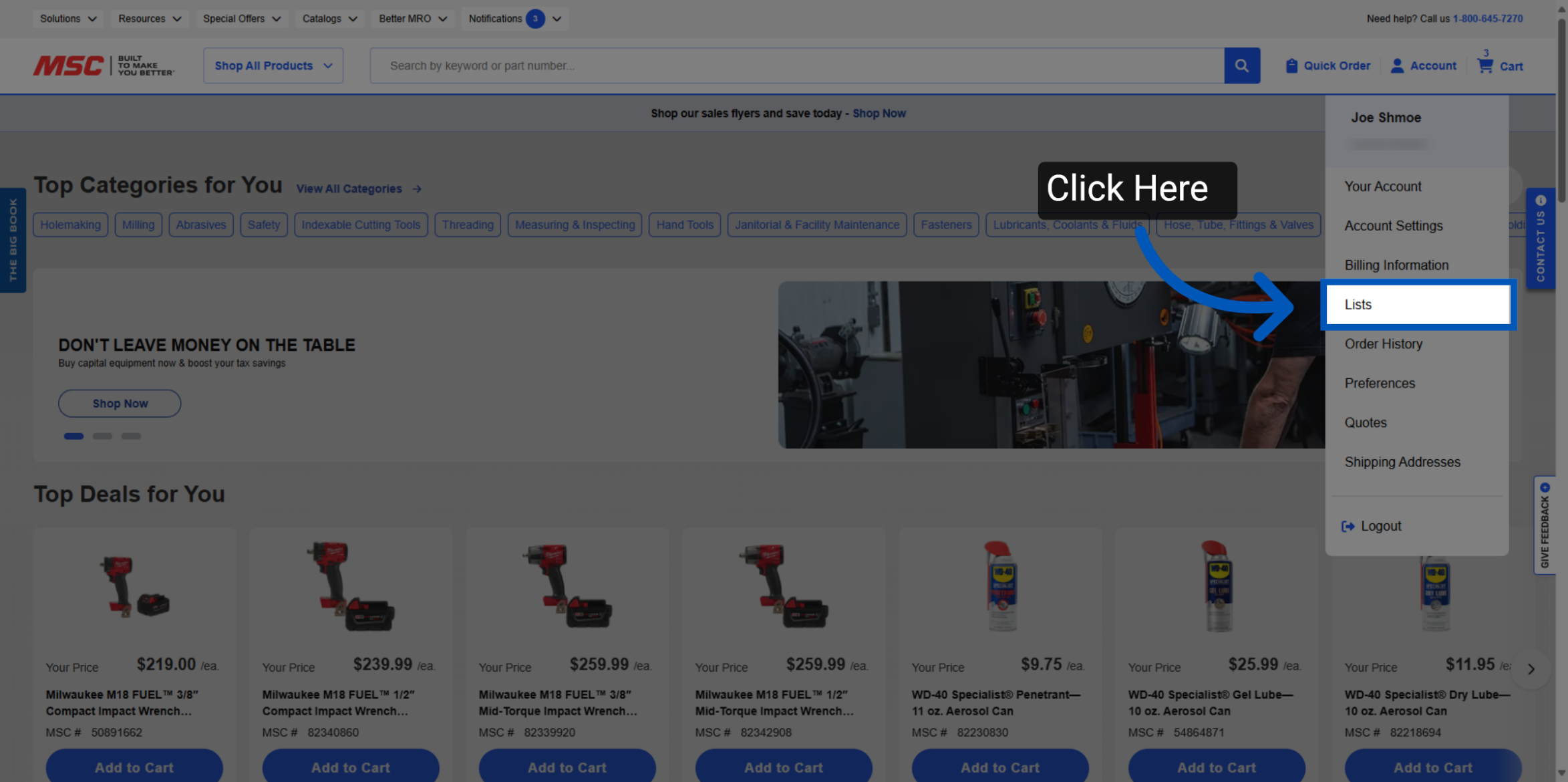
1. Go to the Account section in the top right corner and select "Lists".
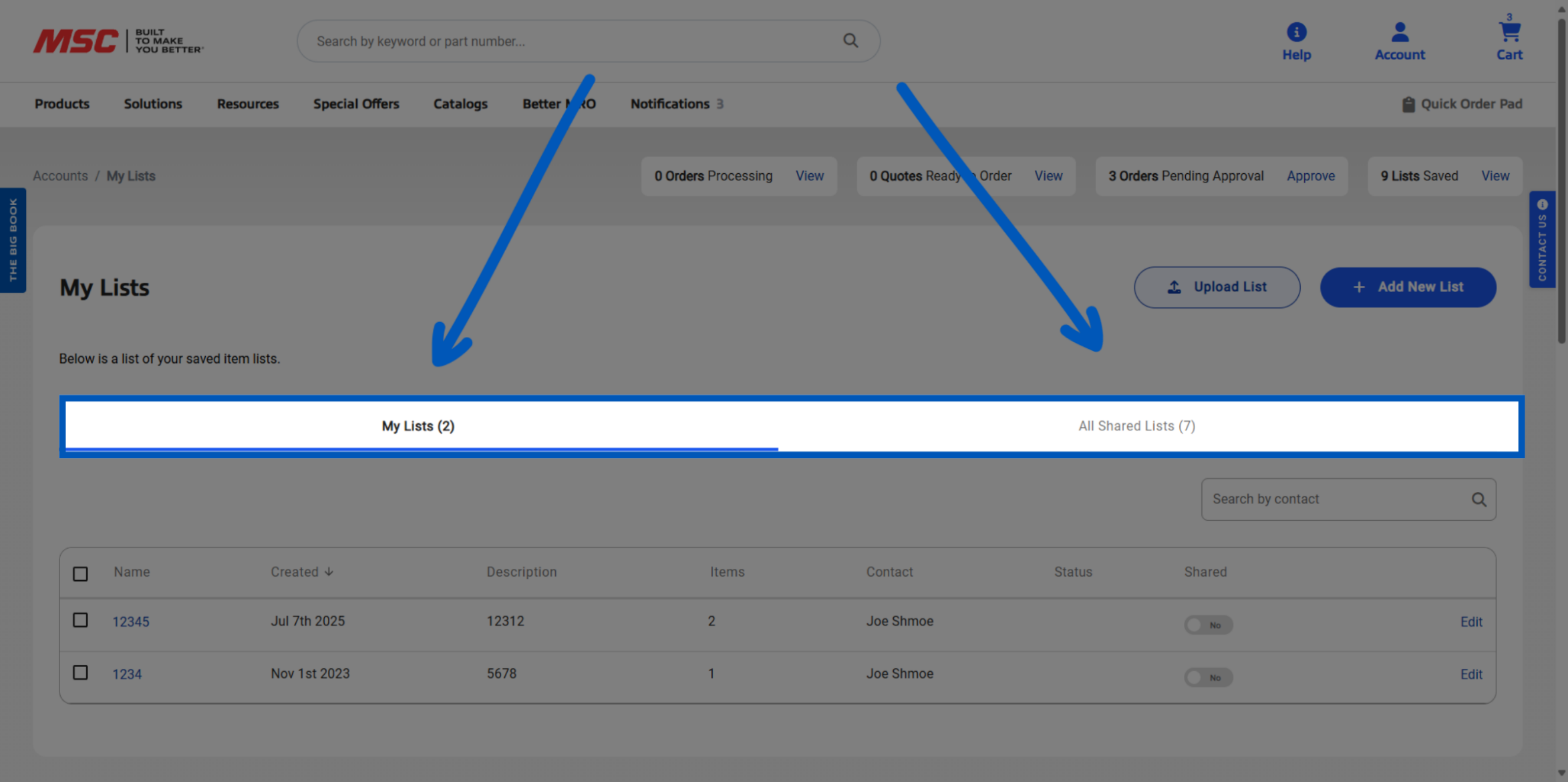
2. You have access to two types of lists:
Lists that you create.
Lists created by others and shared with your account.
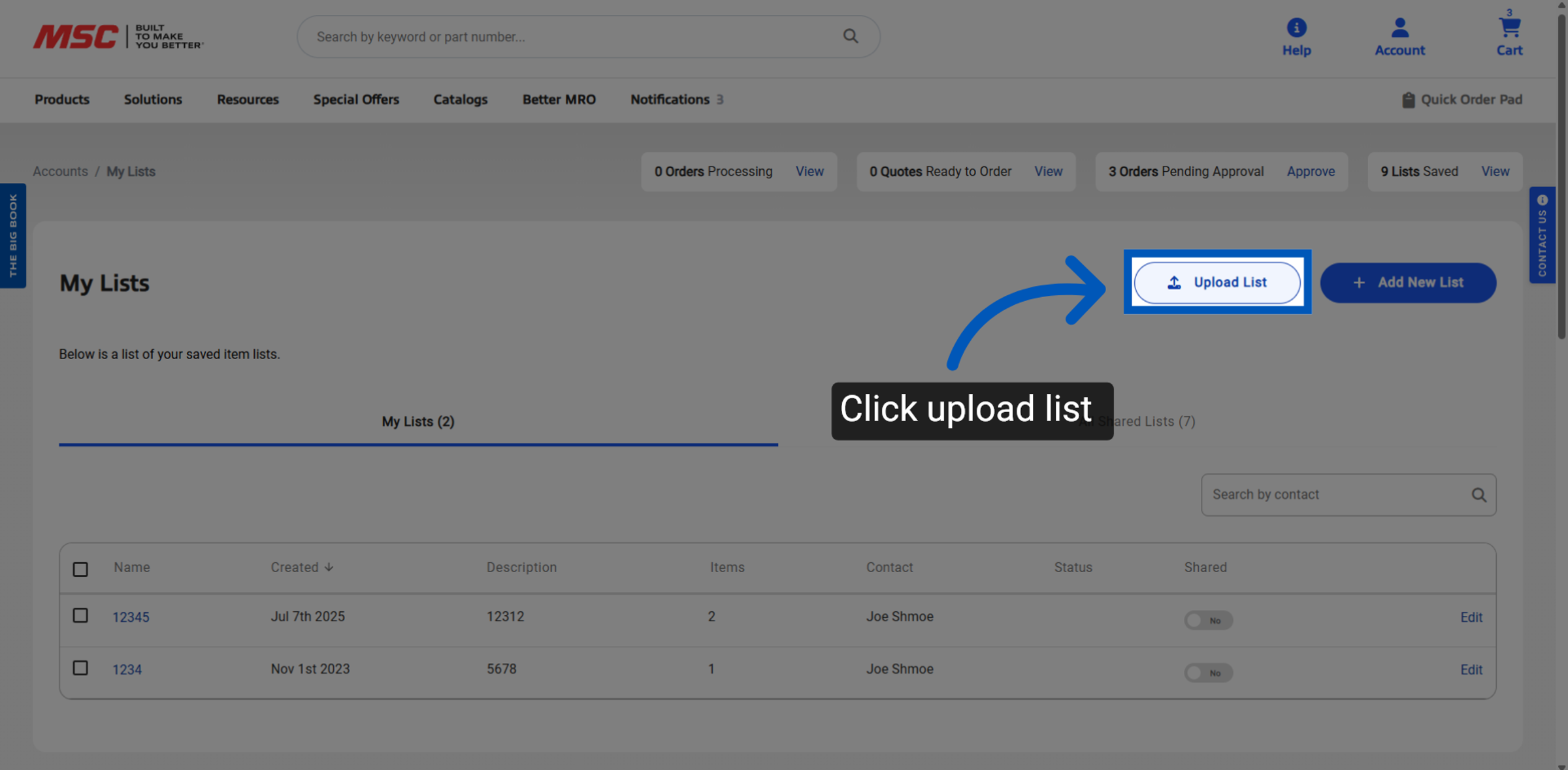
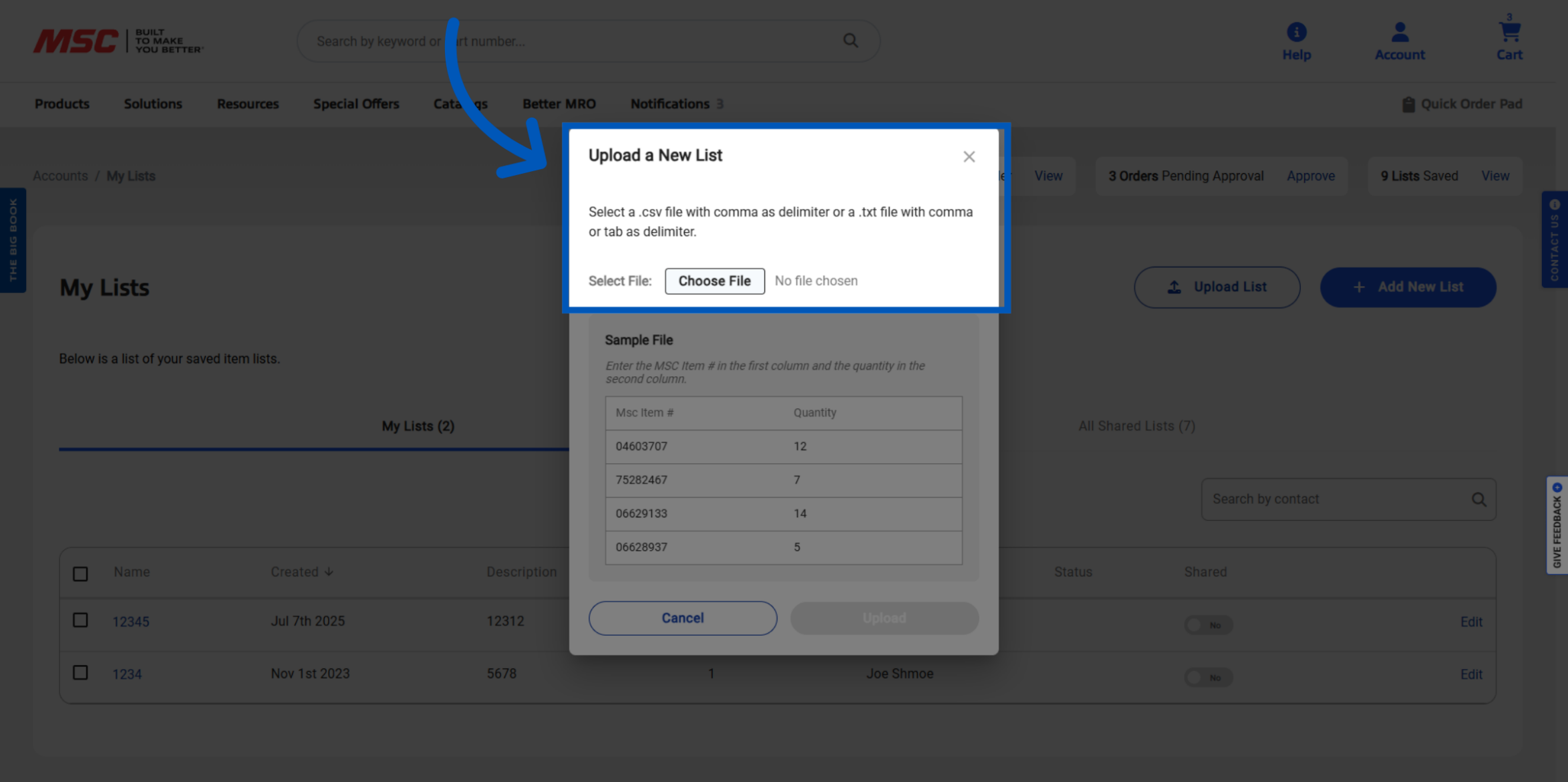
3. Users can perform a bulk upload directly from the list page. This feature enables you to import your list by uploading a file, eliminating the need to enter items individually.
4. When uploading a list, please adhere to the provided example file. Note that the file should not include a header row. Only the MSC P/N should be in the first column, while the Quantity must be placed in the second column. Another important call out is if your part number contains leading zeros, please include those.
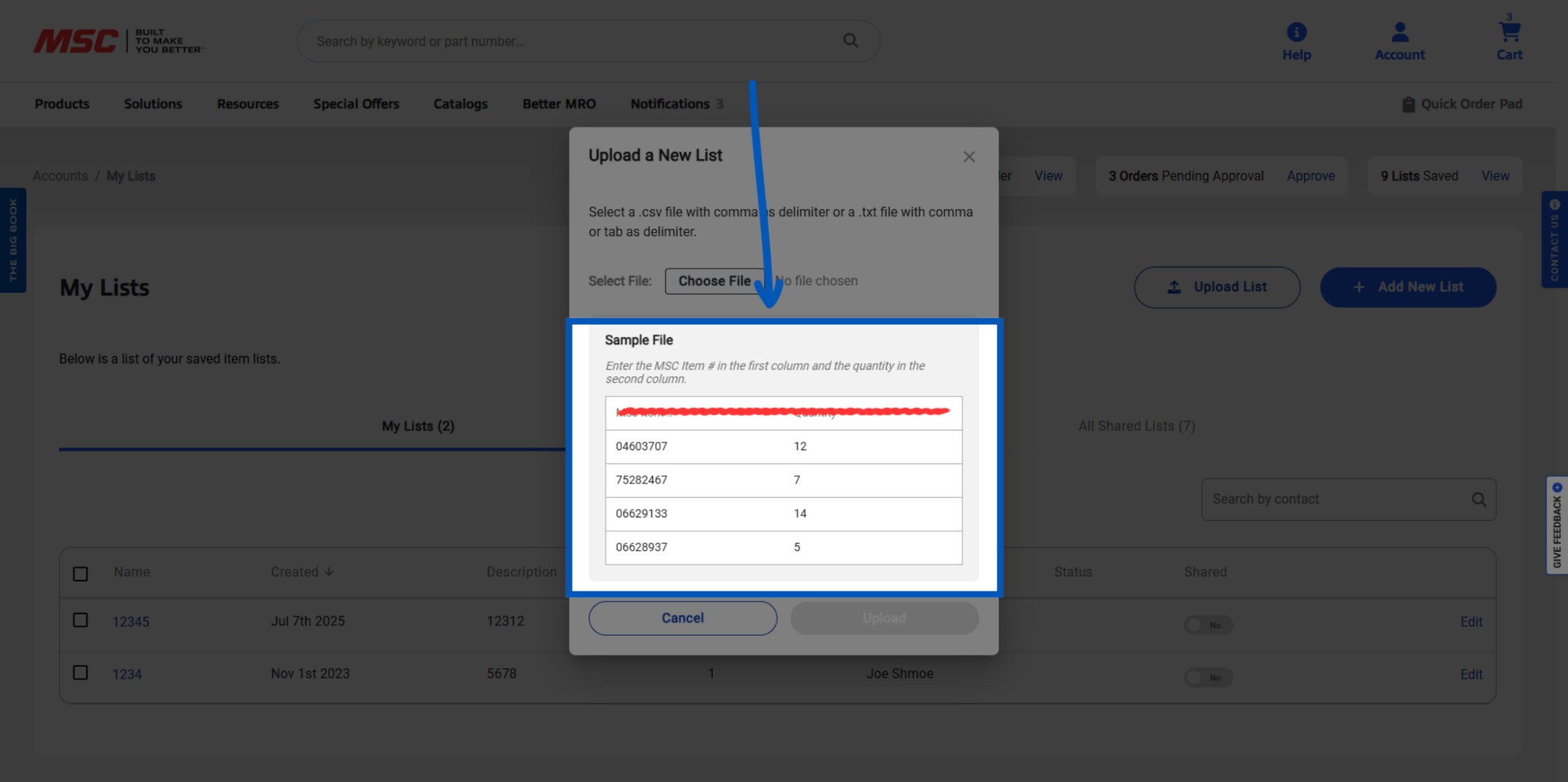
5. Users can upload a CSV file with a comma delimiter or a text file with either a comma or tab delimiter and must choose the file to upload.
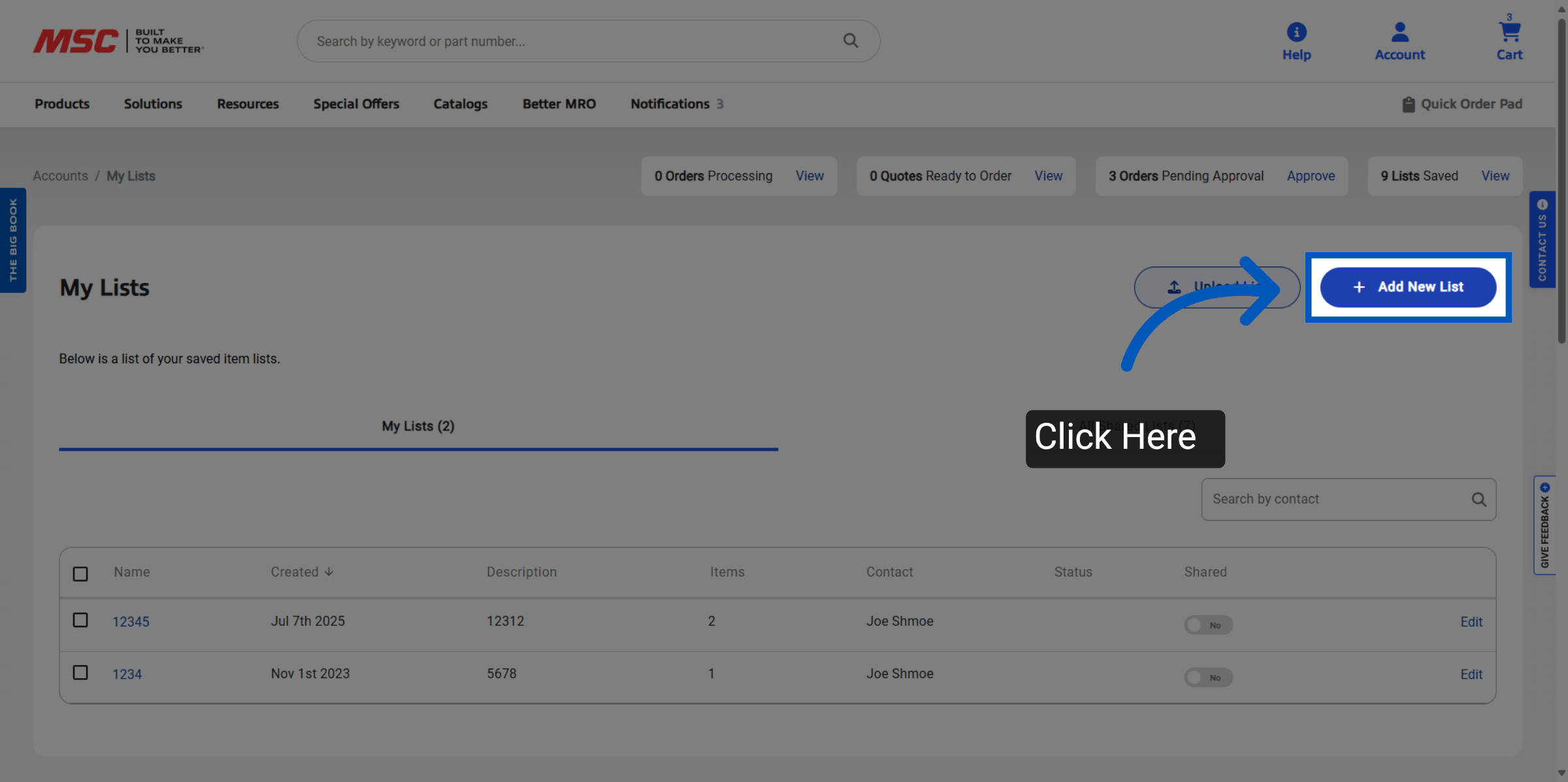
6. Users can also create a new list entirely.
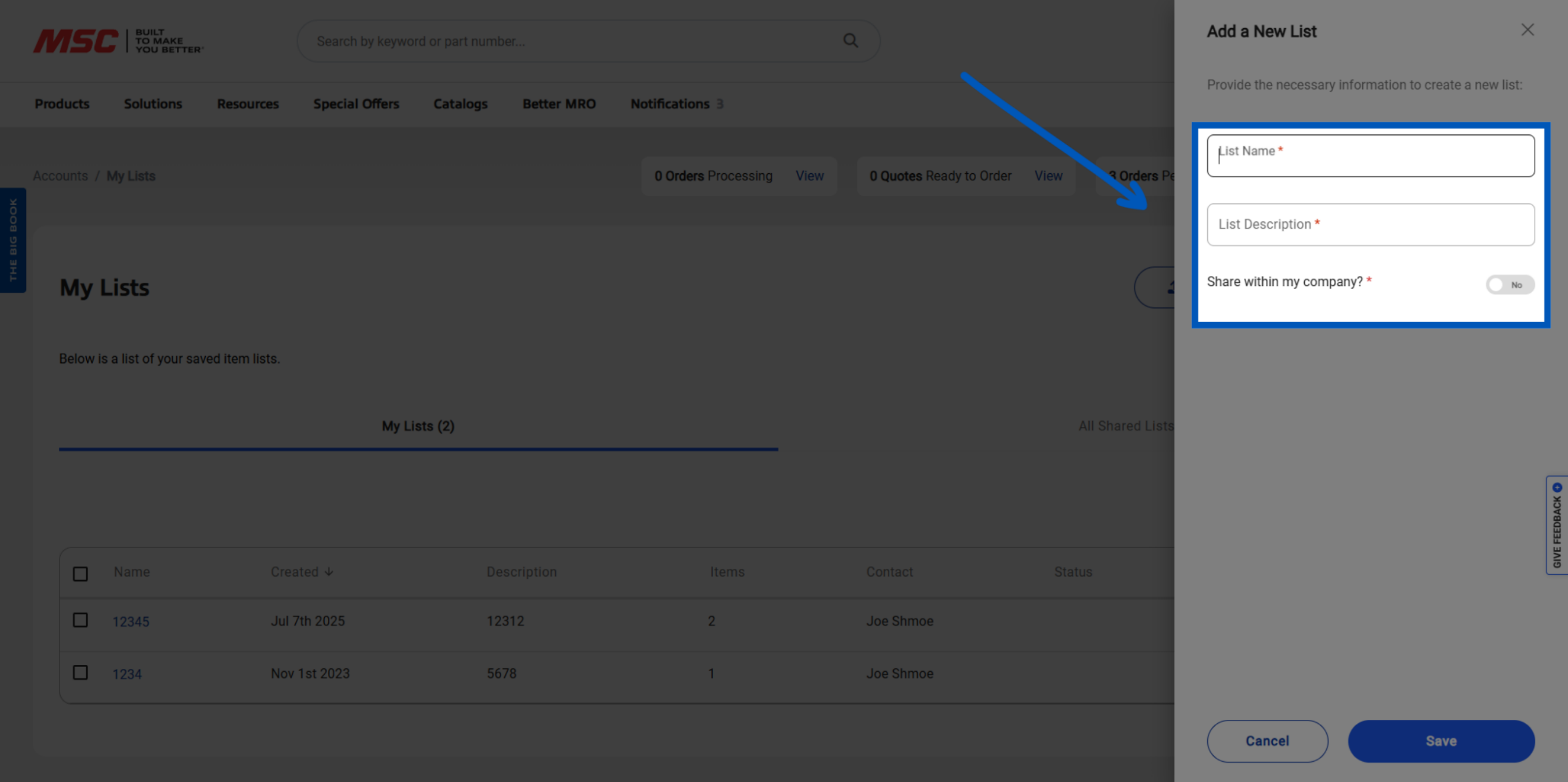
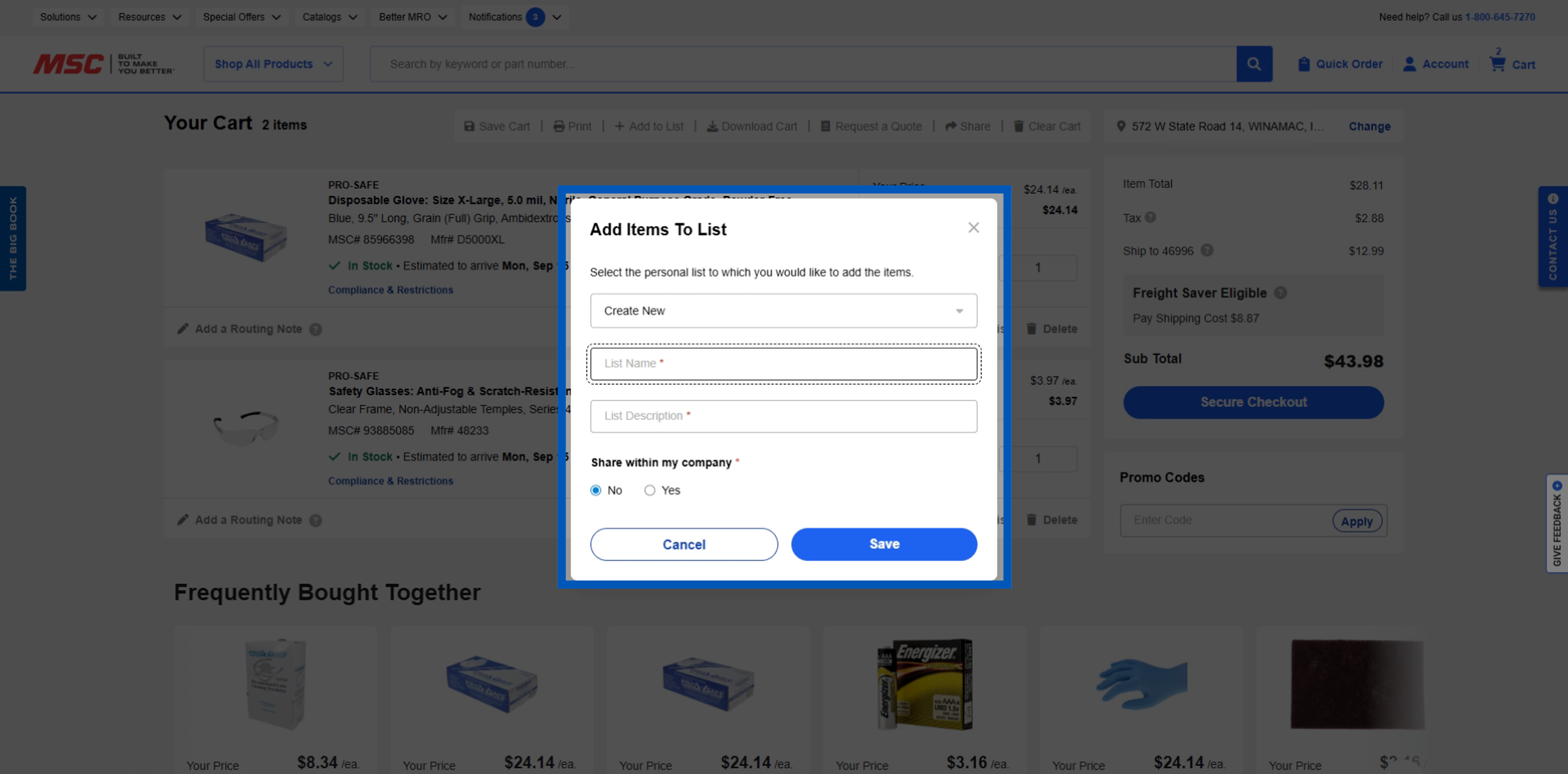
7. Users can add a new list by providing a name and description, and choosing whether to Share within their company.
8. Your list will appear under the my list tab after saving.
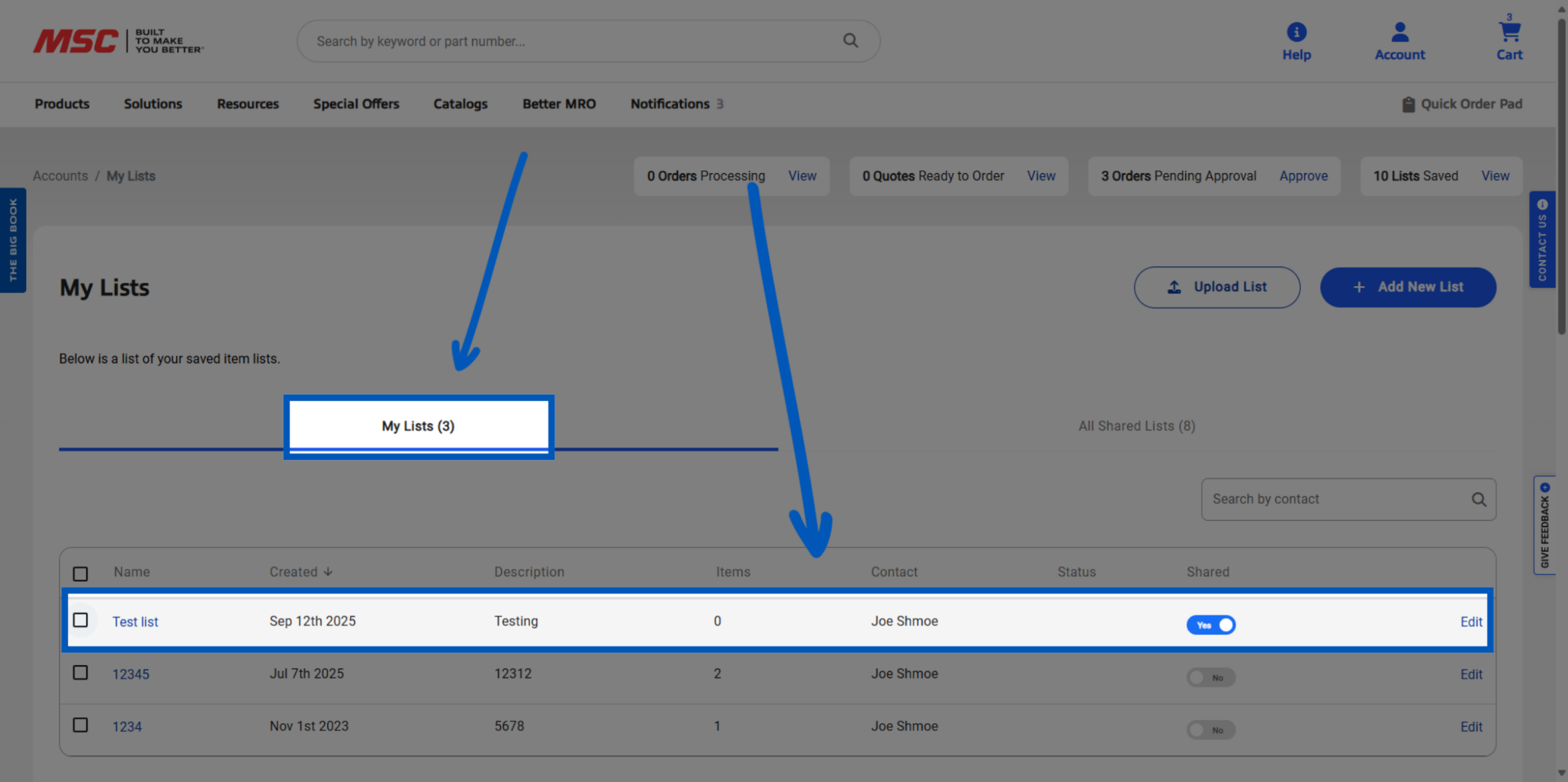
9. To add items to your list click the list name.
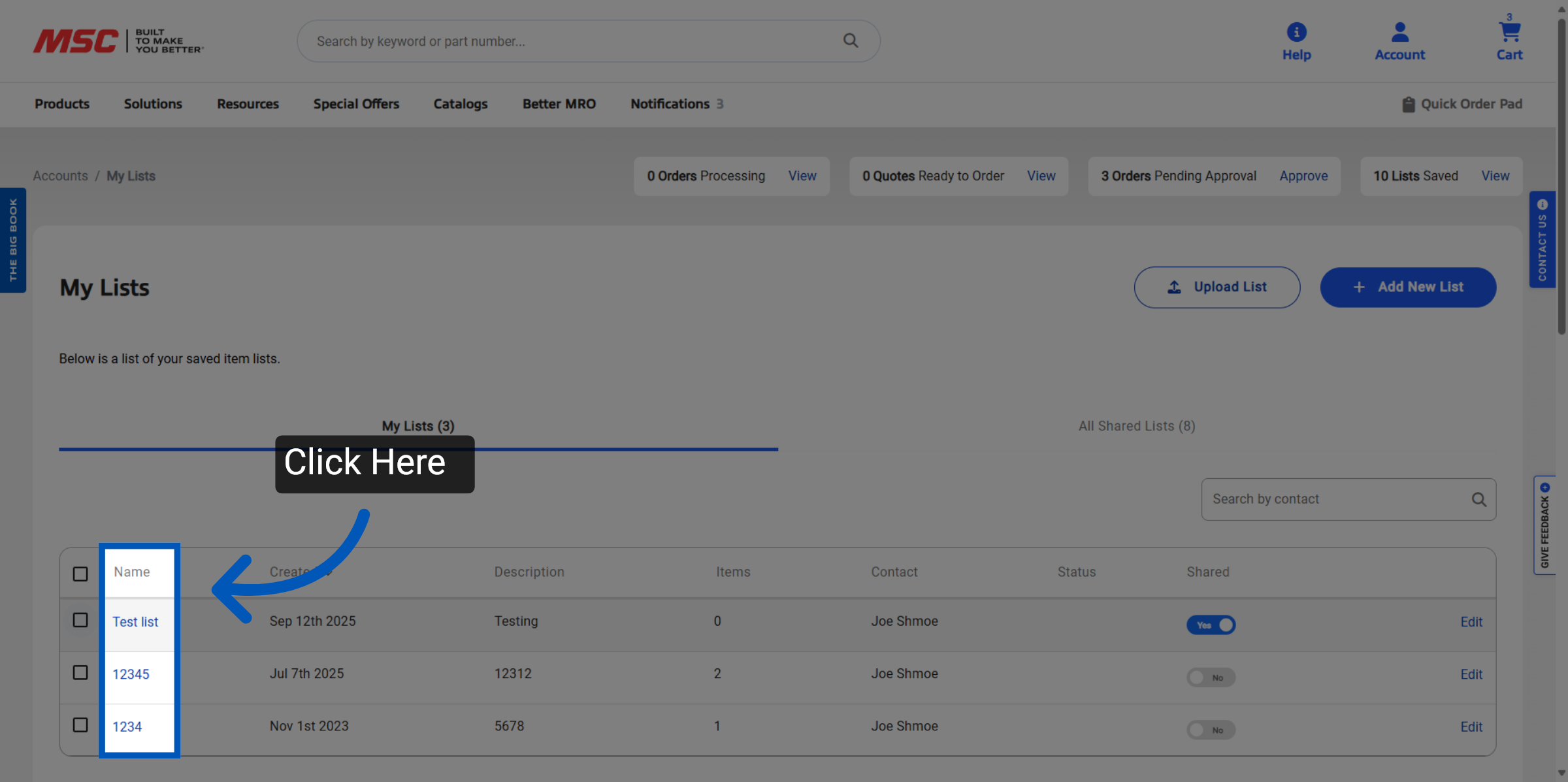
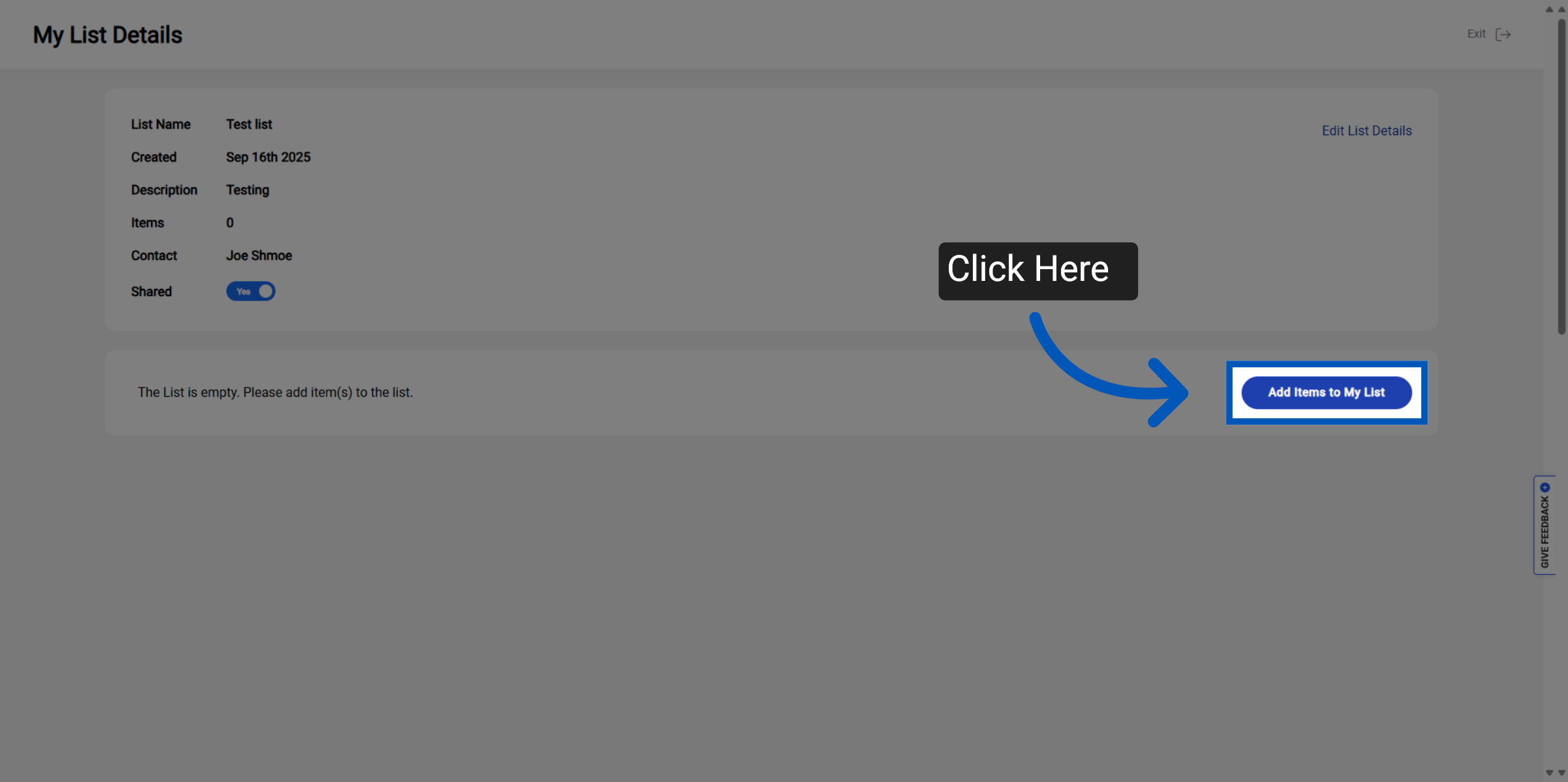
10. Click "Add Items to My List" to start adding new parts to your list.
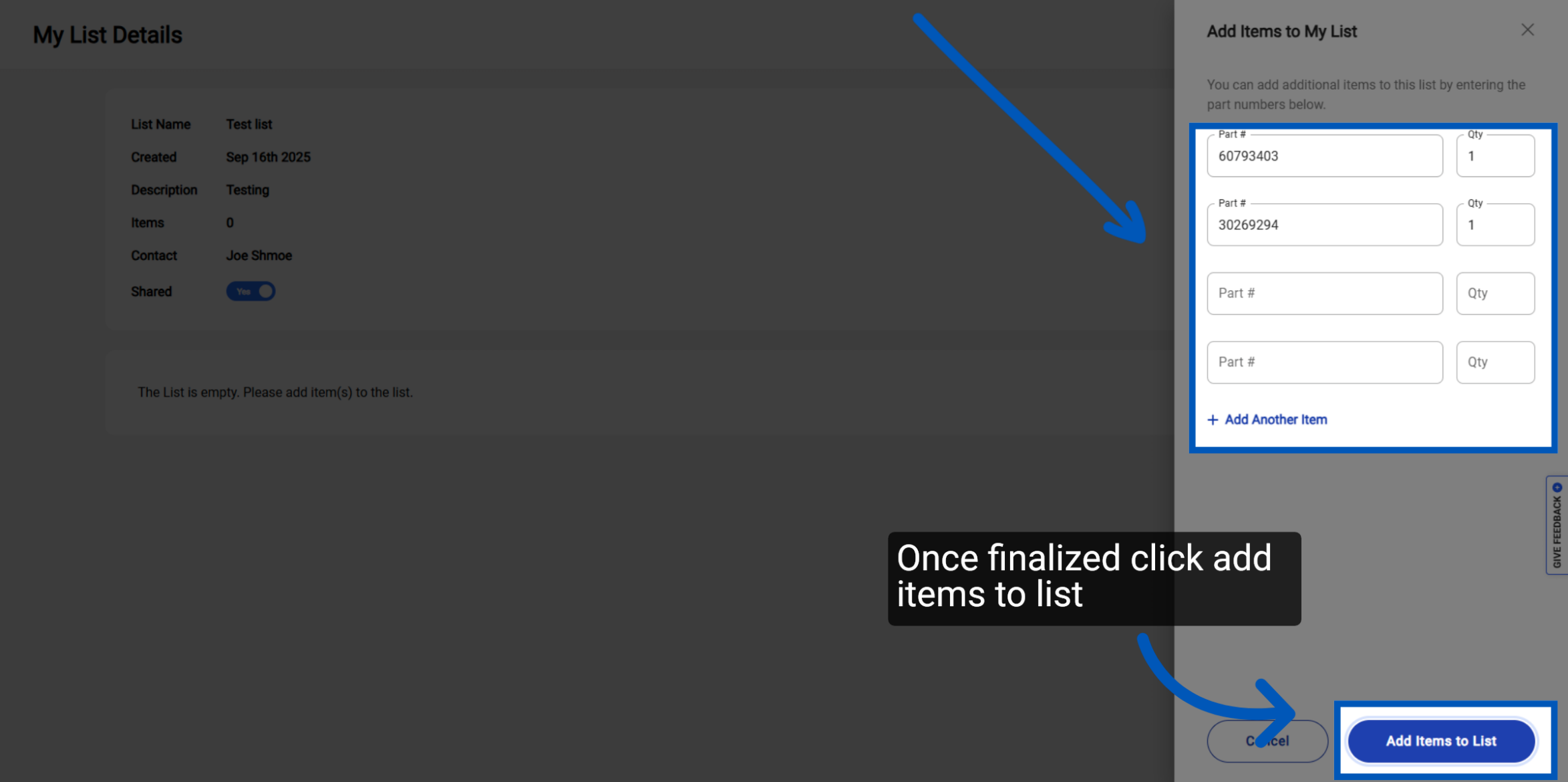
11. Please enter the item's part number and the required quantity. Click "Add to List" to save these items.
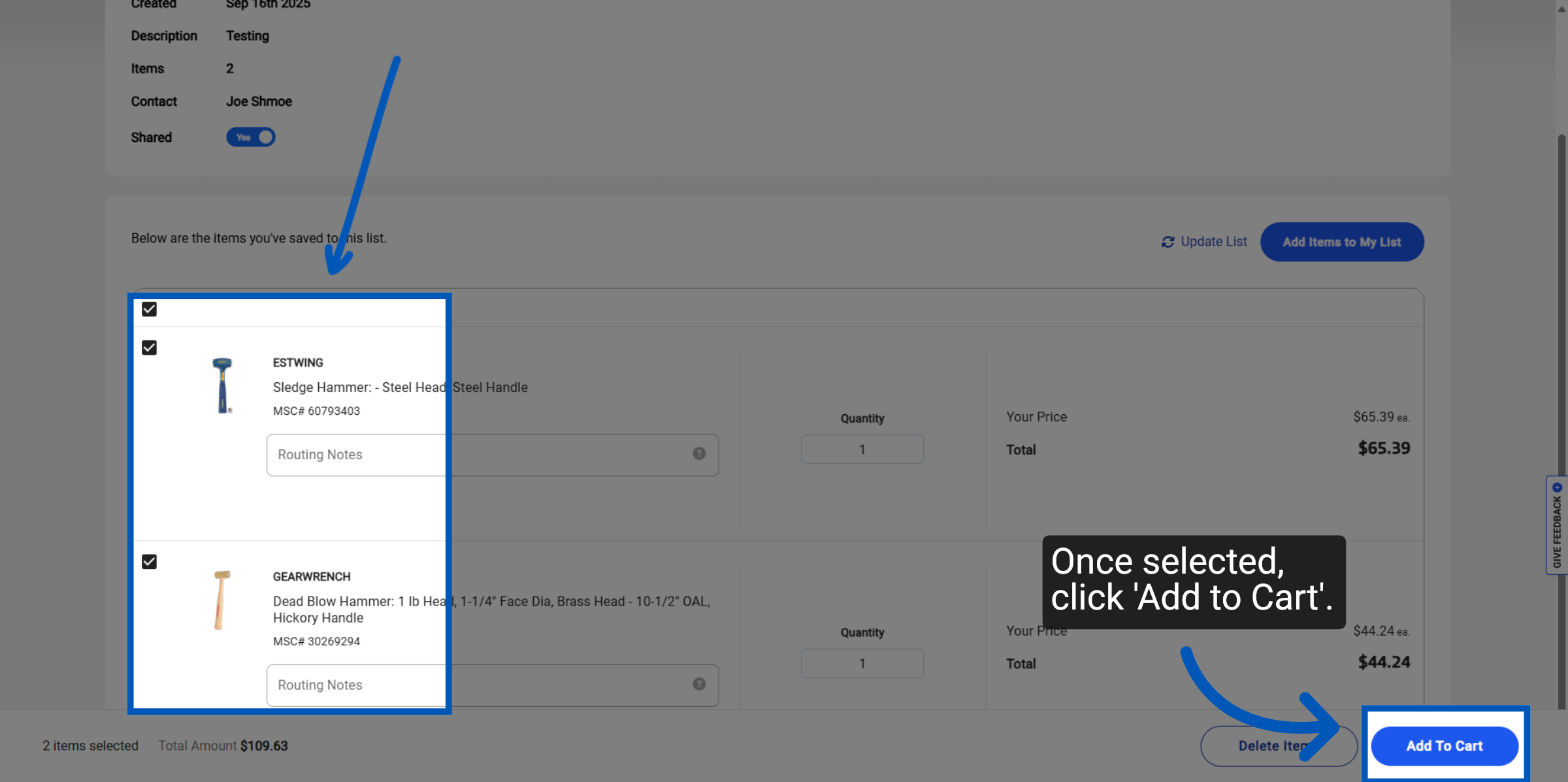
12. You have two options to add items from a list to your cart. Select individual items or the whole list. Then click "Add to Cart".
13. Alternatively, users can add their entire cart to a list by selecting Add to List and choosing the desired list, or create a new list if needed.
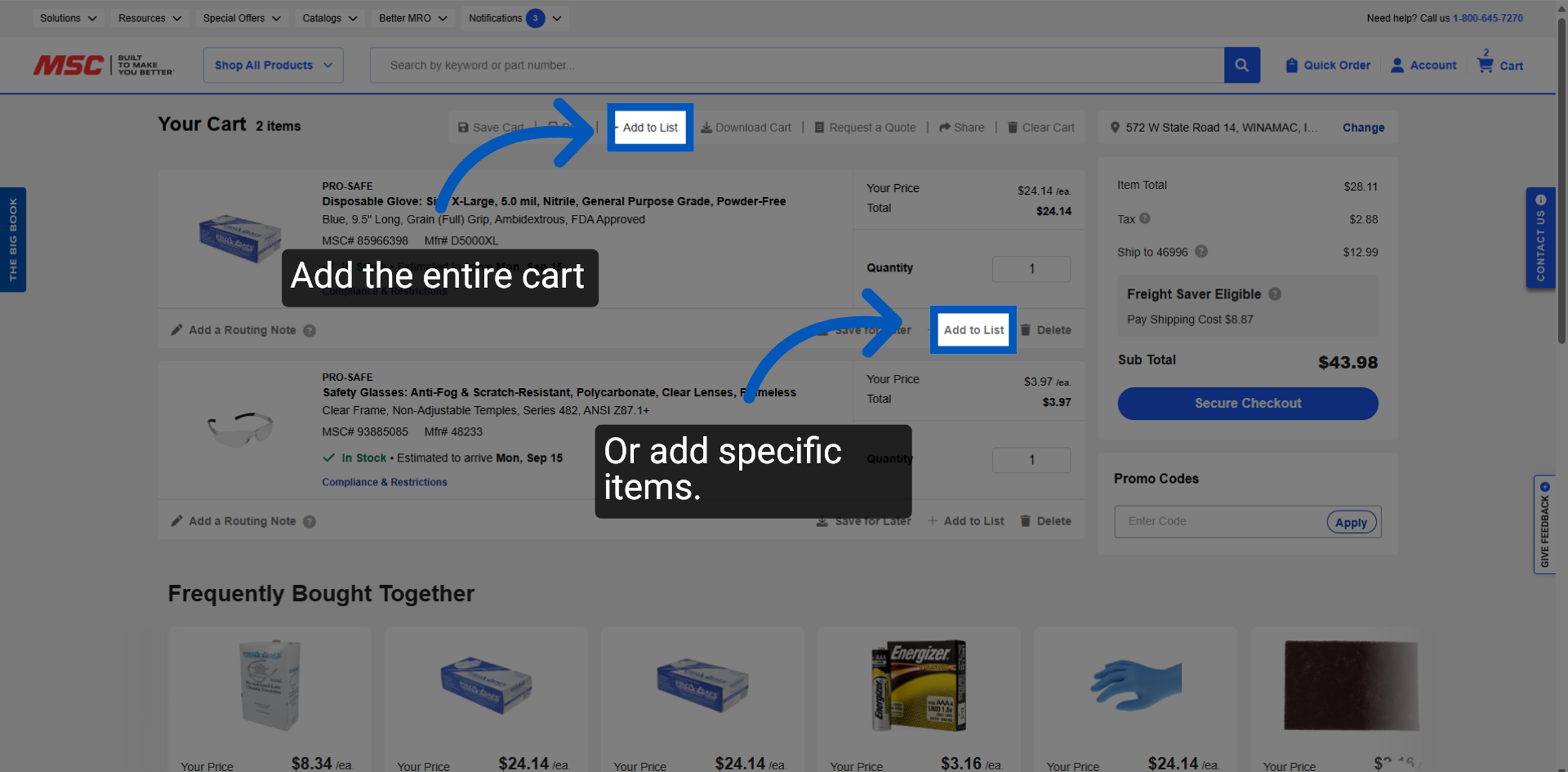
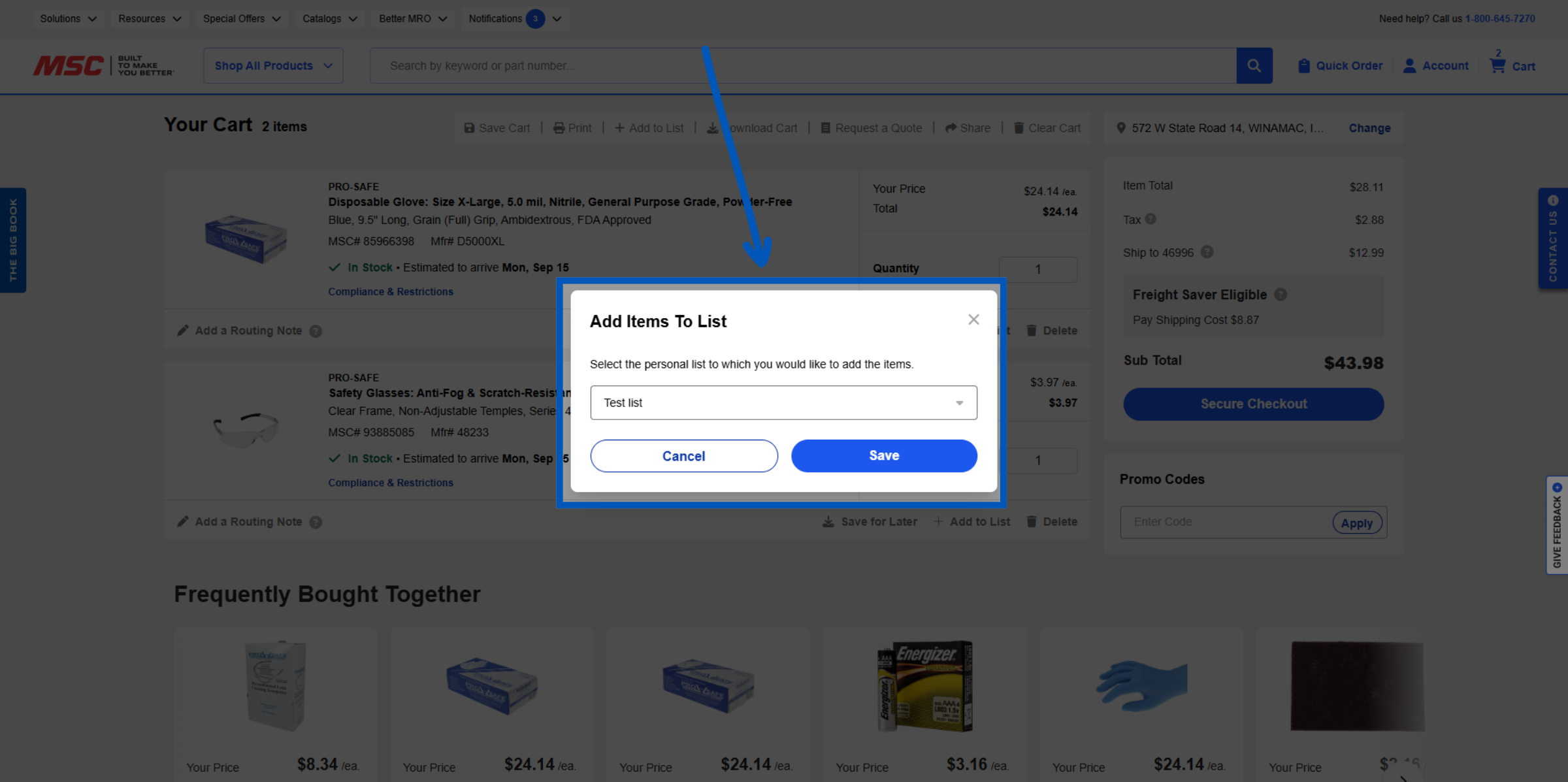
14. Once you have selected what you want to add to your list, you will be able to either select an existing list, or create a new list from the drop down menu.
15. If you chose to create an entirely new list the options here are the same as from the list page.
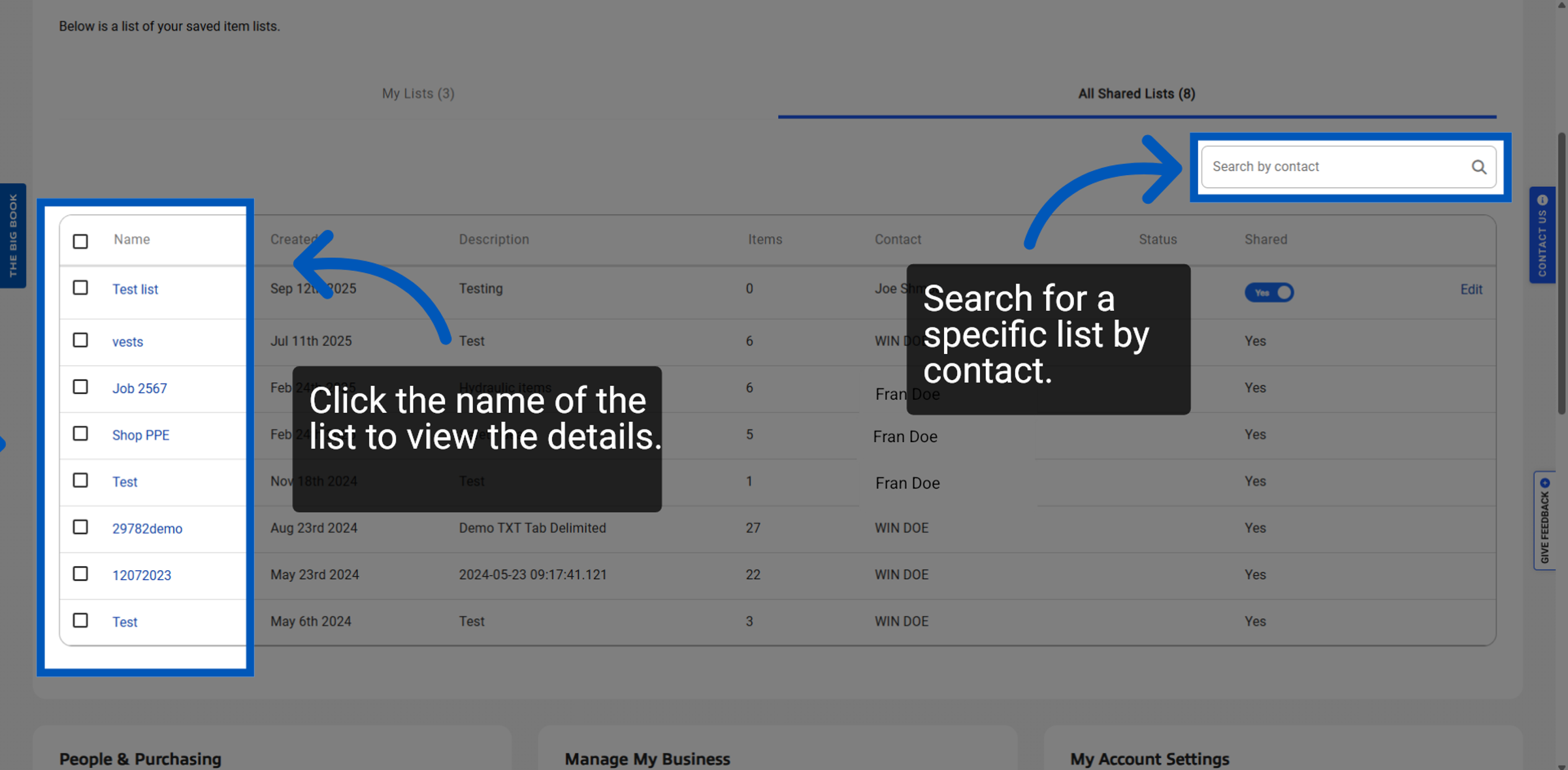
16. Click All Shared Lists to see lists shared with you.
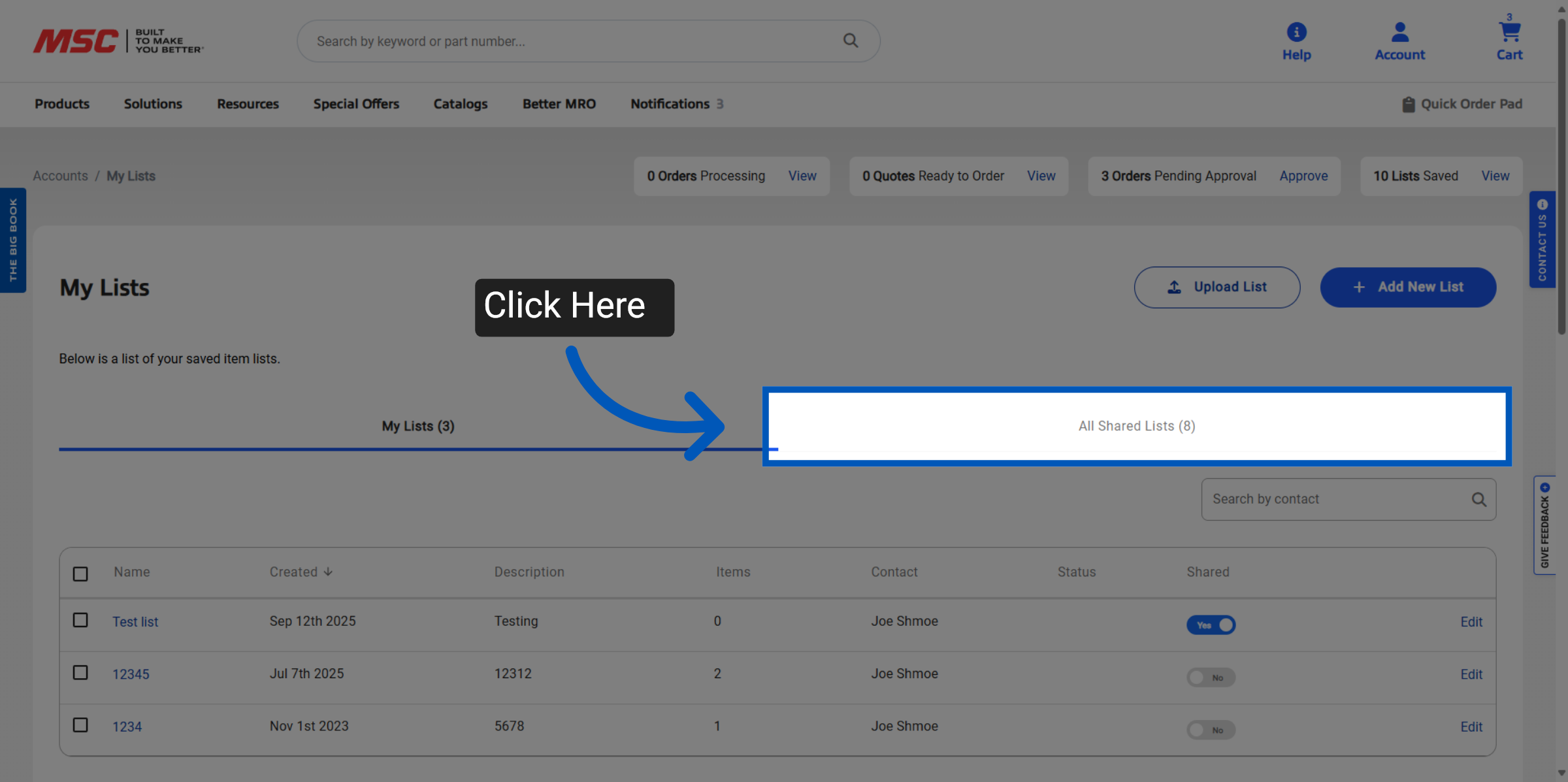
17. From this view you are able to see all lists that have been shared account wide. Click the list name to view the details, and if you need to narrow down these lists, you can search by contacts. Something to keep in mind: you will not be able to make changes to the contents of a list if you are not the owner.
To request a quote, please login to your existing account or register a new one. This helps us provide you with a personalized experience and keep track of your requests.