



Quotes
Introduction:
This training explained two methods for requesting a quote on mscdirect.com: using the shopping cart for listed items and a dedicated form for items not found on the site. It covered how requests are processed based on order value and comments, and outlined expected response times for quotes.
Detailed Step by Step Guide:
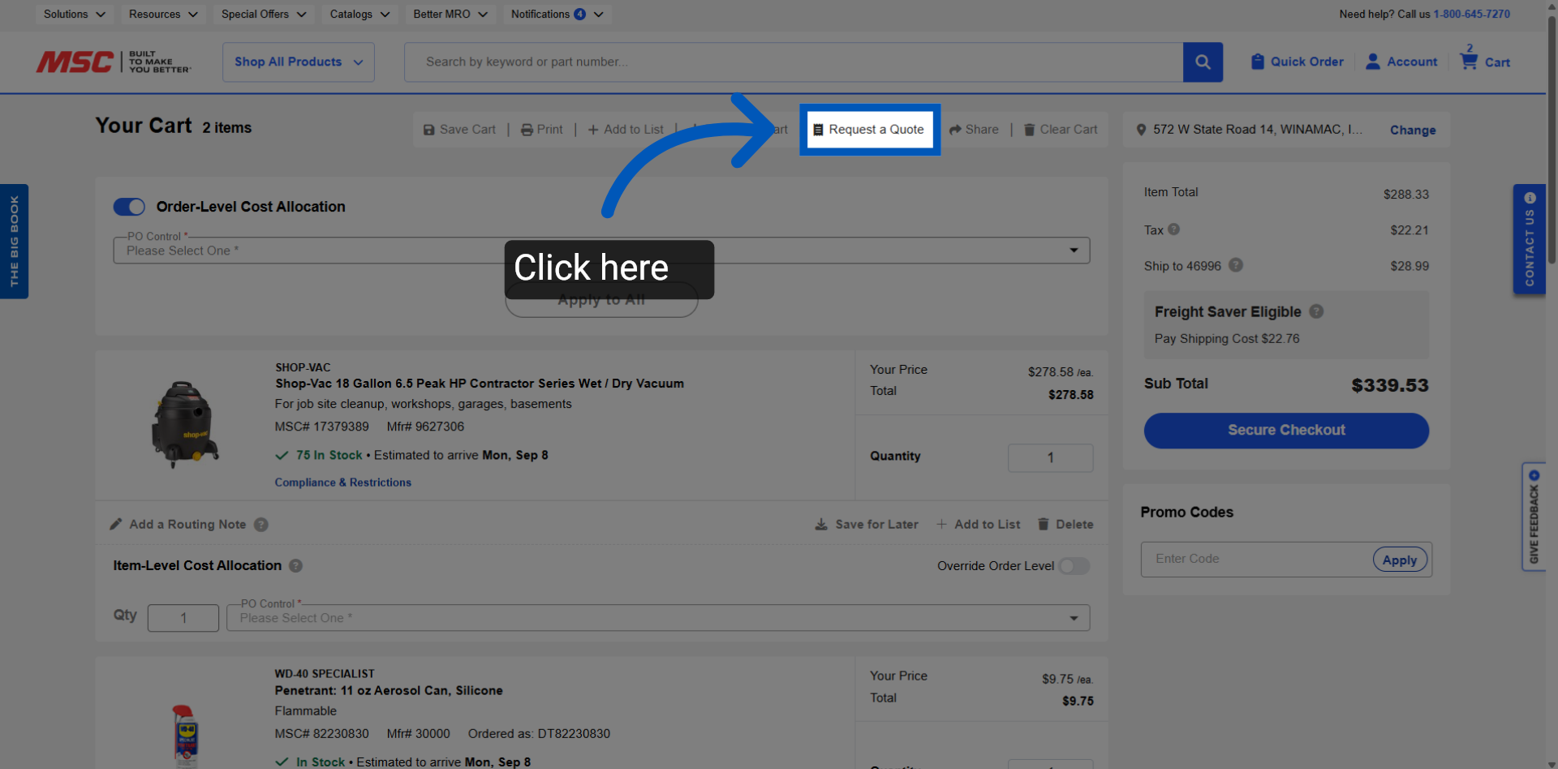
Request A Quote - Click the "Request a Quote" button at the top of the shopping cart page to open a modal for submitting your quote request.
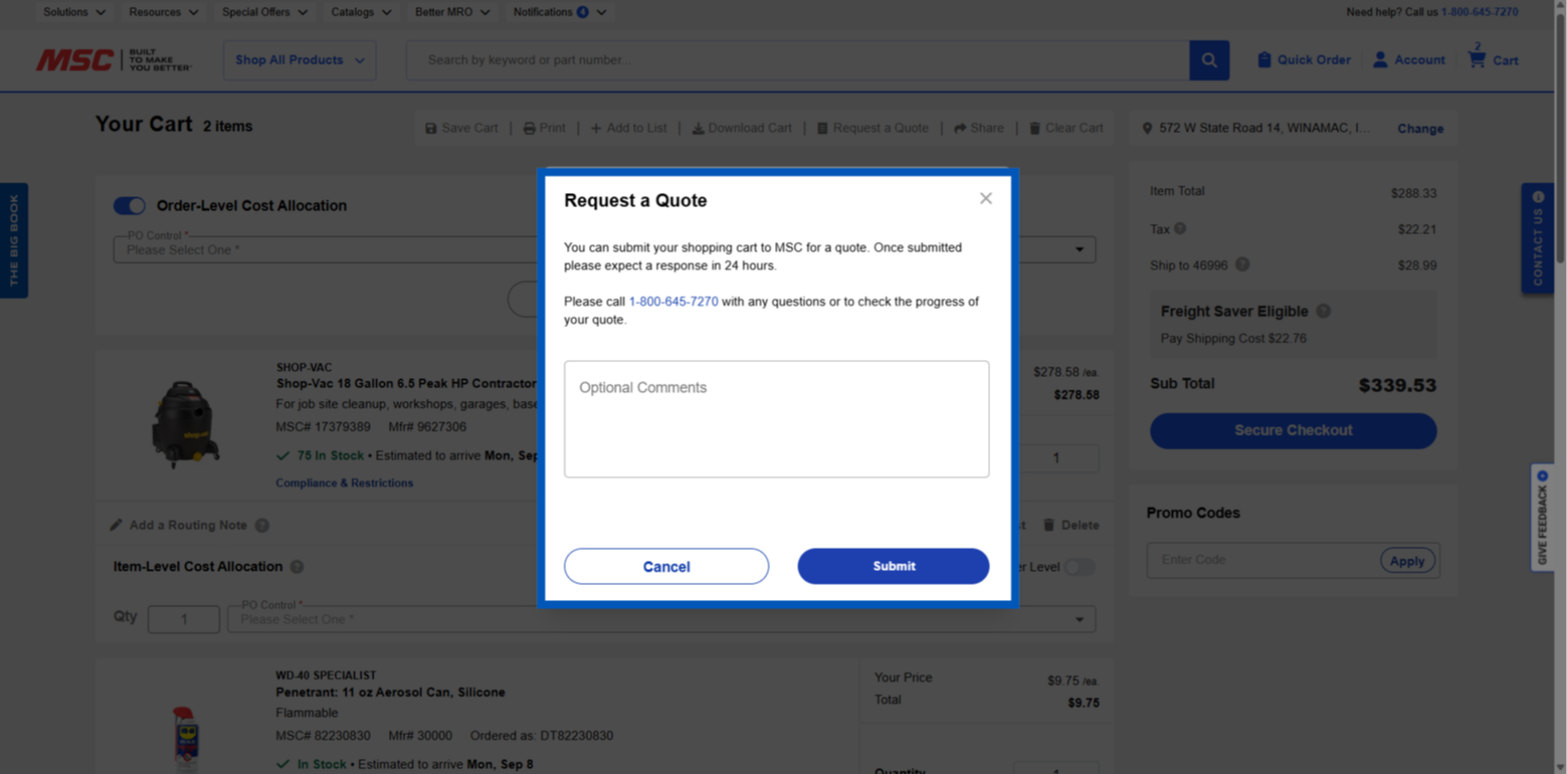
Add Comments - When users add comments to their quote requests, the submissions are directed to a Customer Care associate for manual review and possible adjustments to the quoted items.
If no comments are provided and the request amounts to $1,000 or less, the quote is processed immediately and marked as ready to order.
However, for requests exceeding $1,000, they will be sent to a Customer Care associate for review, regardless of comments. For requests over $1,000, users should expect to receive an emailed quote within 24 hours.
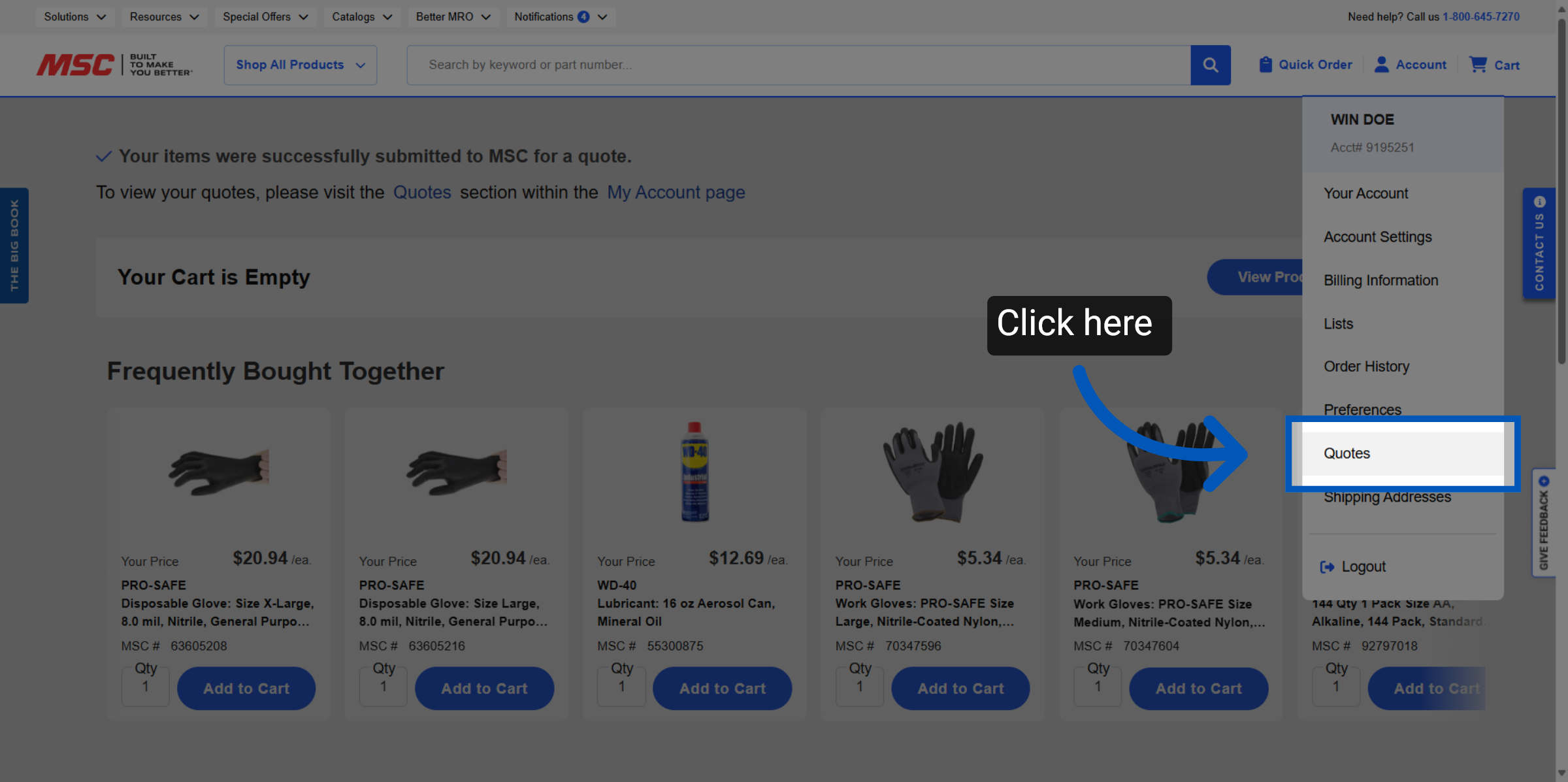
Quotes Page - Alternatively you can submit quotes through the quote page, which can be access through the account drop down.
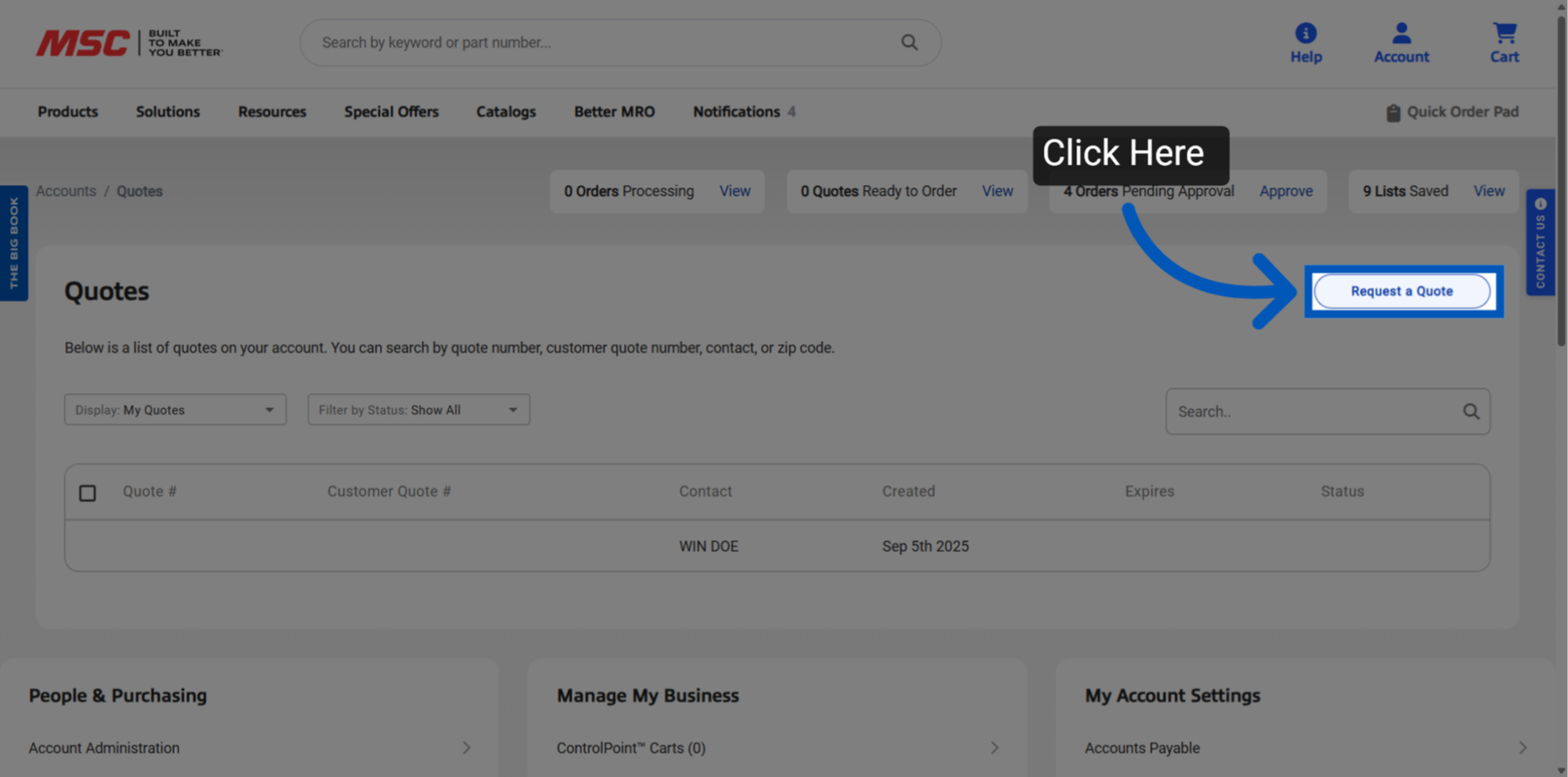
Request A Quote - Click the "Request a Quote" button on the Quotes page.
Contact Info - Your account information will be populated automatically. You will also have the opportunity to add any additional notes.
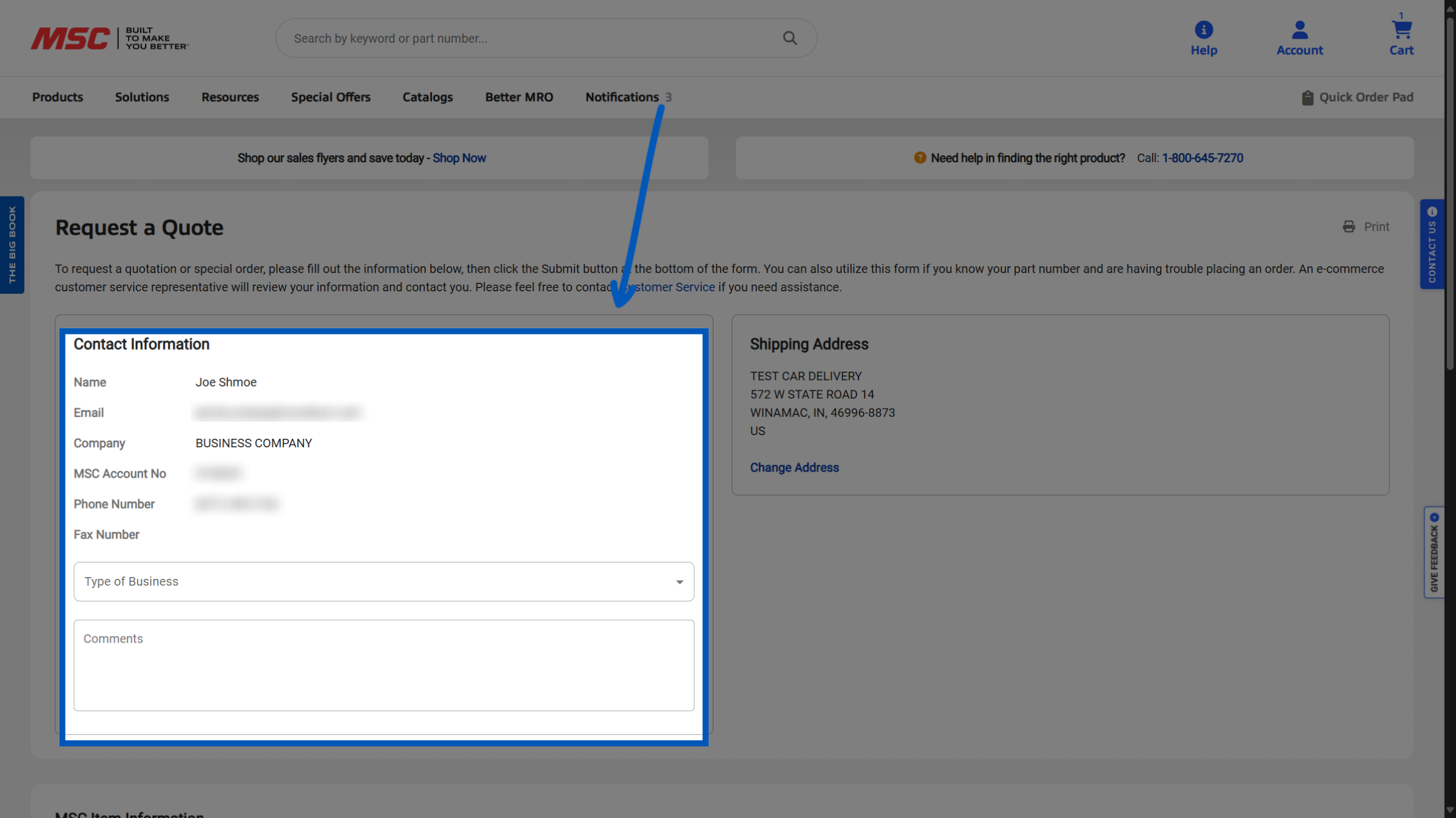
Add an item - In this section, you can specify the items for which you would like a quote. This feature is not limited to products available on MSCDirect.com; you can also request special orders for items we do not currently have in stock.
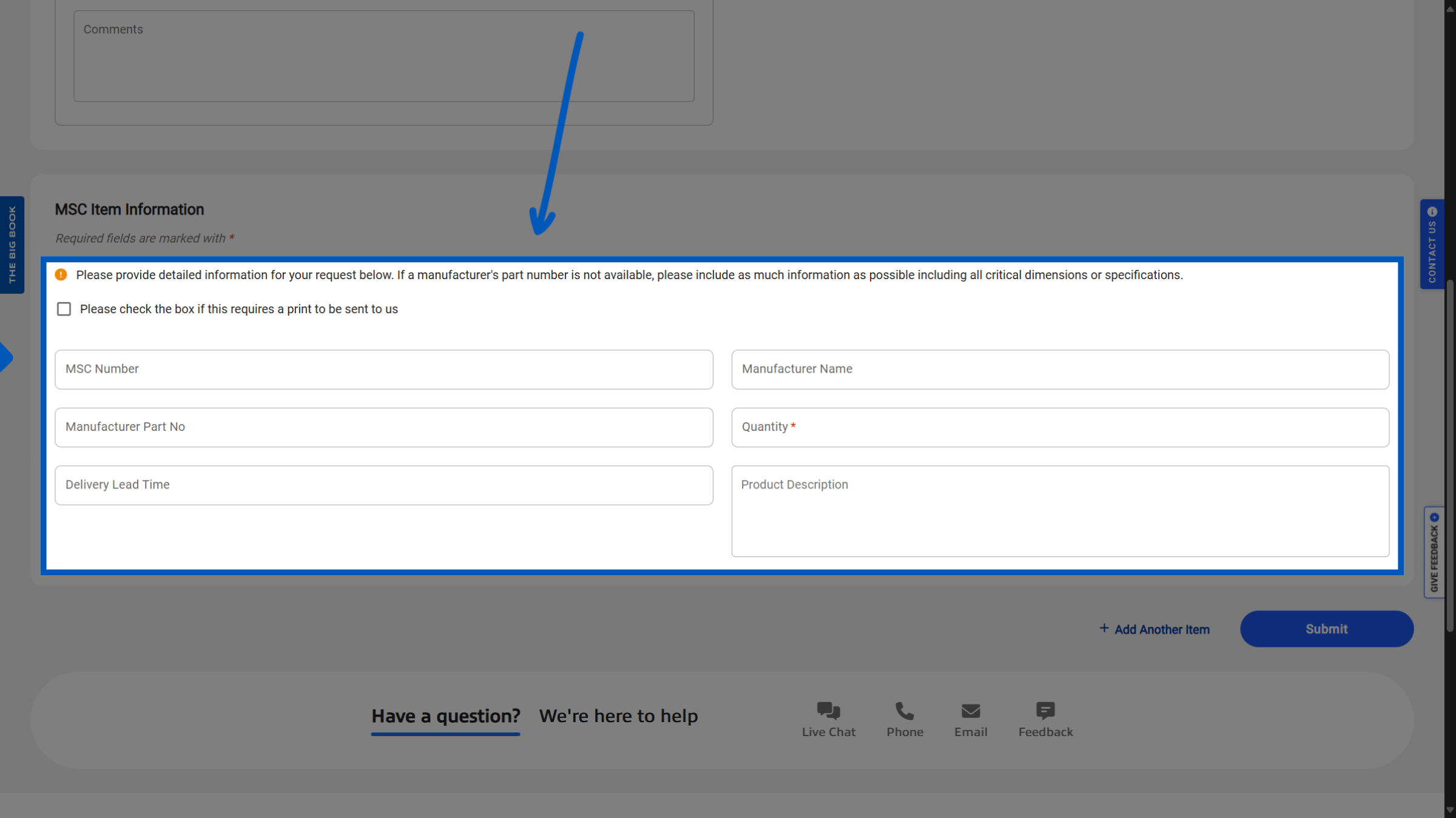
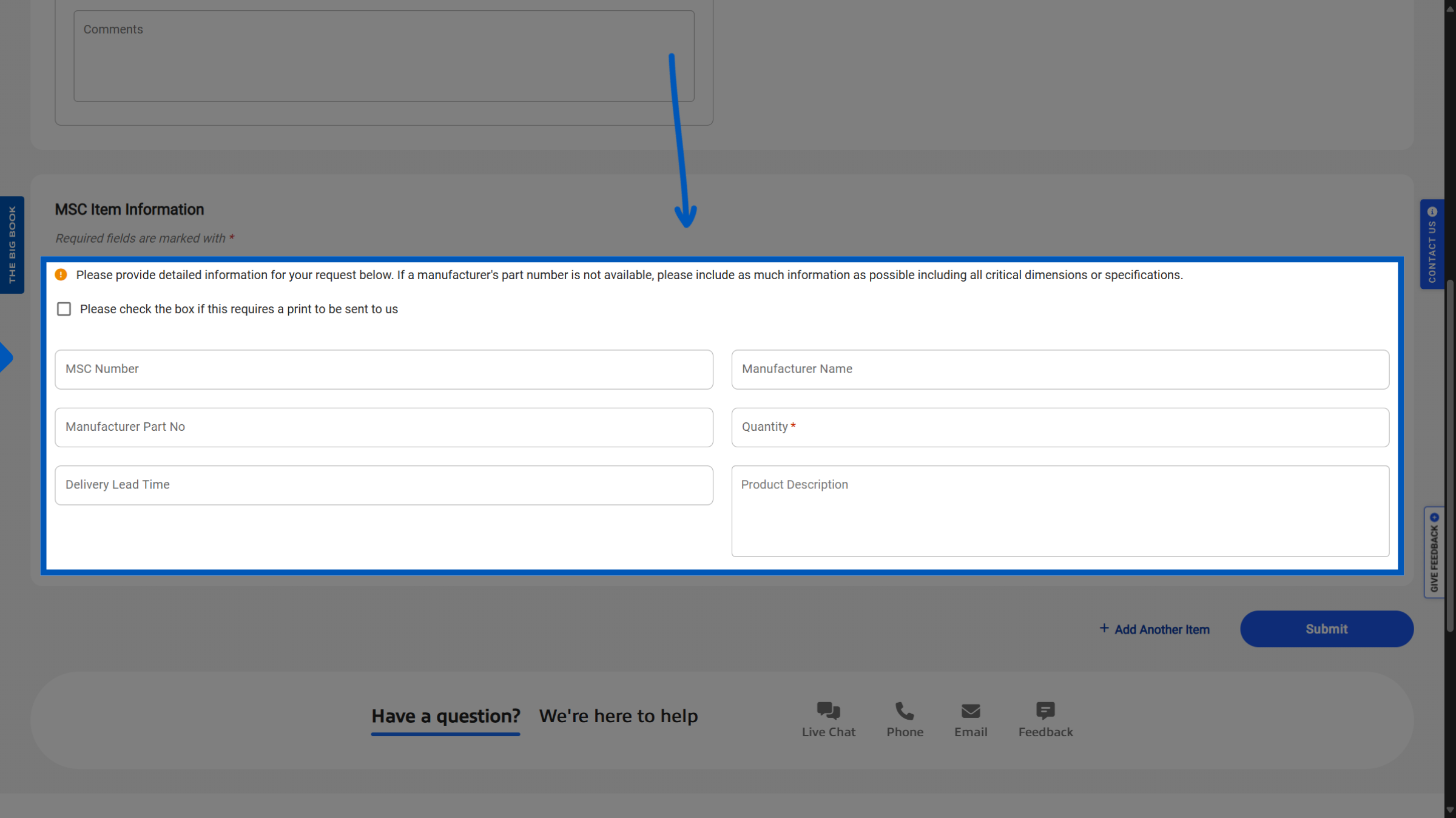
Special Requests - For items not listed on the site or lacking an MSC part number, users should submit any relevant information, including the manufacturer name, manufacturer part number, and any additional details available.
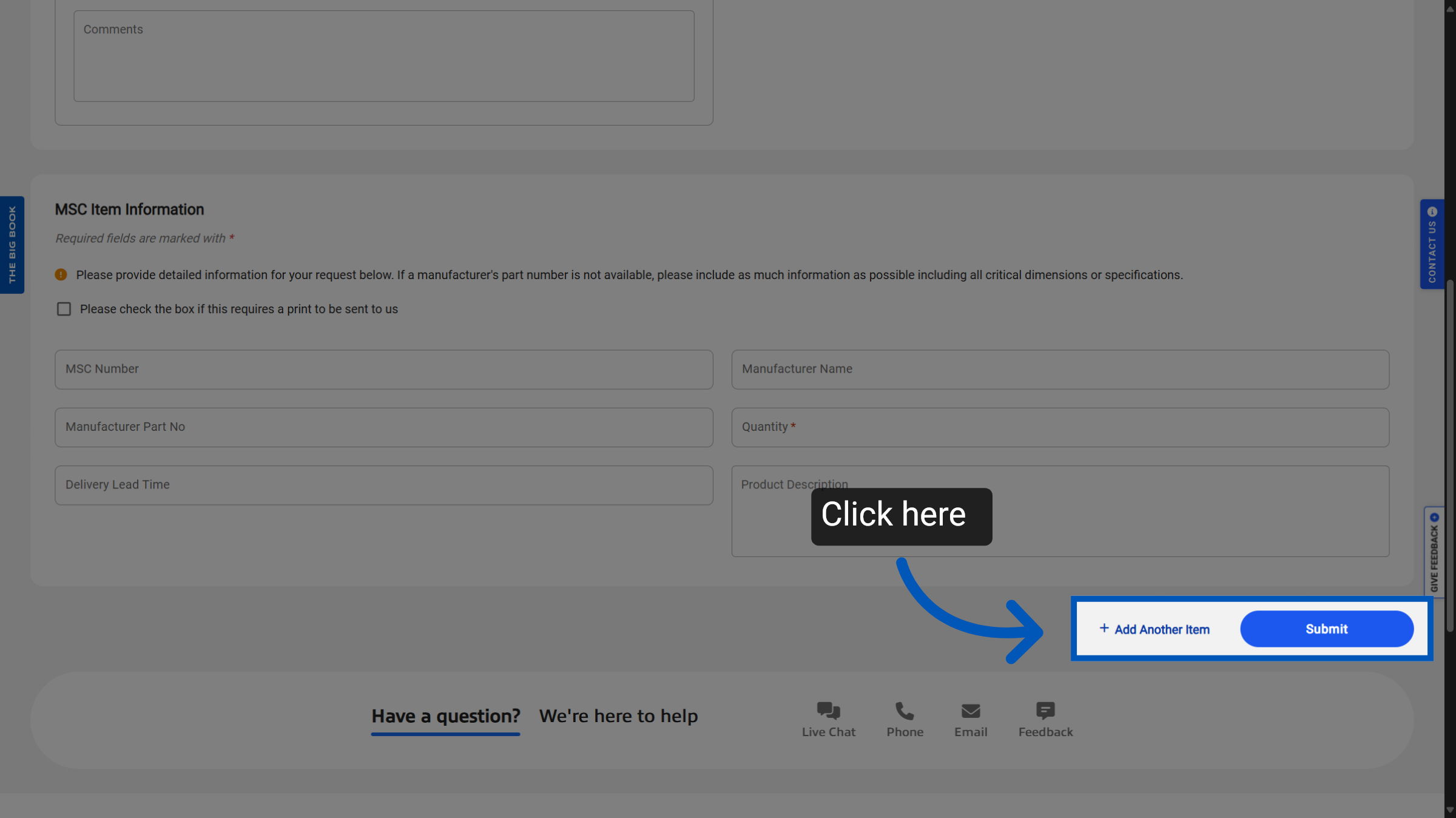
Submit your quote - Once you have added all your items, you click submit here. If you are submitting a quote for an item we do not currently offer, there will be an additional lead time and you should hear back within 24 hours.
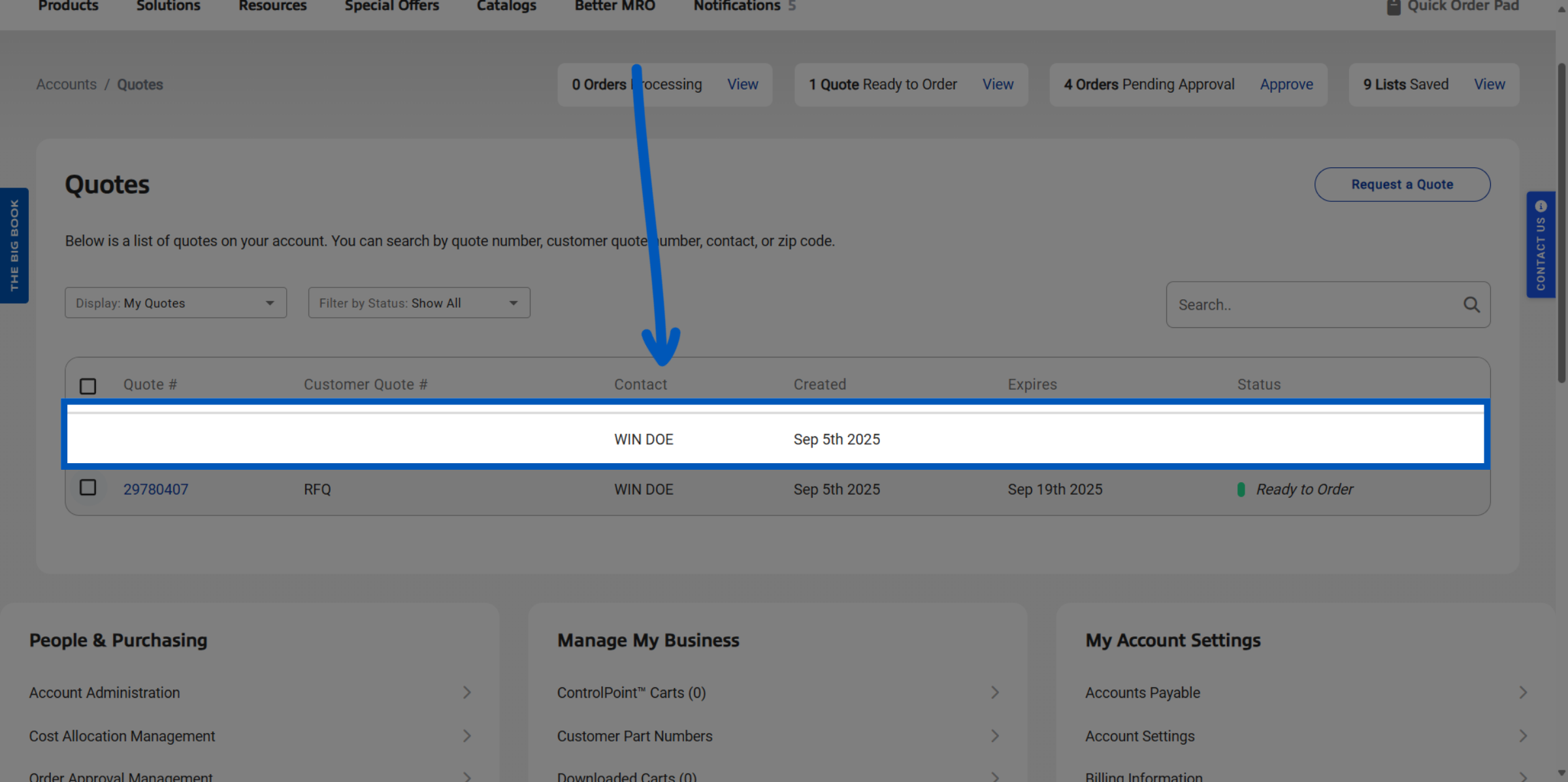
Quotes Page - Once you have submitted a quote you can find all quotes associated to your account. In progress quotes will appear like the below:
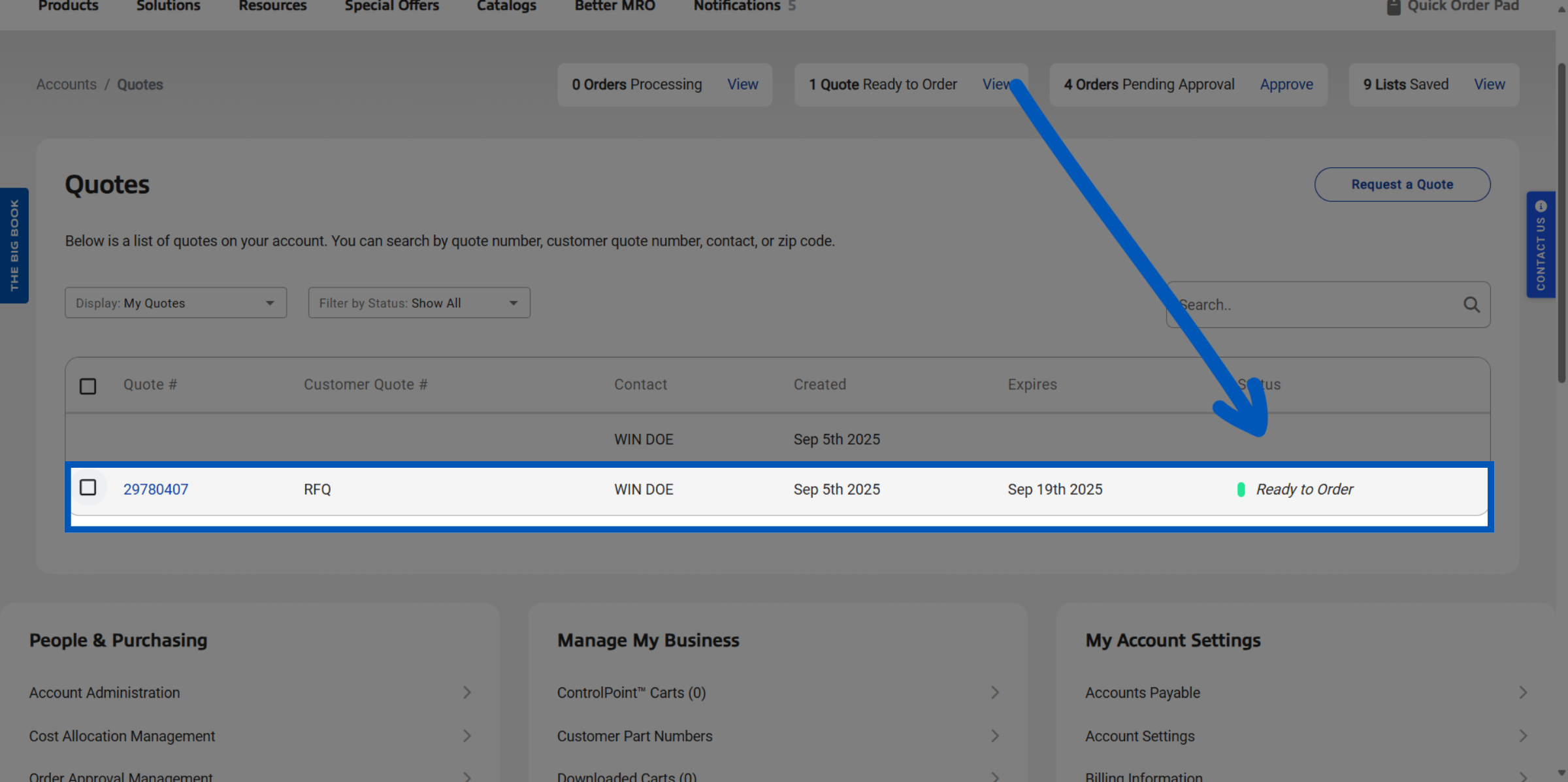
Ready to Order - Finalized quotes will show the quote number, and a green "ready to order" flag.
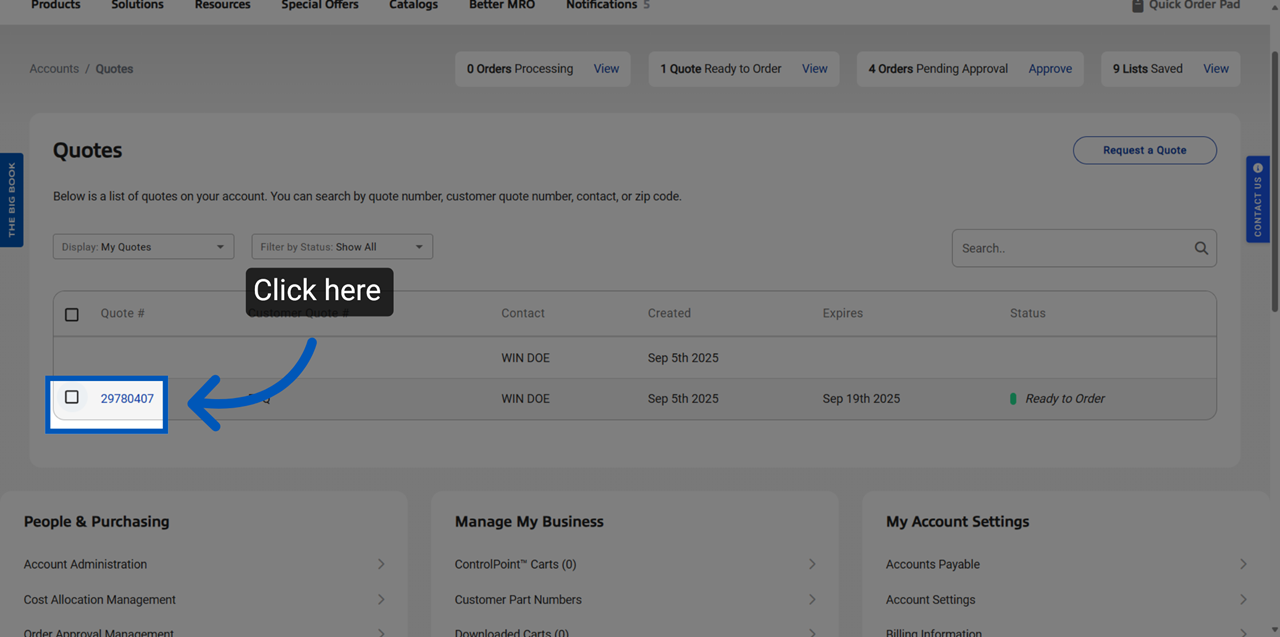
Selecting for ordering - To order your quotes, simply check the box next to each quote number. If you have multiple quotes ready, feel free to select all that you'd like to order.
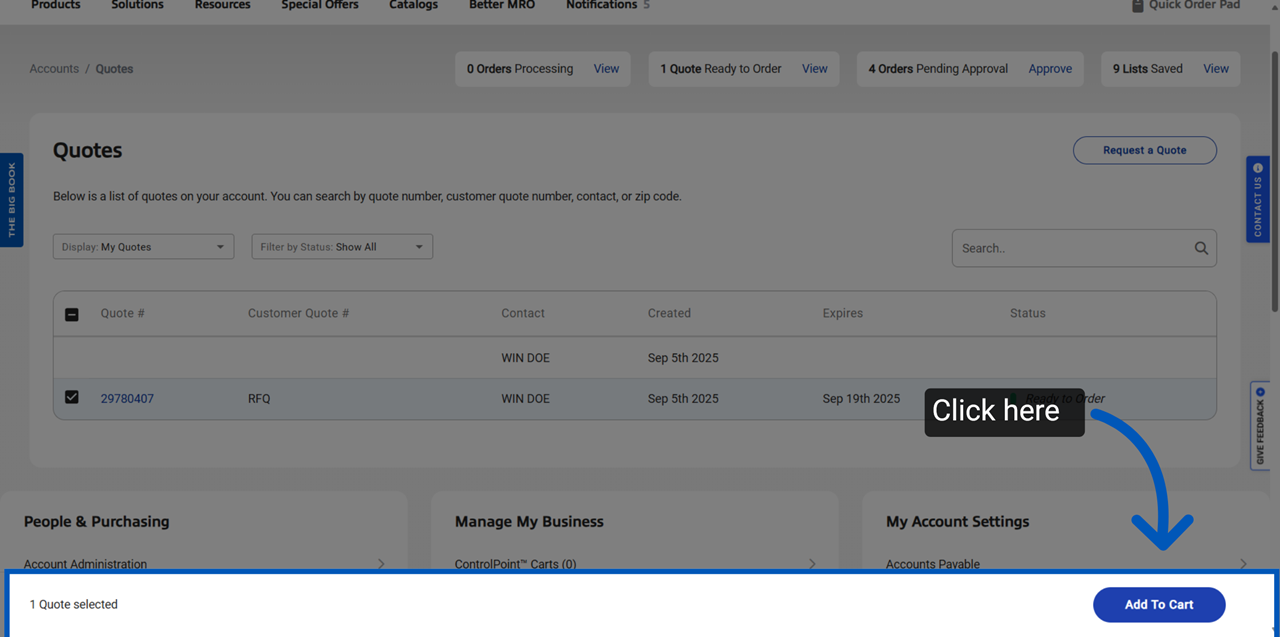
Adding to Cart - After selecting your quotes, click the "Add to Cart" button in the pop-up below. This will automatically add the items from your chosen quotes to your shopping cart.
Note: Users can also choose the filter and add quotes created by other contacts under the same account to order as well.
To request a quote, please login to your existing account or register a new one. This helps us provide you with a personalized experience and keep track of your requests.