



Bill-To | MSC Bill-To Accounts & MSC Billing Setup
As an admin, you have the ability to change your billing address here and manage payment methods and reference numbers efficiently. This tutorial provides a step-by-step guide for administrators to manage billing information within the platform. MSC bill-to accounts allow account administrators to centralize invoicing, manage MSC payment methods, and configure MSC payment terms across their organization, completing MSC billing setup including updating the billing address, adding credit cards, enabling COD payment, and managing reference numbers.
Detailed Step by Step Guide: | MSC Billing Setup
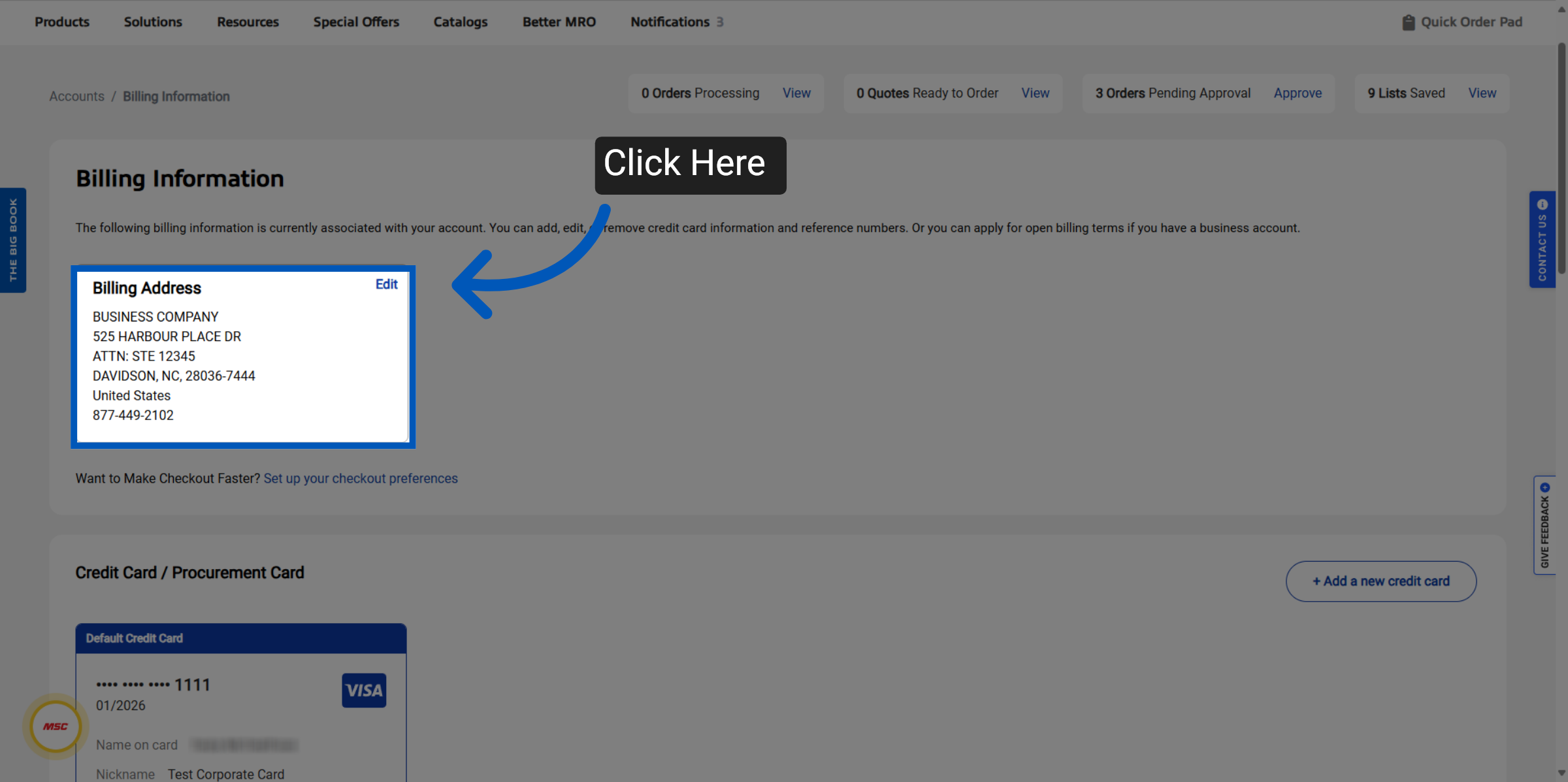
Billing Information - From the billing information section admins can change their billing address allowing them to make updates to street address, and primary phone number. Start by clicking the edit button at the top of your current address. This is part of your MSC billing setup.
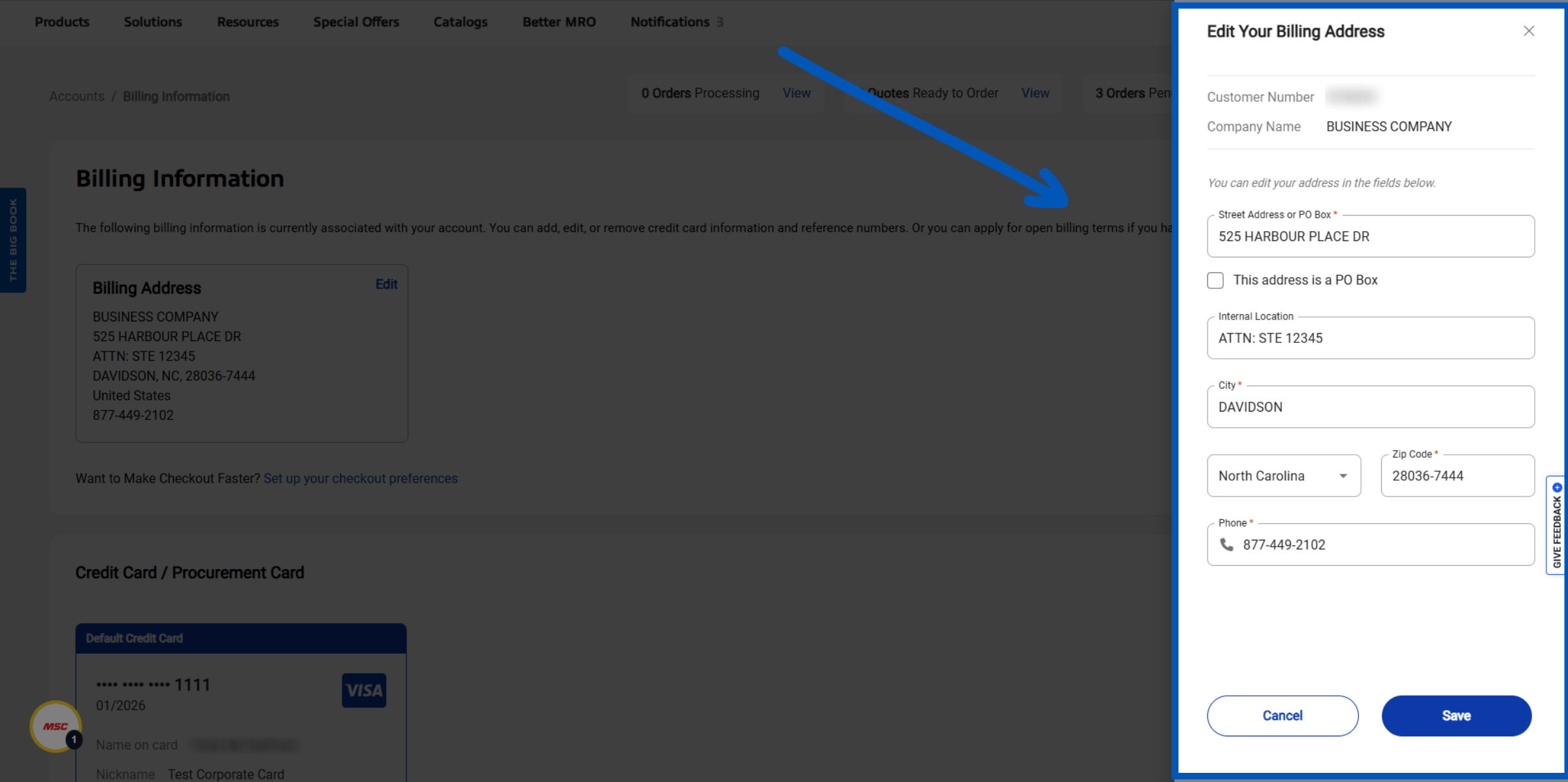
Updating Billing Address - Completely fill out the address form with the address you would like to register as your billing address for your MSC bill-to accounts. Click on the “Create” button to finalize the billing address.
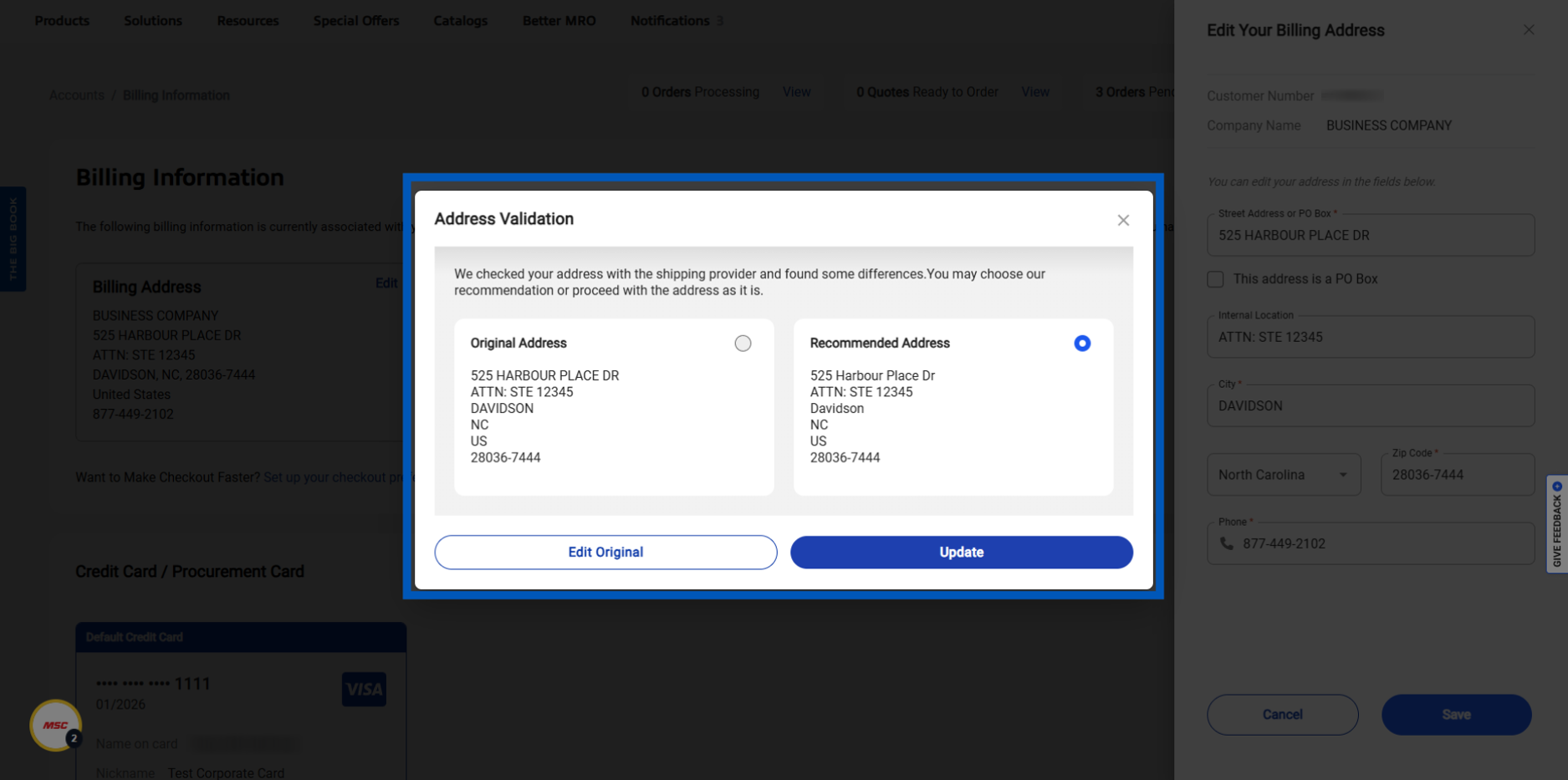
Address Validation - After saving the new billing address, the system performs address validation. This step ensures your address is valid, and it is advised to use the recommended address if applicable.
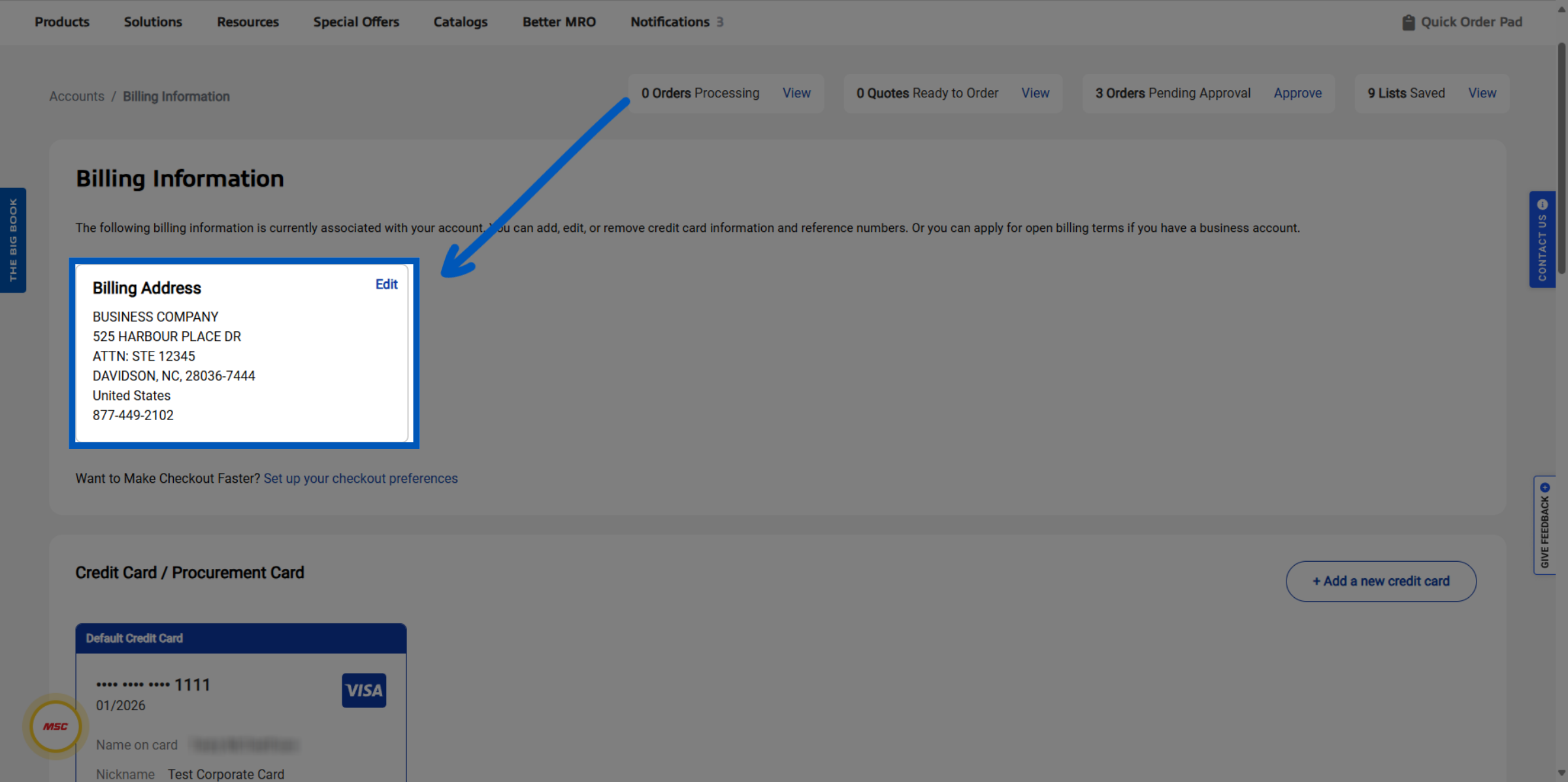
System Update - Once the address change is submitted it can take up to 10 to 15 minutes for your new address to populate here. If you do not see this change within 15 minutes. Please call customer care 1-800-753-7970.
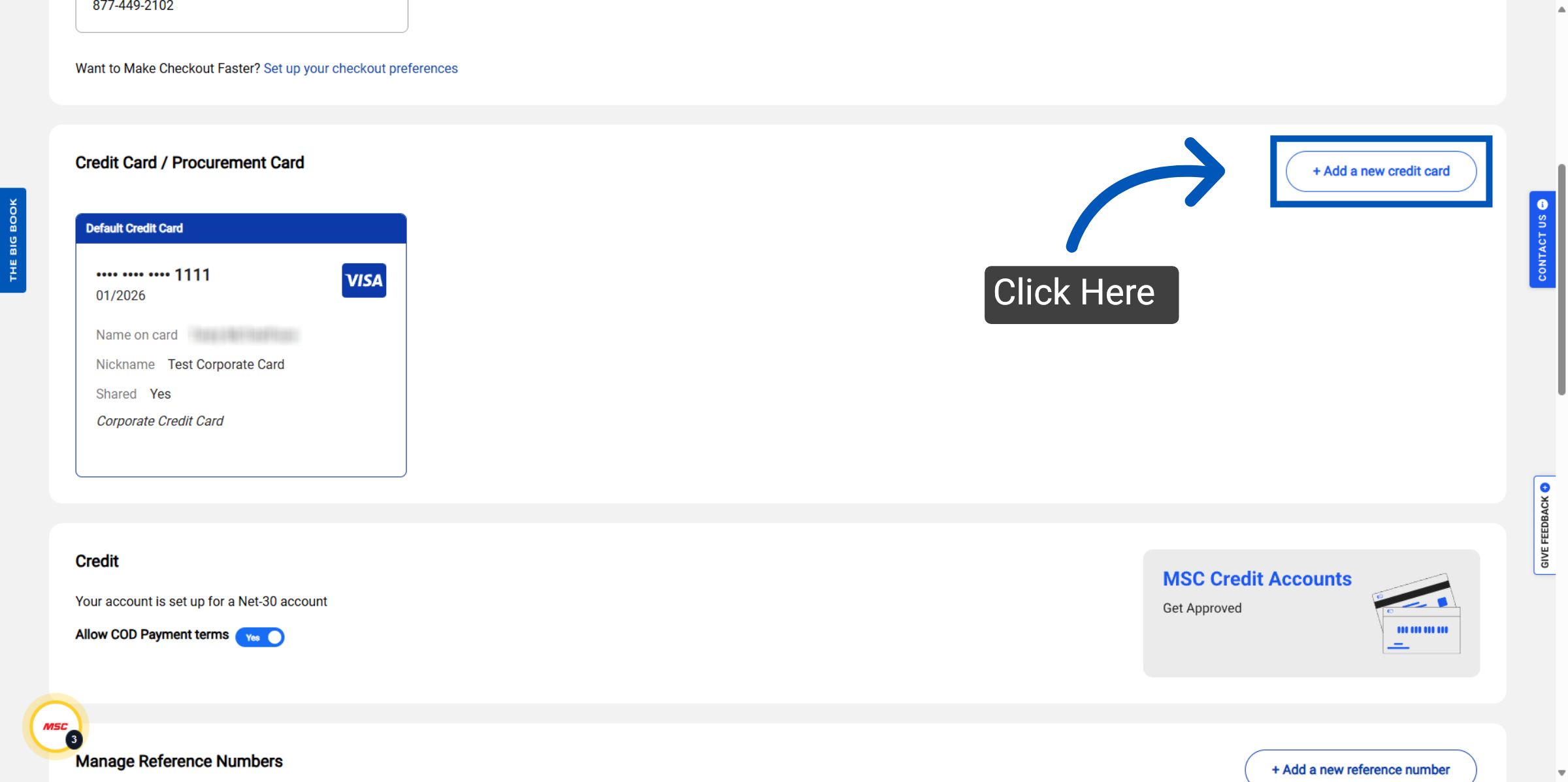
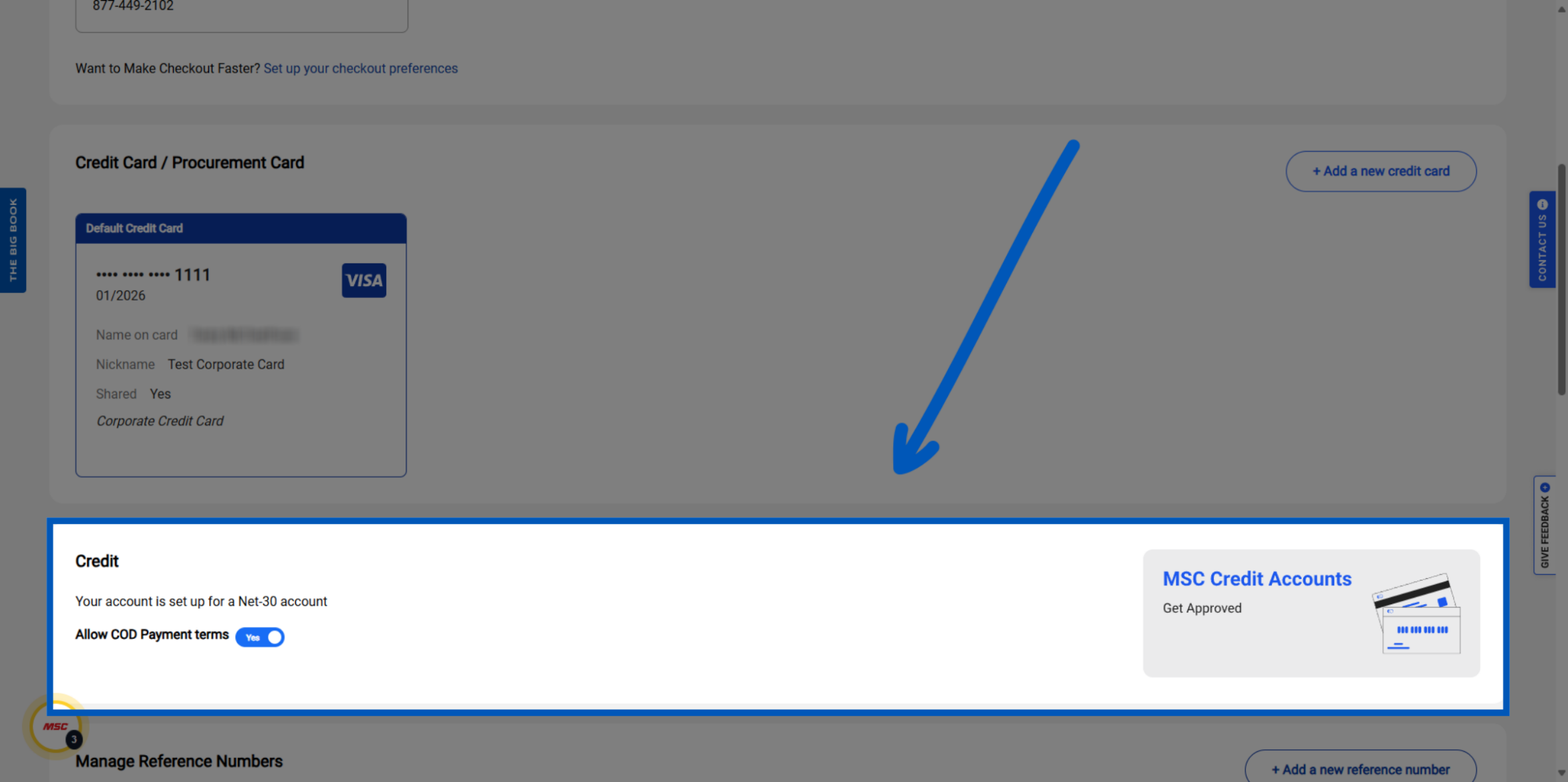
Payment Types - This is also where you will manage all your payment types (MSC payment methods). To add a new card, click Add New Credit Card.
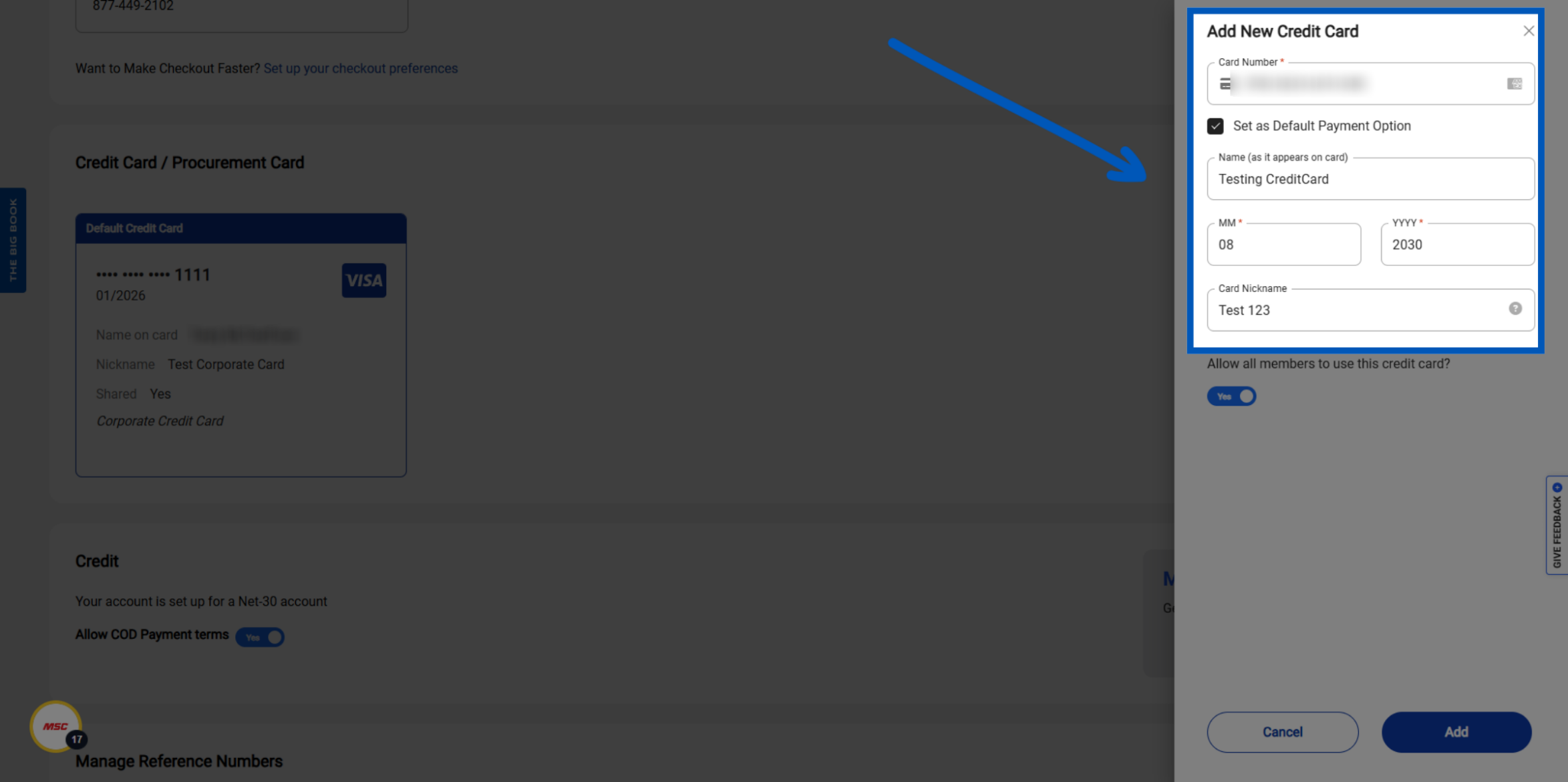
Card Details - Enter the new card details and set as default payment option if desired.
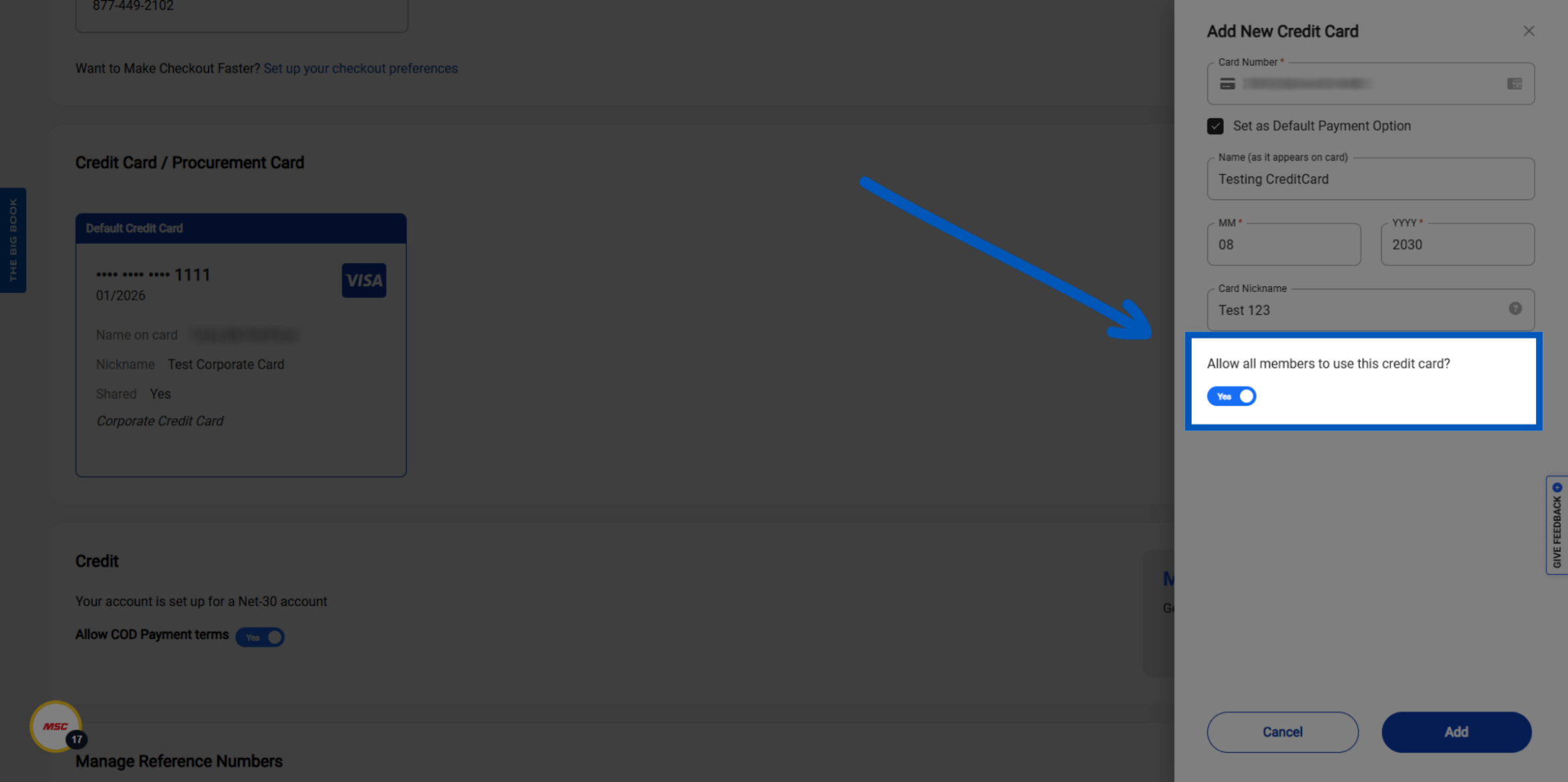
Share Card - You will also have the option to allow other members to use the credit card, but only the creator of the card can edit or delete it; shared members cannot modify or remove the card.
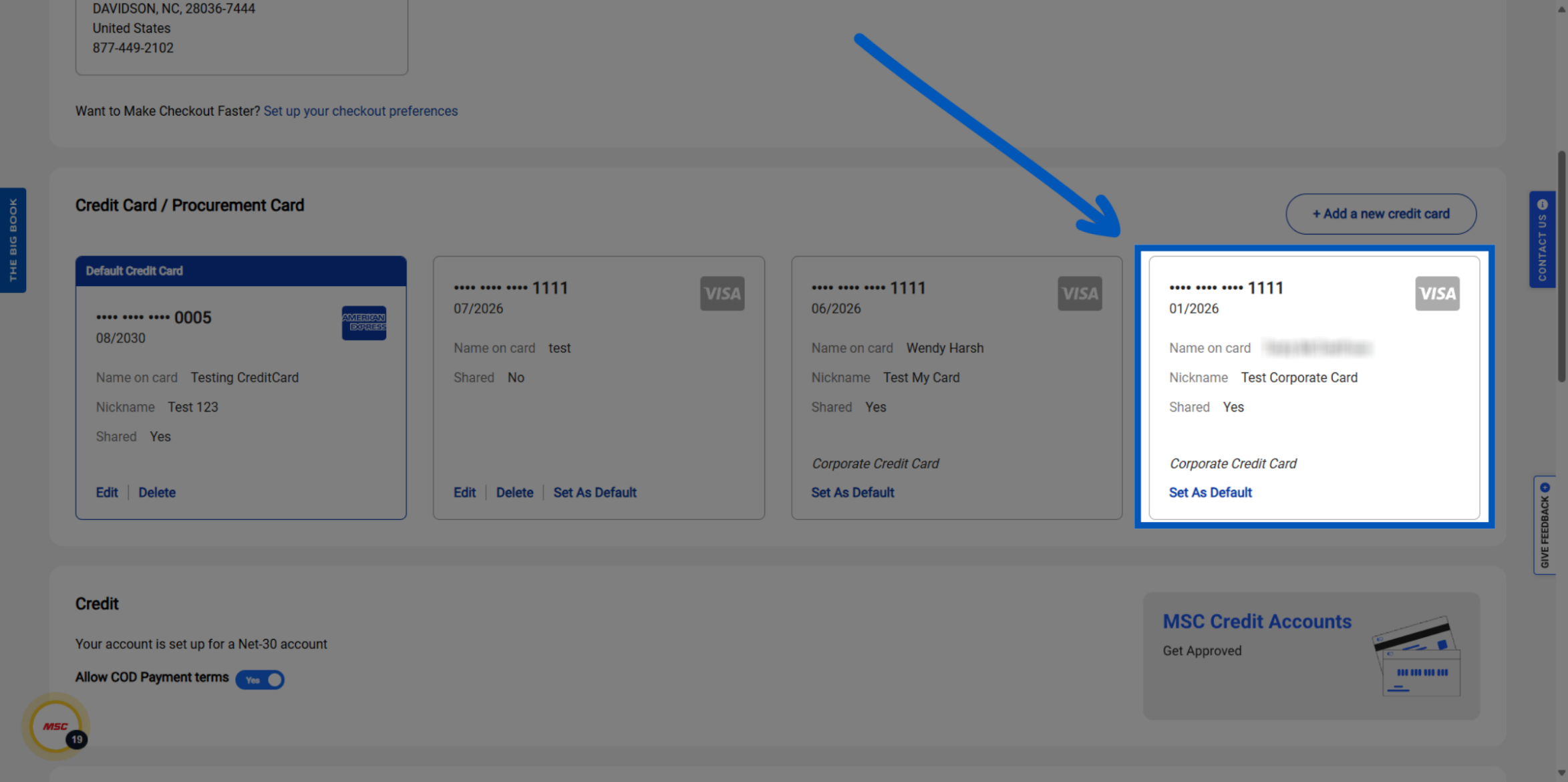
Managing Multiple Credit Cards - Users can view all credit cards on file, that have been shared, and select any card to set as the default payment method if multiple cards are present.
COD Payment - If your account currently operates under net 30 terms and users can enable COD payment terms, which allows for cash on delivery payments. This is part of your MSC payment plan. Under your Net-30 MSC payment terms, you can toggle “Allow COD Payment Terms” to enable it in the checkout flow.
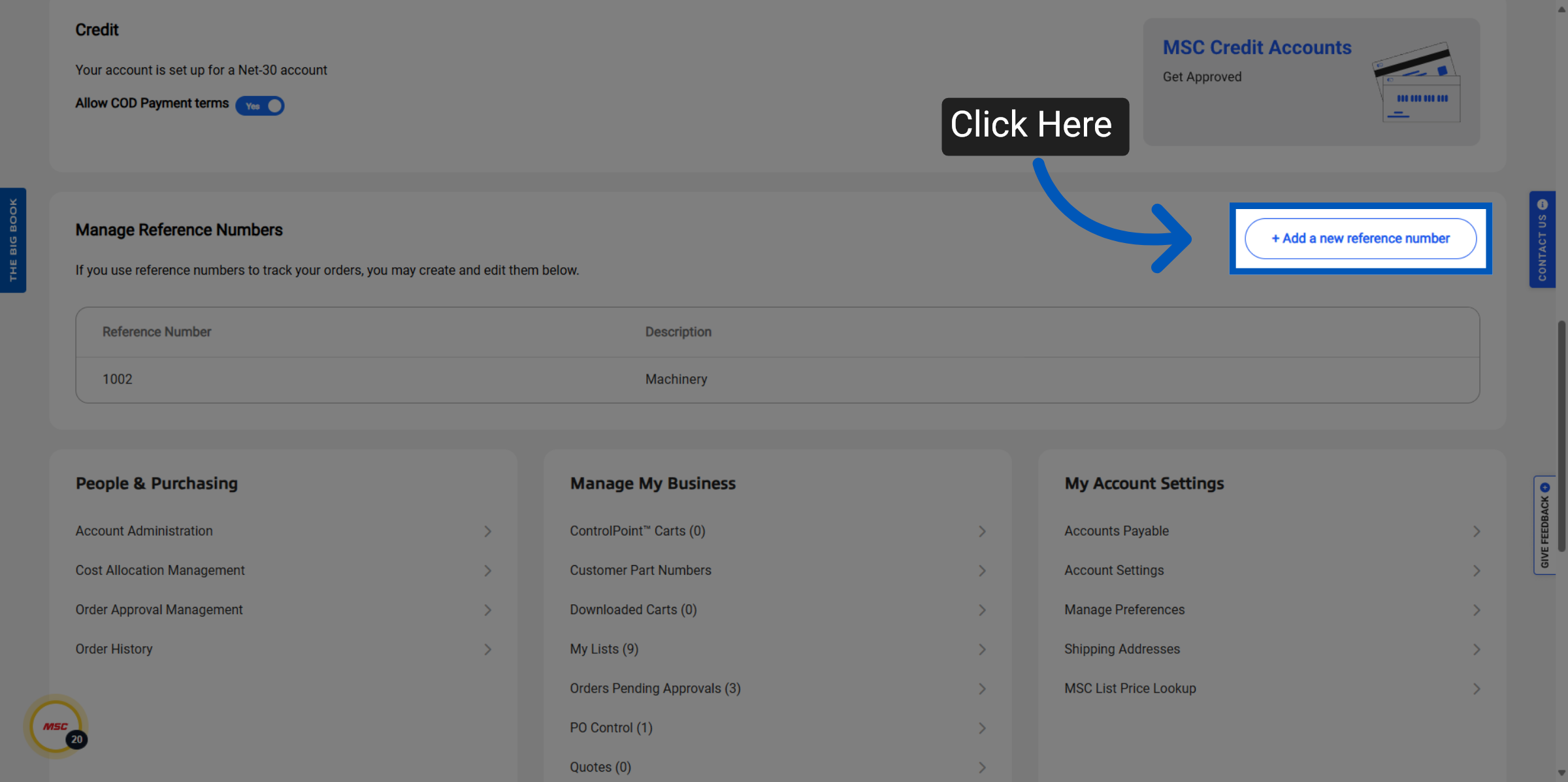
Manage Reference Numbers - Reference numbers help your organization track orders as part of your MSC billing setup. Users can add new reference numbers, set them as default, provide descriptions, and choose to allow other members to use the same reference number by selecting the appropriate option. To add a reference number, click Add New Reference Number.
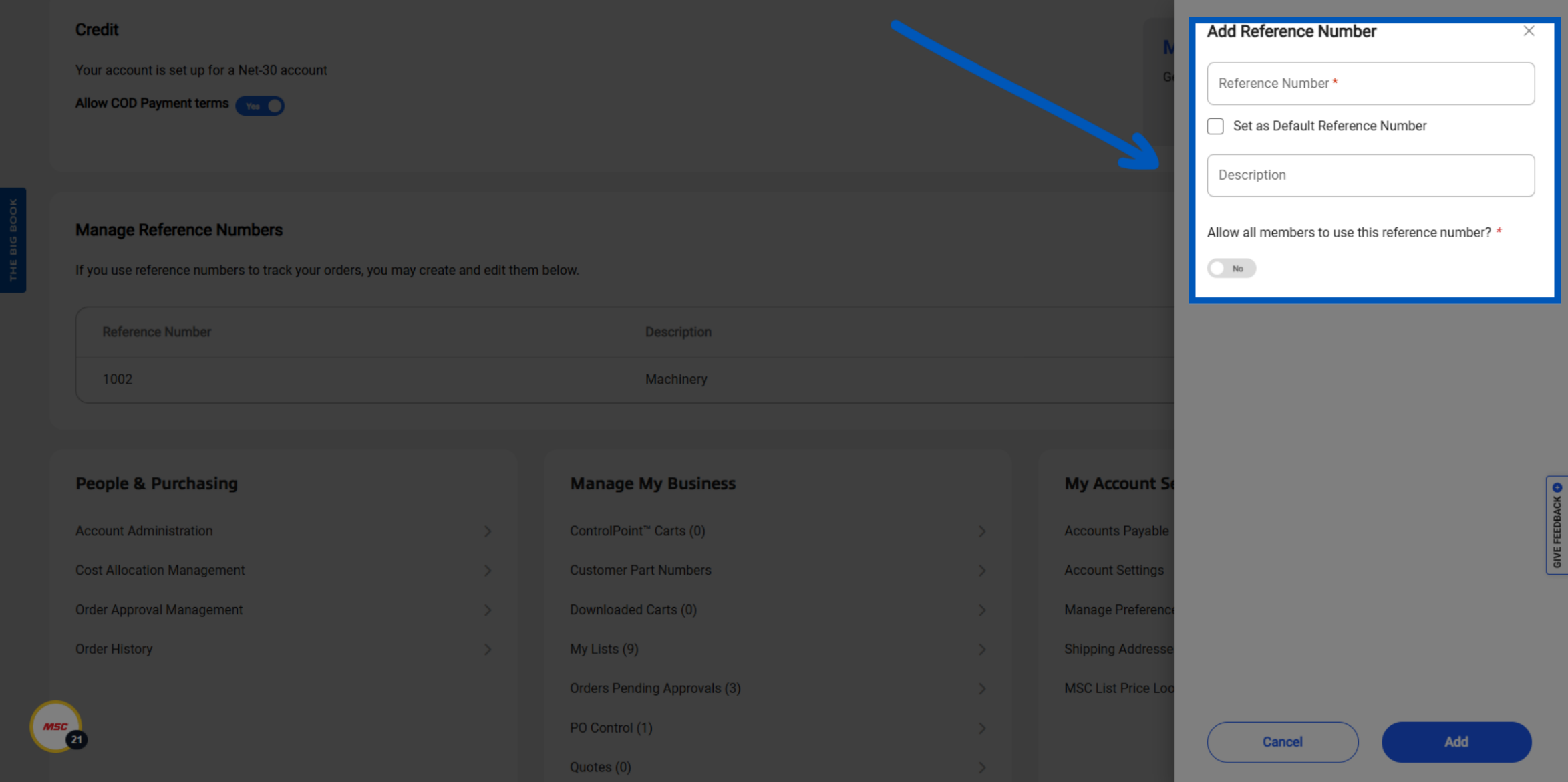
Reference Number Details - From here enter the reference number, add a description, and optionally set as default.
MSC Invoice Payment Help
For MSC invoice payment help, account administrators can review open invoices and payment status through the Accounts Payable section under My Account Settings. If your organization needs to apply for open billing terms or update your MSC payment terms from prepay to Net-30, click “Apply Now” in the Credit section of the Billing Information page. Applications are reviewed by the MSC credit department, and you should expect a response within at least 72 hours.
More Account Management Resources
Back to Account ManagementTo request a quote, please login to your existing account or register a new one. This helps us provide you with a personalized experience and keep track of your requests.