



Payment Options | MSC Payment Methods & MSC Billing Setup
Introduction:
This tutorial guides you through setting up payment options on mscdirect.com, including adding credit cards, managing billing information, enabling cash on delivery, and configuring reference numbers. Before starting, ensure you have your payment details and account access ready. This page covers MSC payment methods, MSC billing setup, and MSC payment terms. Whether you need MSC invoice payment help, want to configure an MSC payment plan, or manage MSC bill-to accounts, this guide walks you through each option.
Detailed Step by Step Guide:
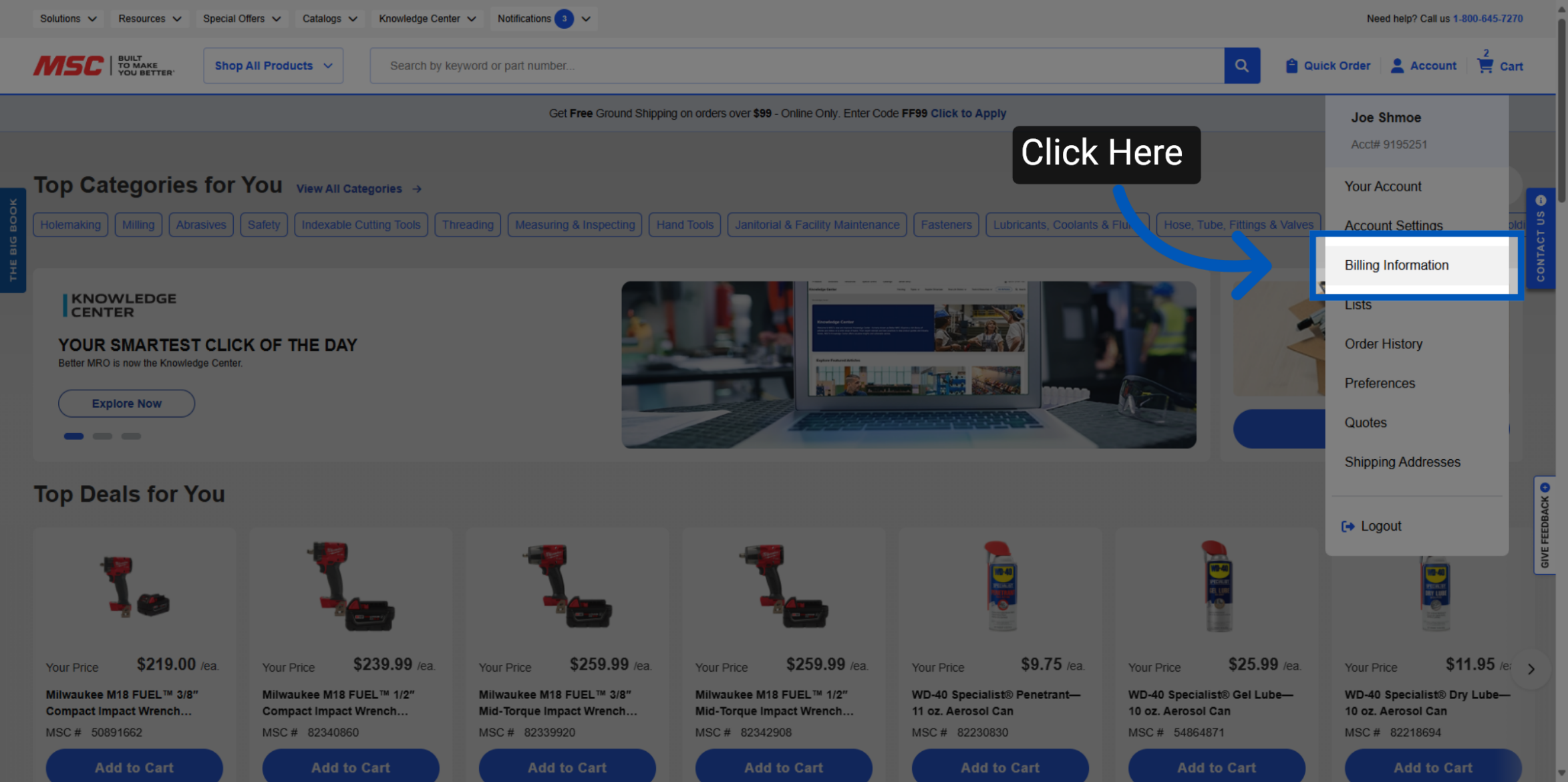
Access Billing Information: To get to your payment options, go to account on the top right-hand corner and then go to billing information. This is part of your MSC billing setup.
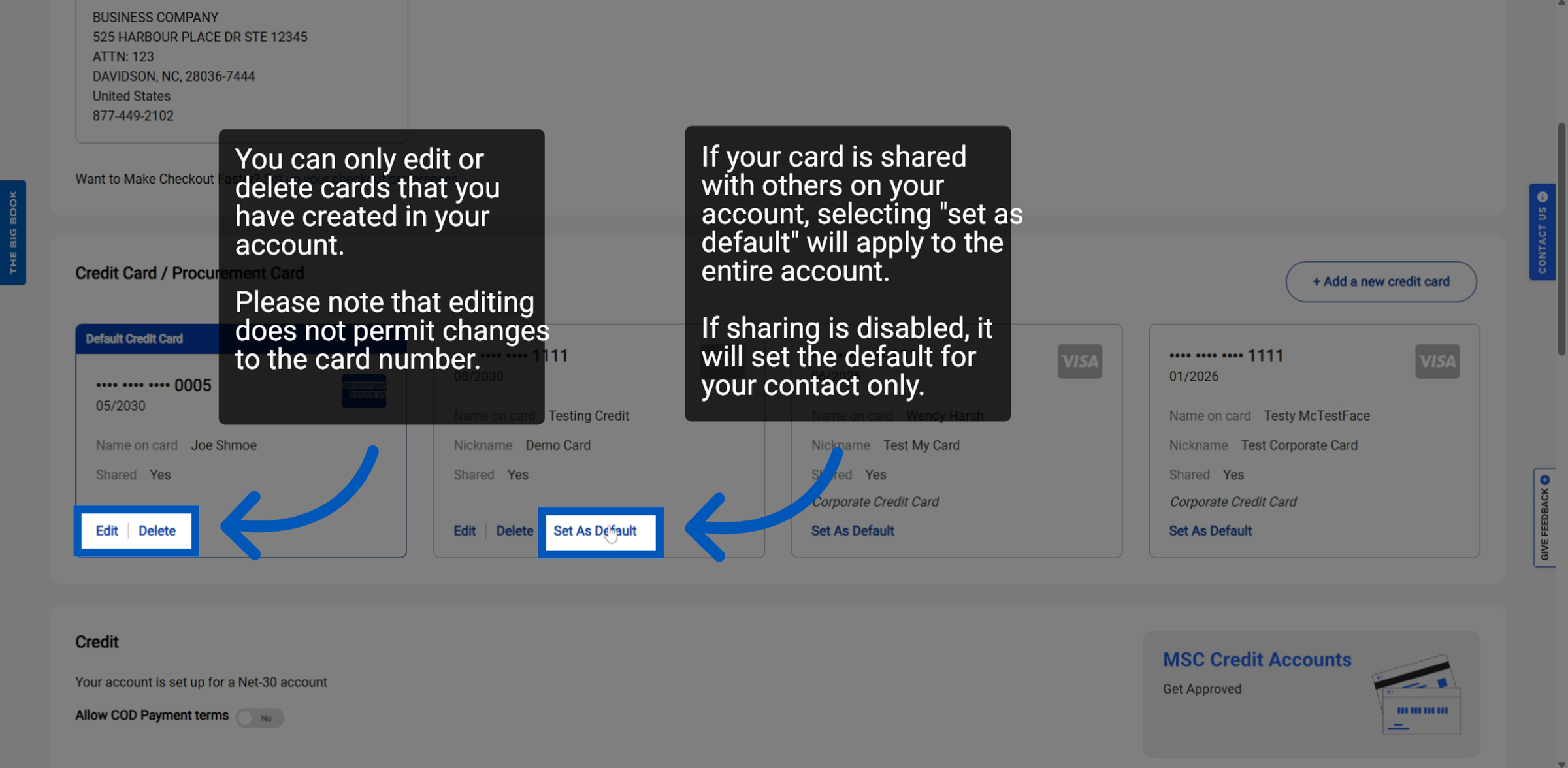
Manage Payment Options: Once on the billing information screen, scroll down until you can see your payment card options. Users will be able to manage all payments (MSC payment methods) in one place. The options include edit, delete, or set a credit card as the default.
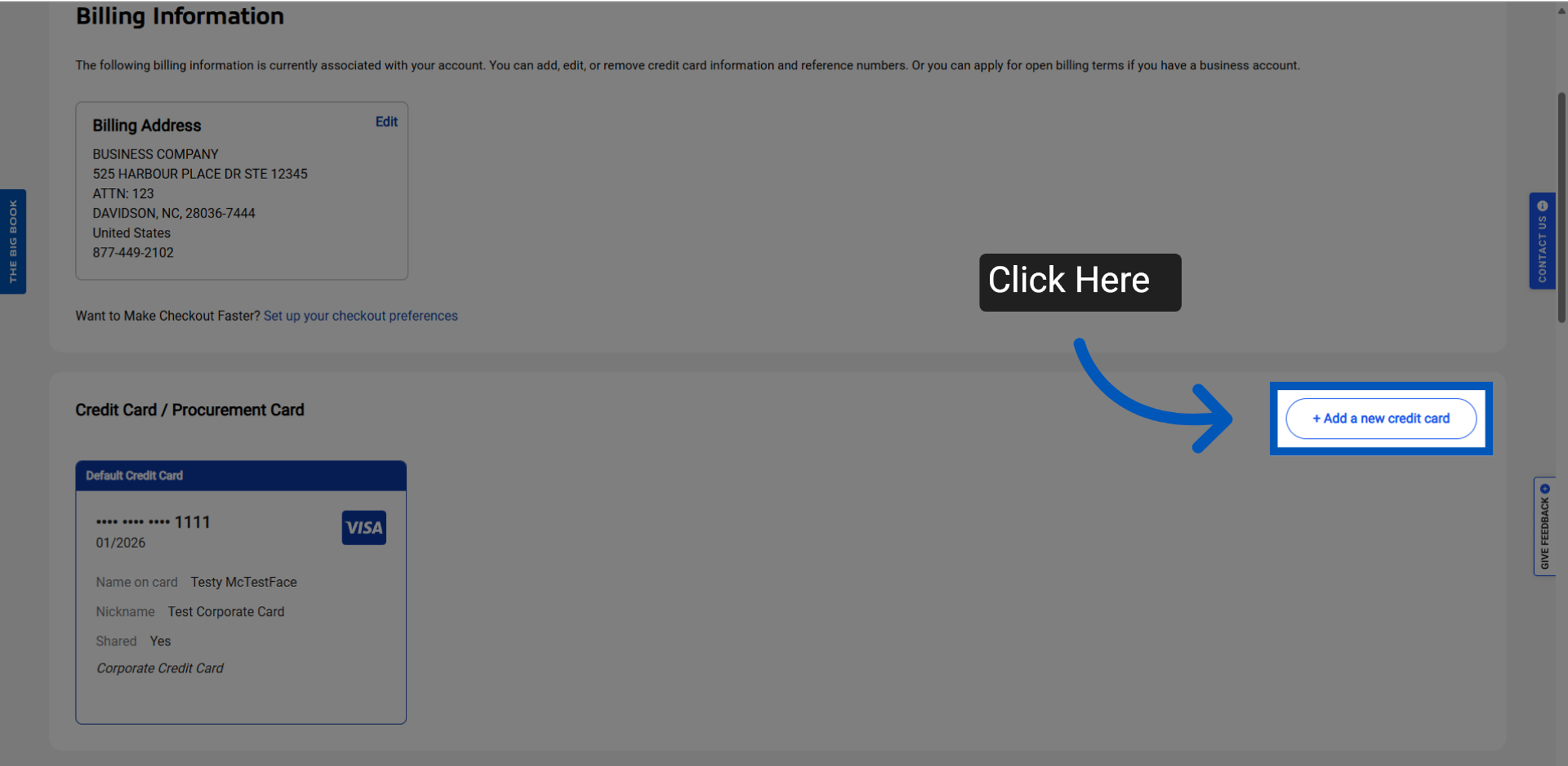
Add New Card: Click "Add a new credit card" to begin entering your new payment details. This is part of your MSC billing setup.
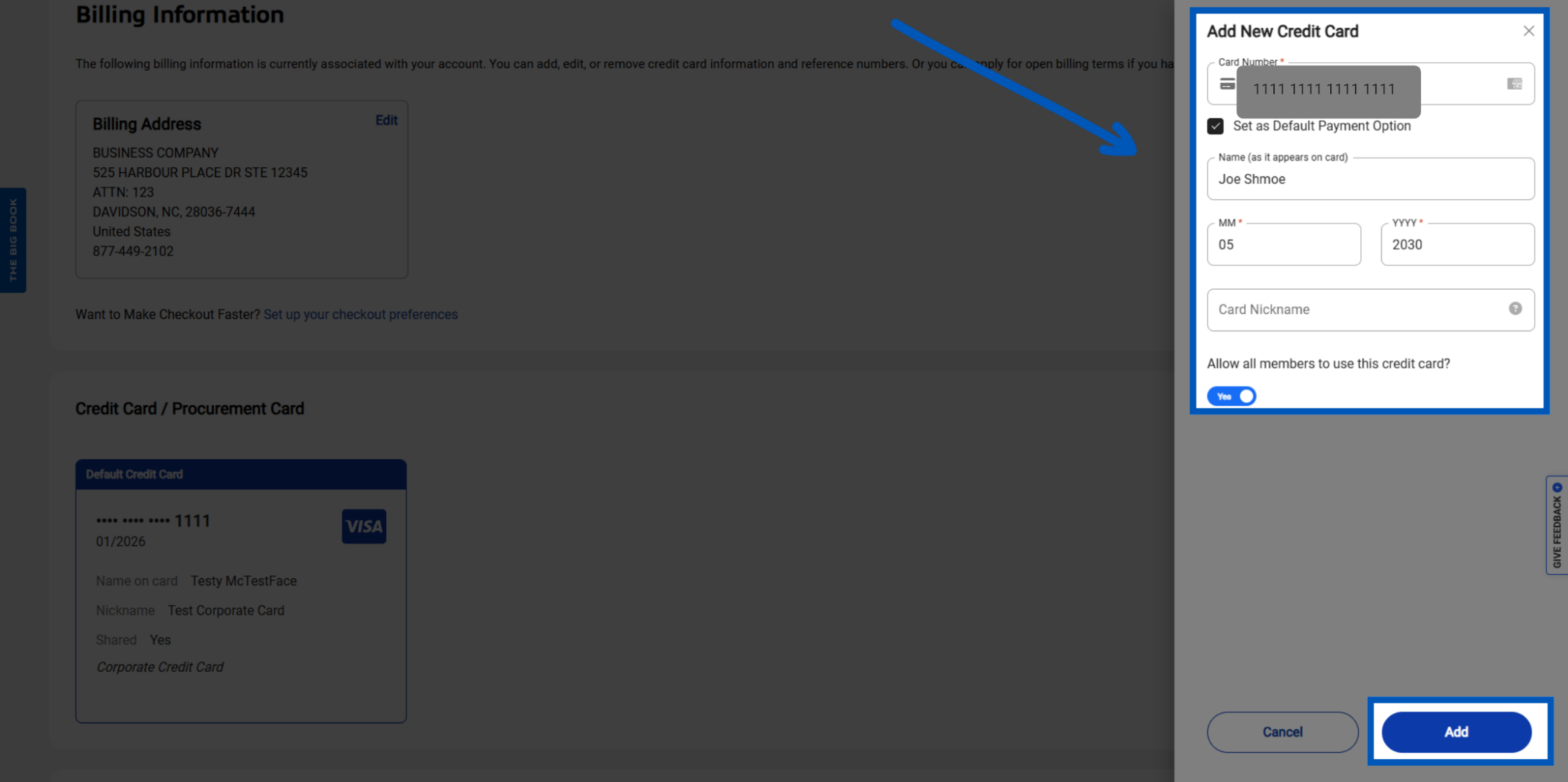
Add New Credit Card: Complete the card entry form, including card number, name as it appears on the card, expiration date, and an optional card nickname. You may also choose to set this card as the default payment option and allow all account members to use it.
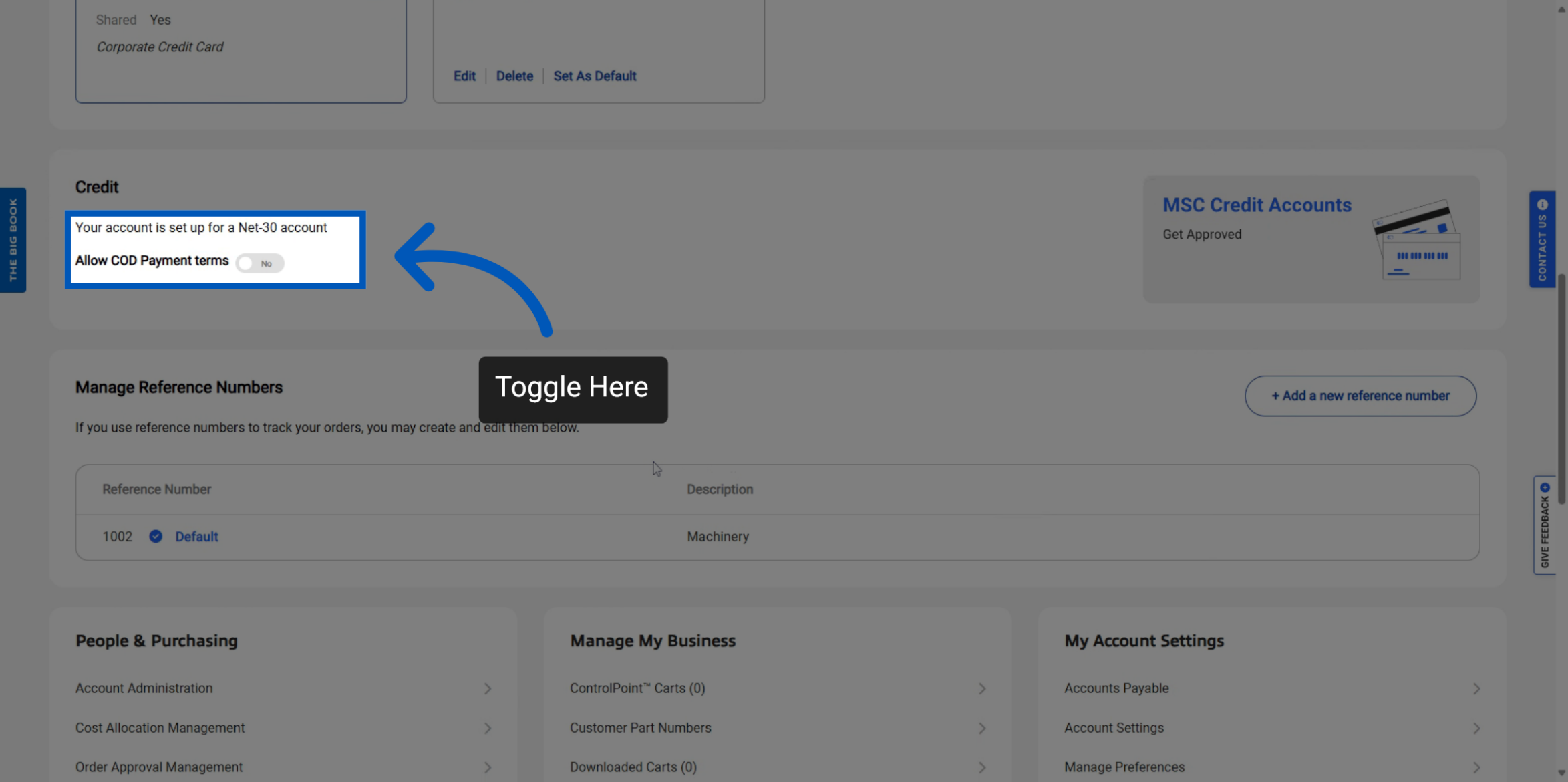
Cash On Delivery: If you already have credit terms on your account, you will have the ability to do allow cash on delivery payment. This option is part of your MSC payment terms configuration. Toggle to "Yes" to enable cash on delivery as a payment option in the checkout flow.
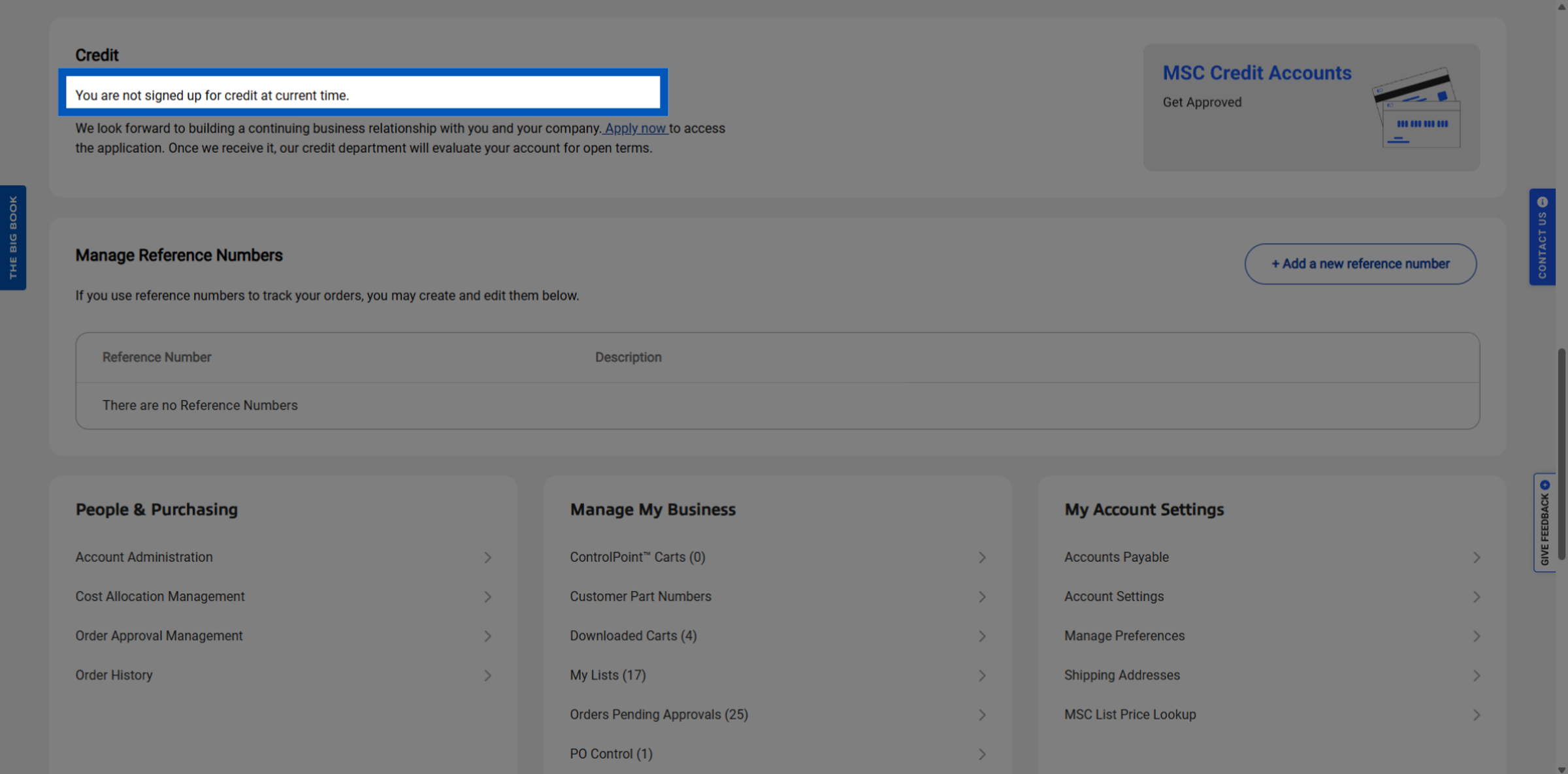
New Credit Terms: Your account will display this message if your account has not been signed up for credit terms. MSC payment terms such as Net-30 are available to qualifying business accounts. If you are exploring an MSC payment plan or open billing terms, this is where the process begins.
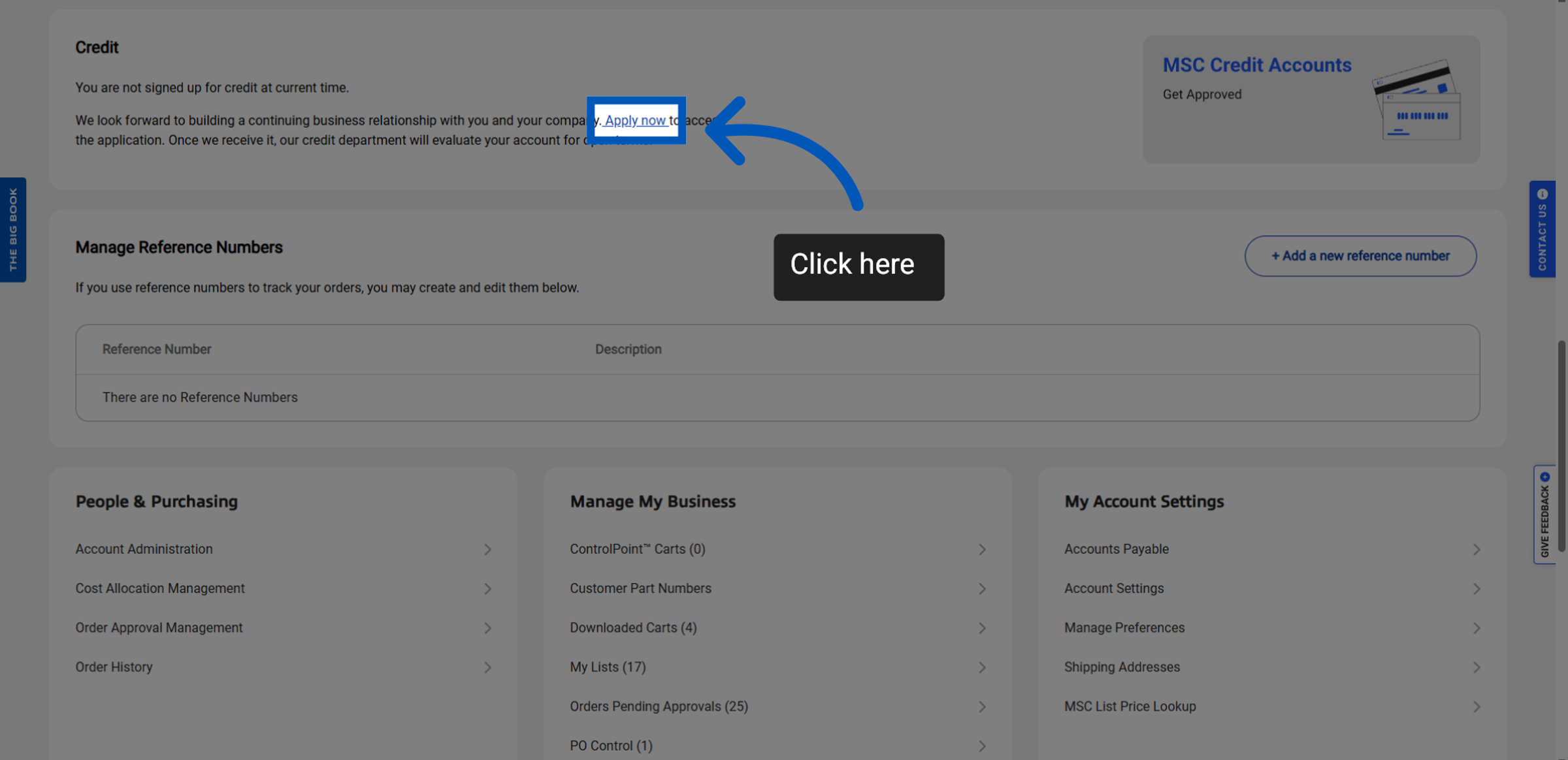
Complete Credit Application: Click "Apply now" to access the credit application. Once clicked you will be taken to an external online application. Once you have completed your credit application, it will need to undergo a review process, and you should hear back in at least 72 hours. This is where you access MSC invoice payment help or establish an MSC payment plan.
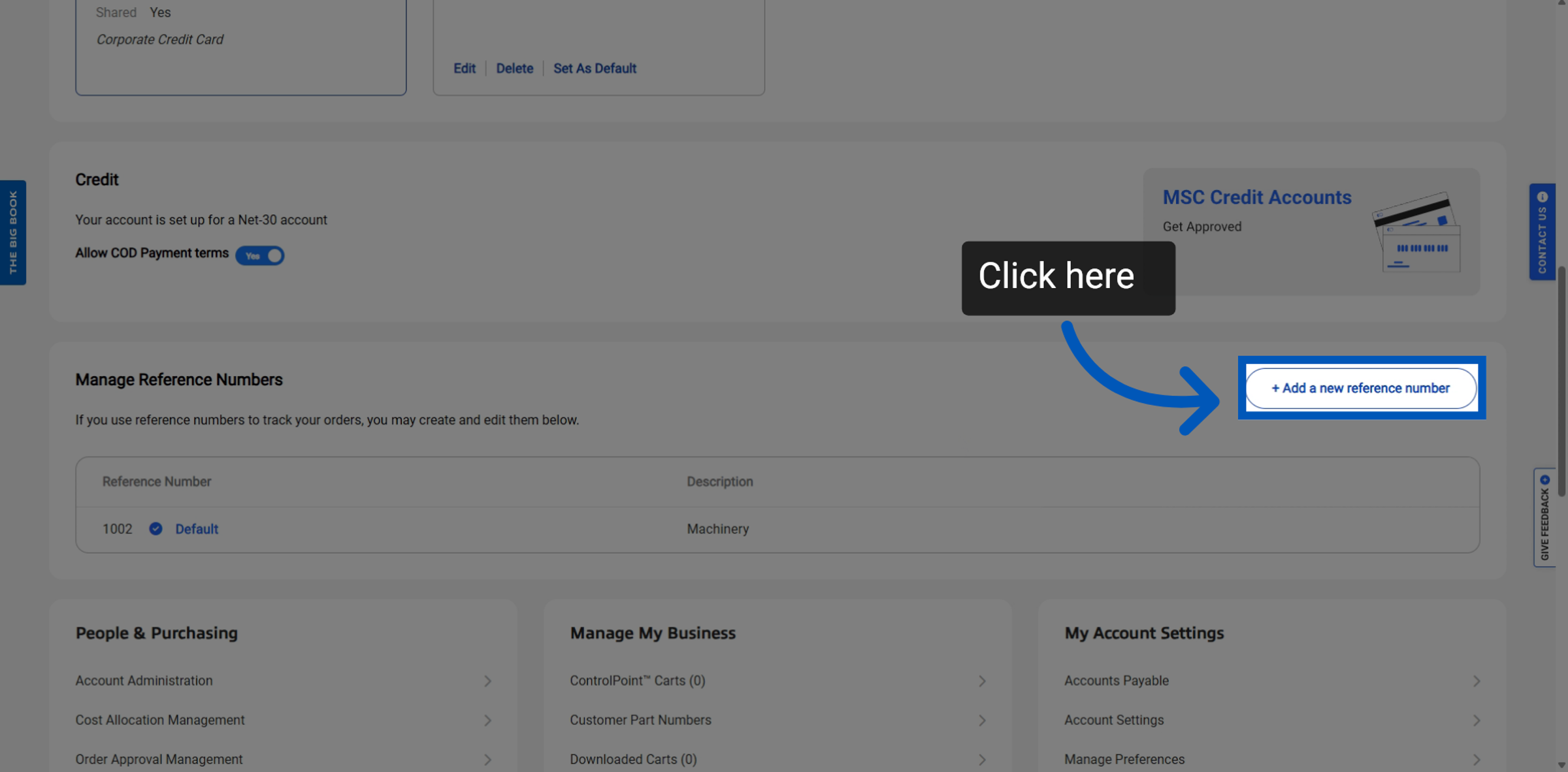
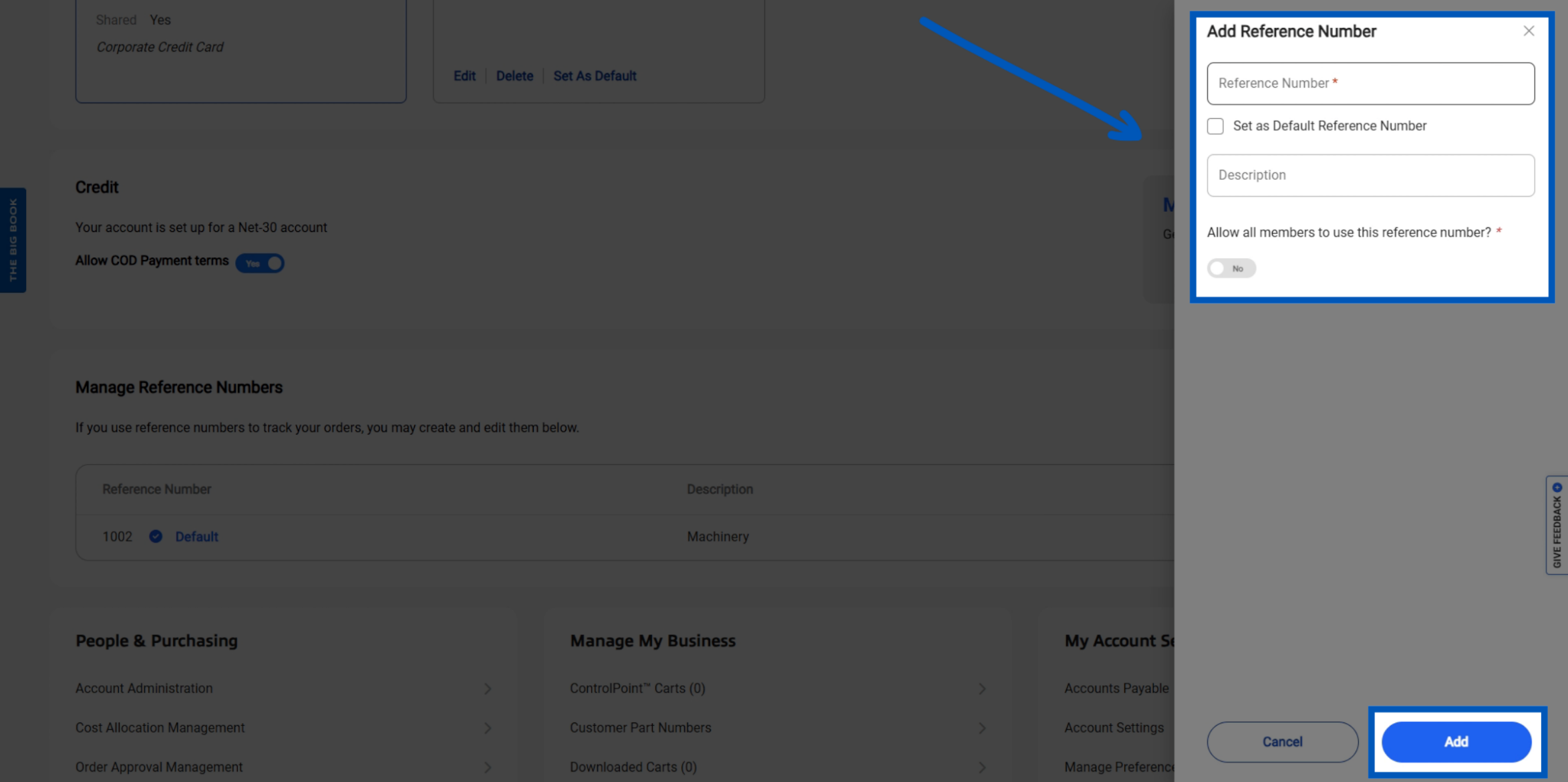
Add New Reference Number: If you or your company uses reference numbers to track your orders. You have the ability to manage and create reference numbers. This is part of your MSC billing setup. To create a new one click “Add New Reference Number”
Enter Reference Number Details: Please fill out the necessary information and optionally select your default reference number, as well as the option to share it with other users.
MSC Bill-To Accounts
MSC bill-to accounts allow businesses to centralize invoicing under a single billing address and account structure. If your organization manages purchasing across multiple locations or departments, your bill-to configuration determines where invoices are sent and how payment is attributed. To review or update your bill-to information, navigate to Billing Information from the Account menu and select “Edit” under your Billing Address tile.
To request a quote, please login to your existing account or register a new one. This helps us provide you with a personalized experience and keep track of your requests.