



Managing Preferences
This guide provides an overview of managing your account preferences to streamline your ordering process. We will cover the following sections:
Checkout Settings: Allows users to set default order details, choose payment methods, and decide on order consolidation to streamline the checkout process and shipping logistics.
Communications Preferences: Enables users to manage how they receive information about deals, innovations, and solutions, choosing preferred communication channels.
Catalog Preferences: Lets users opt in or out of receiving specific product catalogs, tailoring marketing materials to their interests.
Truck Deliveries: Provides options for shipping methods, carrier selection, and special delivery needs (like liftgate), ensuring shipments match user requirements.
Notifications: Allows users to customize which order and approval notifications they receive and in what format, keeping them informed about order status and account changes.
Download Cart Preferences: Lets users select file formats and fields for downloading cart data, supporting reporting and integration needs.
Detailed Step by Step Guide:
Preference Page - To access your account preferences, select "Preferences" from the menu drop down. This will allow you to customize your user experience.
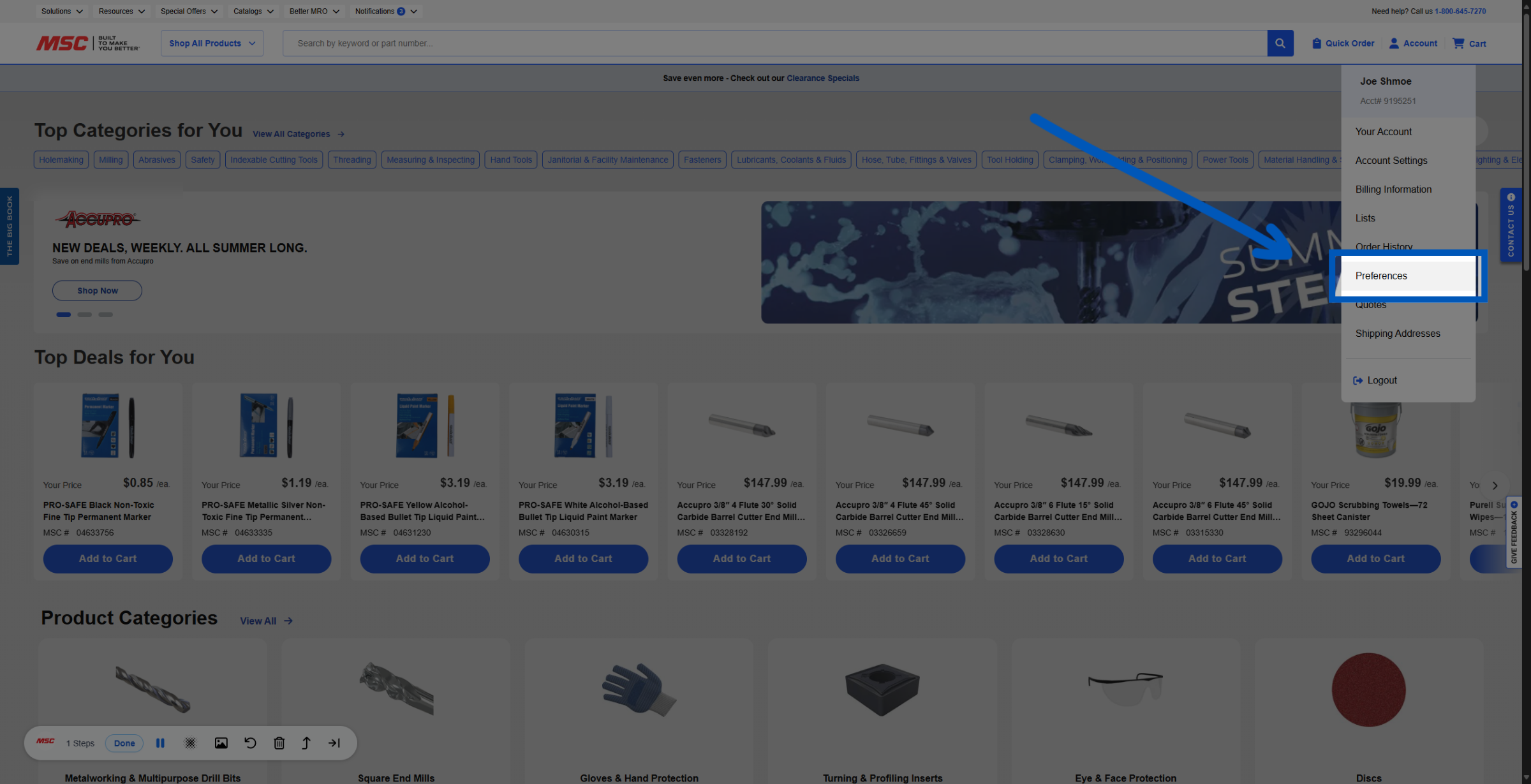
Checkout Settings - The preferences page lets you personalize various settings to optimize your experience on MSCDirect.com From this section you will be able to set your checkout defaults.
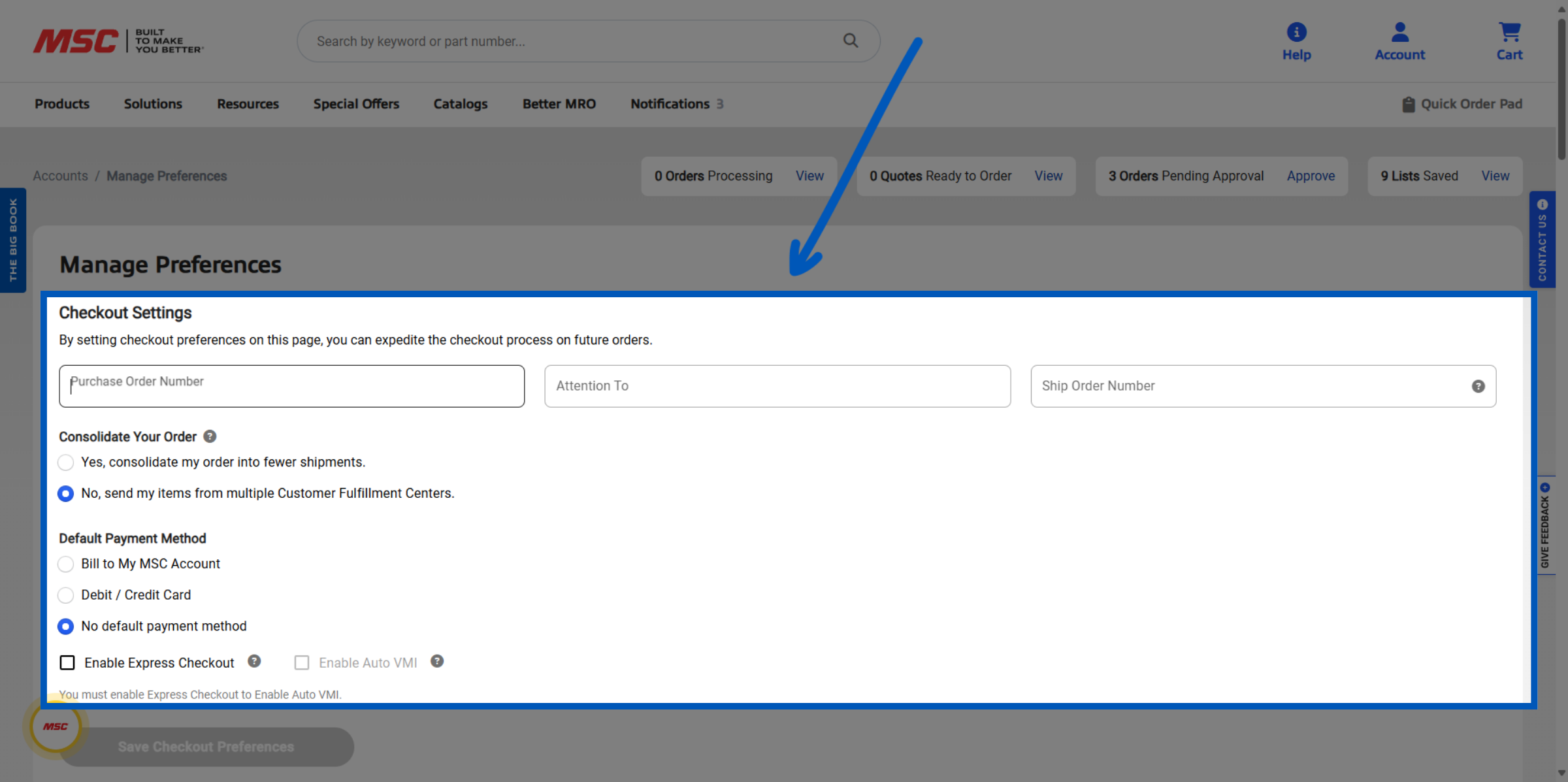
Checkout Defaults - add a default purchase order number, attention to, or ship order number.
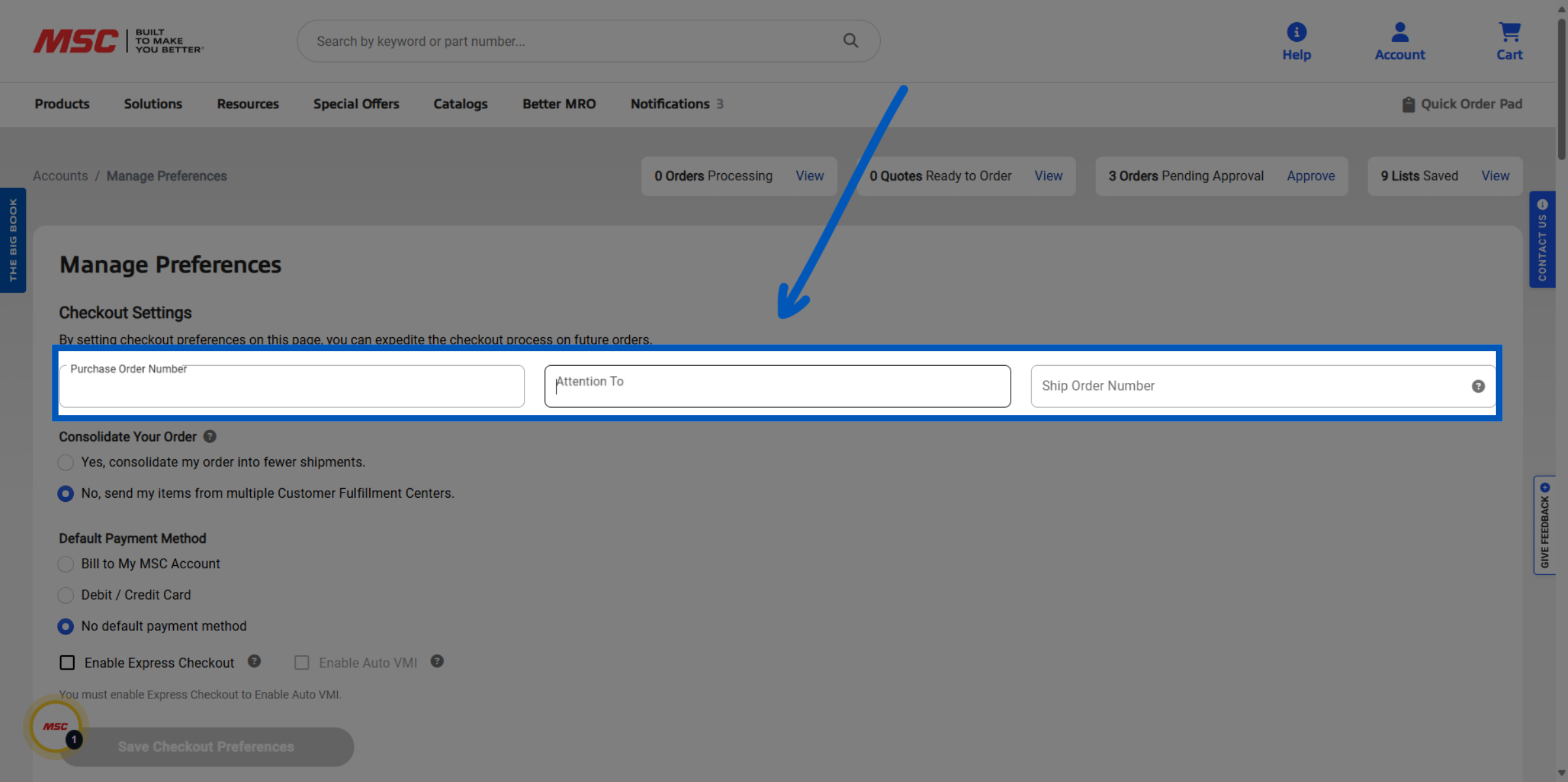
Order Consolidation - Choose whether to consolidate your order into fewer shipments, or send items from multiple fulfillment centers.
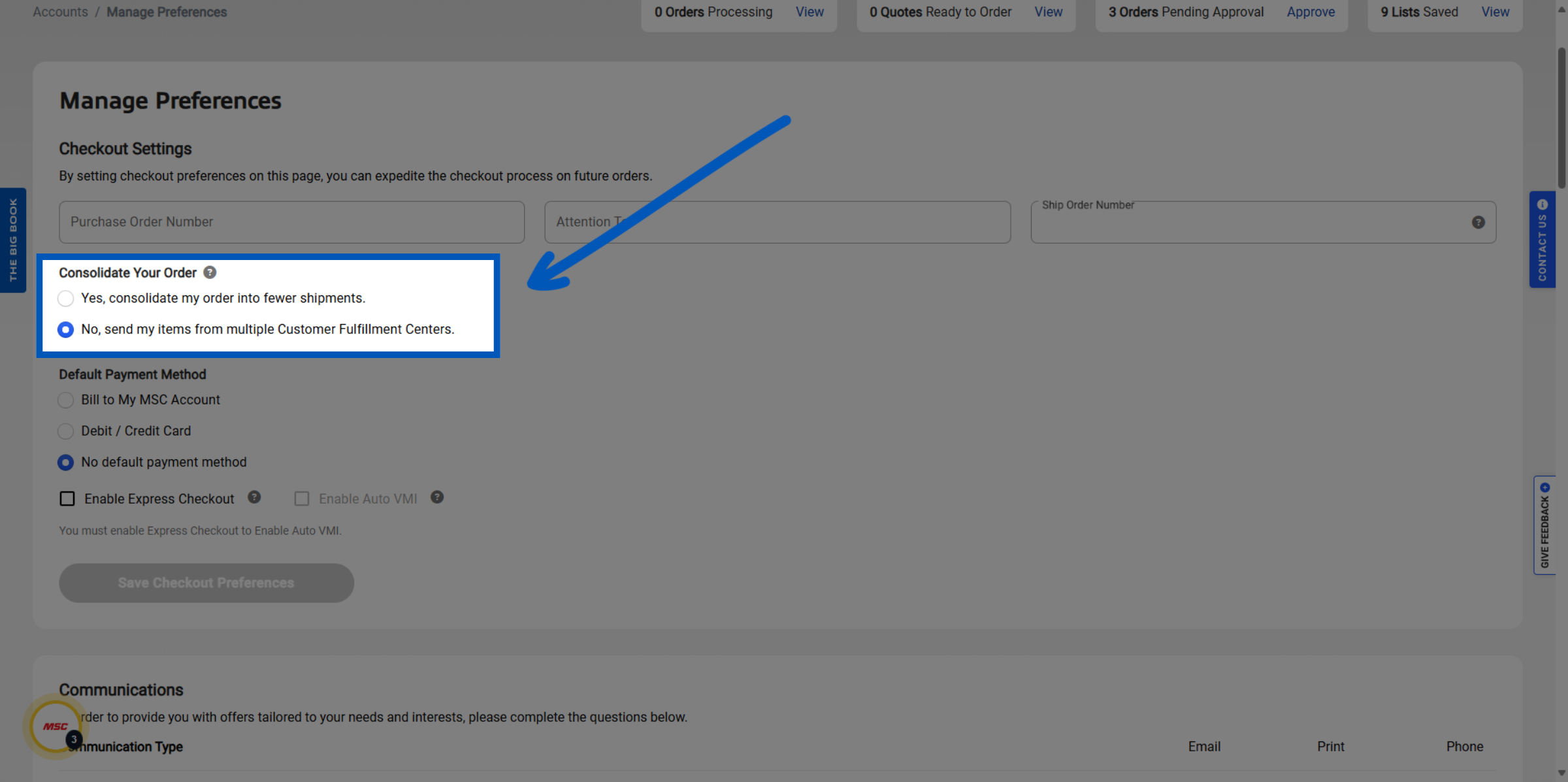
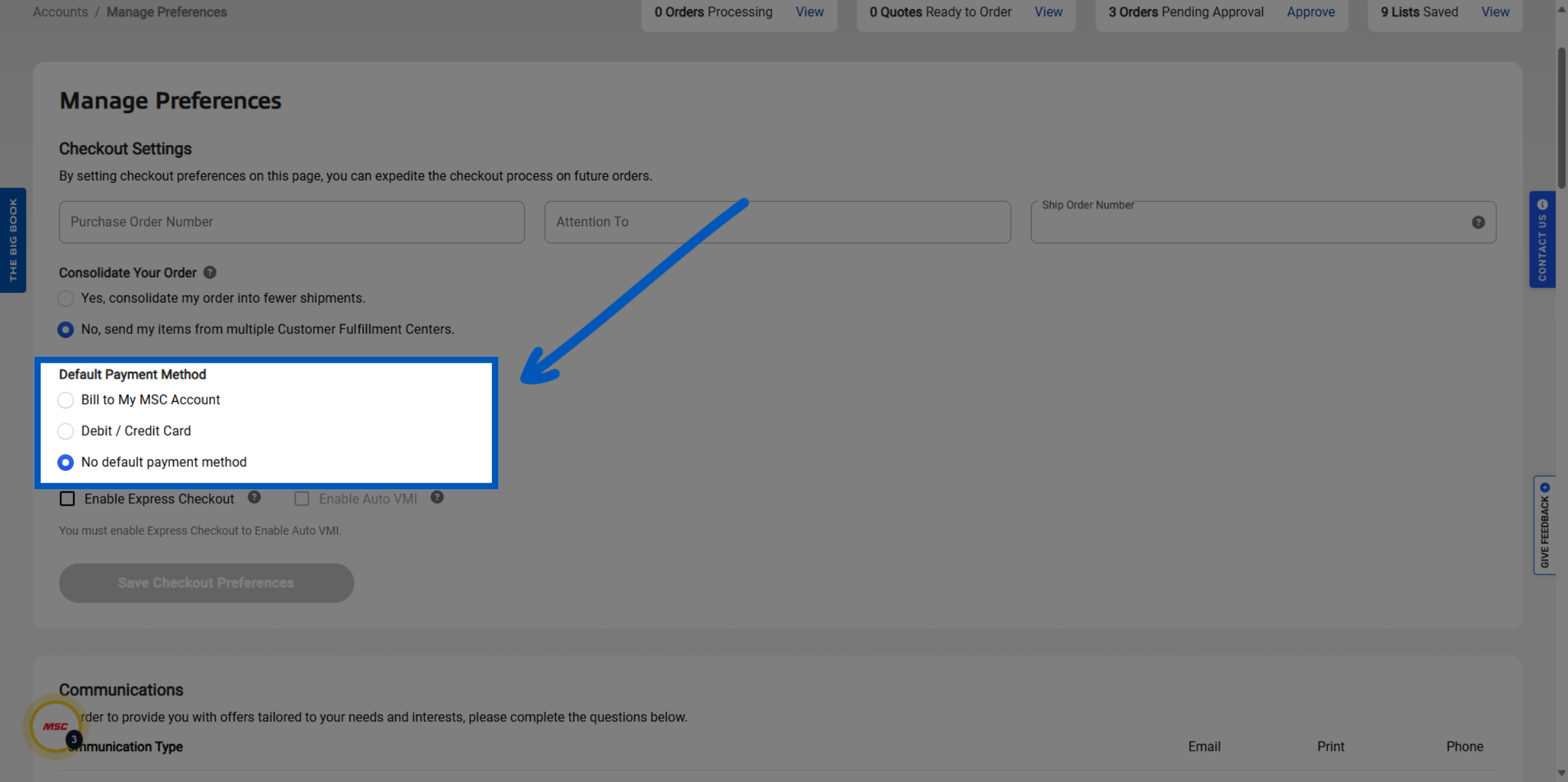
Default Payments - Select your default payment method: either "Bill to my MSC account" or "Debit/Credit Card."
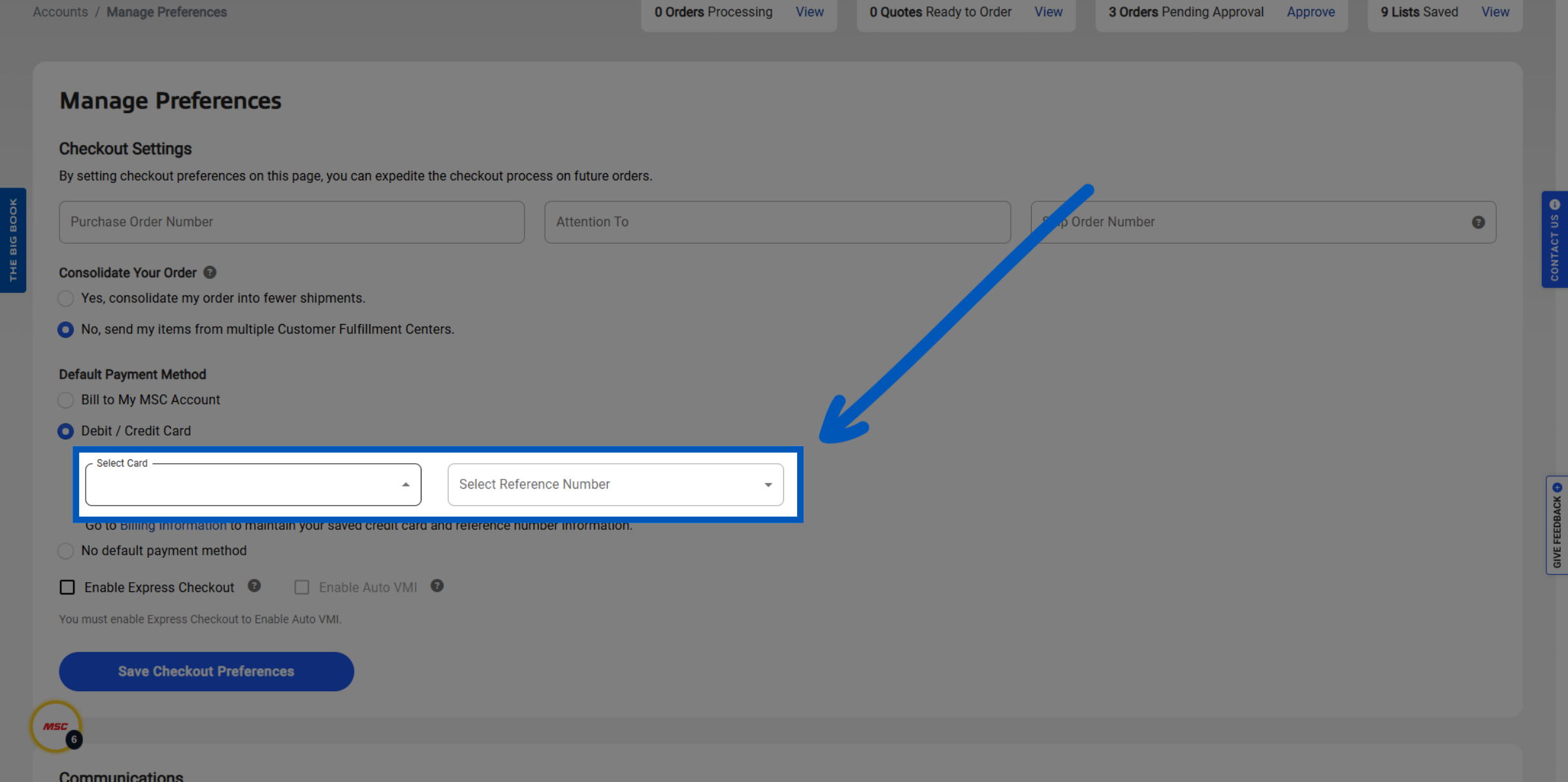
Card Option - If using a card, you will need select the card from the dropdown and add a reference number if needed.
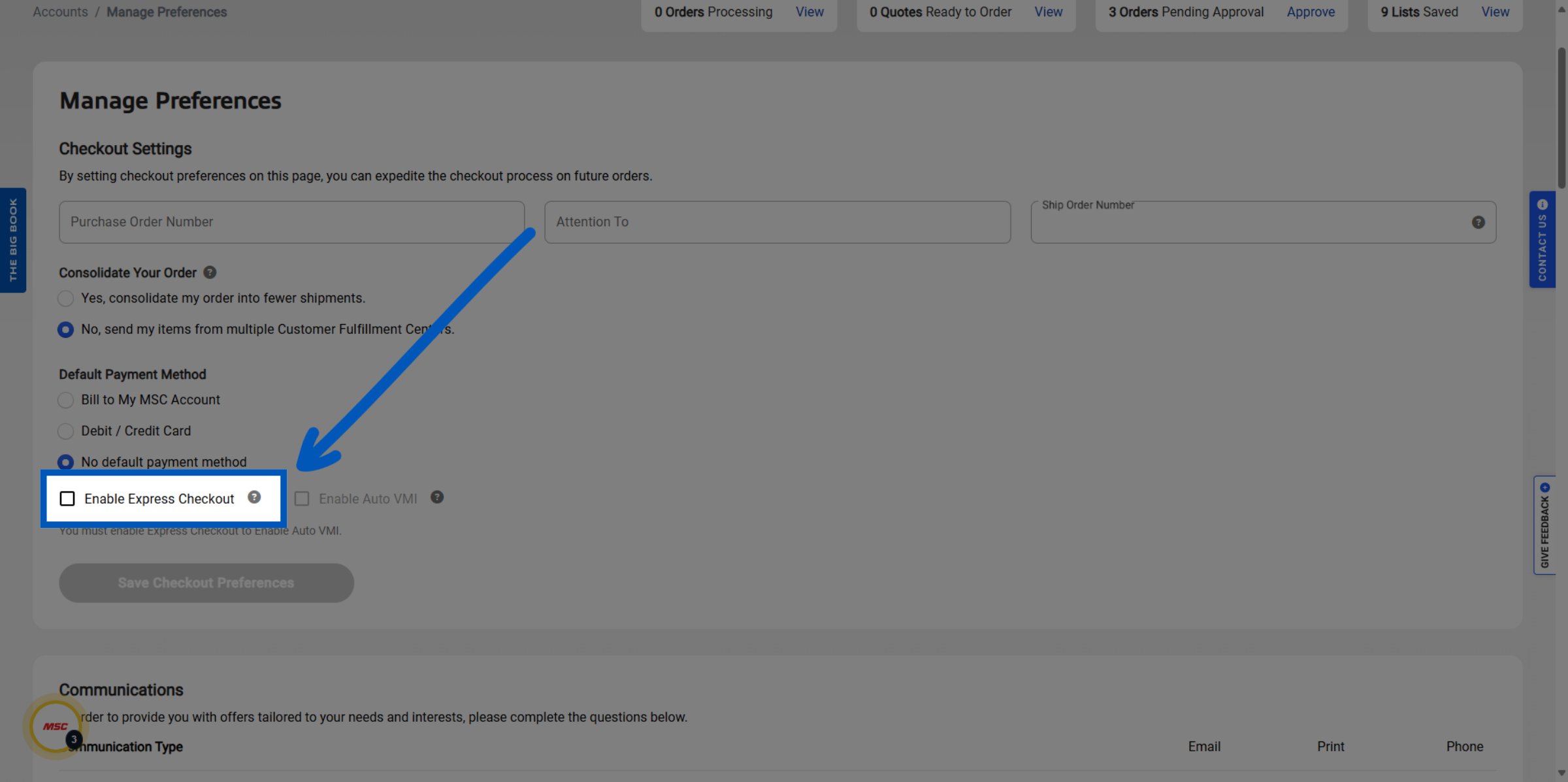
Express Checkout - MSCDirect.com offers express checkout. By clicking here we will carry over your defaults on every order. In checkout, you will be taken directly to the "order review" page.
Communication - This section enables you to manage how you receive information about deals, innovations, and solutions, choosing preferred communication channels.
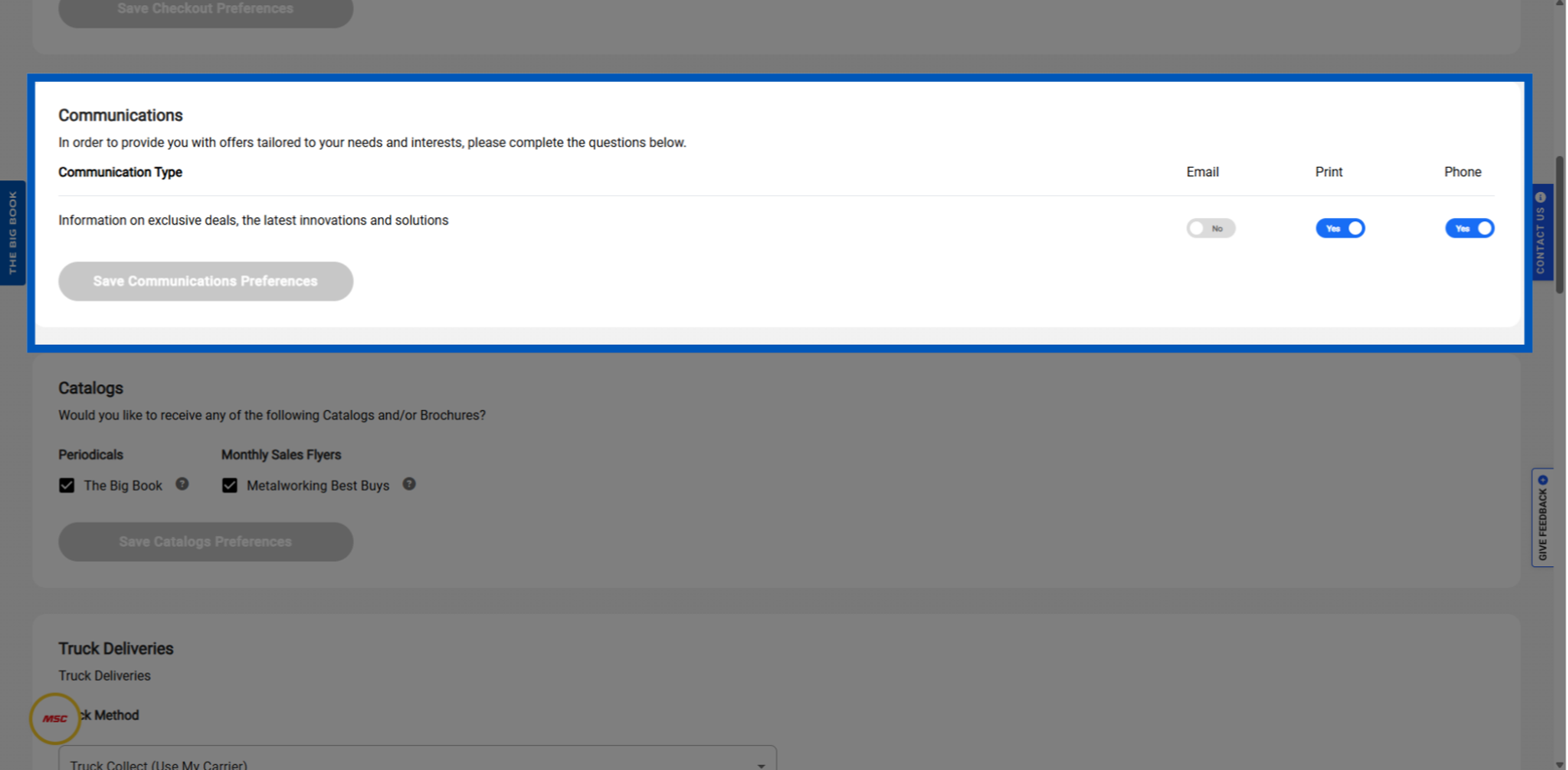
Catalogs - As well as lets you opt in or out of receiving specific product catalogs and tailoring marketing materials.
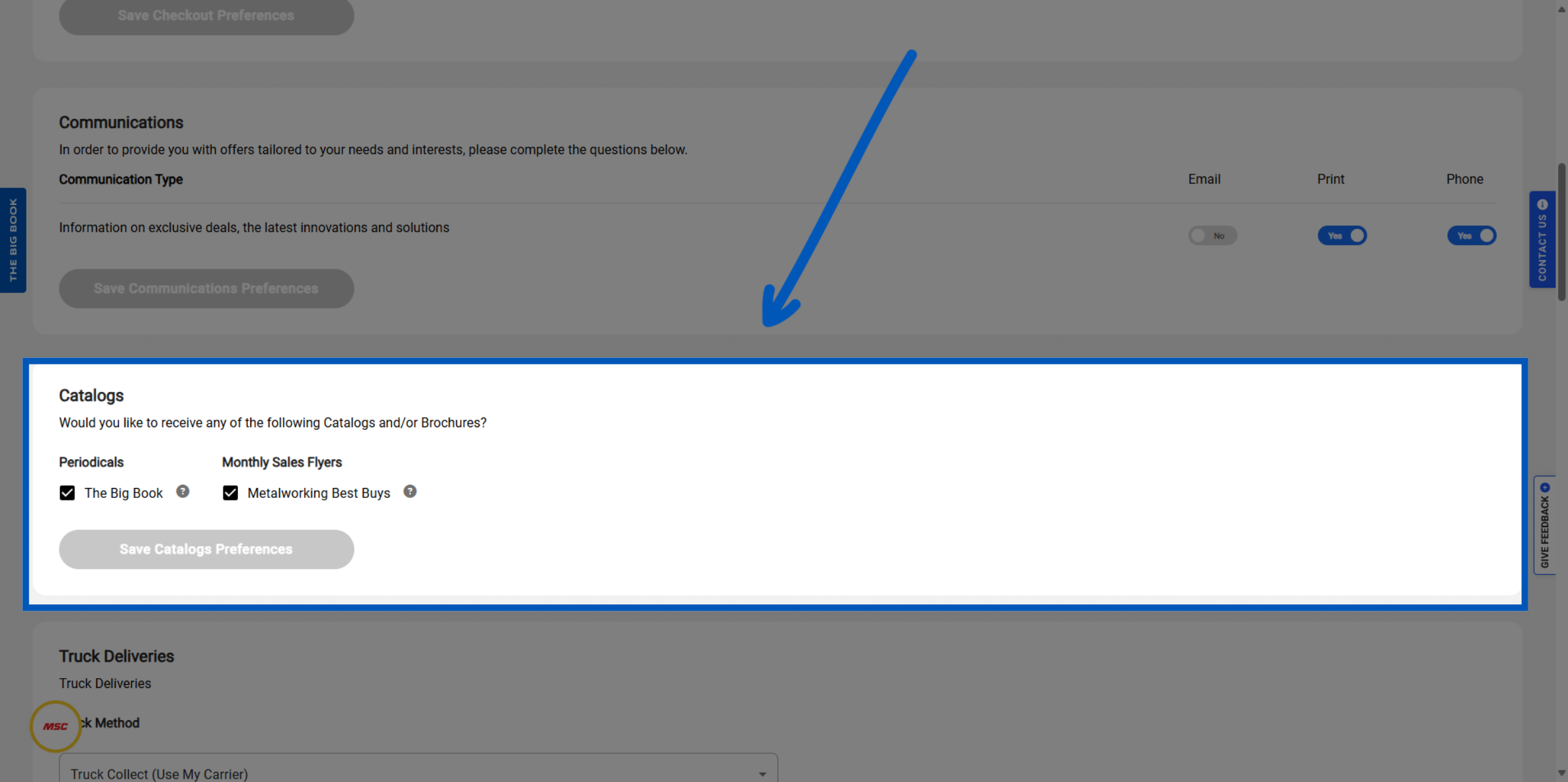
Truck Deliveries - This section lets you be able to select your choice for truck deliveries, allowing users to select prepaid to have MSC bill you, or use your own carrier and carrier account number.
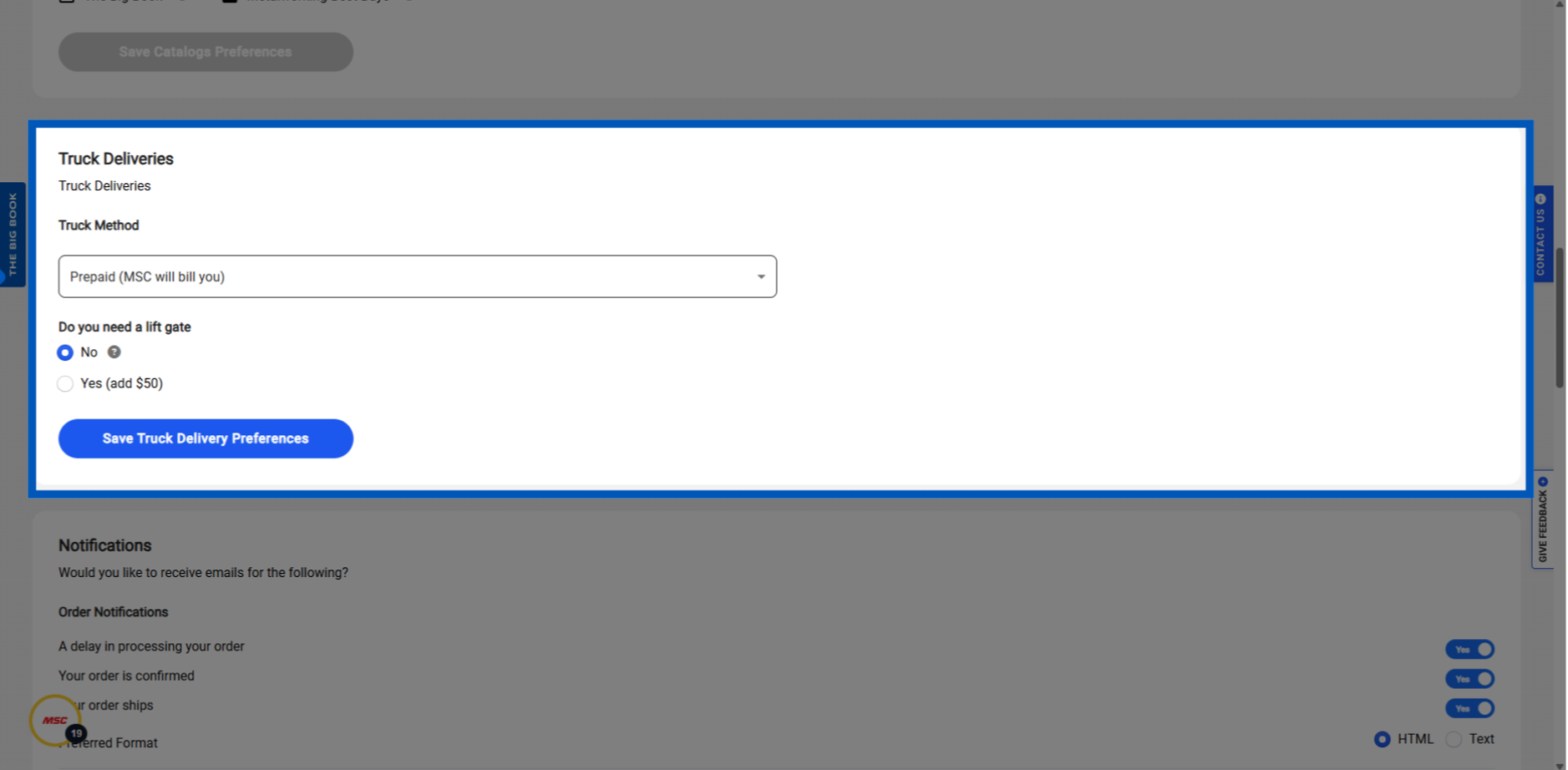
Notifications - This section will allow you to choose which notifications you want to get about your Orders. Simply toggle Yes/No to choose what works best for you.
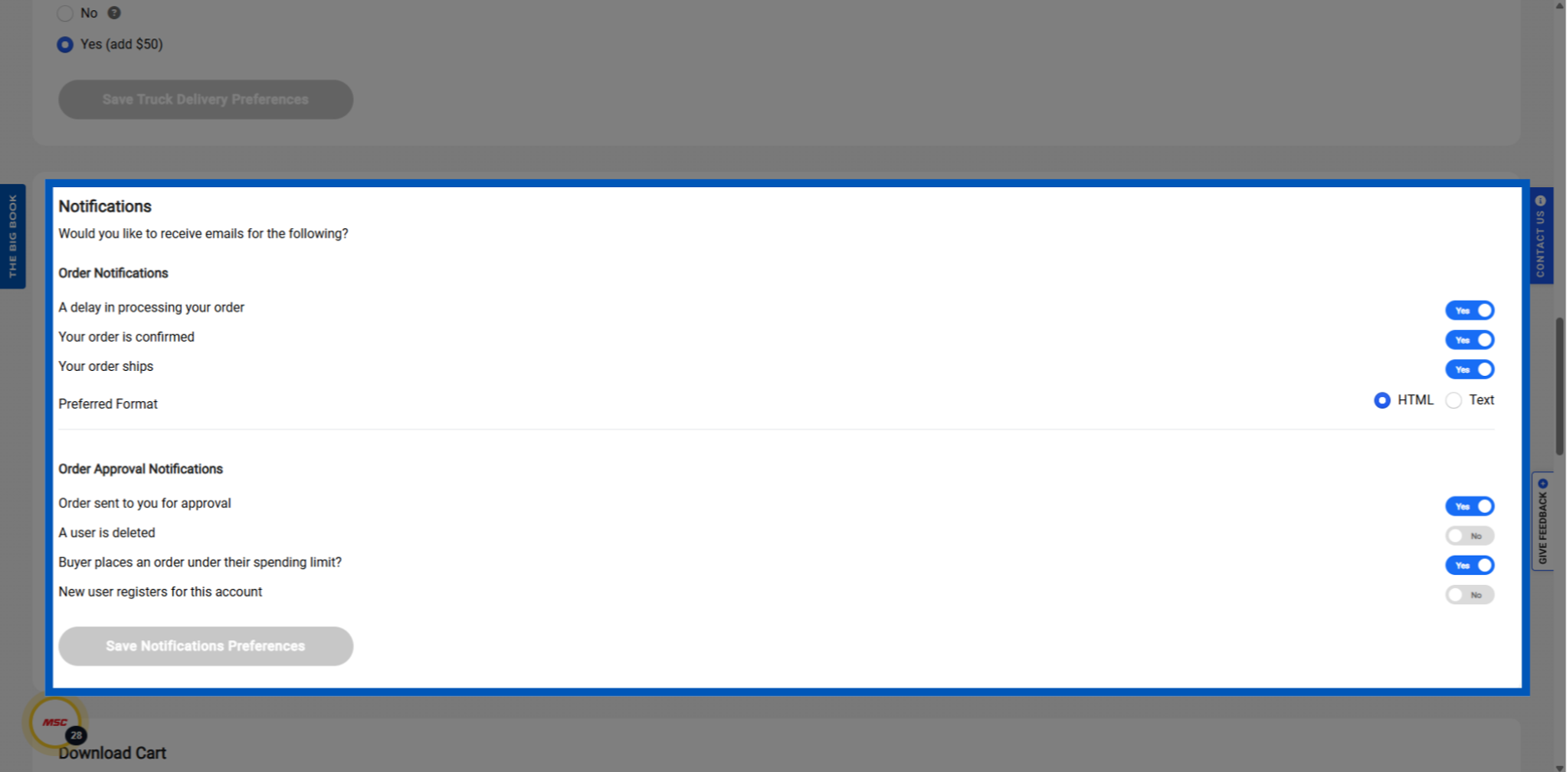
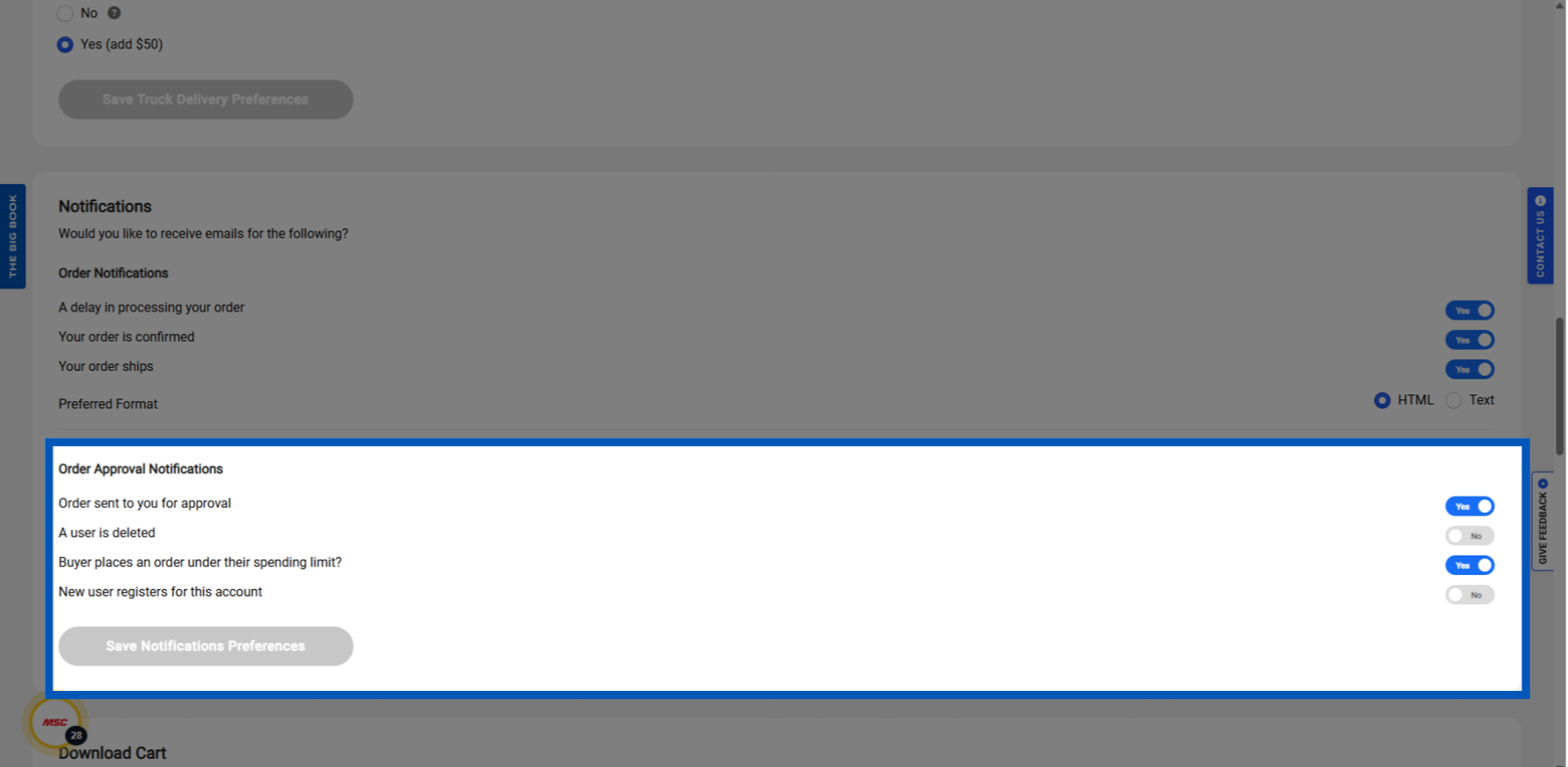
Order Approval Notifications - This section will allow you to toggle Yes/No for: orders sent for approval, user deleted, buyer places order under spending limit, new user registration.
Download Cart - This section is used for setting up the preferences for when downloading the contents of a cart- you will be able to pick your columns you want added to the download and pick the download format.
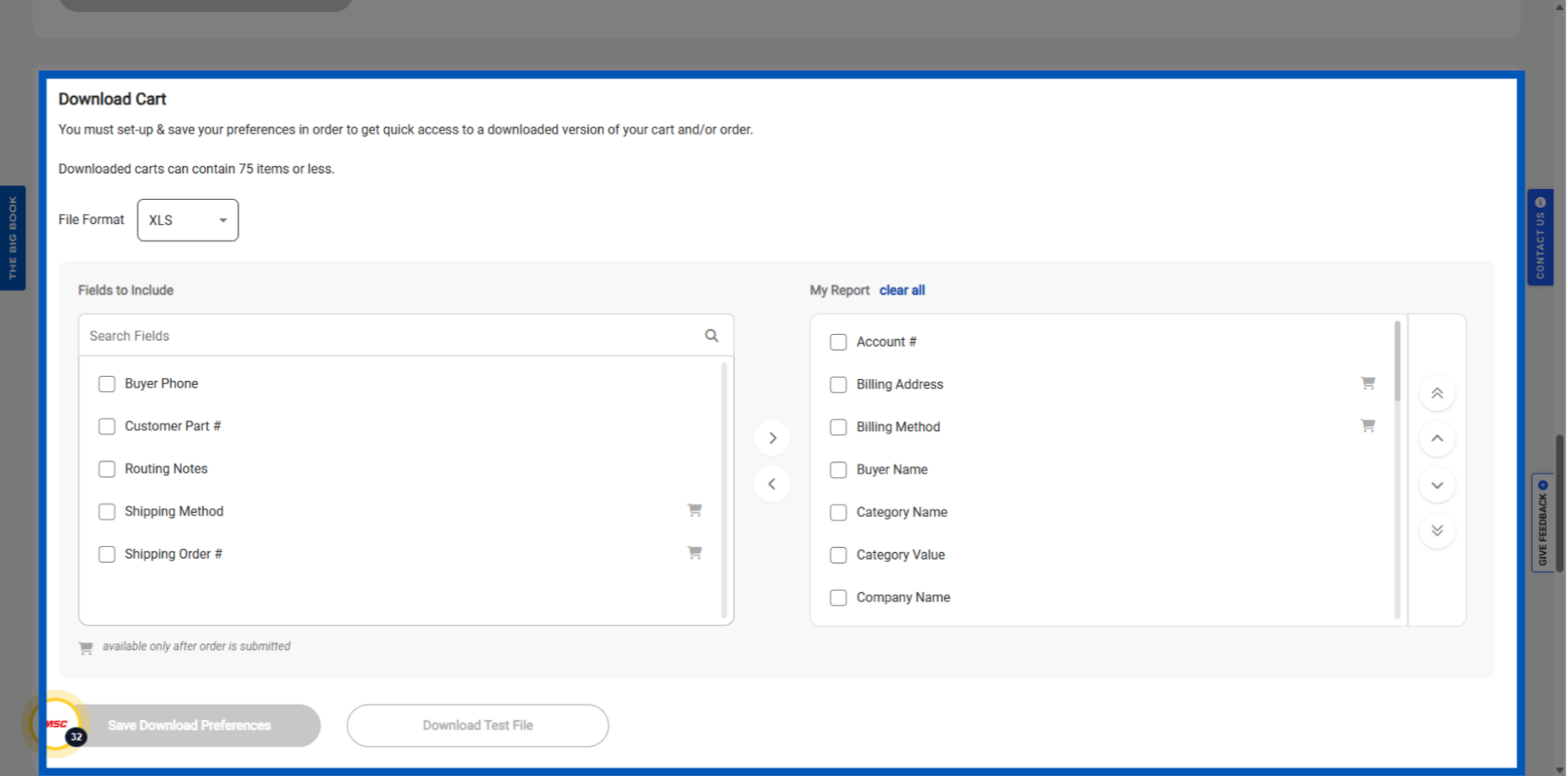
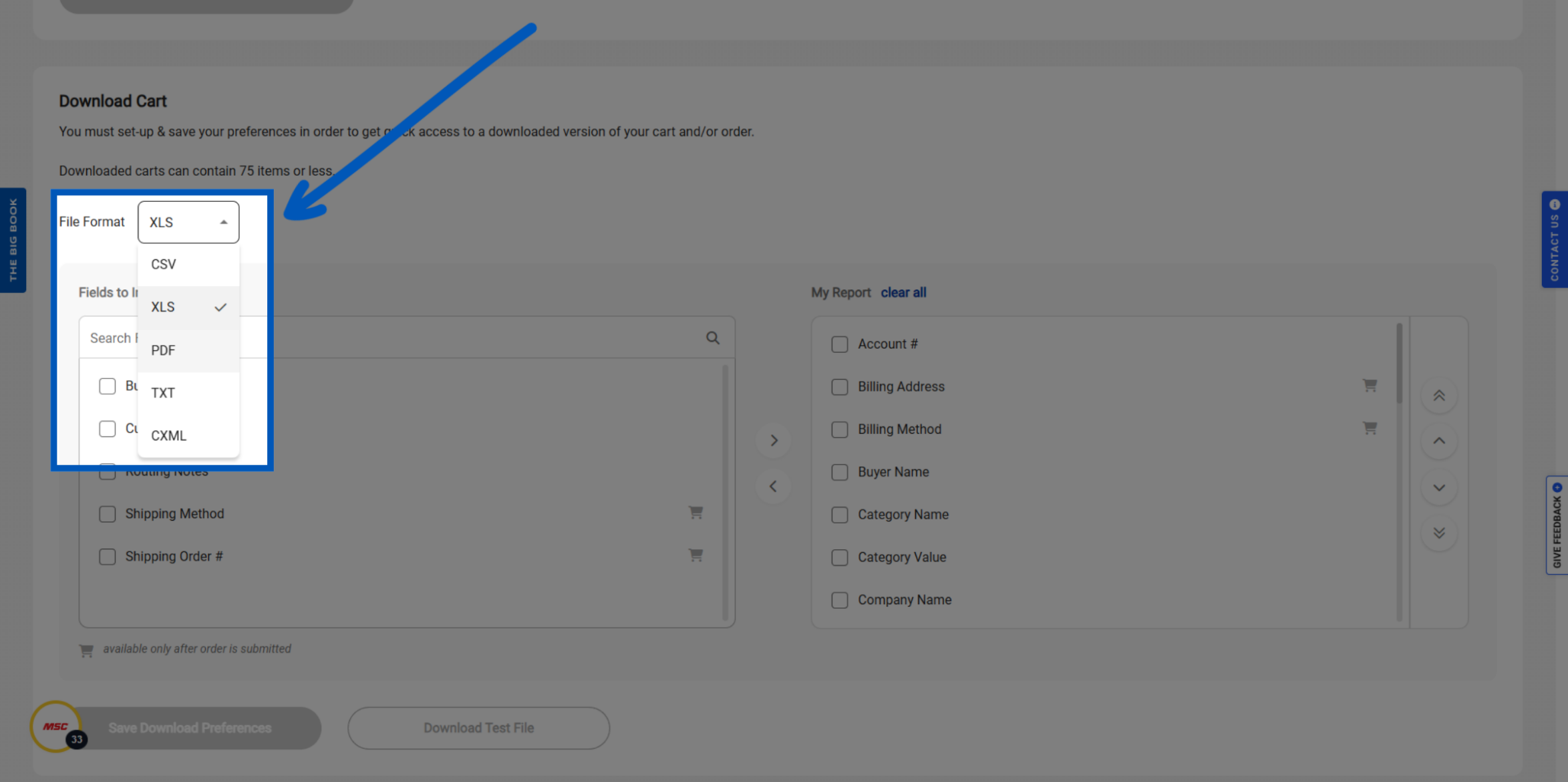
Download Cart – Format: Select the file format that works best for you, from the list of CSV, XLS, PDF, text, or CXML.
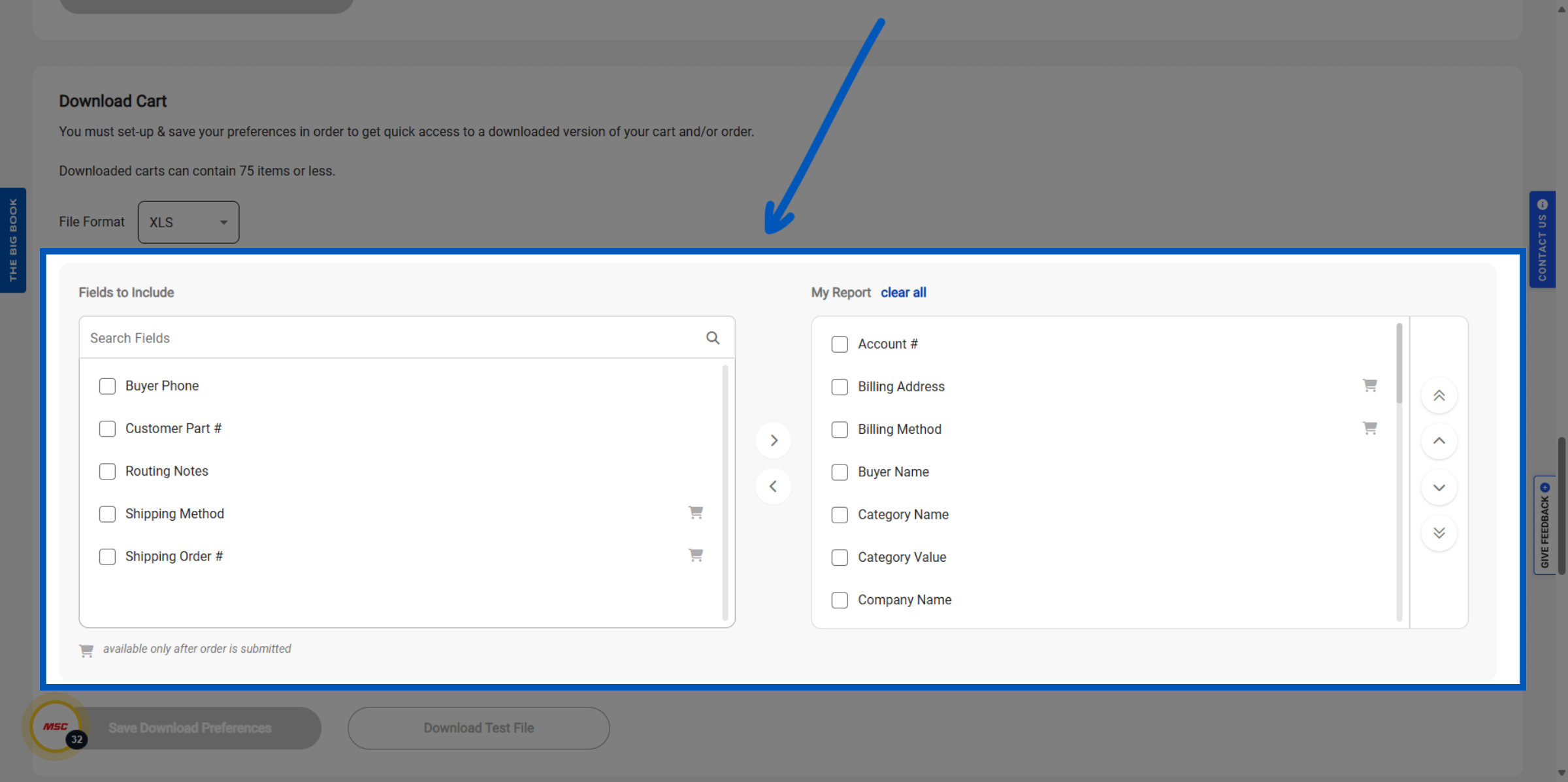
Download Cart – Fields: You can select and move fields to include in the downloaded report.
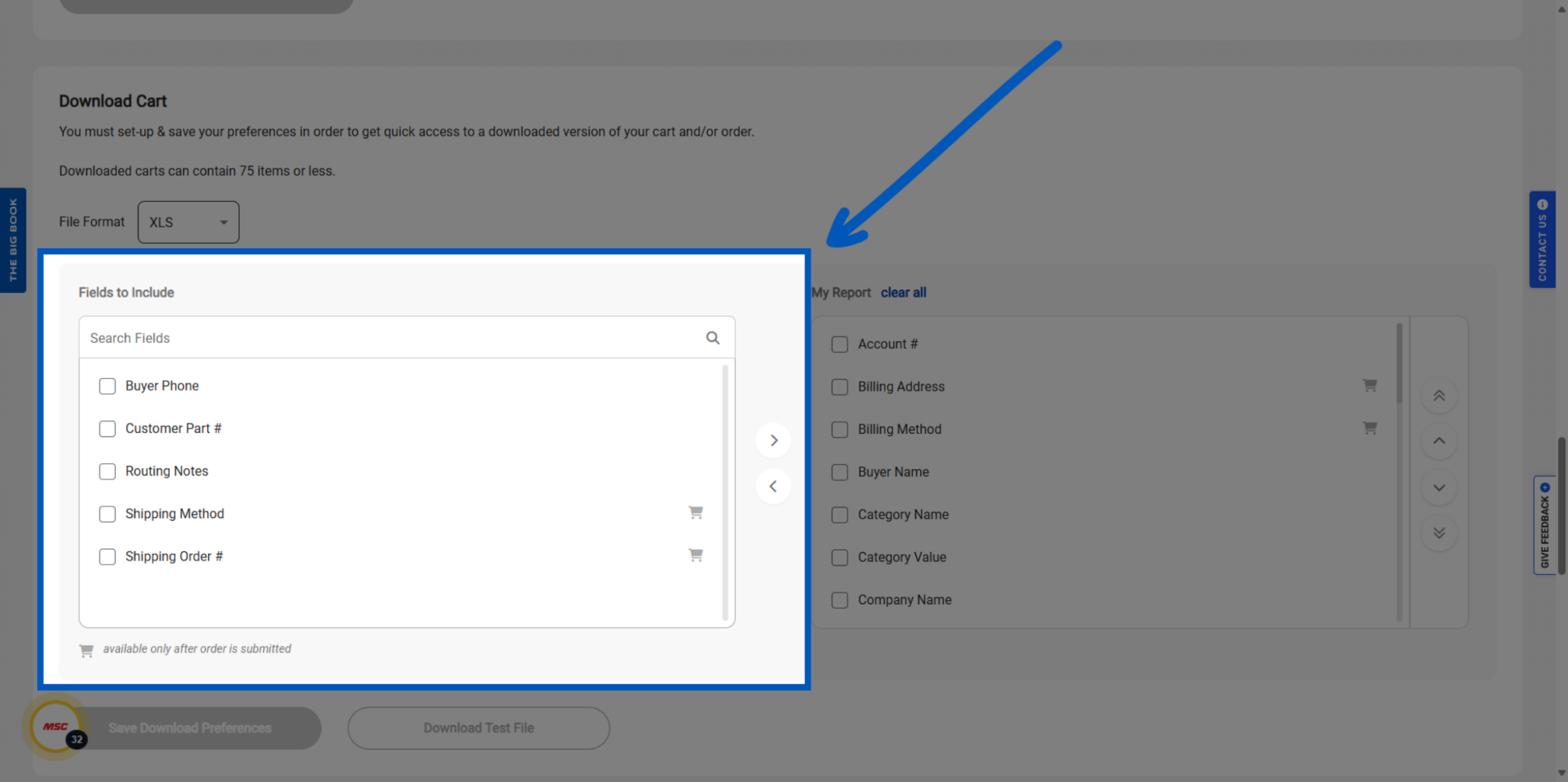
Download Cart – Fields: The left side shows the fields that are available to include in your report.
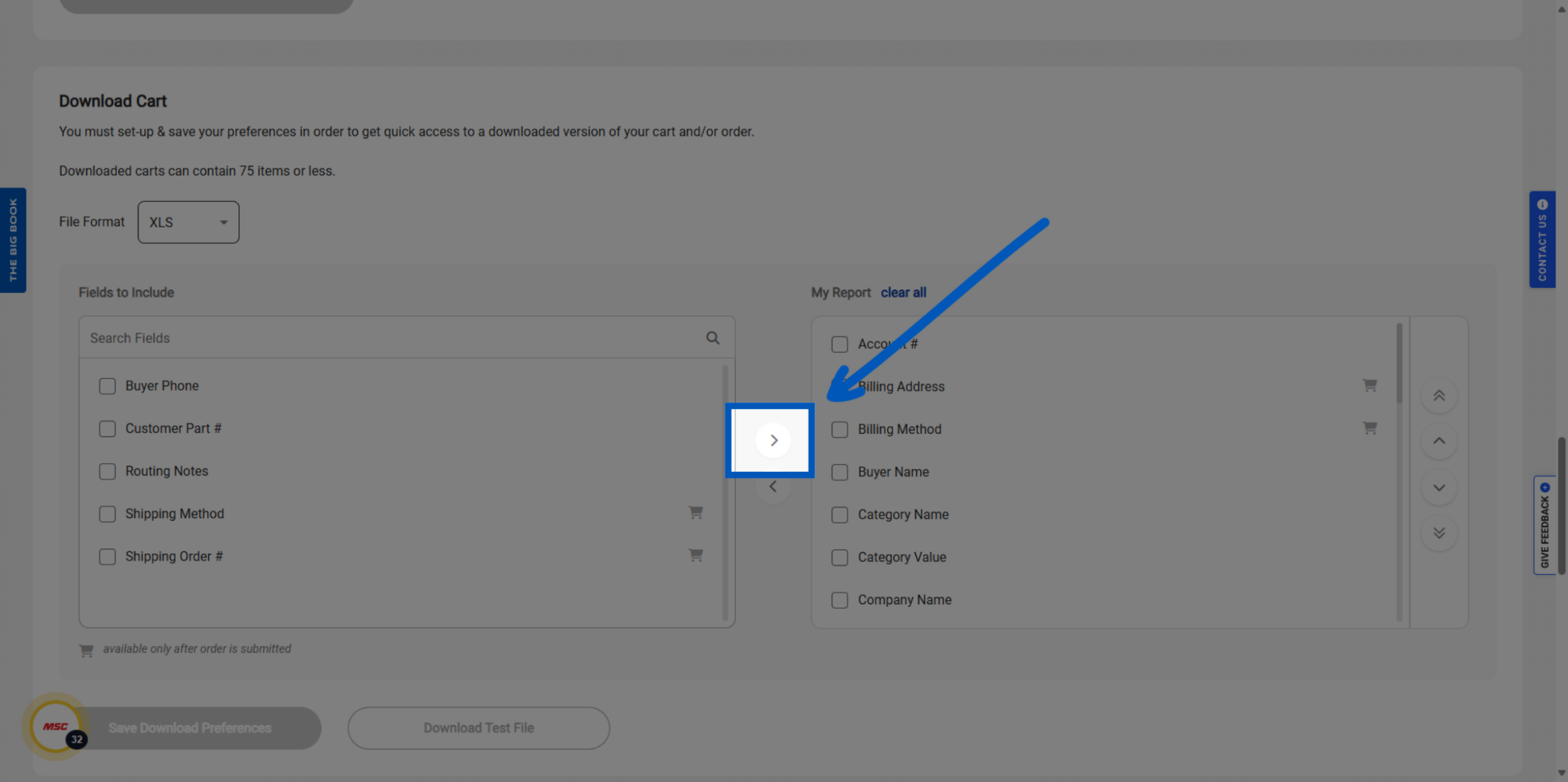
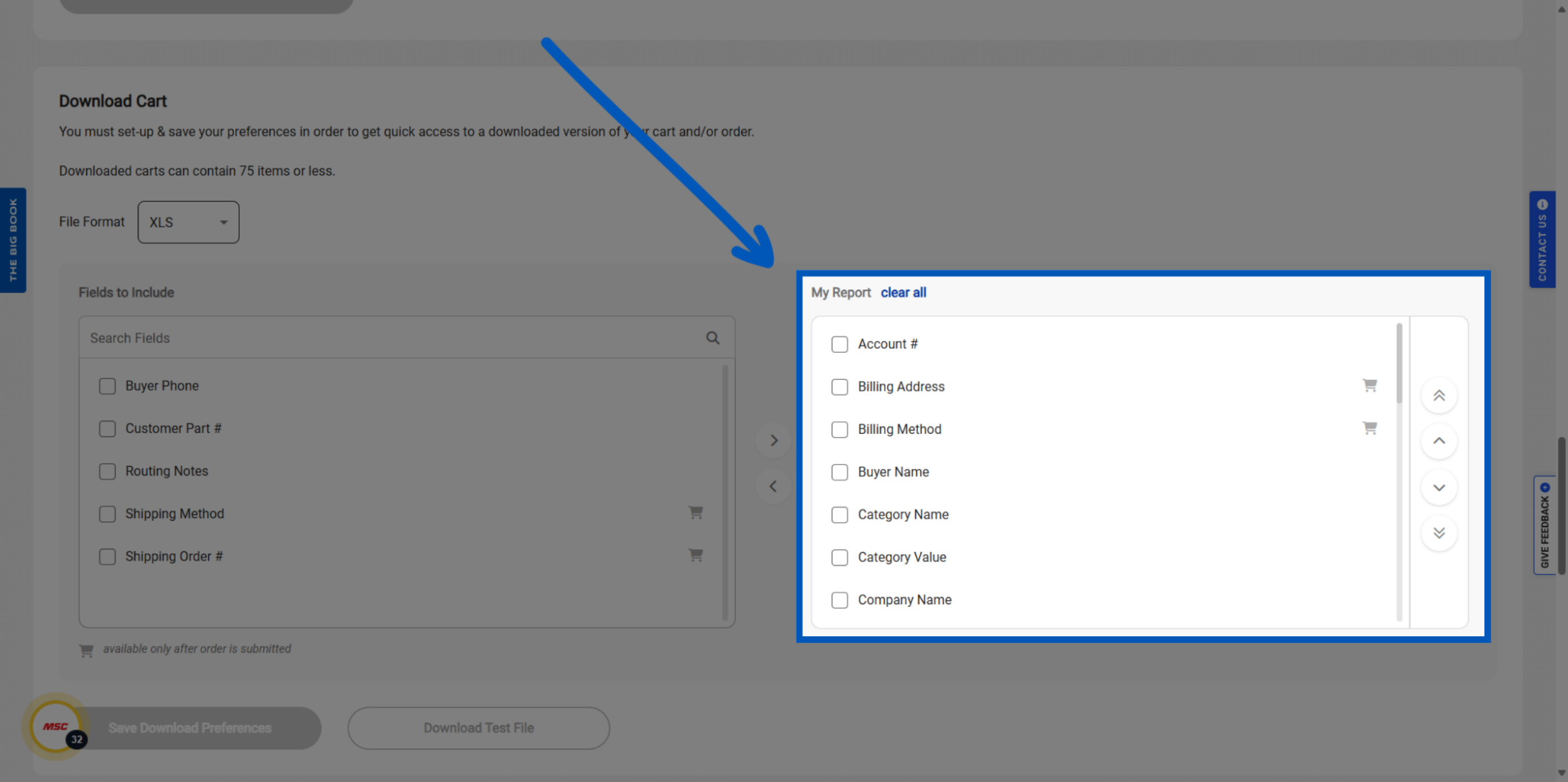
Download Cart - My Report: Once added the fields in the "My Report" Column will populate into the "Download Cart" report each time you access it.
More Account Management Resources
Back to Account ManagementTo request a quote, please login to your existing account or register a new one. This helps us provide you with a personalized experience and keep track of your requests.