



Order Approval | MSC Order Management
Introduction:
MSC order management on mscdirect.com allows admins to assign purchase limits to users and designate approvers for transactions. Only users with admin access can access the order approval management section. Admins can review MSC order history across all registered users, including their roles, spend limits, and assigned approvers. When building a new order approval structure to track MSC orders and control purchasing, we recommend starting from the top down, starting with selecting admins, then approvers, and finally users who may have restricted spend.
Detailed Step by Step Guide: | MSC Order Management
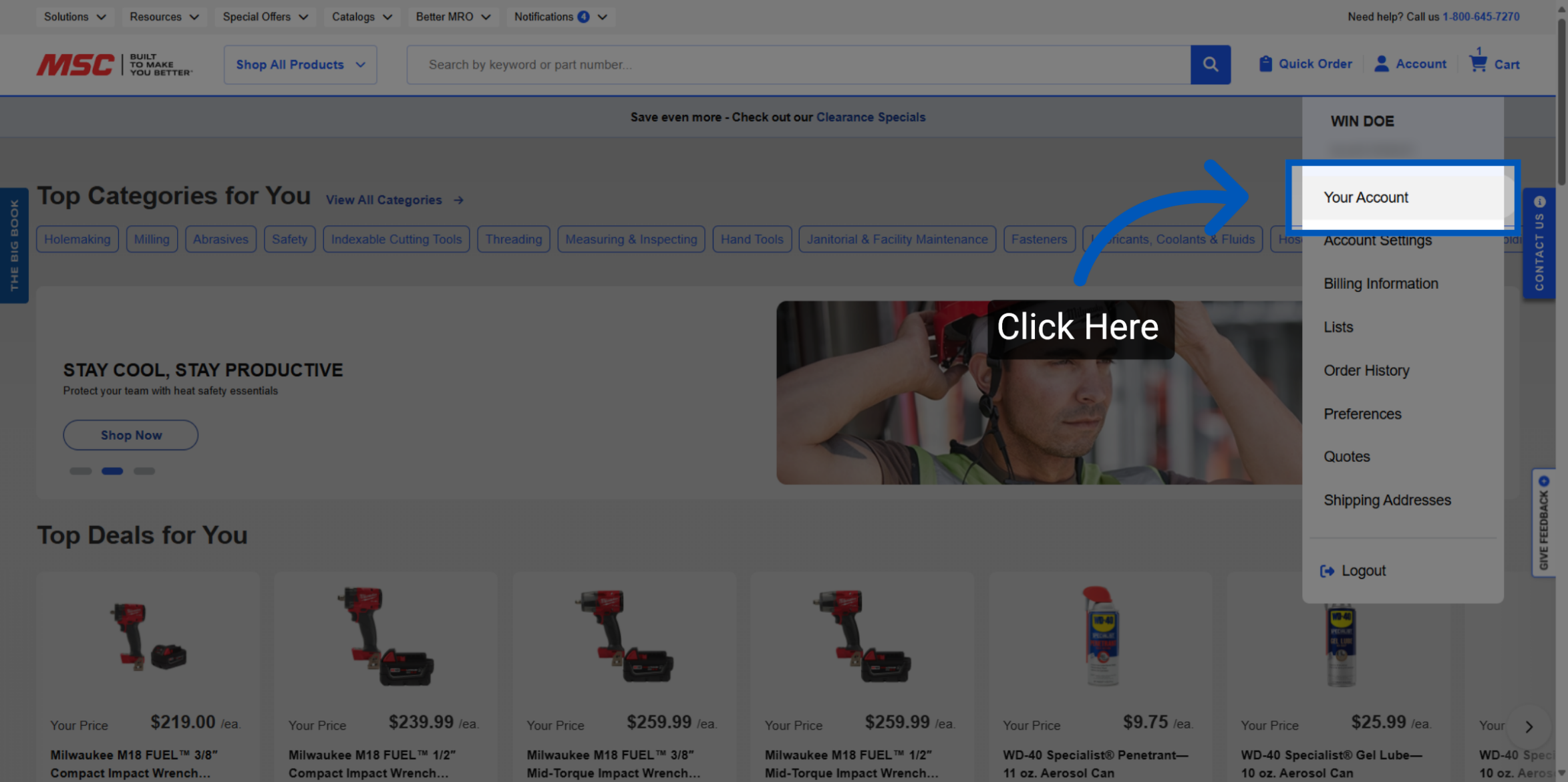
Start by Accessing Your Account: This function allows administrators to assign purchase limits to users or designate certain users to approve purchases for others, establishing a controlled MSC order management workflow. To get started on this feature, click "Your Account" at the top of the account drop-down menu.
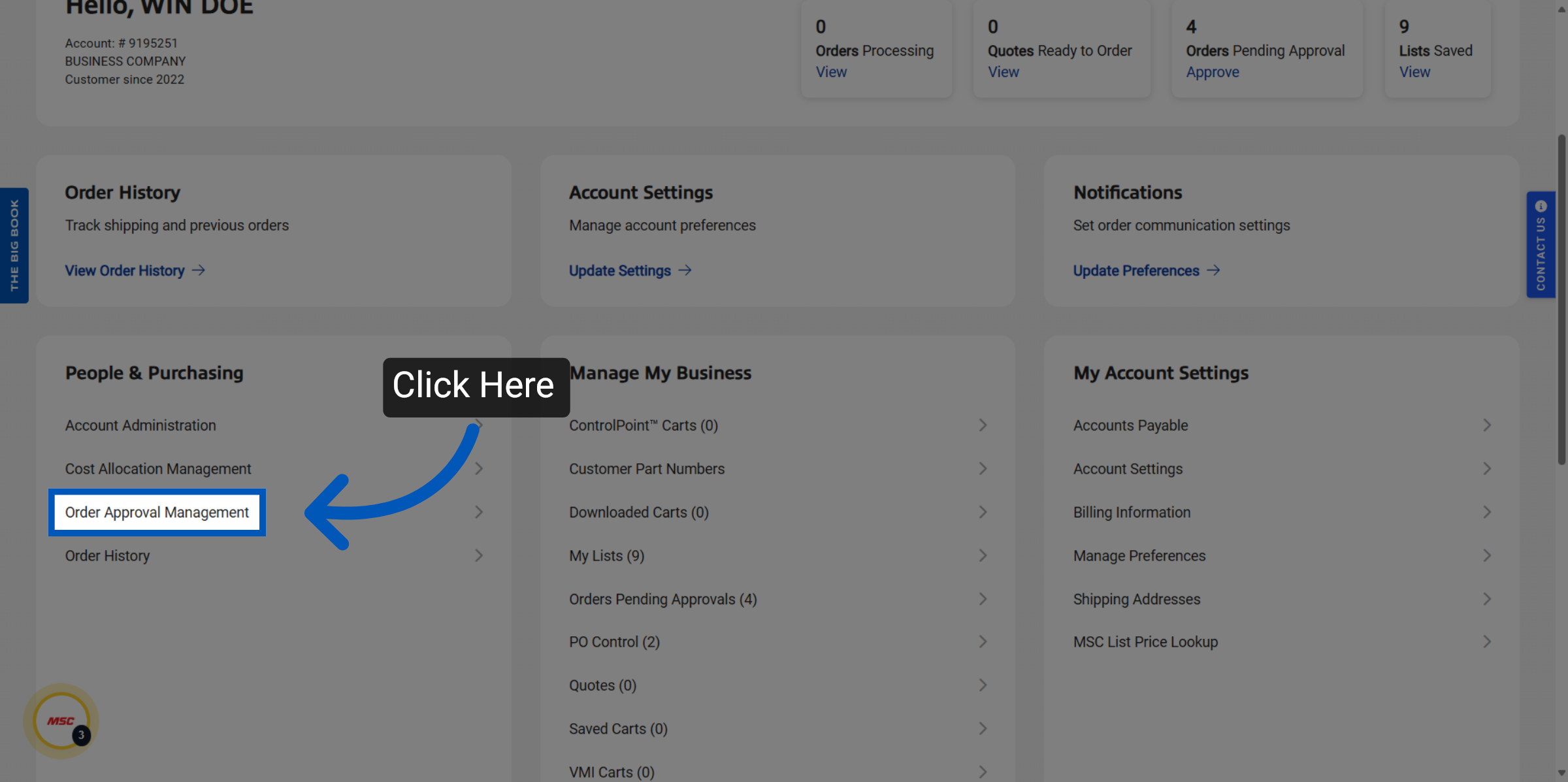
Navigate to Order Approval Management: Click "Order Approval Management" under the People and Purchasing tab.
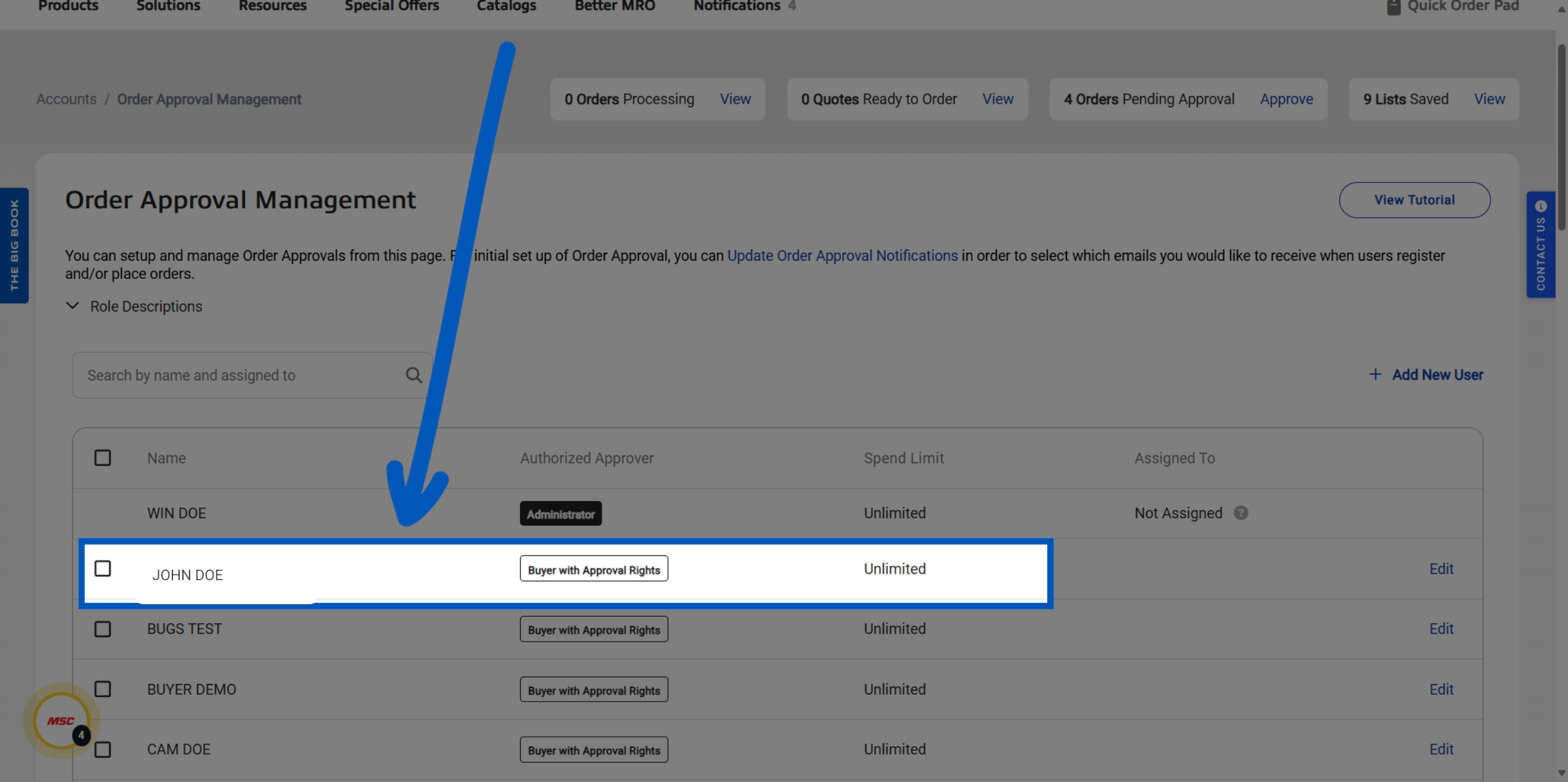
Review Registered Users: Once on the Order Approval Management you will be able to review all registered users, their roles, spend limits, and approvers on this page. This view is part of MSC order history and MSC order management. By default all new users are initially set as buyers with approval rights and an unlimited spend limit.
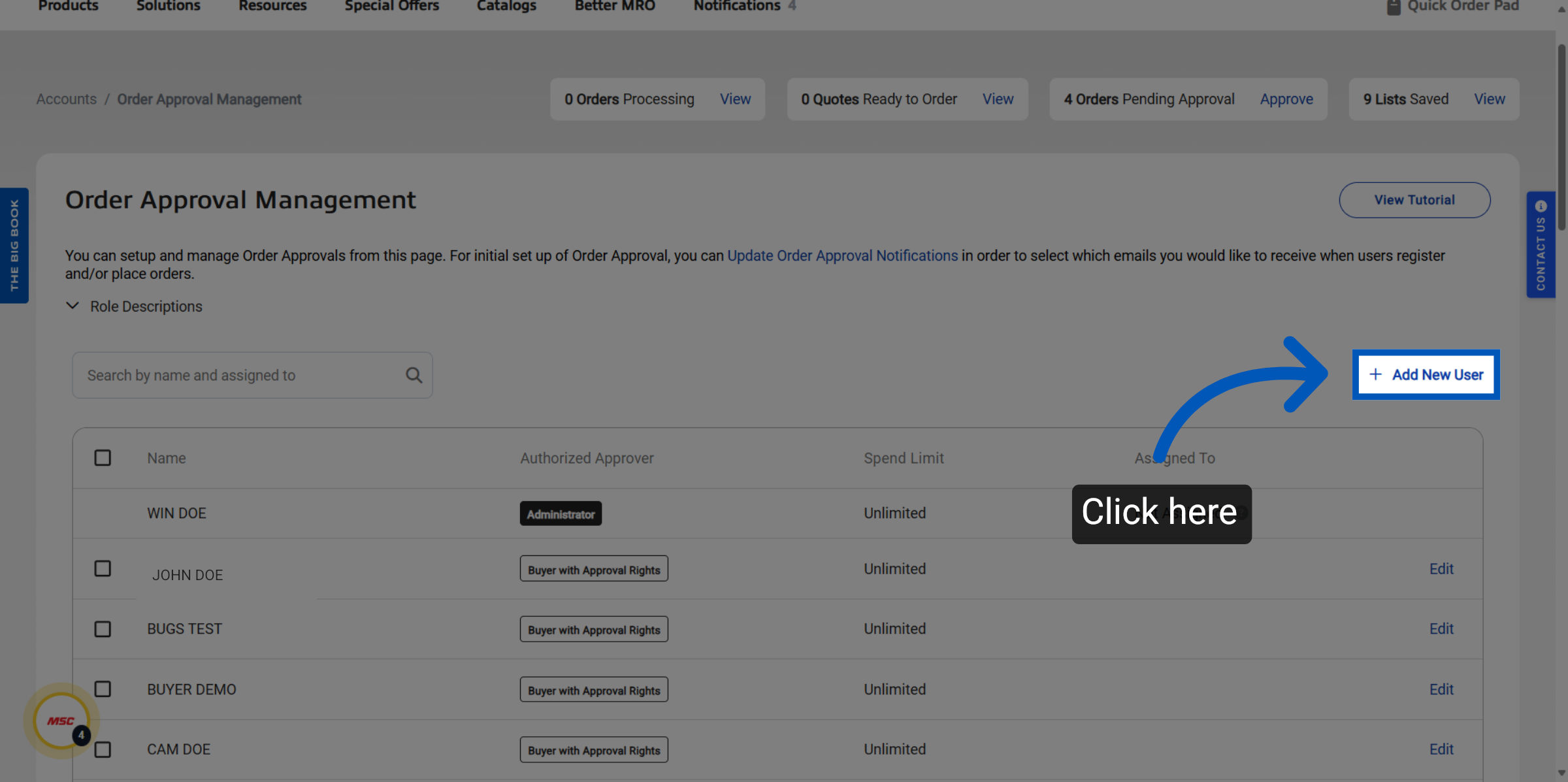
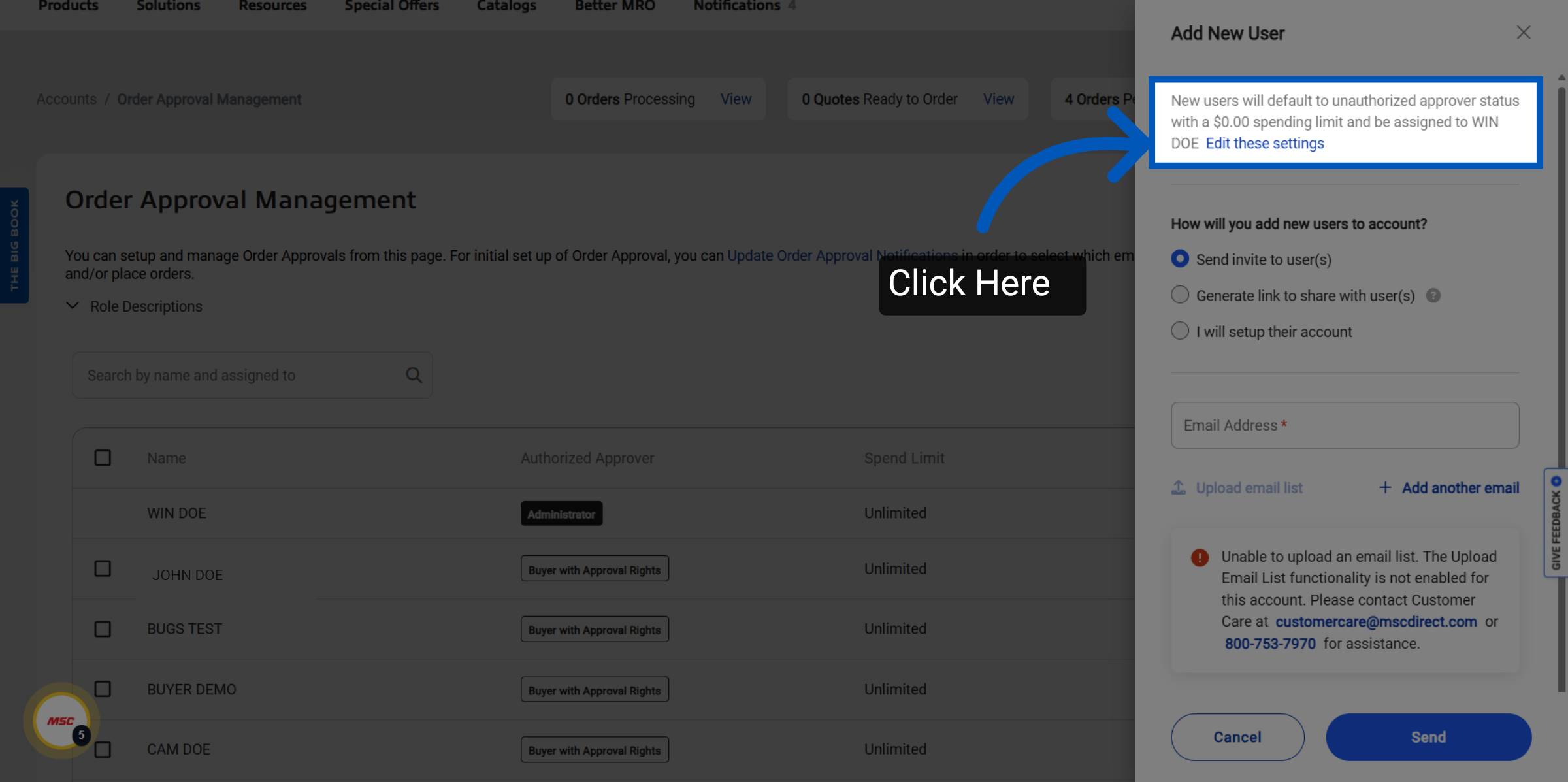
Change User Default Settings: You can change what new users default to by clicking "add new user"
Edit: Click "Edit these settings" to change your defaults.
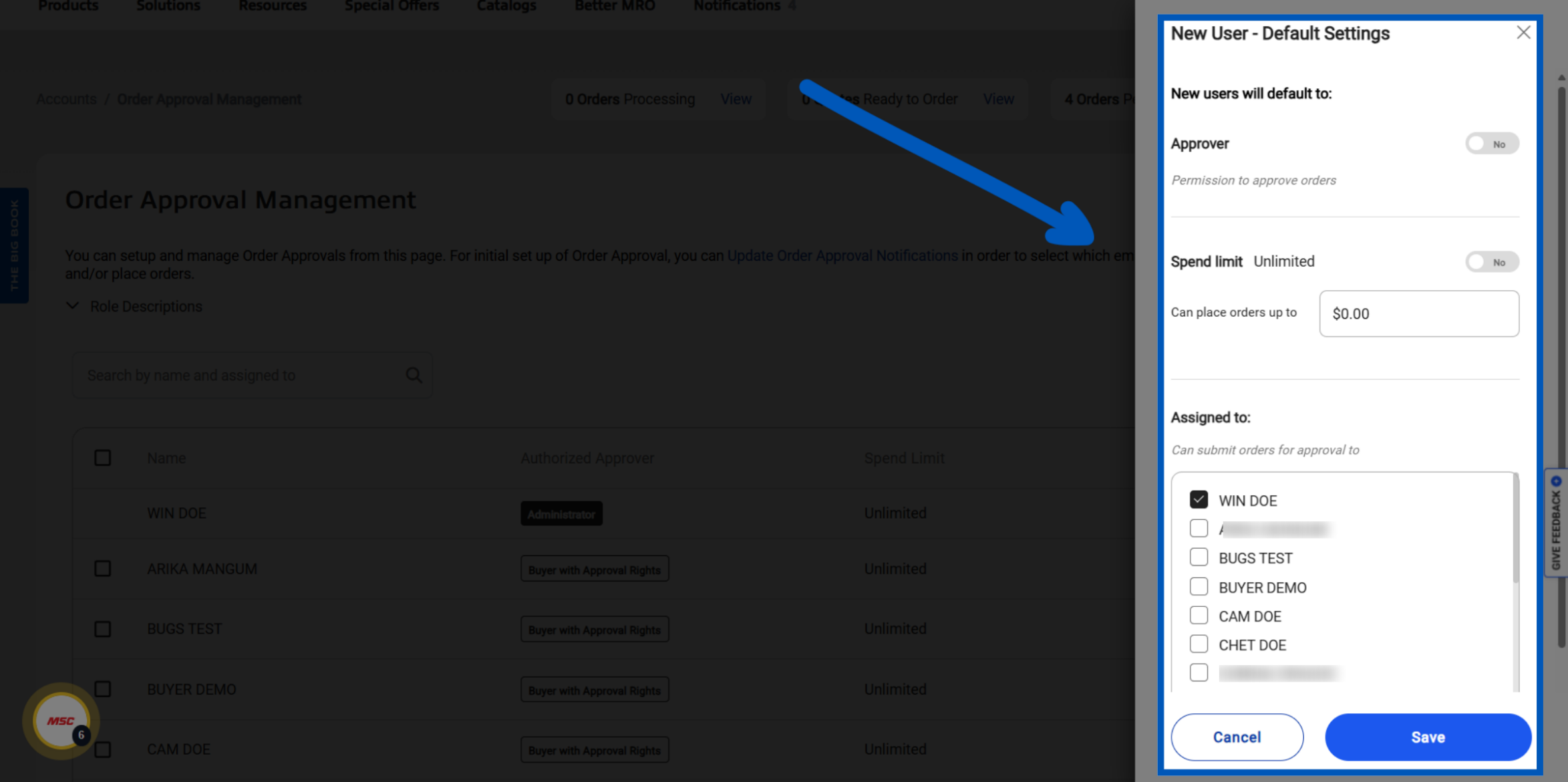
Set New User Default Settings: This screen lets you set the default roles, spend limit, and who they should be assigned to.
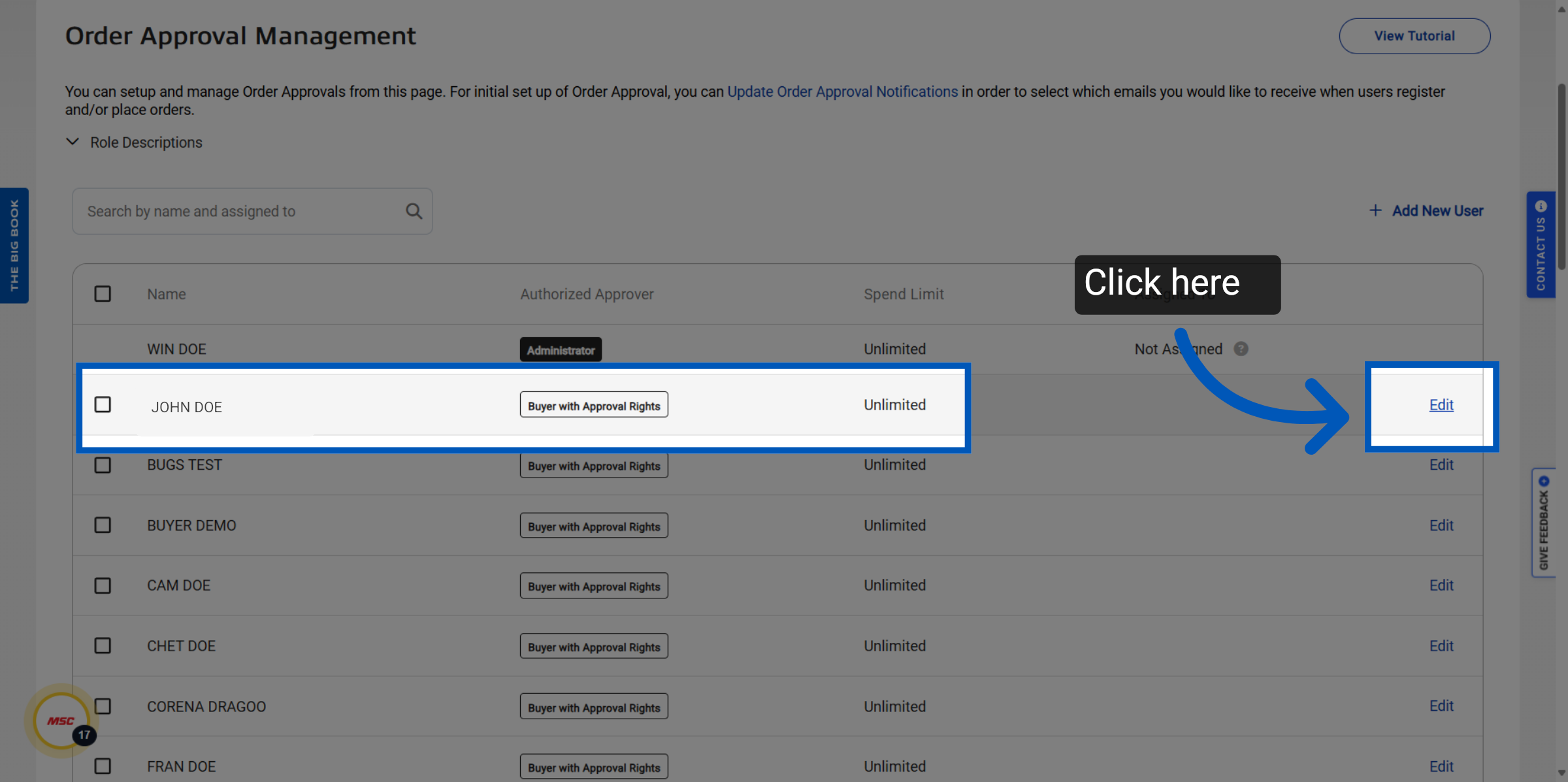
Editing Existing Users: If you need to edit an existing user click "Edit" on the user line to modify user roles.
Administrator: By toggling the administrator setting to 'yes,' this will remove all restrictions for that user.
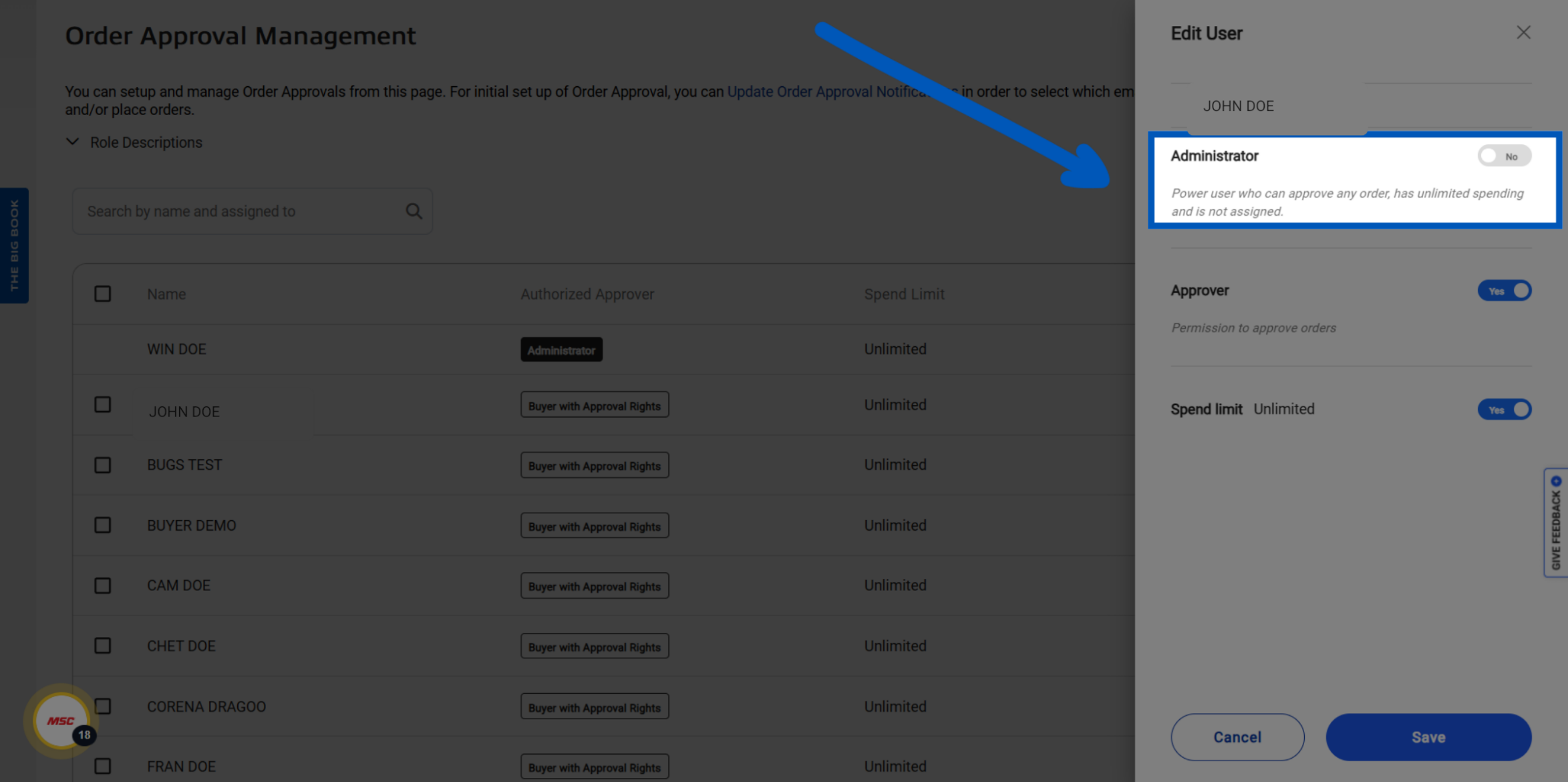
Approver: An account may have up to 10 authorized approvers assigned, and administrators must select which approvers will be responsible for approving transactions that exceed the user's spend limit.
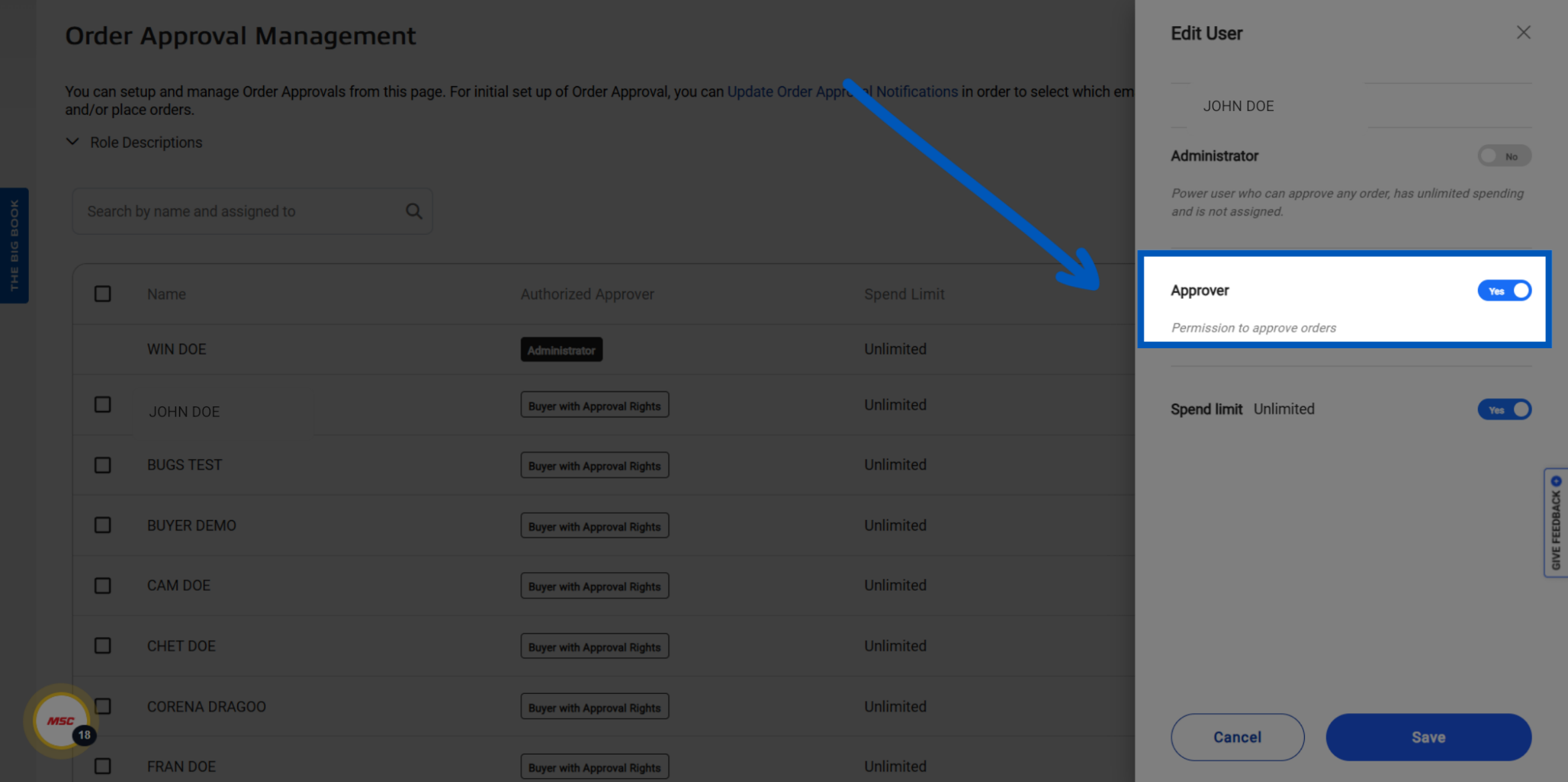
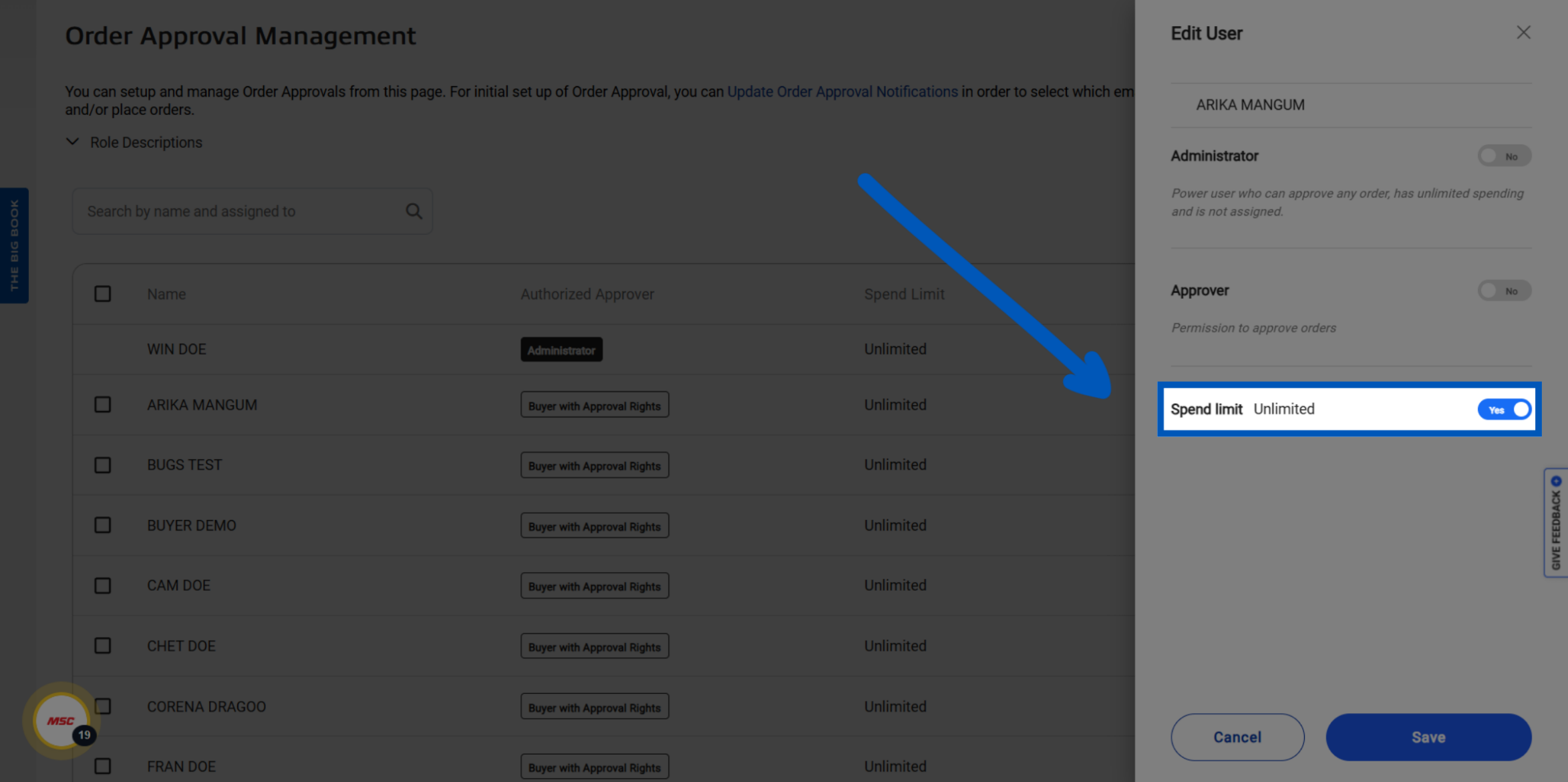
Spend Limit: To restrict a user's purchasing ability and track MSC orders within budget thresholds, administrators can set the unlimited spend slider to 'no' and enter a specific spend limit. This applies only to merchandise cost and excludes tax or freight.
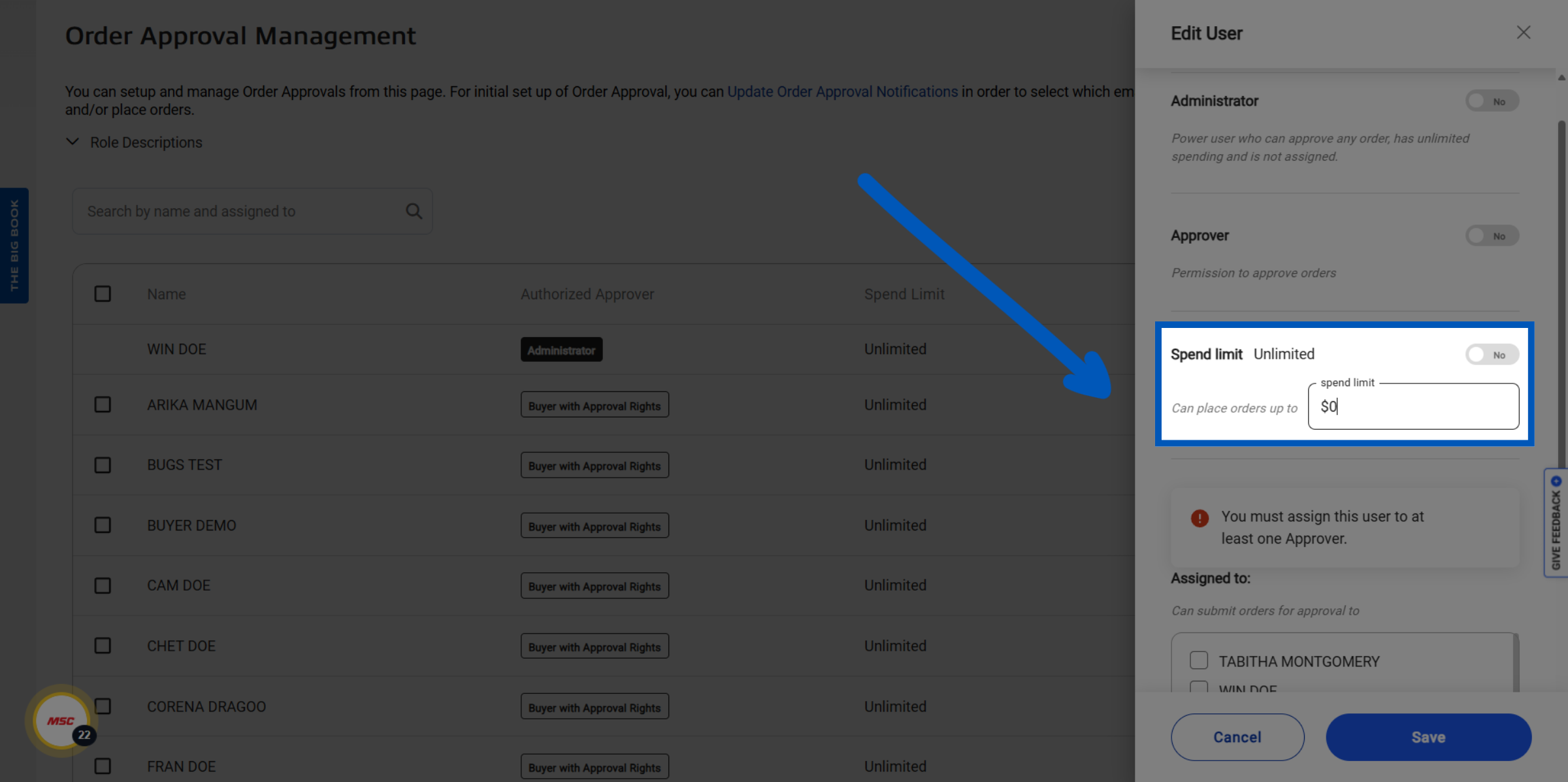
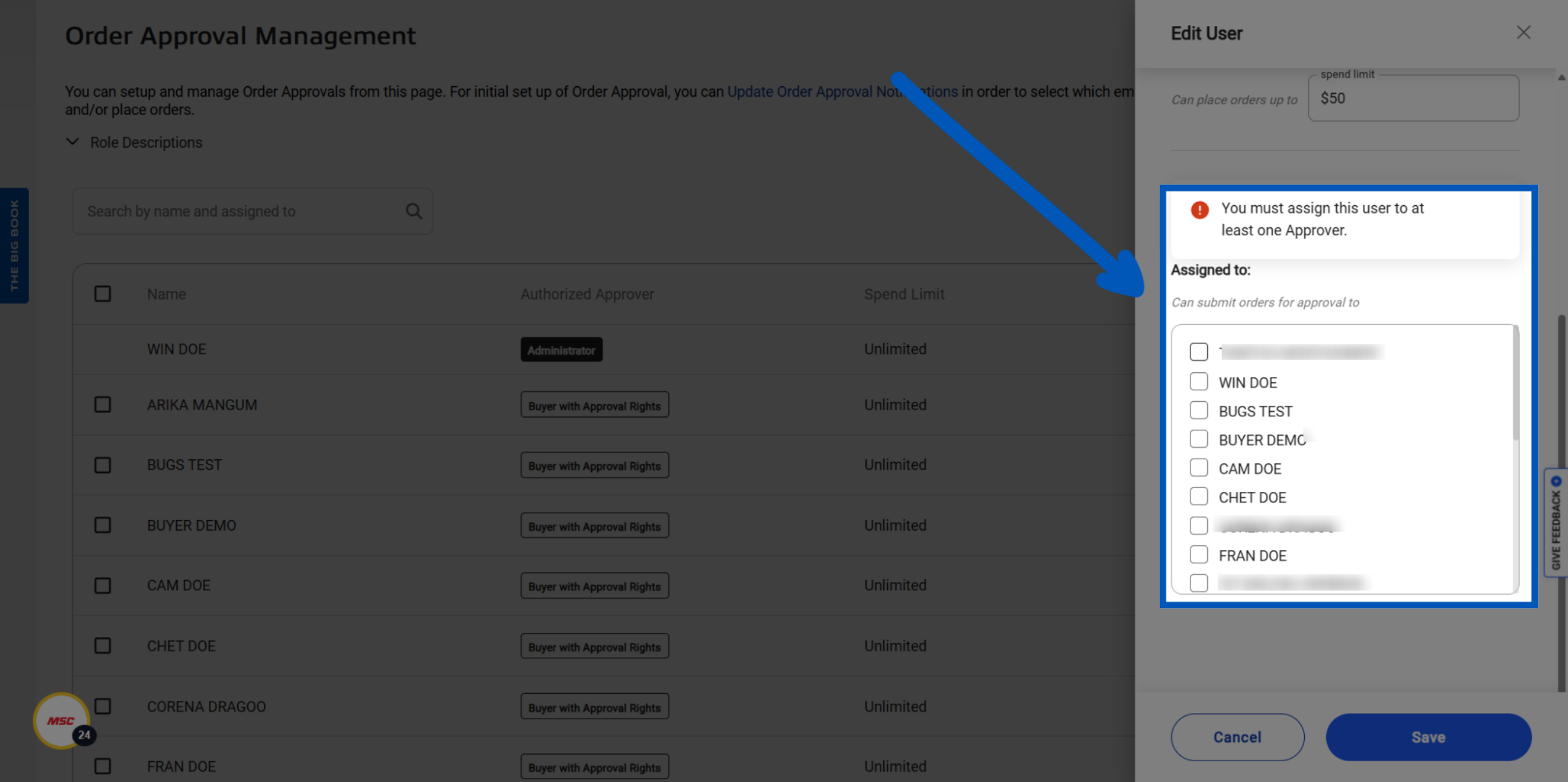
Assign an Approver: Once a spend limit is established, admins can assign up to 10 approvers for transactions that exceed this threshold. When a user attempts to make a purchase beyond the limit, they must select an approver from a drop-down menu to initiate the approval request. Transactions within the limit do not require any approval.
MSC Order Tracking Issues
Common MSC order tracking issues within a managed account are often tied to the approval workflow. If an order appears stuck or pending in MSC order history, it may be awaiting approval from an assigned approver. Administrators should verify the user’s spend limit configuration and confirm that at least one active approver is assigned to that user. If the issue persists, contact the MSC customer care team at 800-753-7970 or customercare@mscdirect.com for assistance.
More Account Management Resources
Back to Account ManagementTo request a quote, please login to your existing account or register a new one. This helps us provide you with a personalized experience and keep track of your requests.