



PO Control
What PO Control Is?
PO Control is an account level admin feature that allows customers to create, manage, and enforce Purchase Orders (POs) when placing orders on MSCDirect.com. It helps companies track spend, control budgets, and ensure proper cost allocation during checkout rather than after the fact.
Key Benefits
Control Spend Before It Happens | Enforce Procurement Compliance Effortlessly | Simplify Checkout For End Users | Improve Visibility For Finance Teams |
|---|---|---|---|
Create purchase orders with start/end dates and spending limits, then track usage in real time to avoid overages and surprises. | Make PO selection required at checkout so users can only place orders against approved purchase orders—no manual policing required. | Once enabled, users simply select a PO from a dropdown, and the PO number is automatically applied to the order and confirmation. | Track spend by PO, see remaining balances, and receive alerts when spending reaches a set threshold. |
Section 1: Setting Up Purchase Order Control
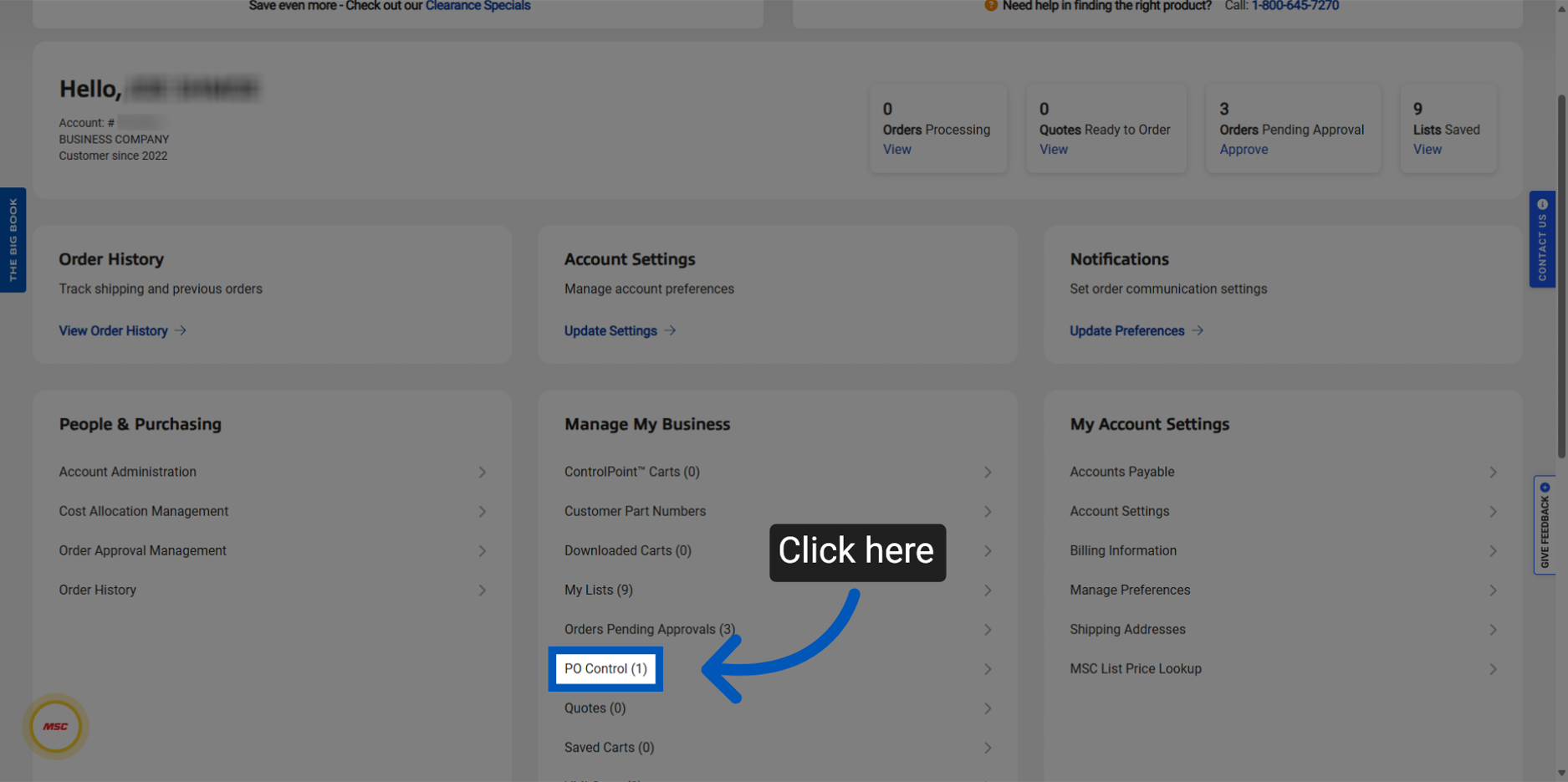
Access - You can access PO Control by navigating to Your Account. You will find PO Control under the 'Manage My Business' section.
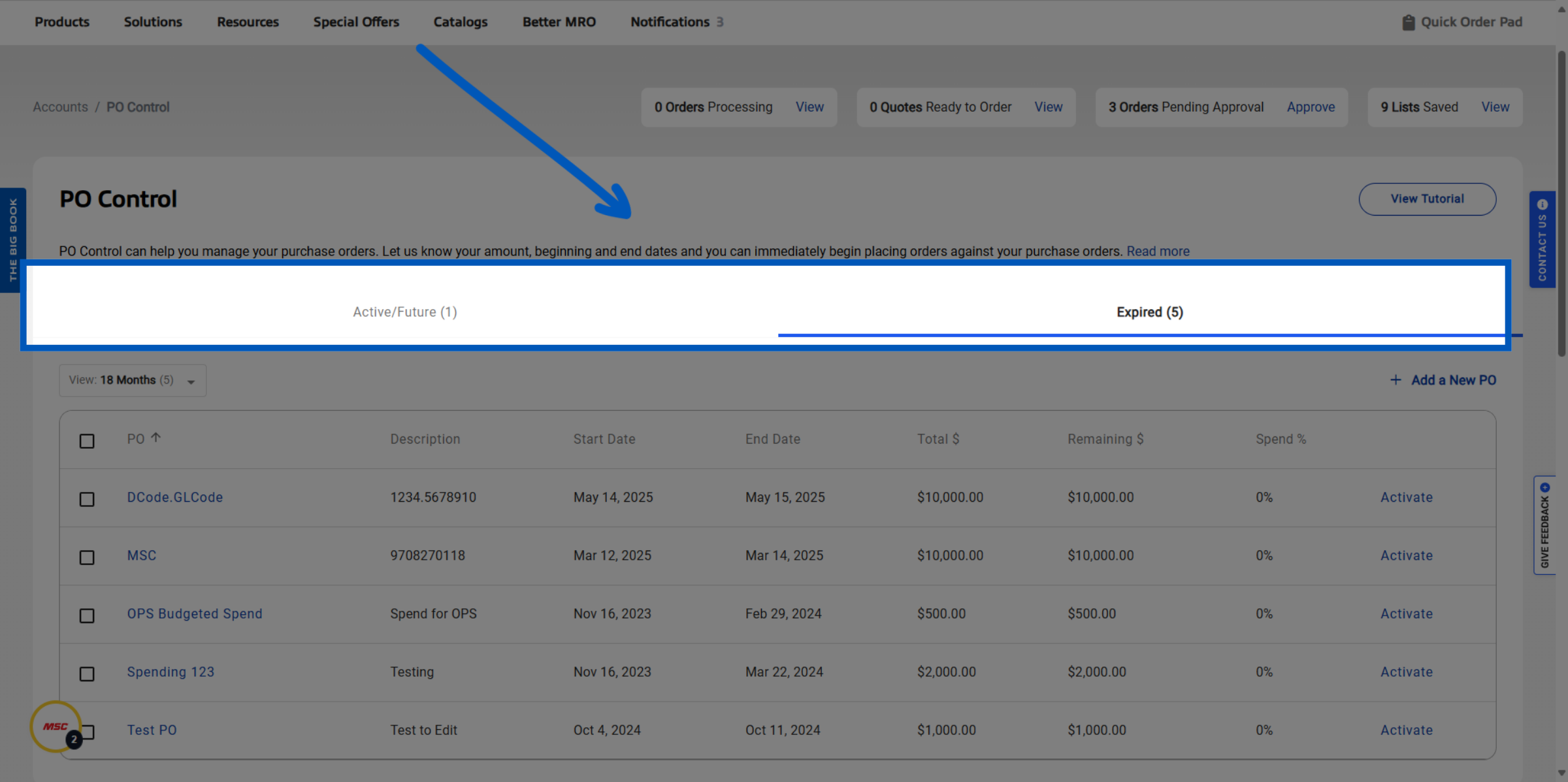
Viewing Purchase Orders - Switch the filter to show active and future purchase orders to monitor ongoing commitments.
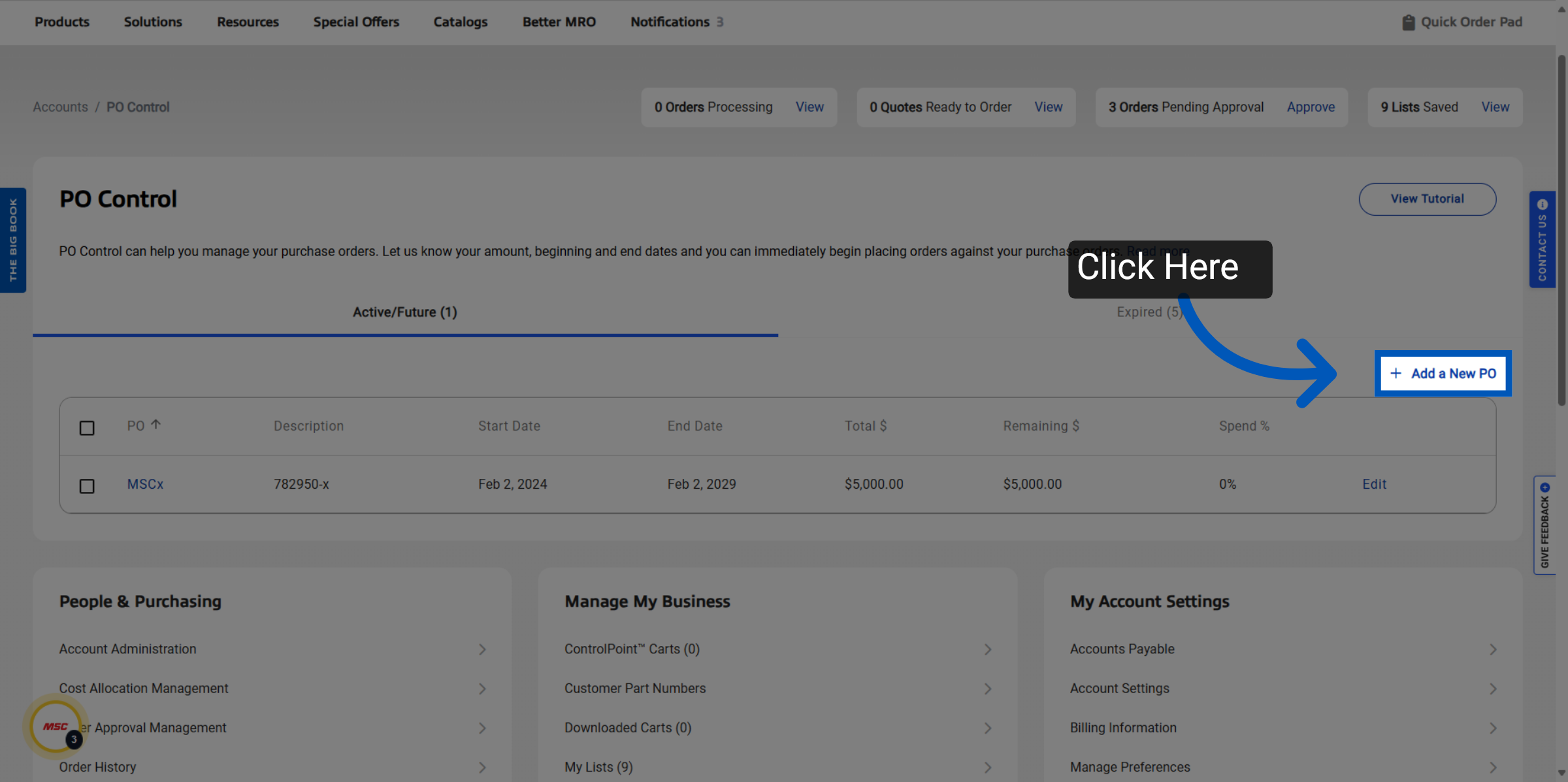
Adding A New Purchase Order
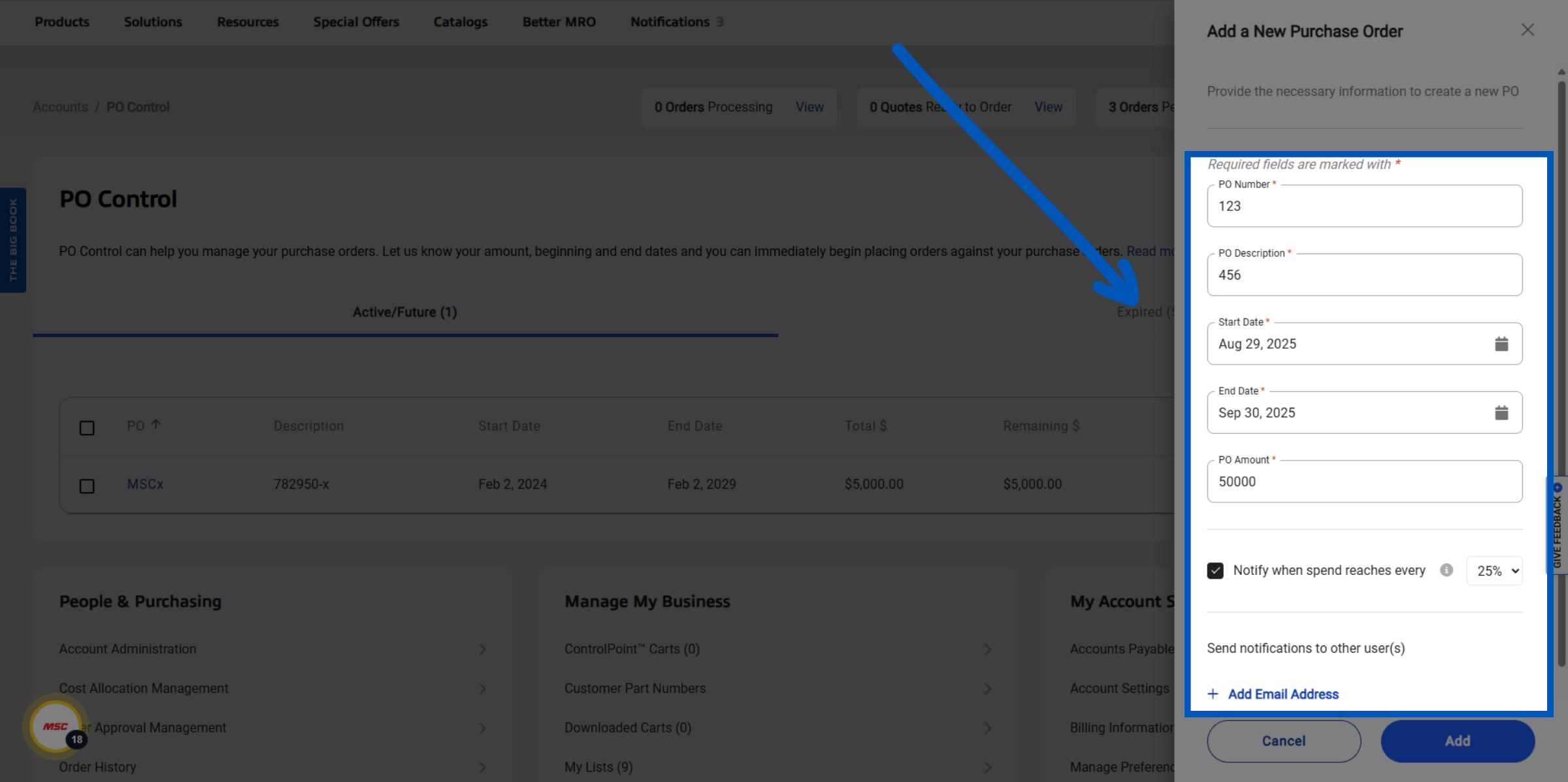
Form - Fill out the form with the required information: the PO number, description, start date, end date, and the amount of spend. You can also configure a purchase order to send notifications when spending hits a specified percentage, with a default alert set at 25% as well as choose who should receive these notifications.
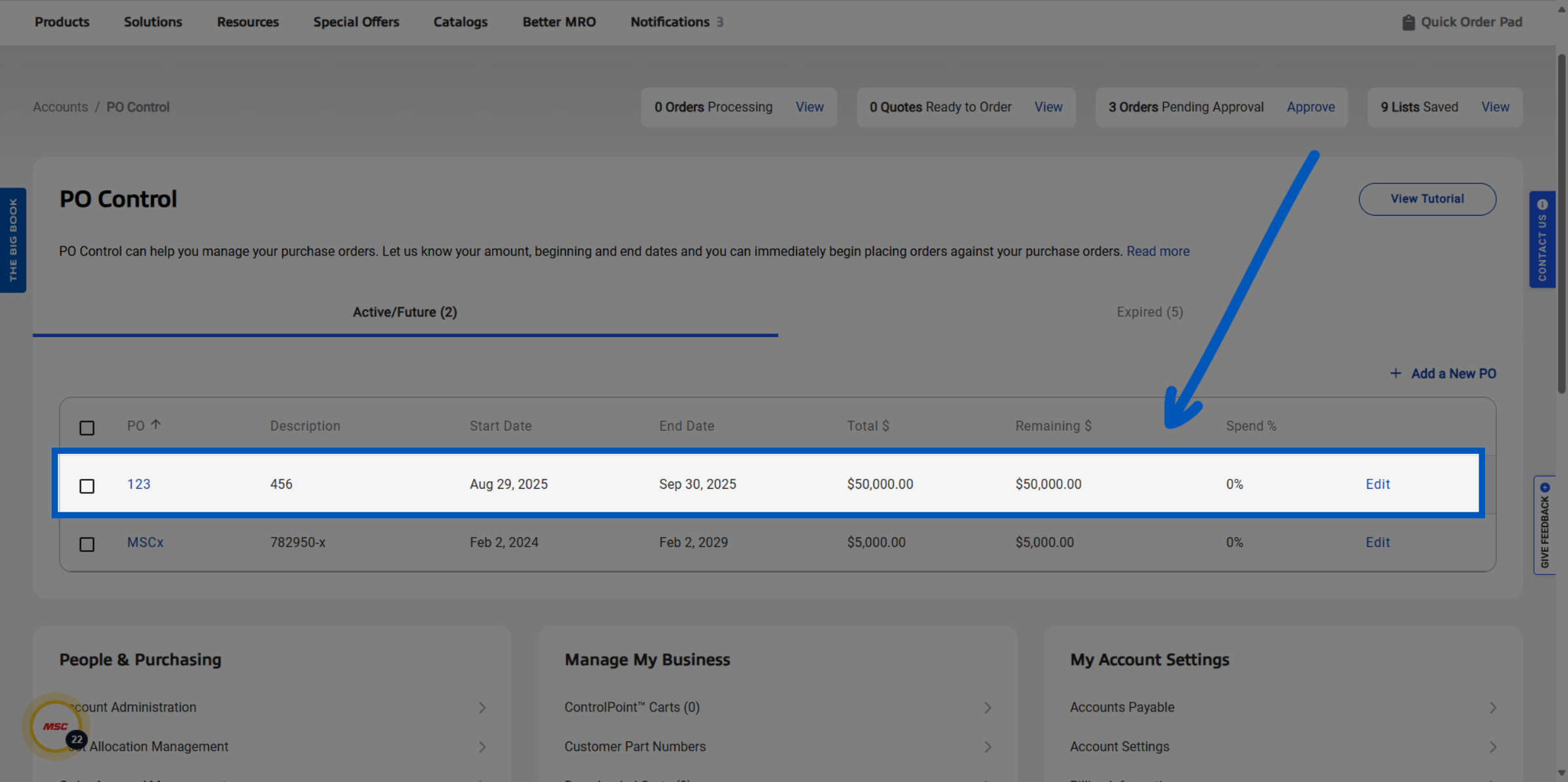
Purchase Order Details - After creating the Purchase Order, it will appear under the Active/Future tabs. Here you will find the details of your Purchase orders like description, dates, spend, and percentage. Select the Edit option to make changes to existing purchase order details.
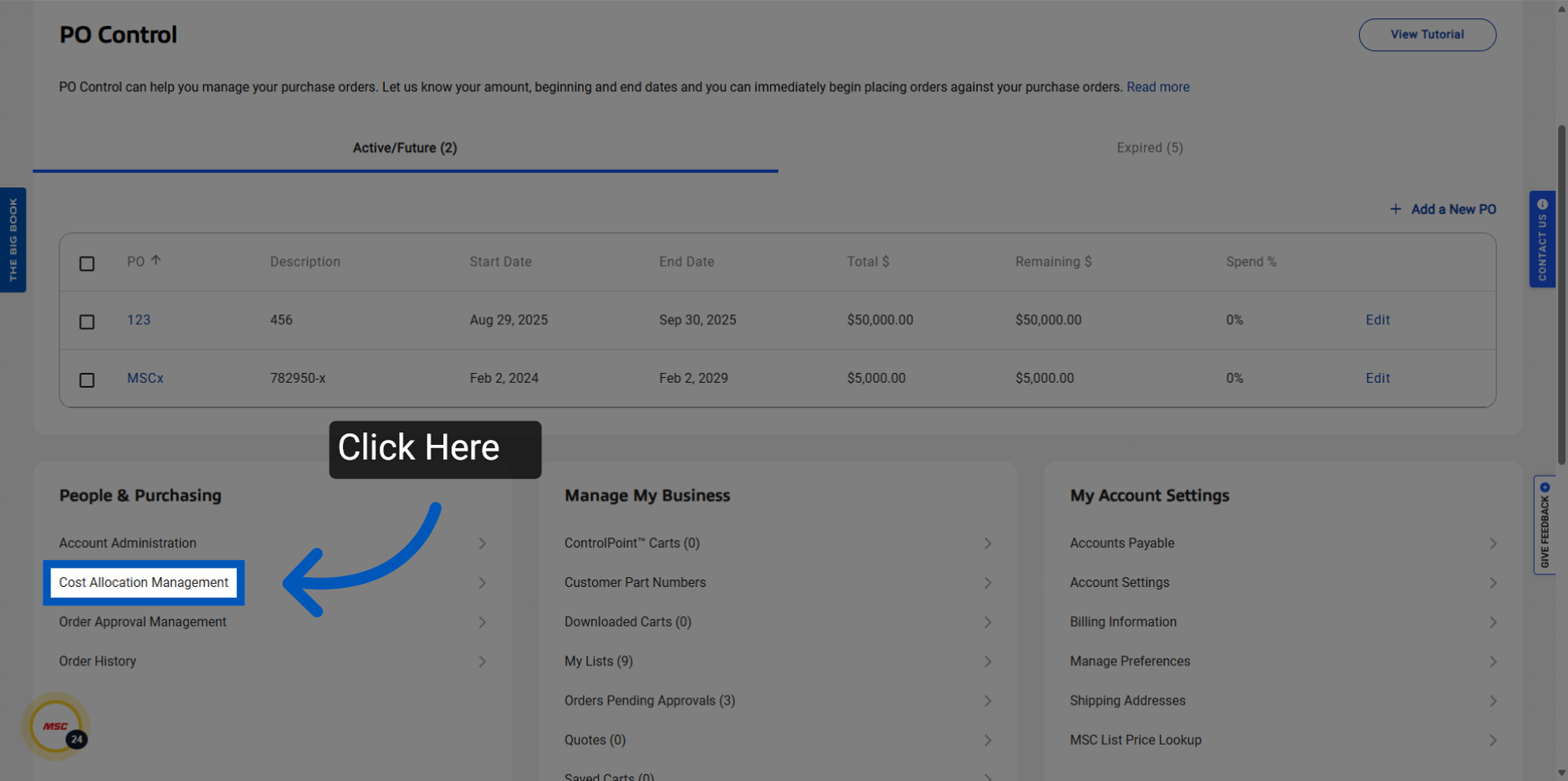
Activate PO Control - Navigate to Cost Allocation Management to activate PO Control on orders.
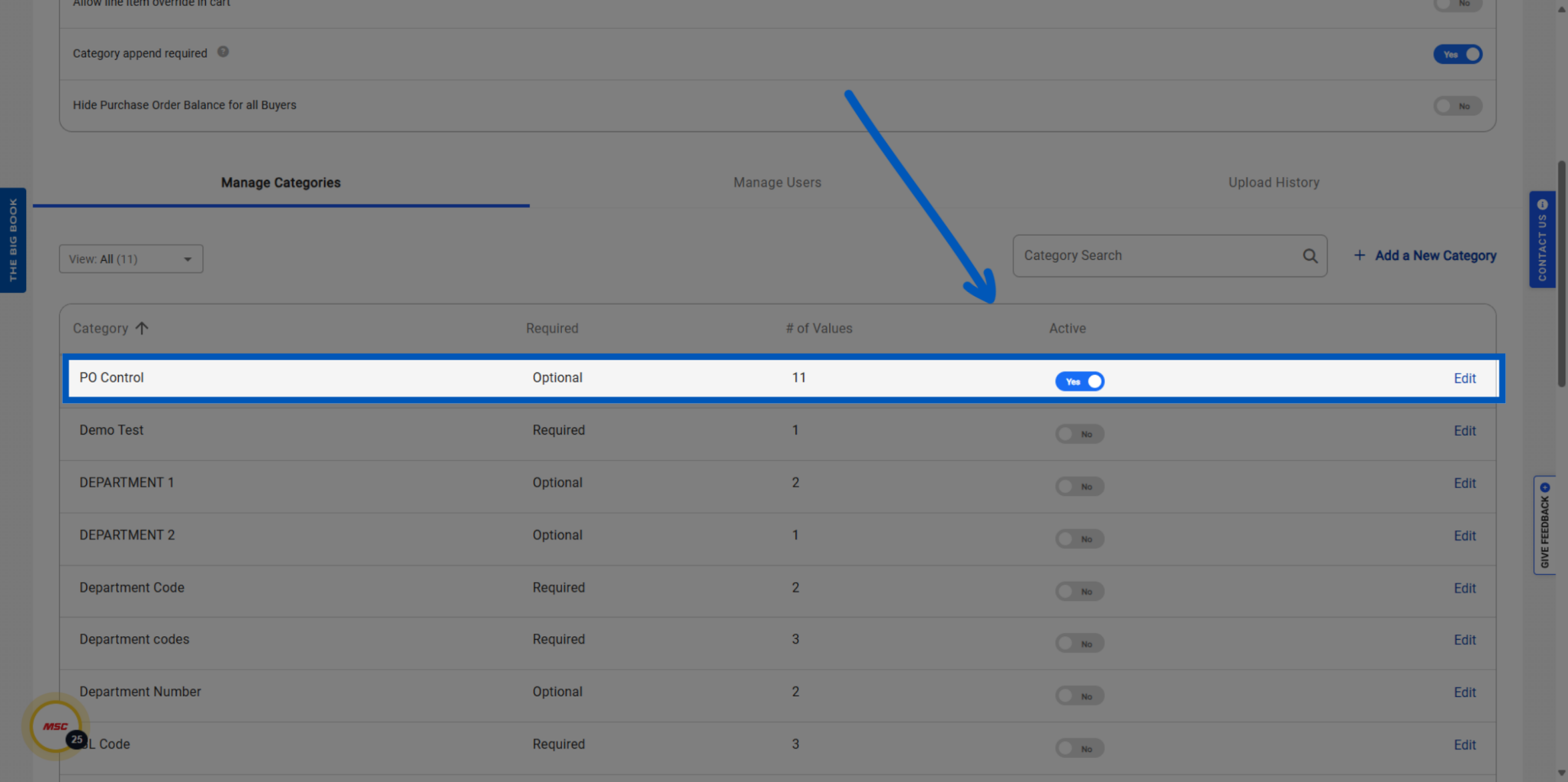
PO Control Category - There will be a "PO Control" category that appears in your Cost Allocation Categories. This is where you will activate PO control in checkout, and Select Edit to make PO Control required or not.
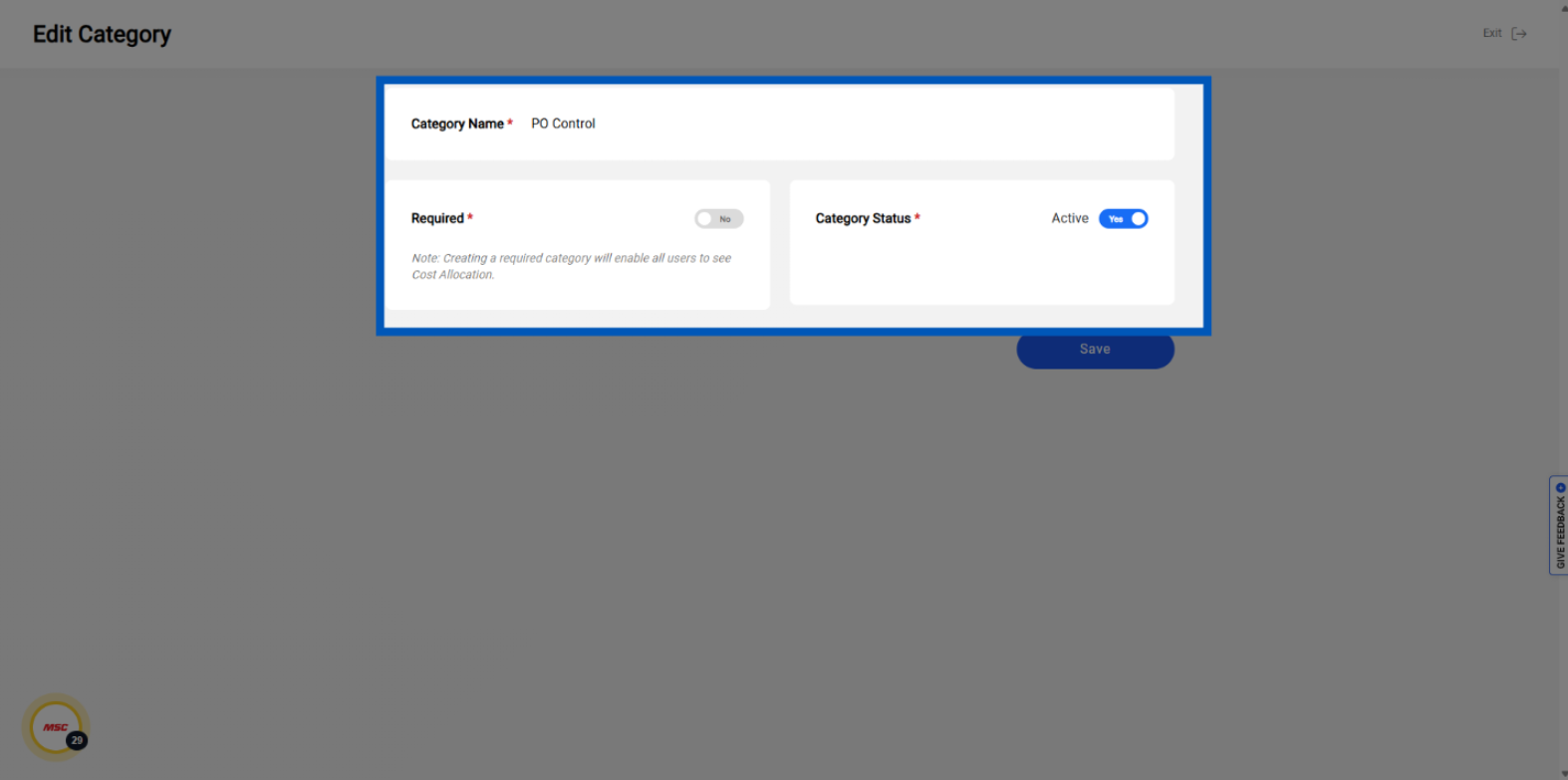
Editing PO Control - Clicking edit will take you to this screen where you can activate/inactivate PO controls or make them required/optional using the toggle.
Section 2: Applying Purchase Order Control
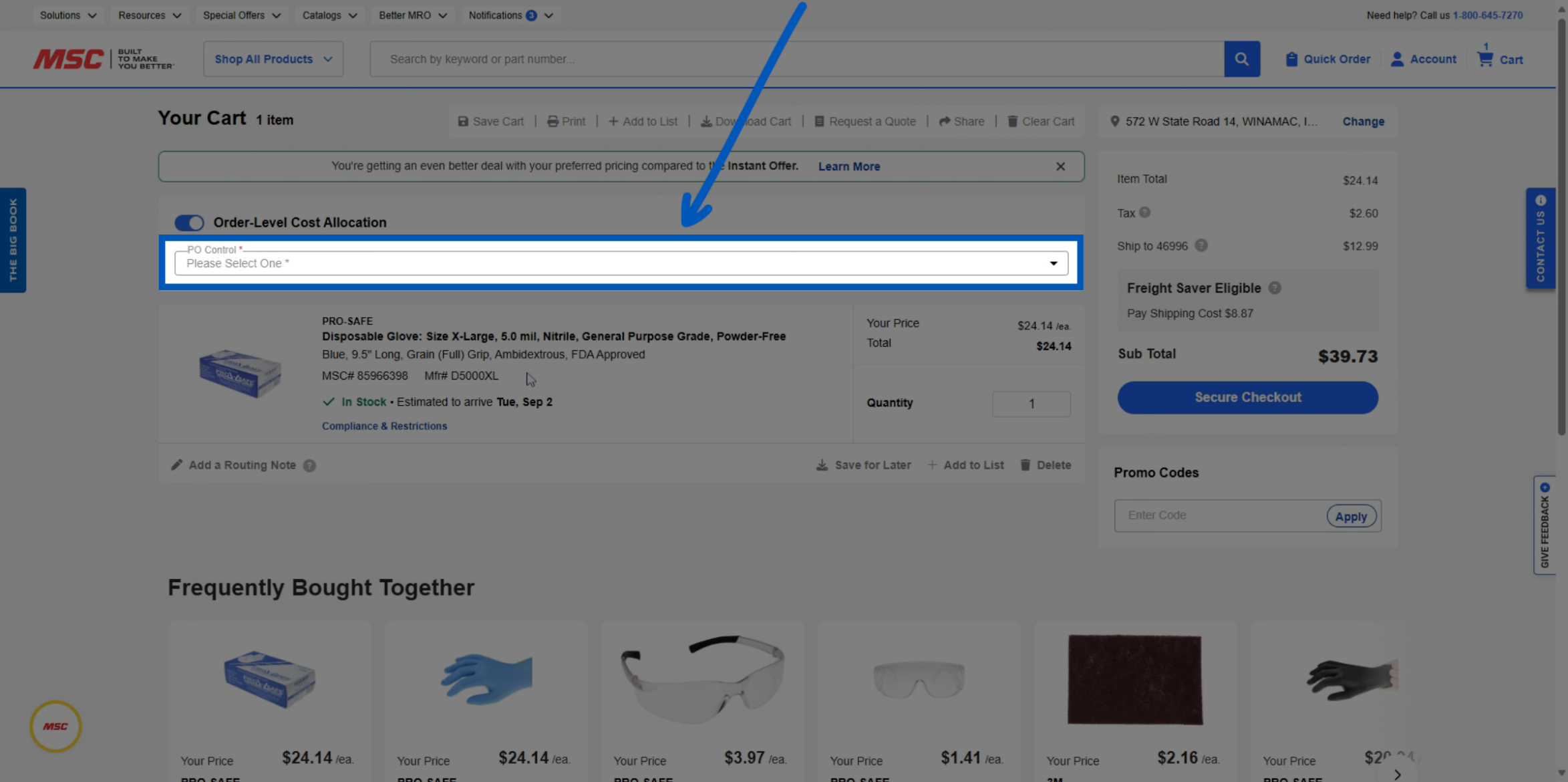
Selection - With PO Control enabled and once a purchase order has been created, users can view and select it from a dropdown at the top of the checkout page.
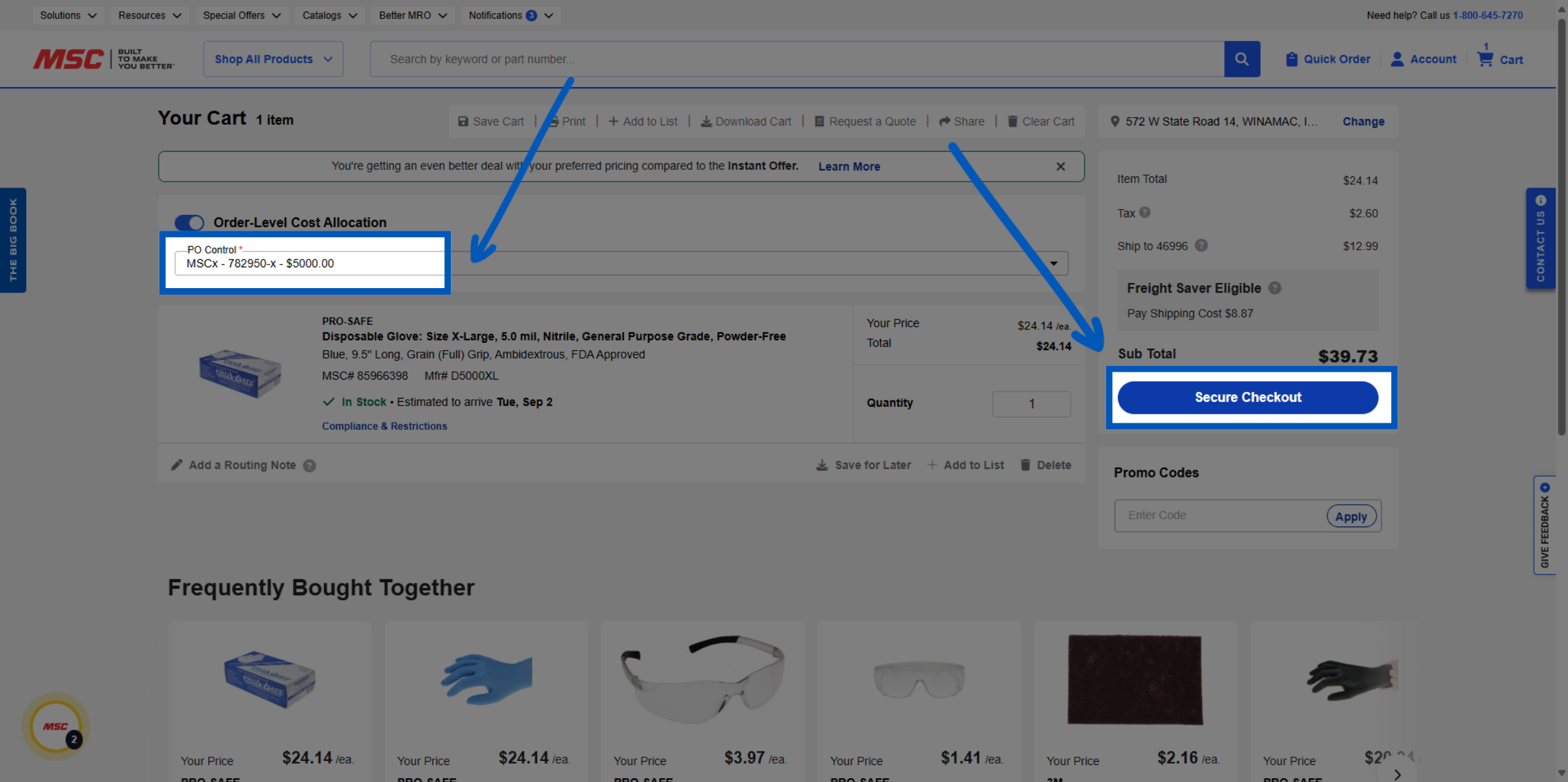
Verify Your Purchase Order - Once you have selected your option, you will see your new PO control has been selected. Proceed with checkout by clicking the Secure Checkout button.
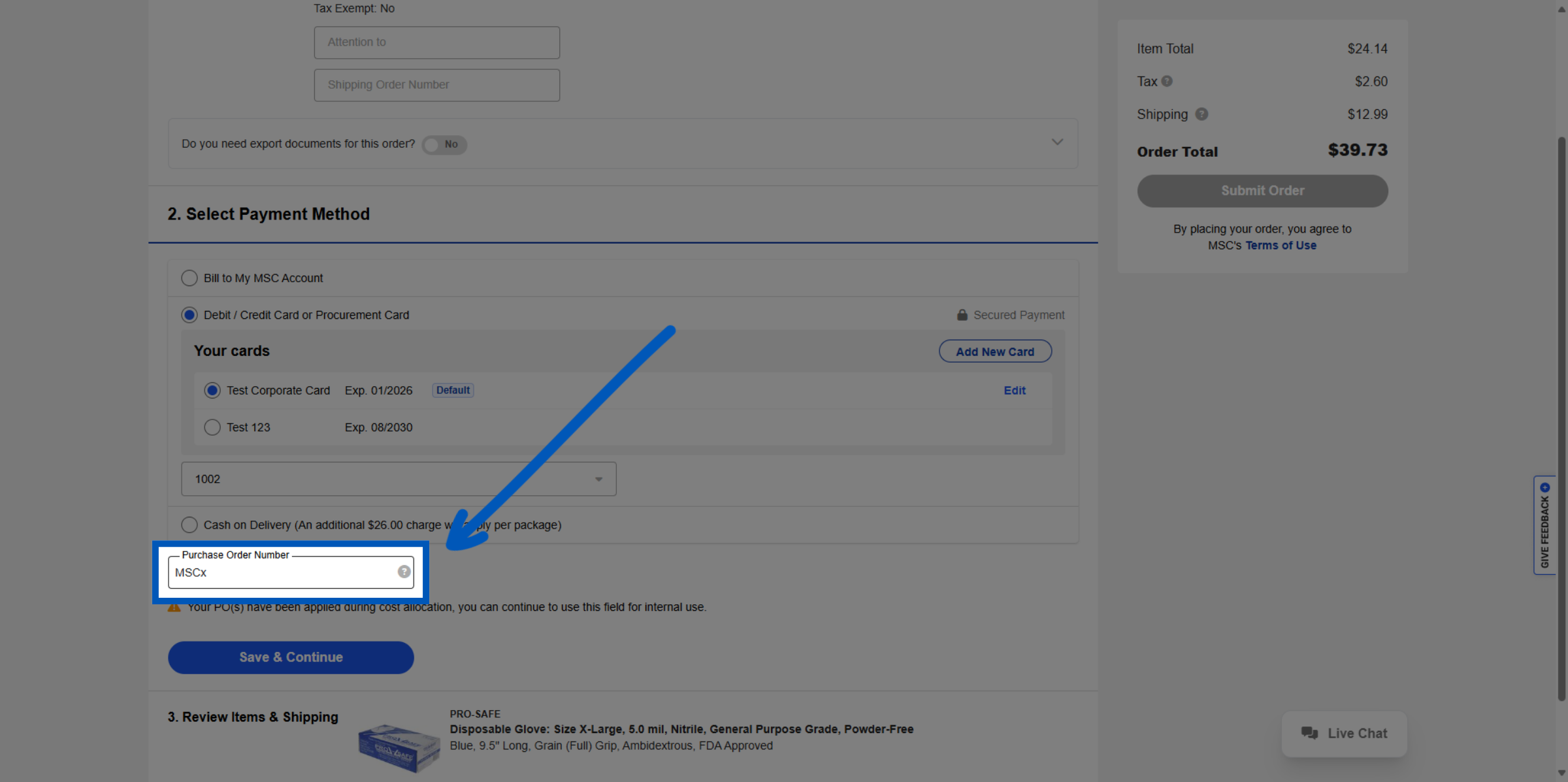
Checkout Purchase Order - On the checkout page, scroll down to the payment method section. The Purchase Order Number field will be filled out automatically with the purchase order you selected in the cart.
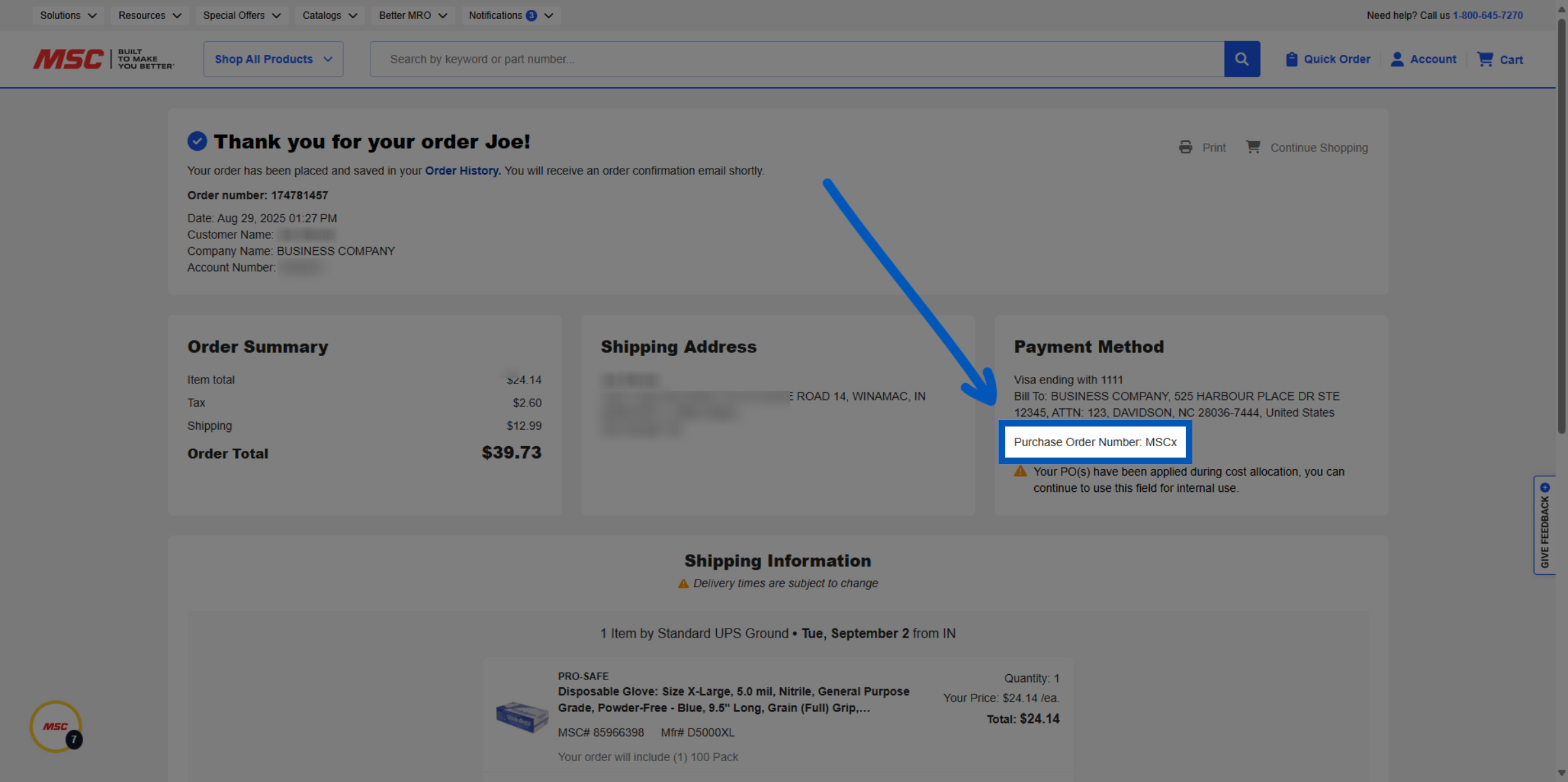
Confirmation Page - Once you have completed your order, this number will be automatically brought over on the Confirmation page as well.
More Account Management Resources
Back to Account ManagementTo request a quote, please login to your existing account or register a new one. This helps us provide you with a personalized experience and keep track of your requests.