



Registering a New Account
Introduction:
The purpose of this training is to guide users through the process of creating a new account registration on MSCdirect.com, including selecting the appropriate account type, entering required information, and completing billing details to obtain a fully functional purchasing account.
Detailed Step by Step Guide:
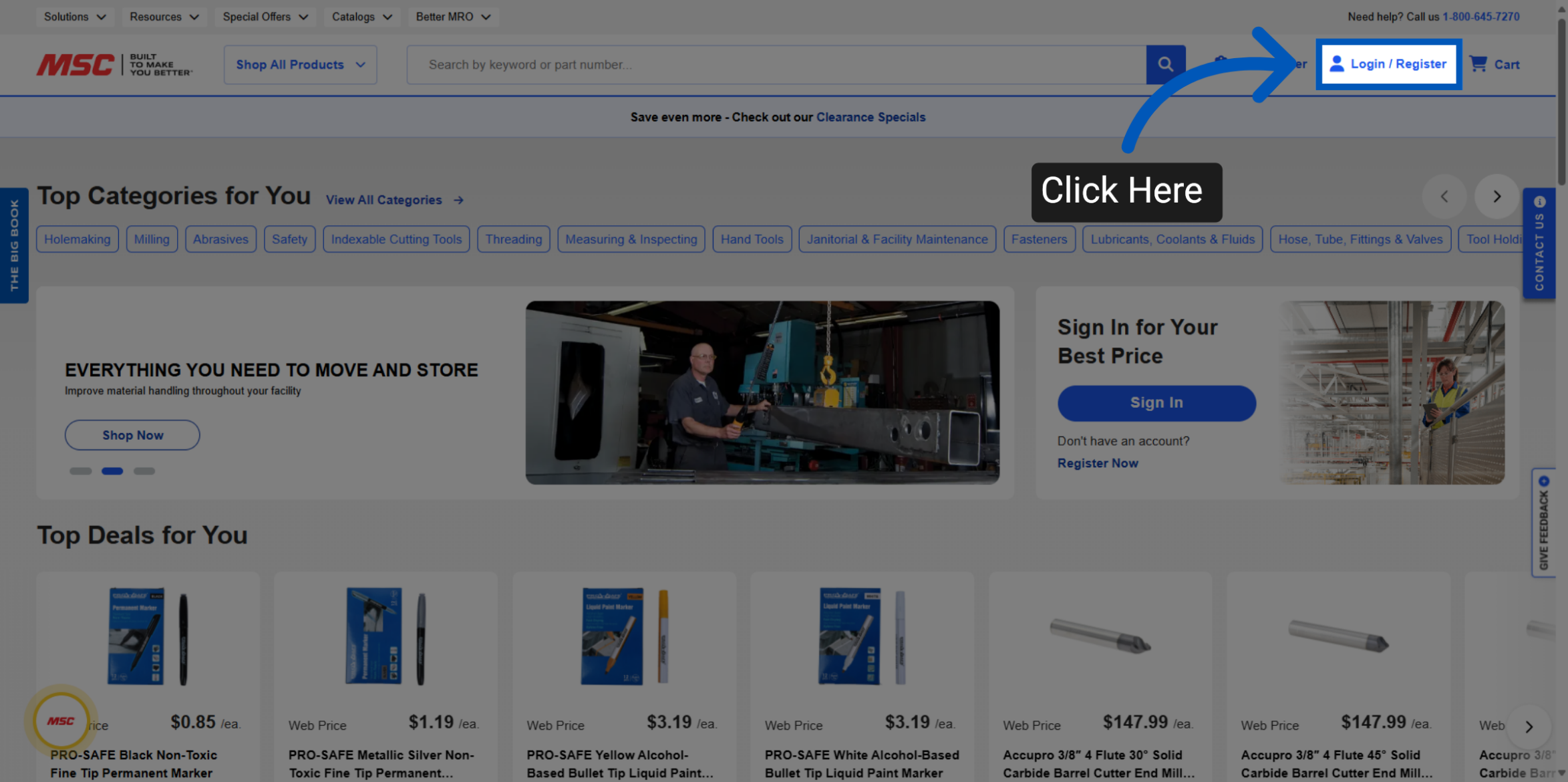
Go to mscdirect.com and click the Login/Register button in the upper right corner.
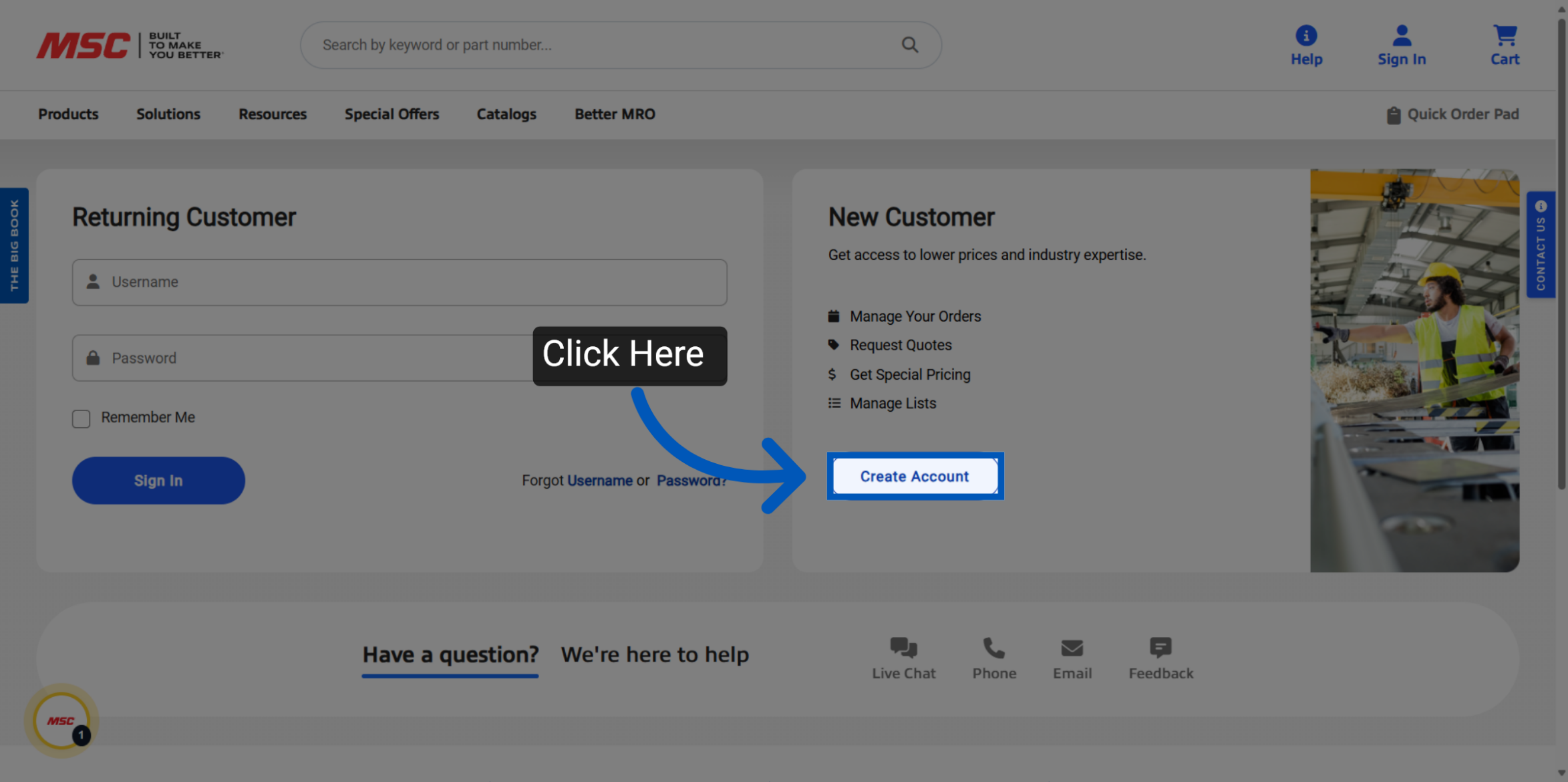
Click on the "Create Account" button to start the registration process.
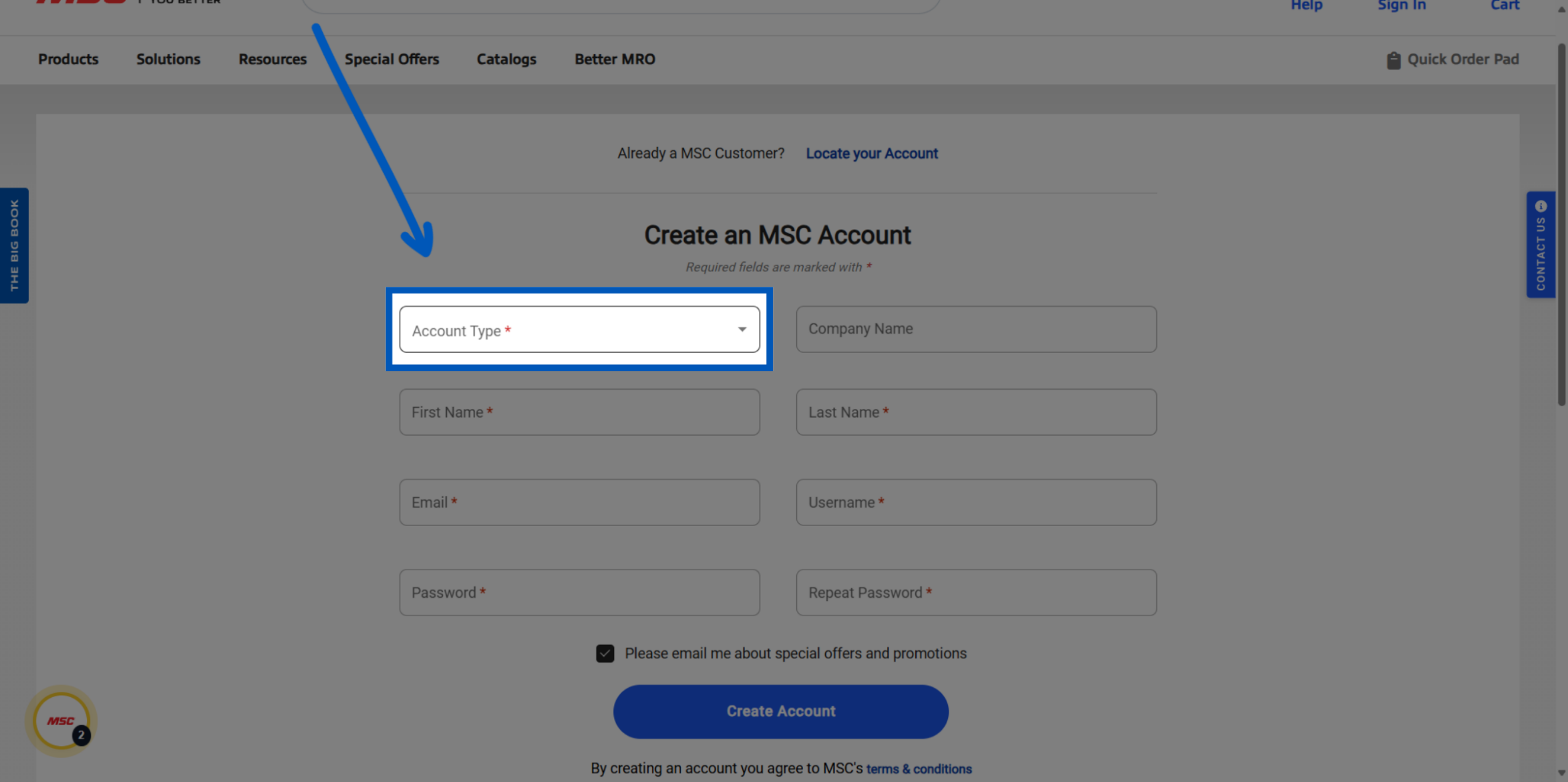
The first step in this process is to choose your account type. You will be able to choose the following:
Business
Government
Individual/personal
Wholesaler
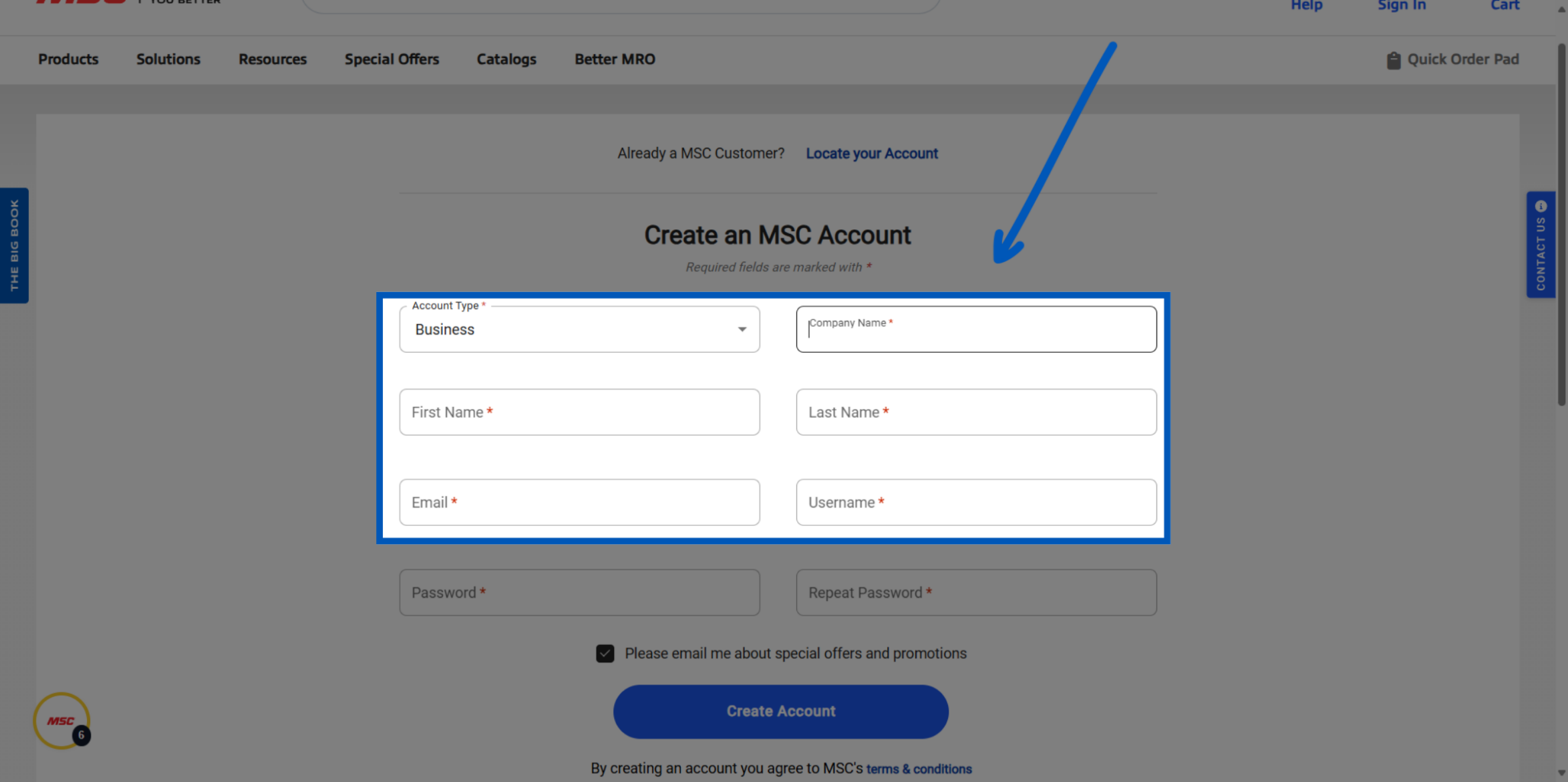
Enter your business name and personal information as prompted.
Create a password that meets these requirements :
At least one letter
At least one number
At least 8 Characters
Occurrence of consecutive characters is 3 or less
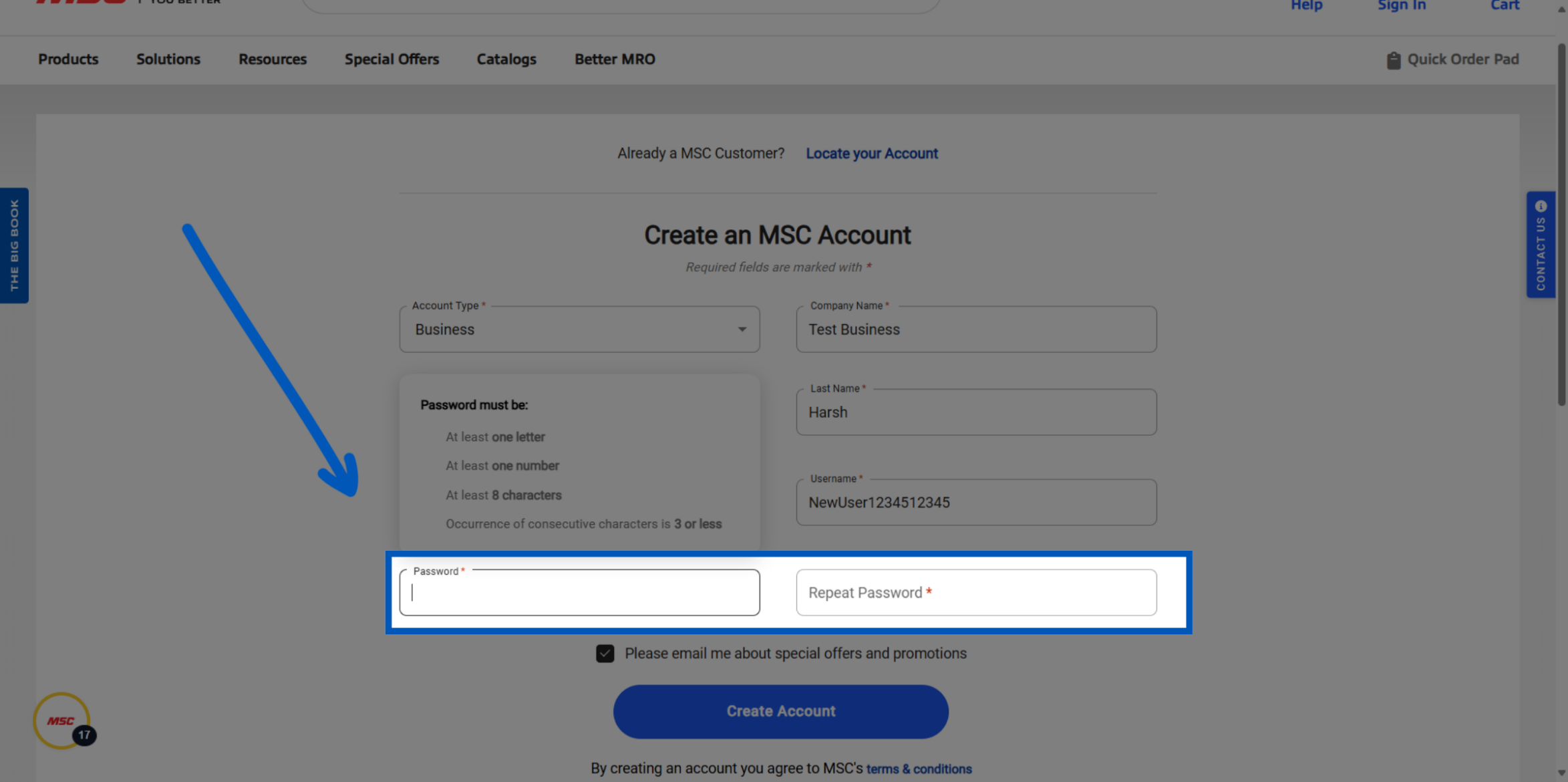
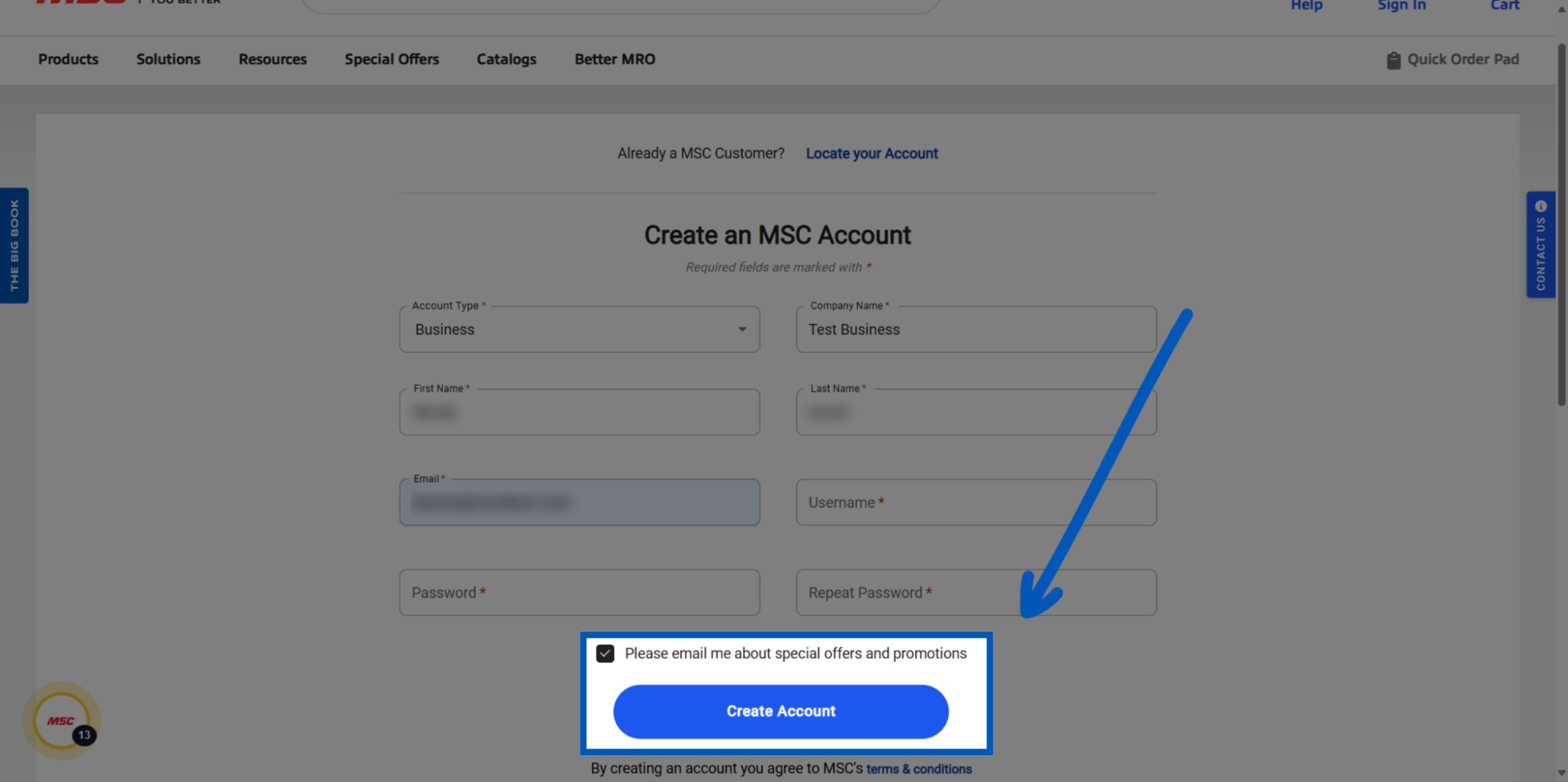
Once you have completed the account registration form, your last option will be to select whether or not you want to receive emails. Once you make your choice, click "Create Account".
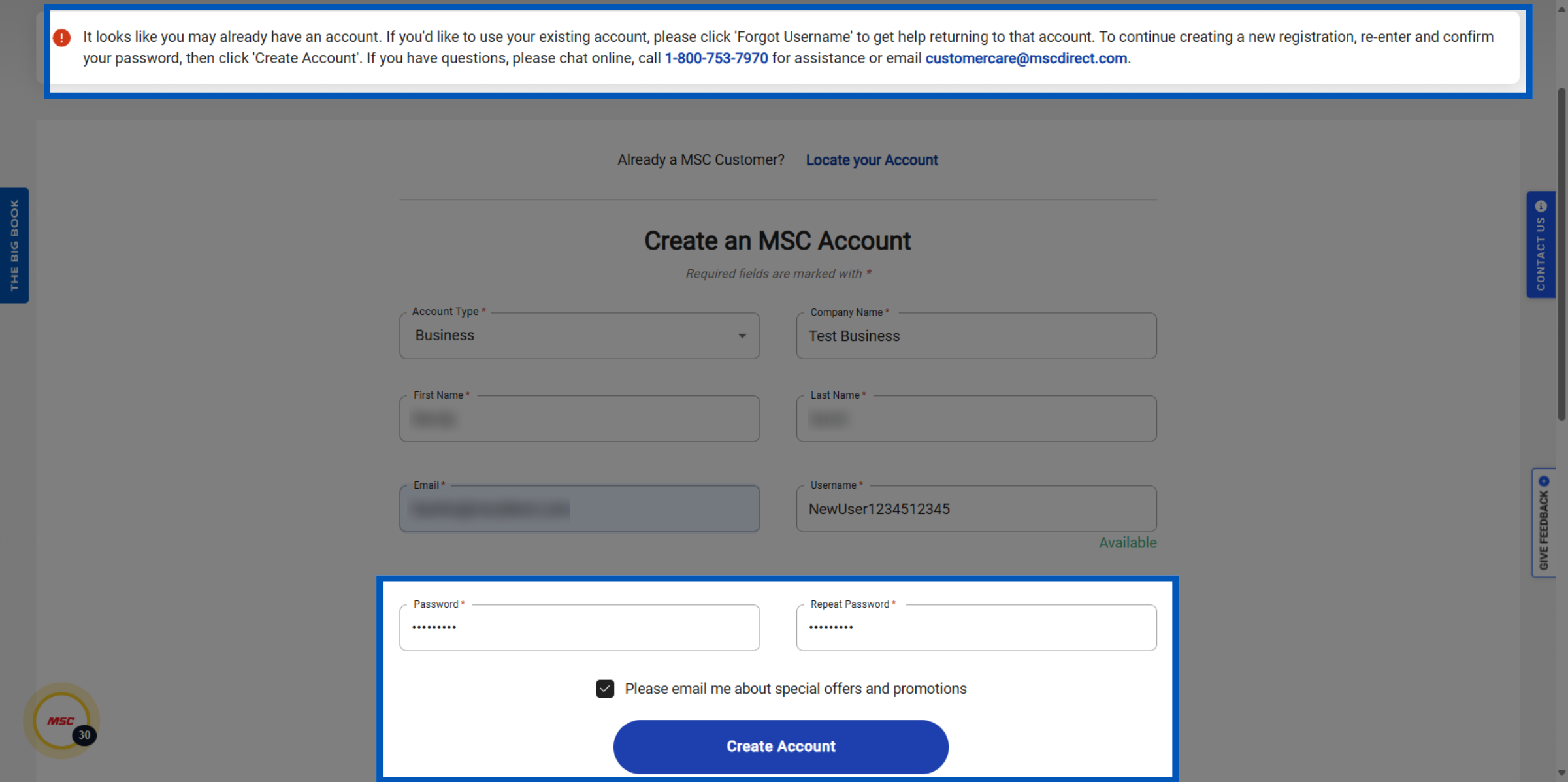
Once you hit "Create Account", you may see a potential error. If you see an error about your email already existing, follow the on-screen instructions to recover your account or re-enter and reconfirm your password to proceed. You are able to register your email to multiple different accounts.
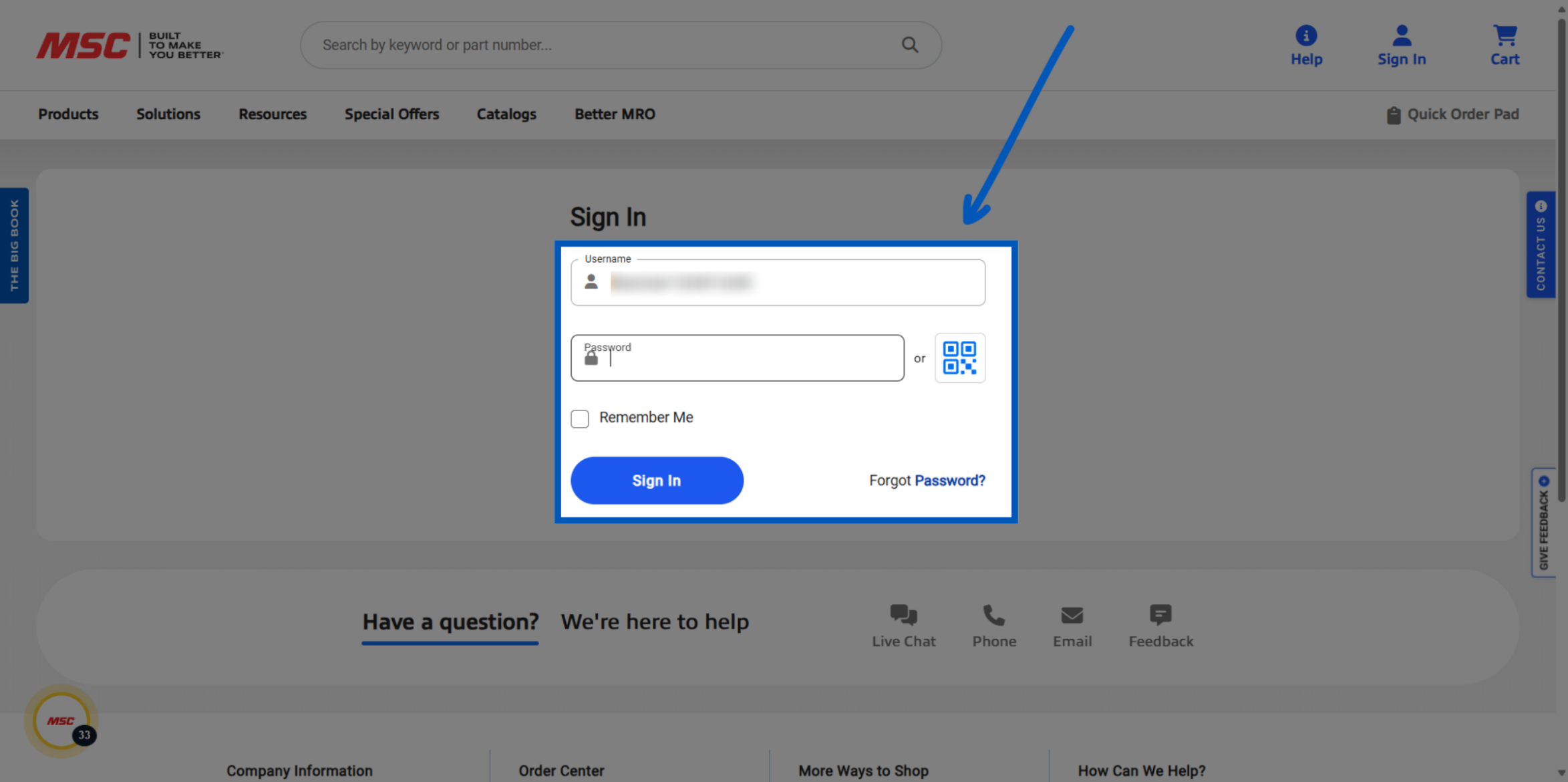
Once you have created your account, you will be taken to the login page to enter your new credentials. You will also have the option to select "remember me" to streamline future log in. Click "Sign In"!
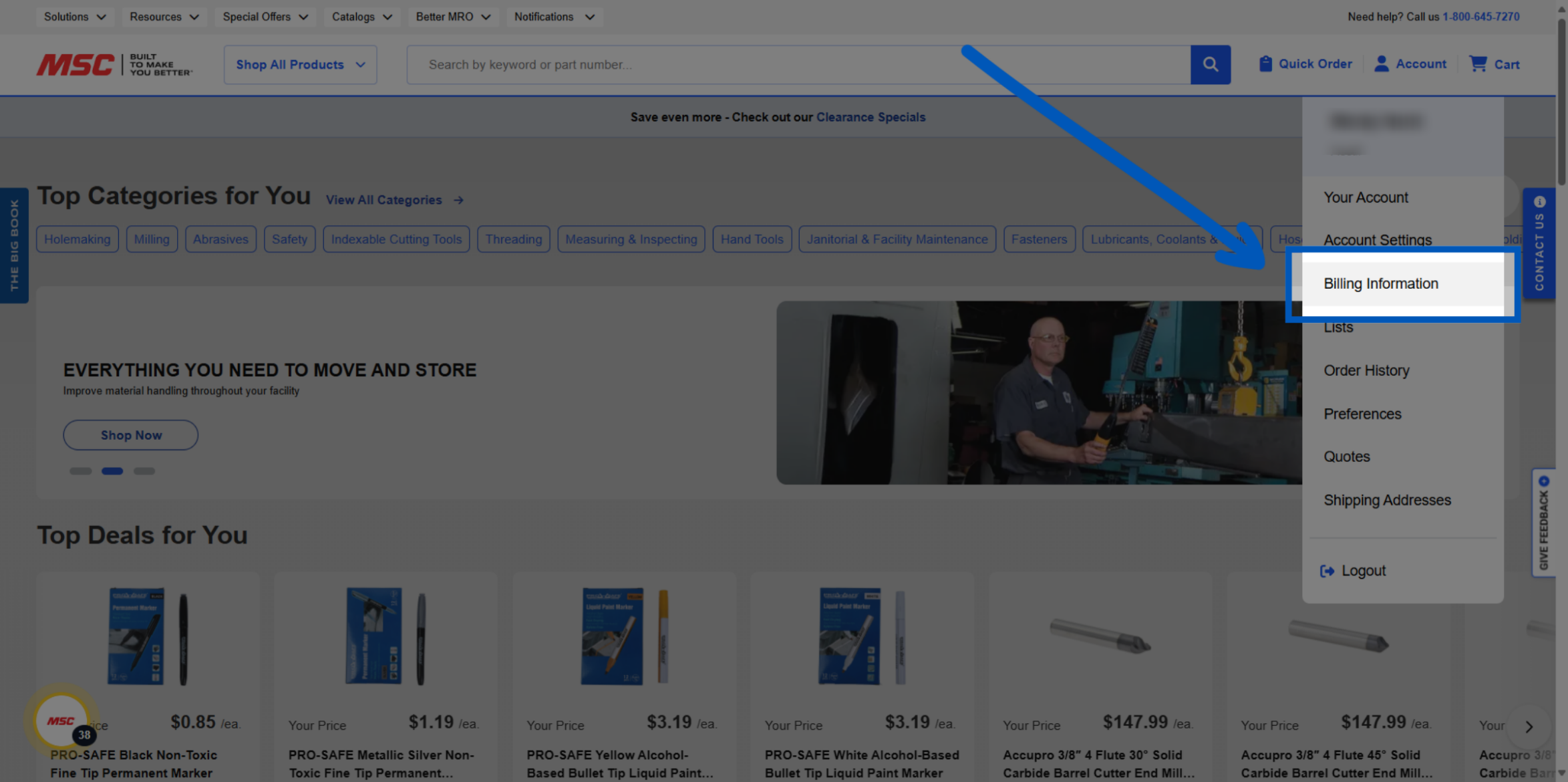
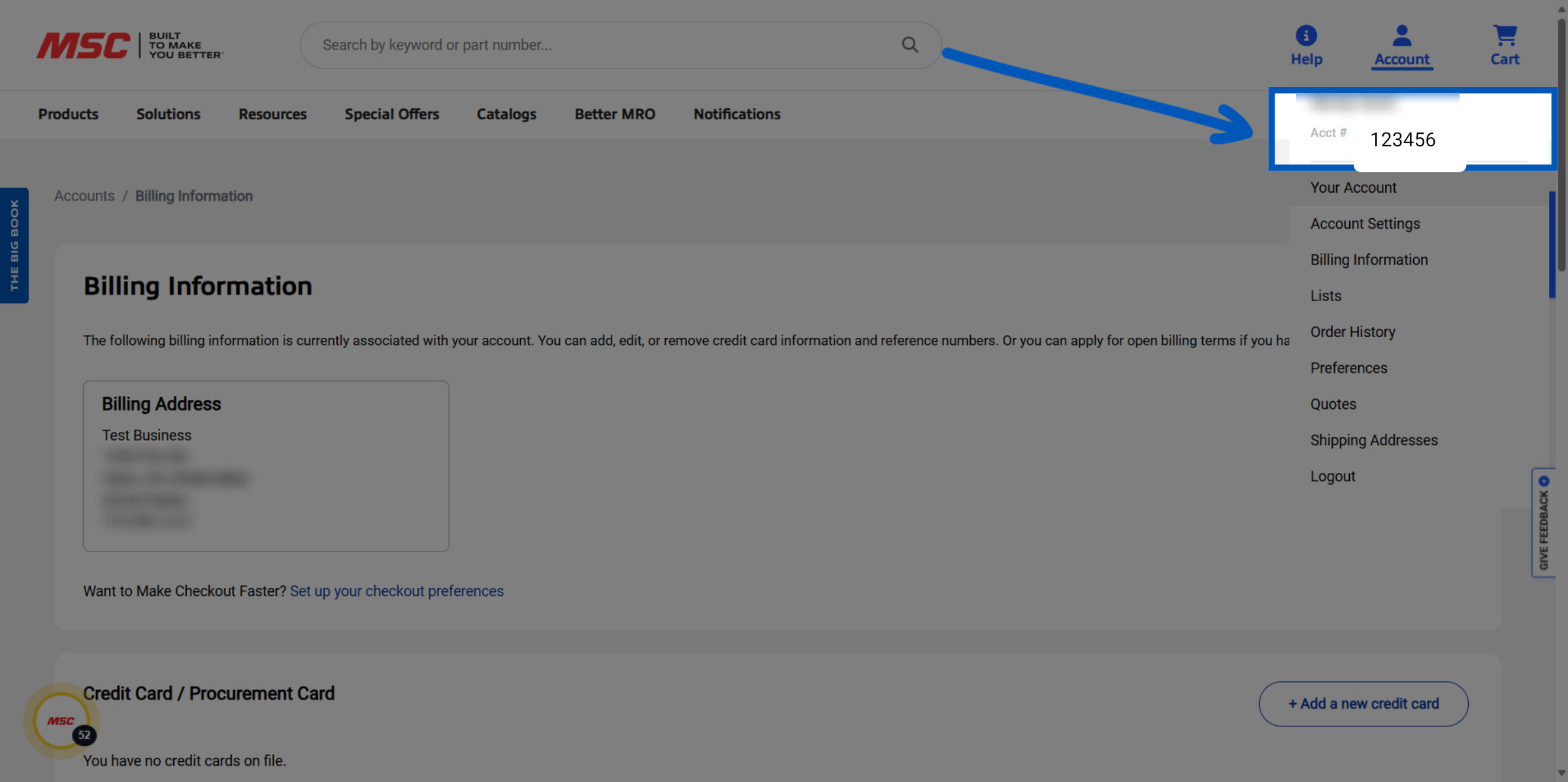
Once logged in, click the account icon in the upper right and select "Billing Information" from the dropdown.
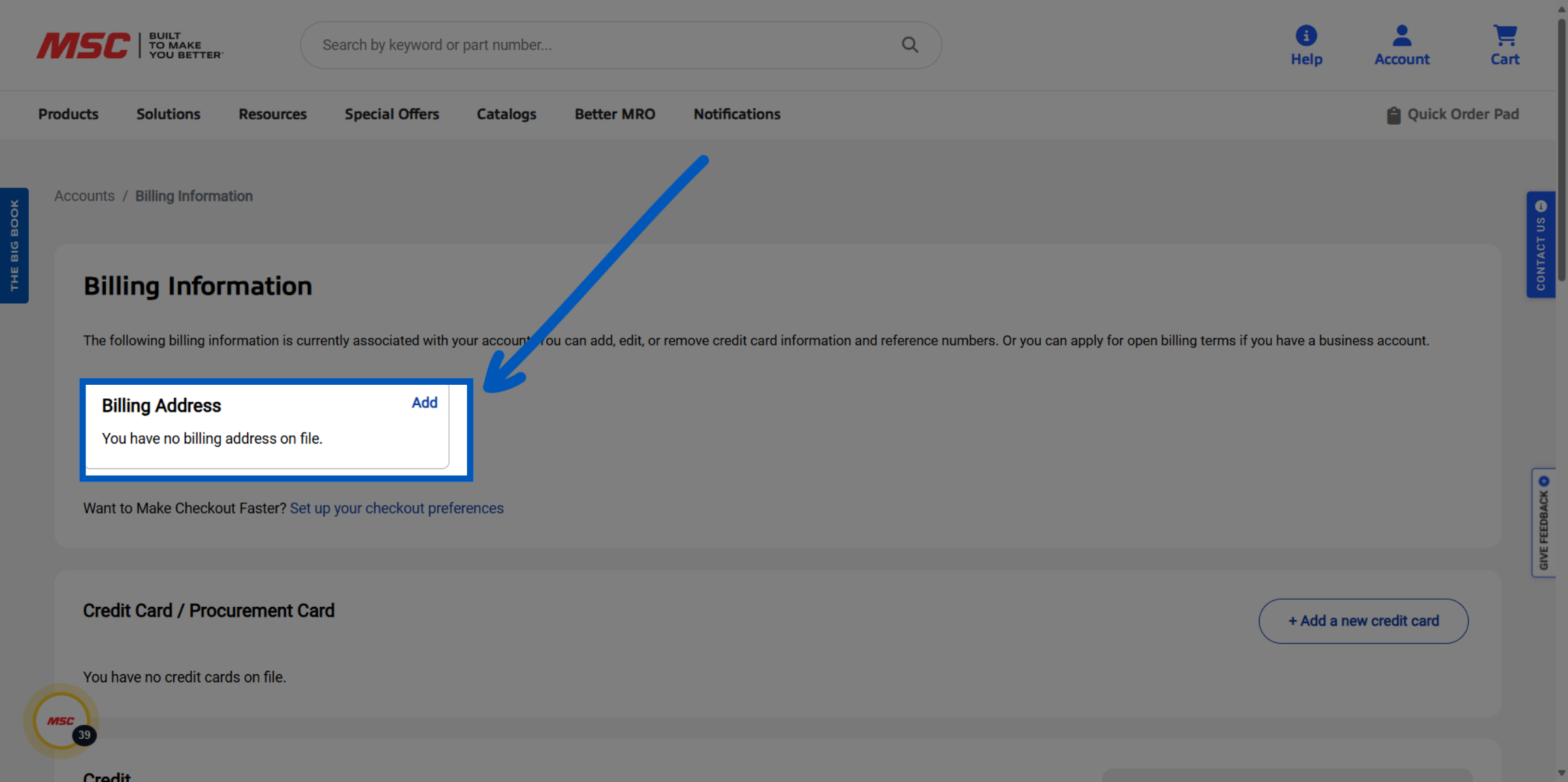
To finalize your registration you will need to set your billing address. Completing this step will create you new account number. To do this click "Add".
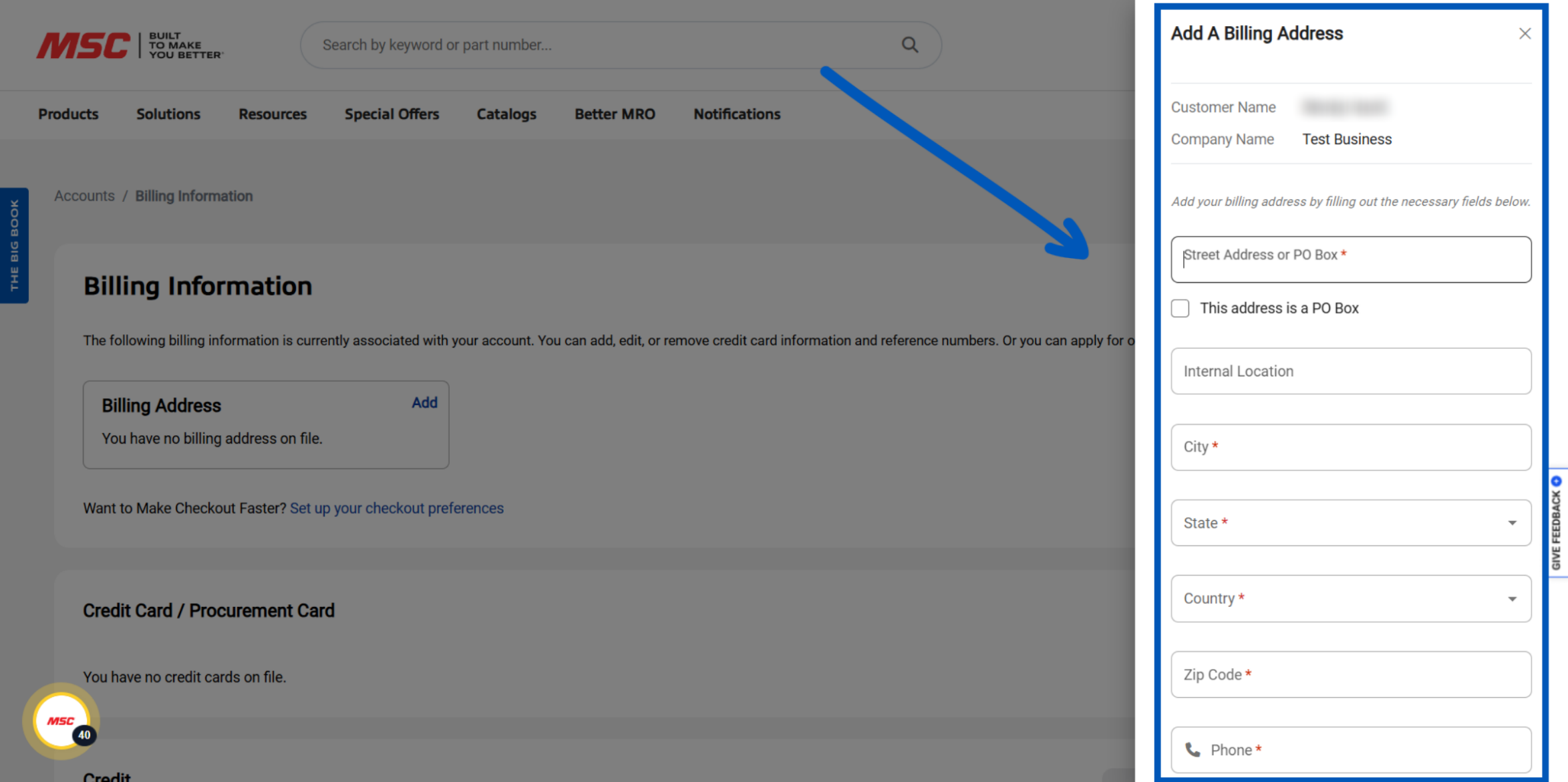
Completely fill out the address form with the address you would like to register as your billing address. Click on the "Create" button to finalize the billing address.
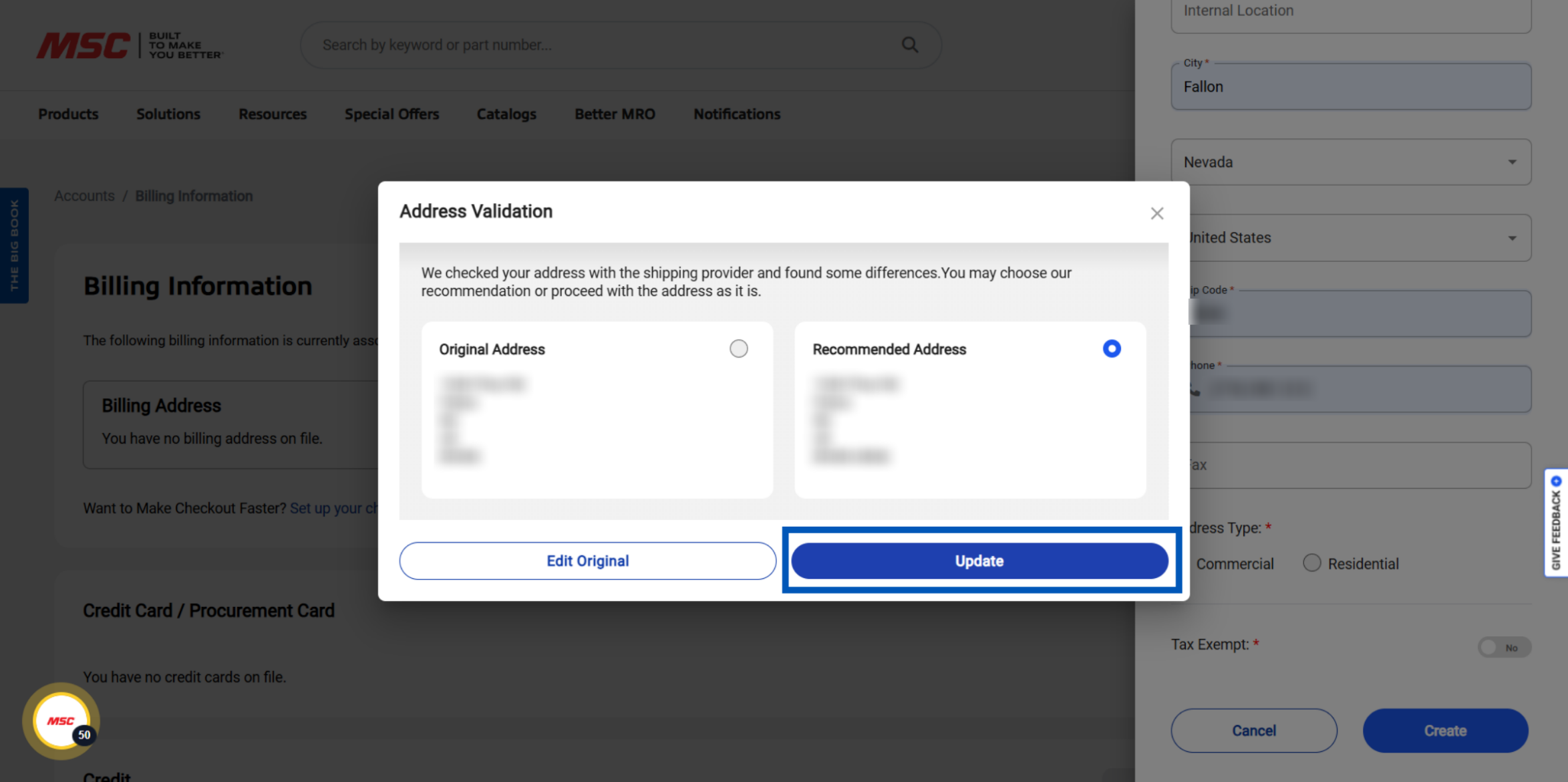
When entering your address, you may be prompted to choose between the original address you provided, and a standardized version recommended by our address verification service. The Recommended Address includes formatting enhancements and the full 9-digit ZIP code (ZIP+4) to ensure accurate delivery.
After saving the billing address, your new billing address will show up here.
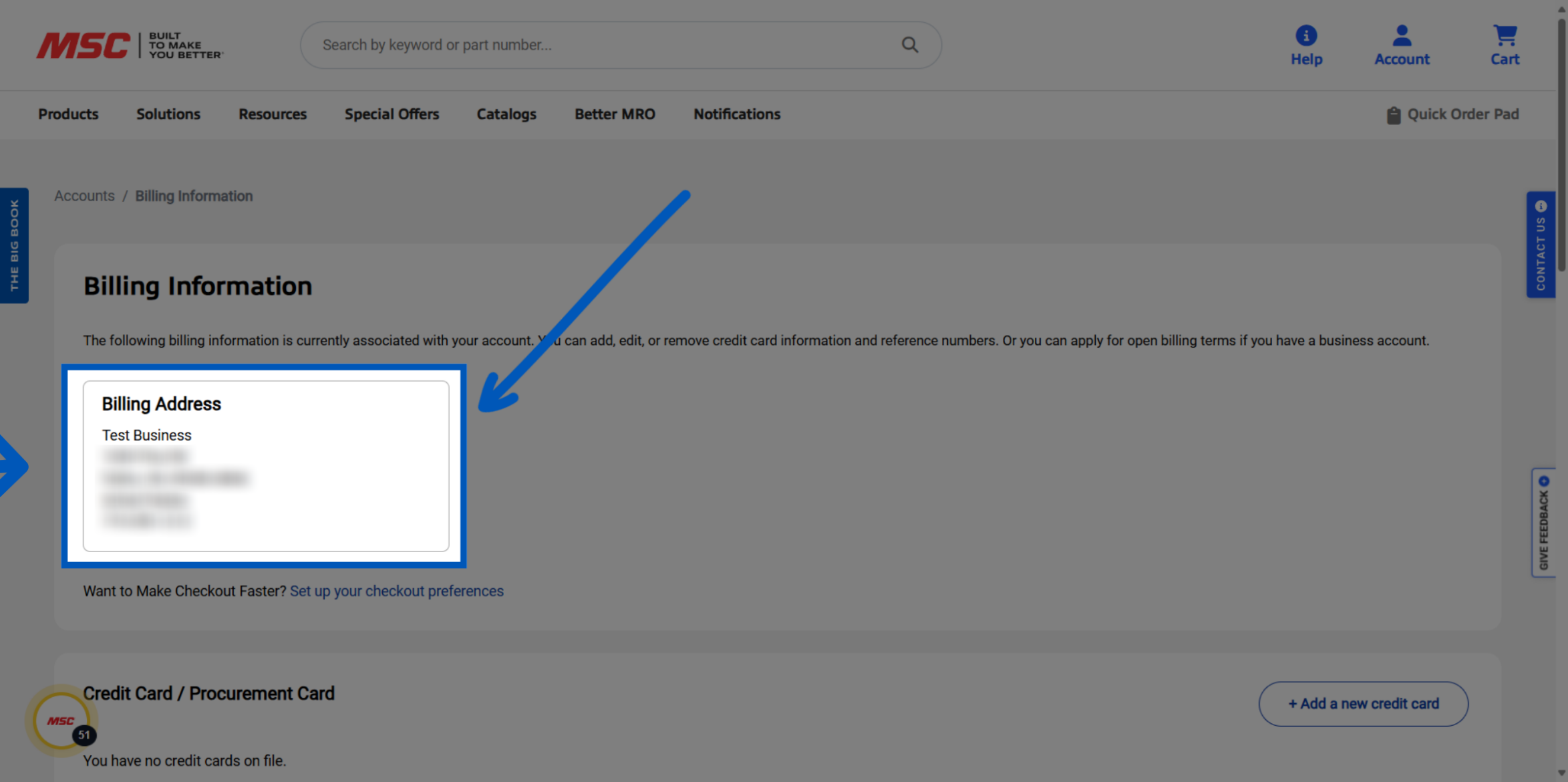
This may take a few minutes; refresh the page if needed. Your account number will appear under the account drop down. Once your account number appears, your account is ready to use and you can start shopping.
More Account Management Resources
Back to Account ManagementTo request a quote, please login to your existing account or register a new one. This helps us provide you with a personalized experience and keep track of your requests.