



Username/Password | MSC Account Login Help
This training provides a comprehensive walkthrough for resetting or changing a password on the platform, addressing two situations: when a user has forgotten their password and when they wish to change it while logged in. Once thing to remember is the importance of adhering to the instructions in the password reset email and ensuring that new passwords comply with internal requirements. This is MSC account login help, including how to complete an MSC password reset or change a password on the platform.
Recovering your Password (MSC Password Reset)
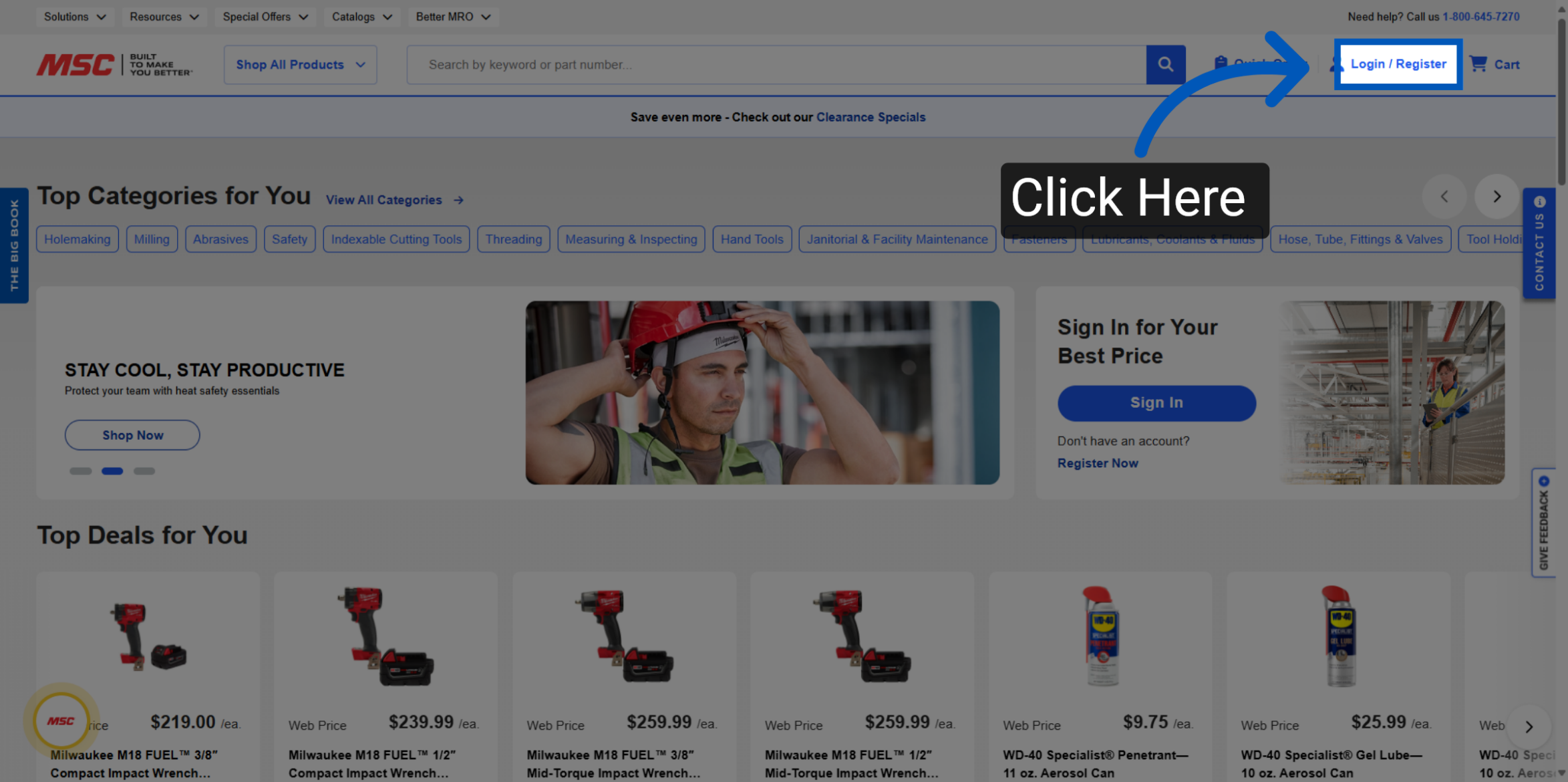
Navigate to Login/Register - Click on the "Login / Register" icon on the page to begin the MSC password reset process.
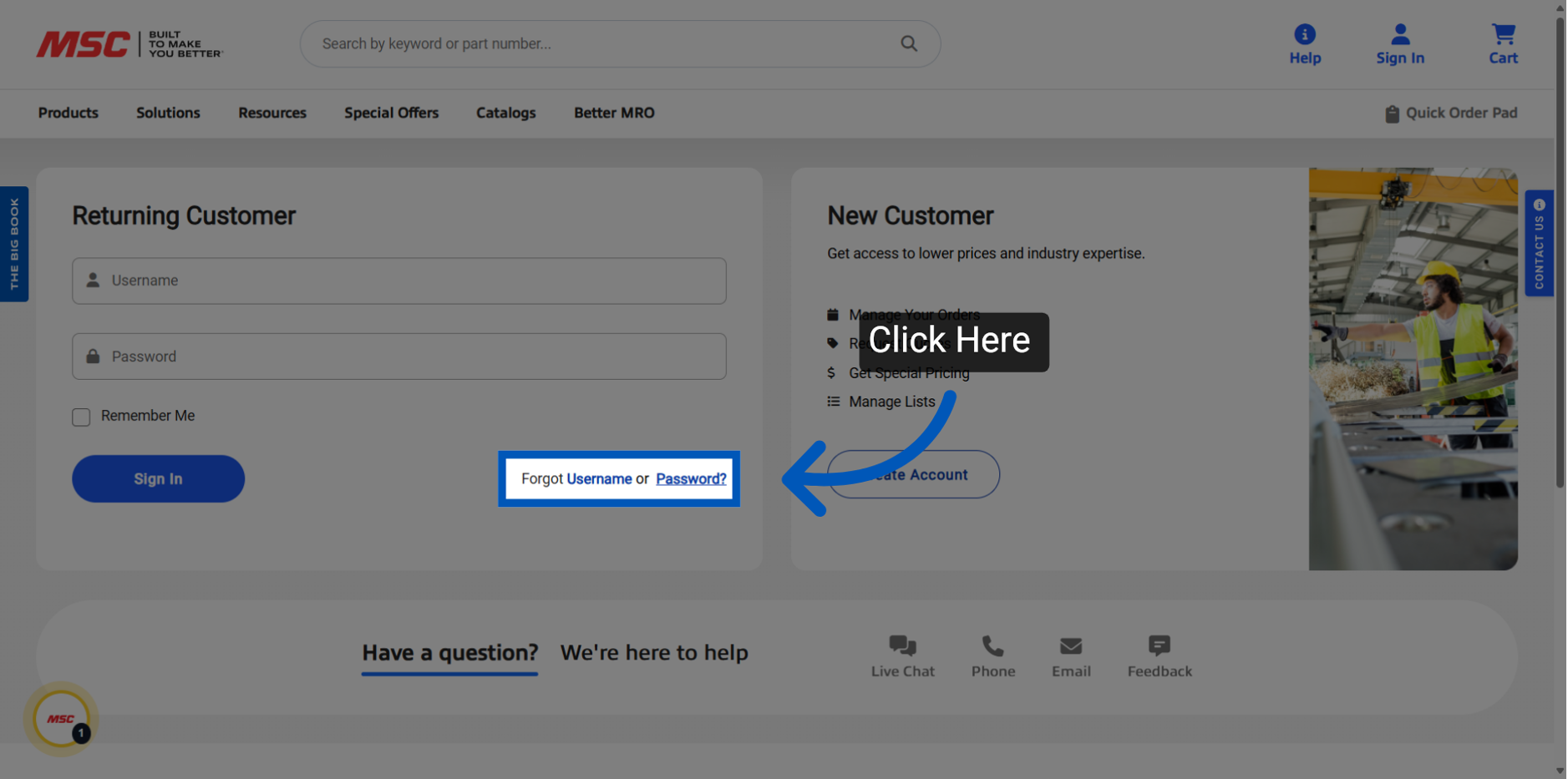
Forgot Password - Click the Forgot "Password" link to initiate the MSC password reset process. Alternatively, if you forgot your username, you could start the process here as well:
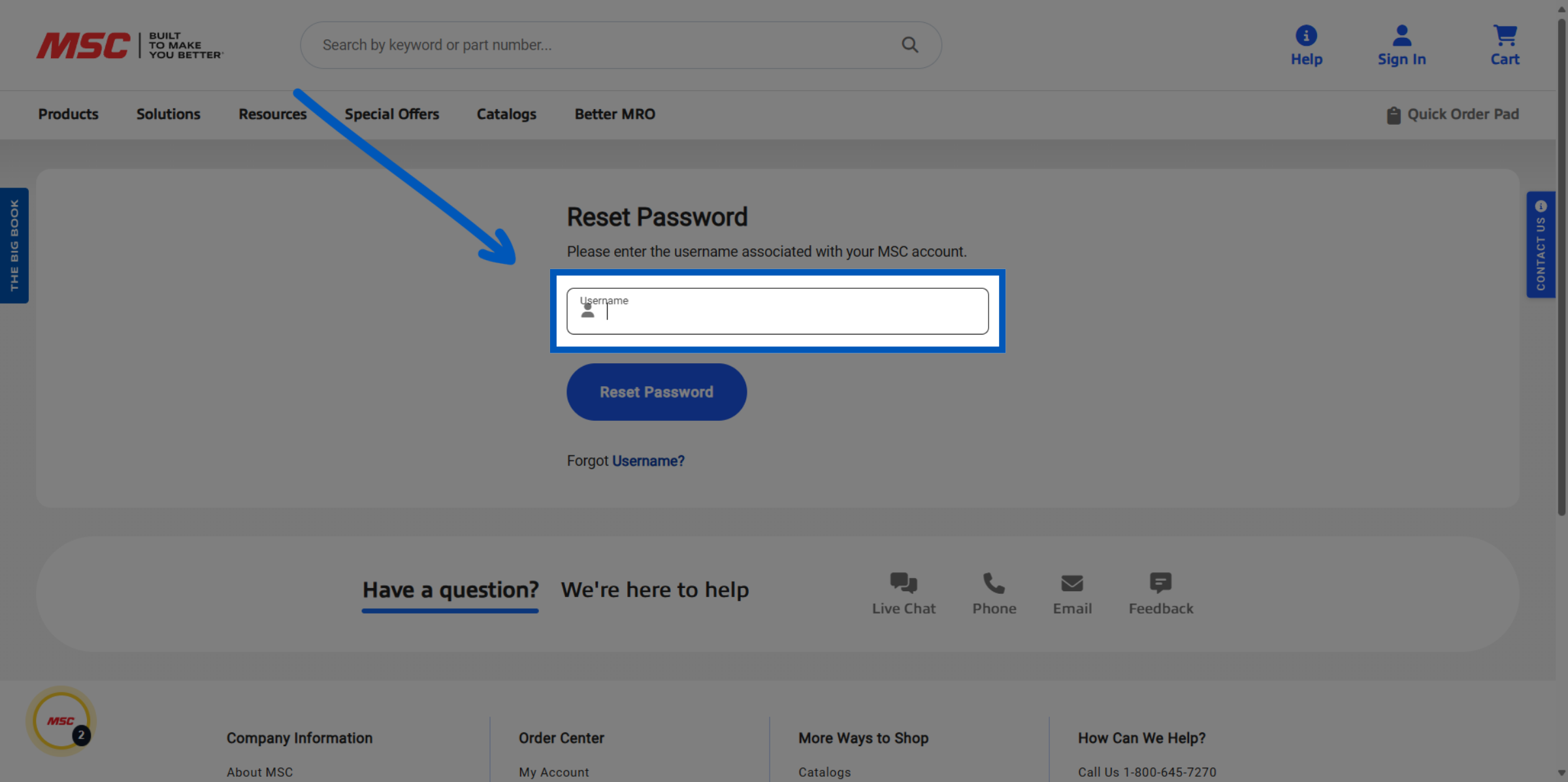
Reset Password - Enter your username and click "Reset Password." You will see a message confirming your request and that an email is being sent.
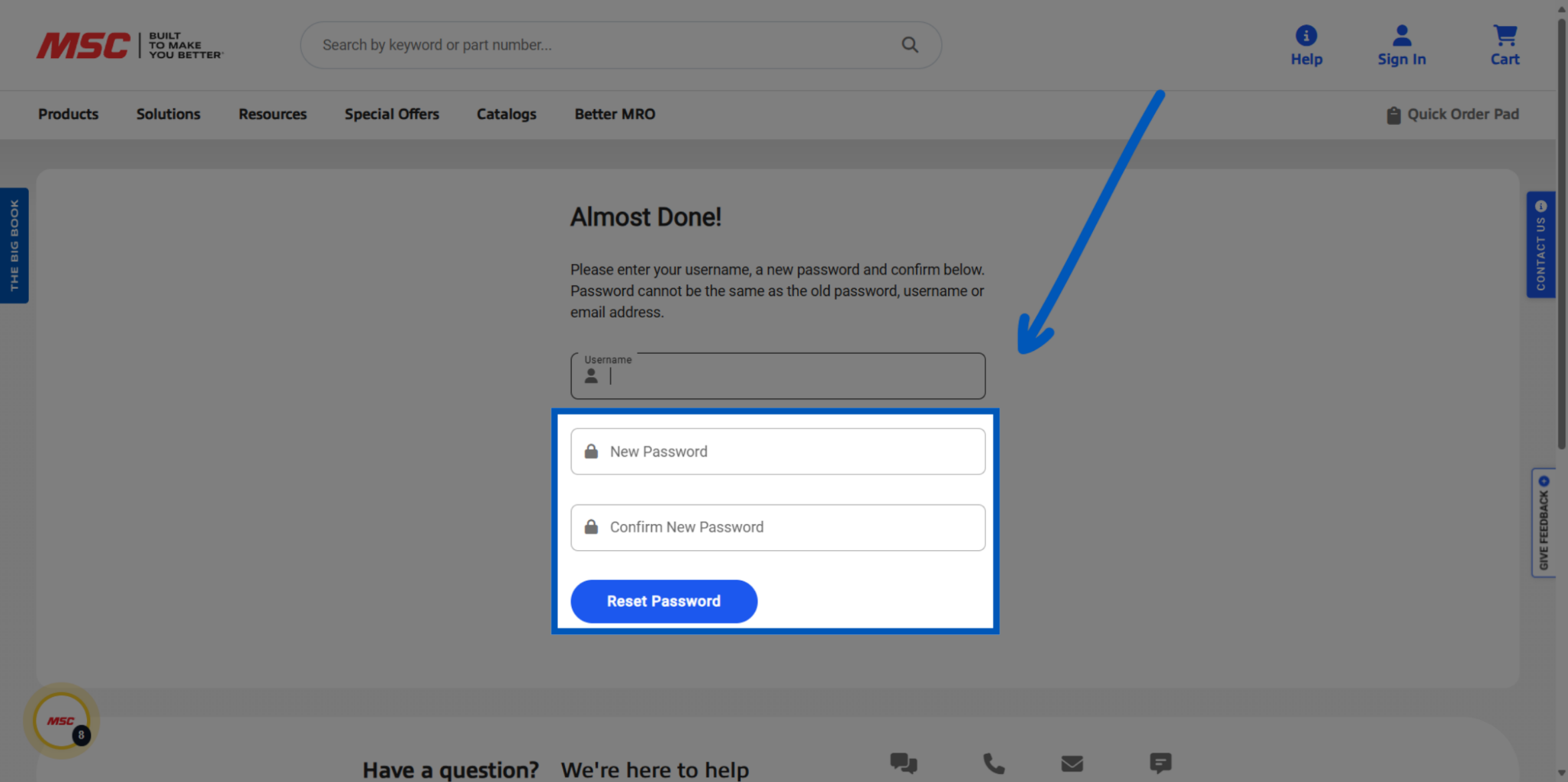
Re-enter Username - Upon clicking the link in the email, users are directed to a page where they must reenter their username.
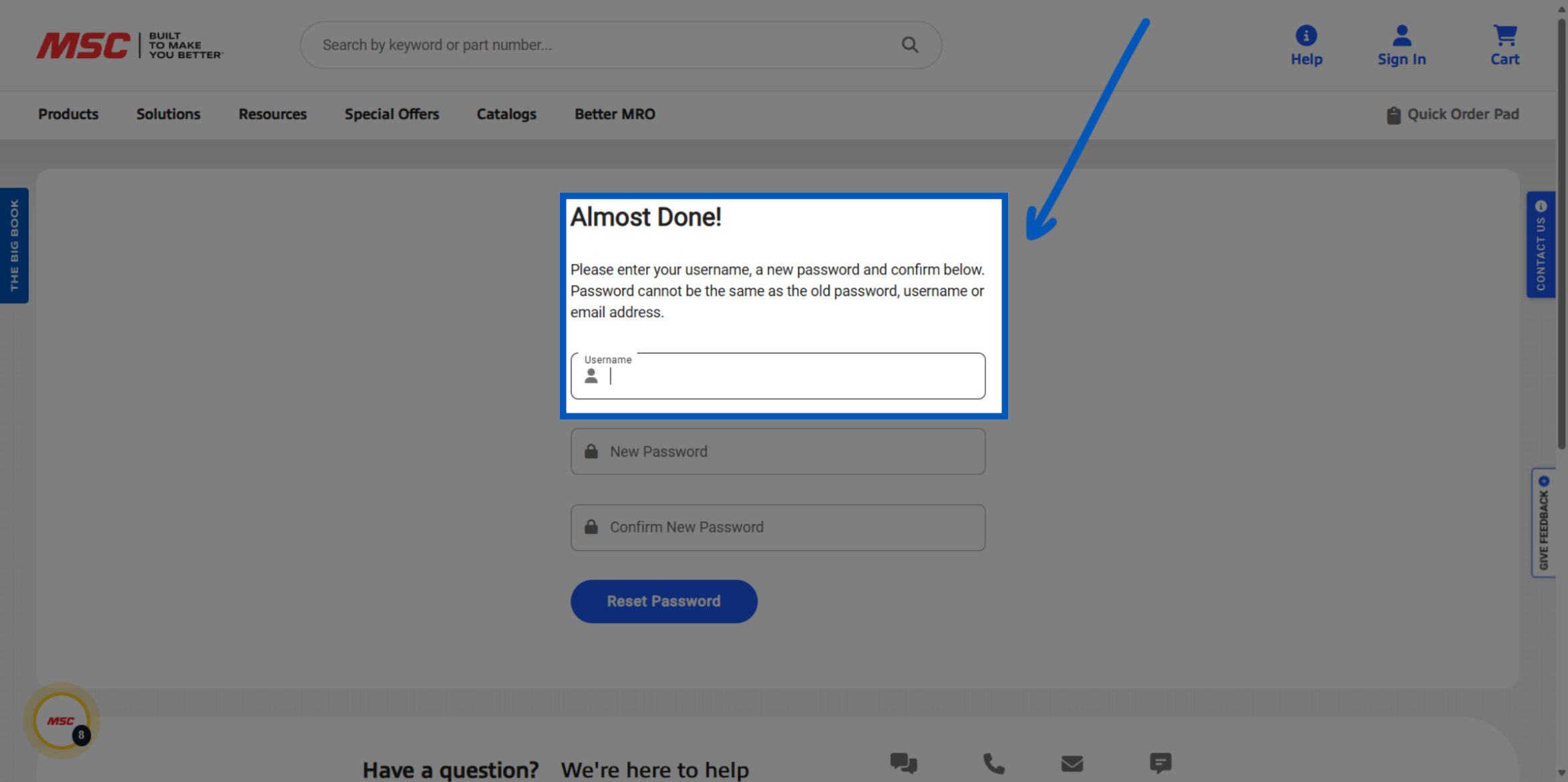
Confirm password - Create a password that meets the requirements highlighted here:
• At least one letter
• At least one number
• At least 8 Characters
• Occurrence of consecutive characters is 3 or less
Once finalized click "reset password". Your password is now changed and your MSC password reset is complete; you can log in with the new password.
Changing Your Password While Logged In
MSC account login help also covers password changes for users who are already signed in. Follow the steps below to update your MSC Direct account password without going through the reset flow.
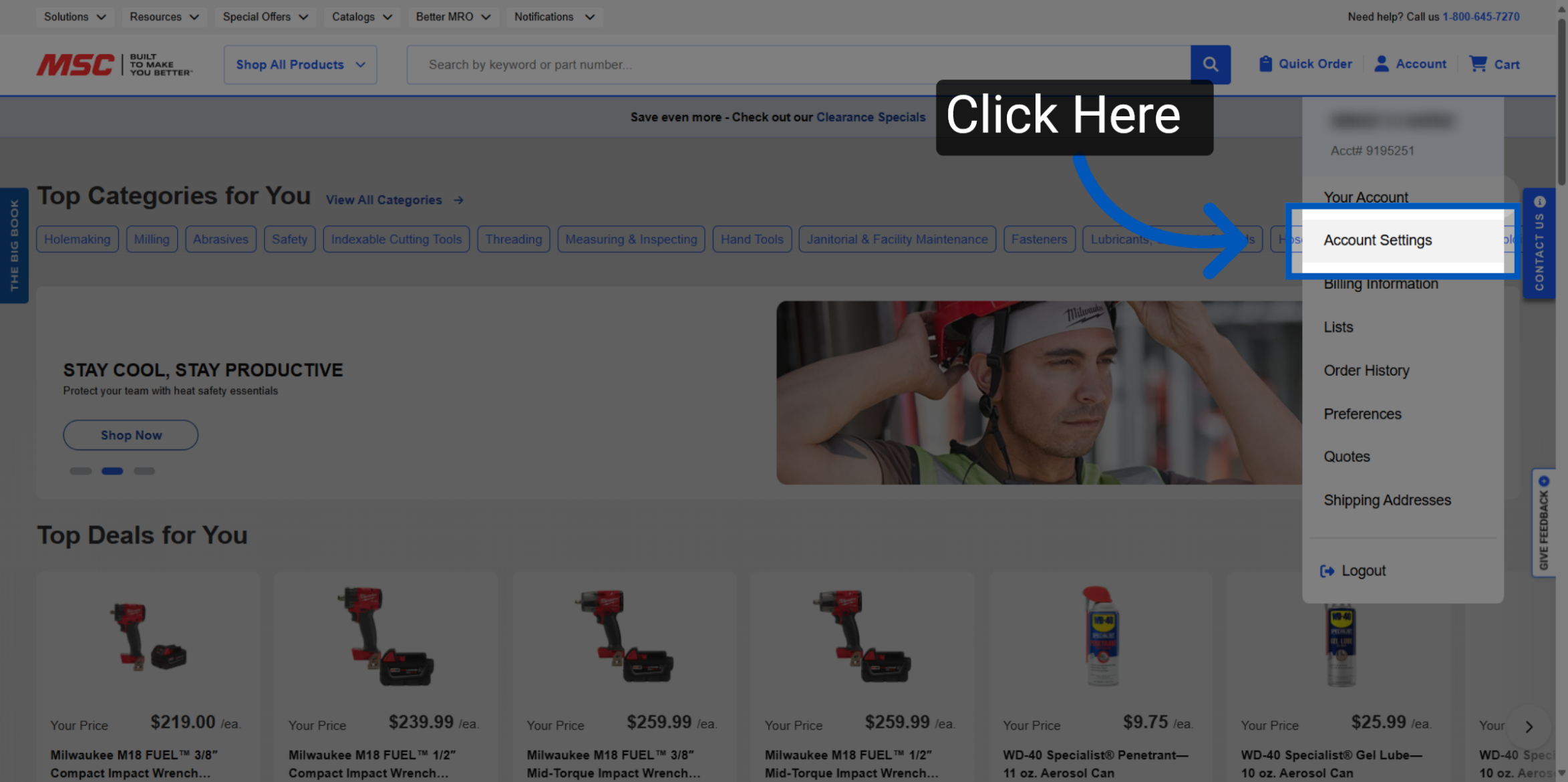
Change Password - To change your password while logged in Click on "Account Settings" from the account drop down to manage your account.
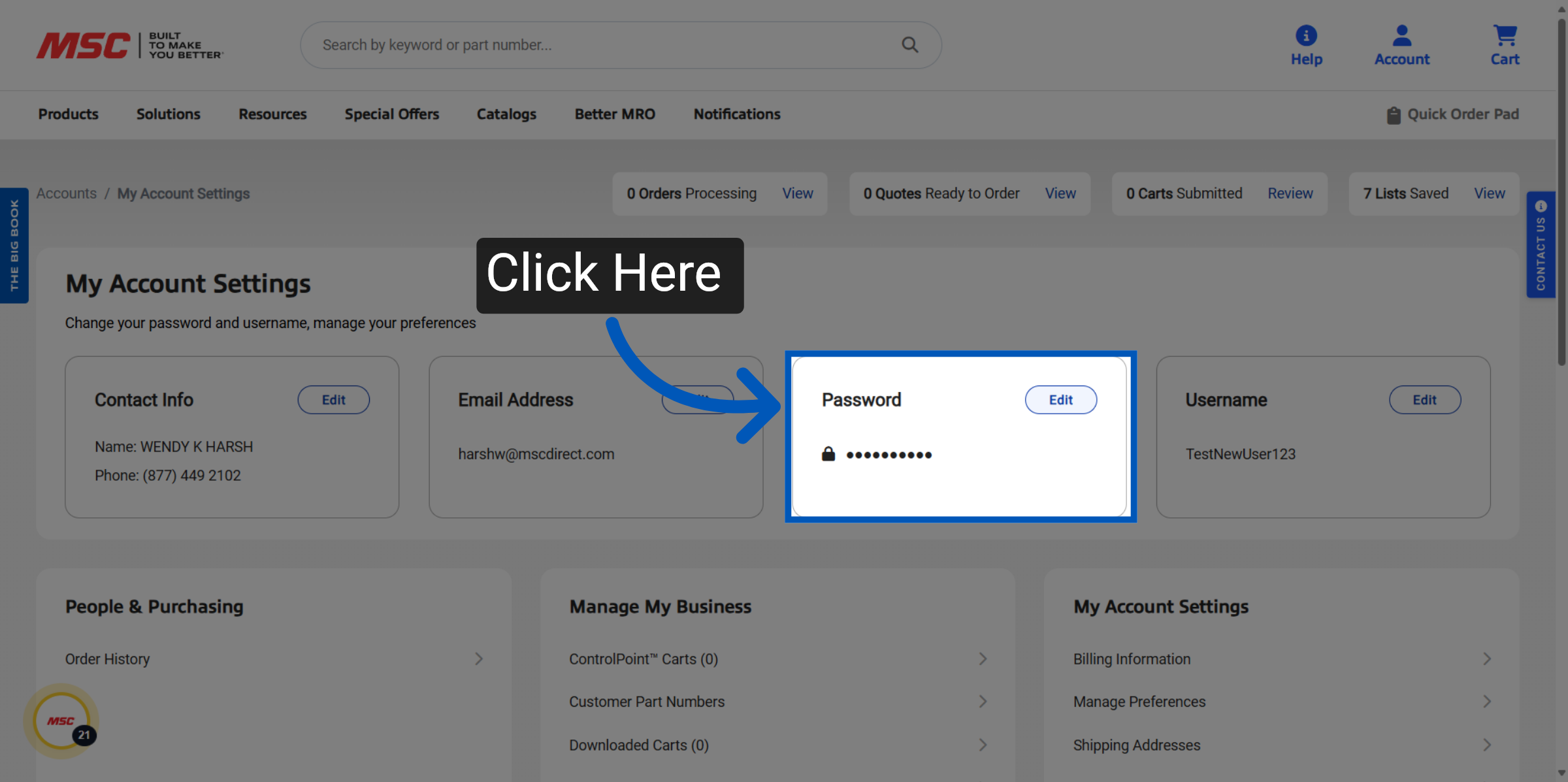
Edit Password - Click on the "Edit" button to under your password tile to start the password change process.
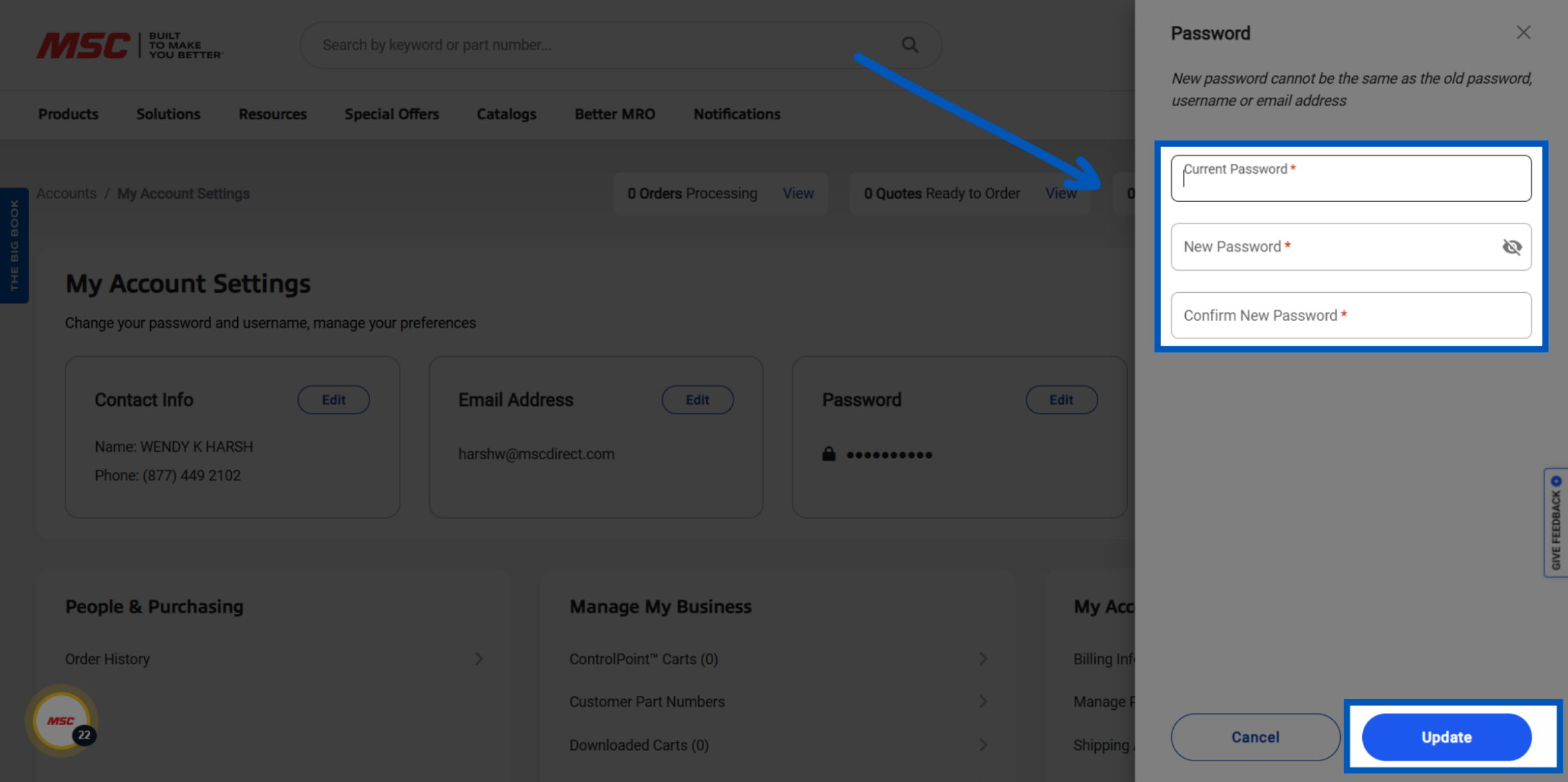
Update Password - You will then be prompted to enter your current password, then create and confirm your new password. Once updated click "Update". You will receive a confirmation message that your password has been updated.
Recovering your Username
Navigate to Login/Register - Click on the "Login / Register" icon on the page to begin the password reset process.
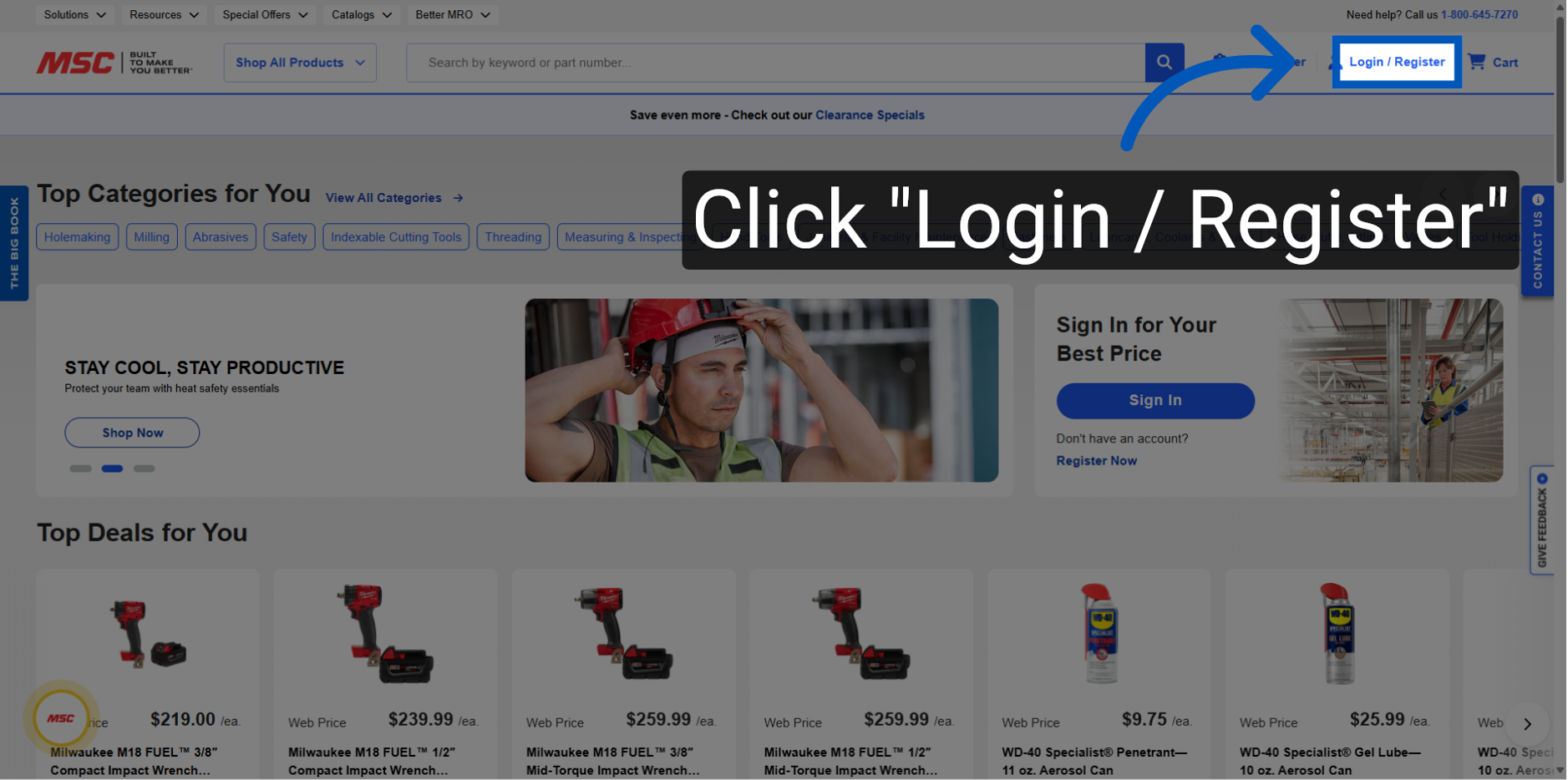
Forgot Username - Select the "Forgot Username" option.
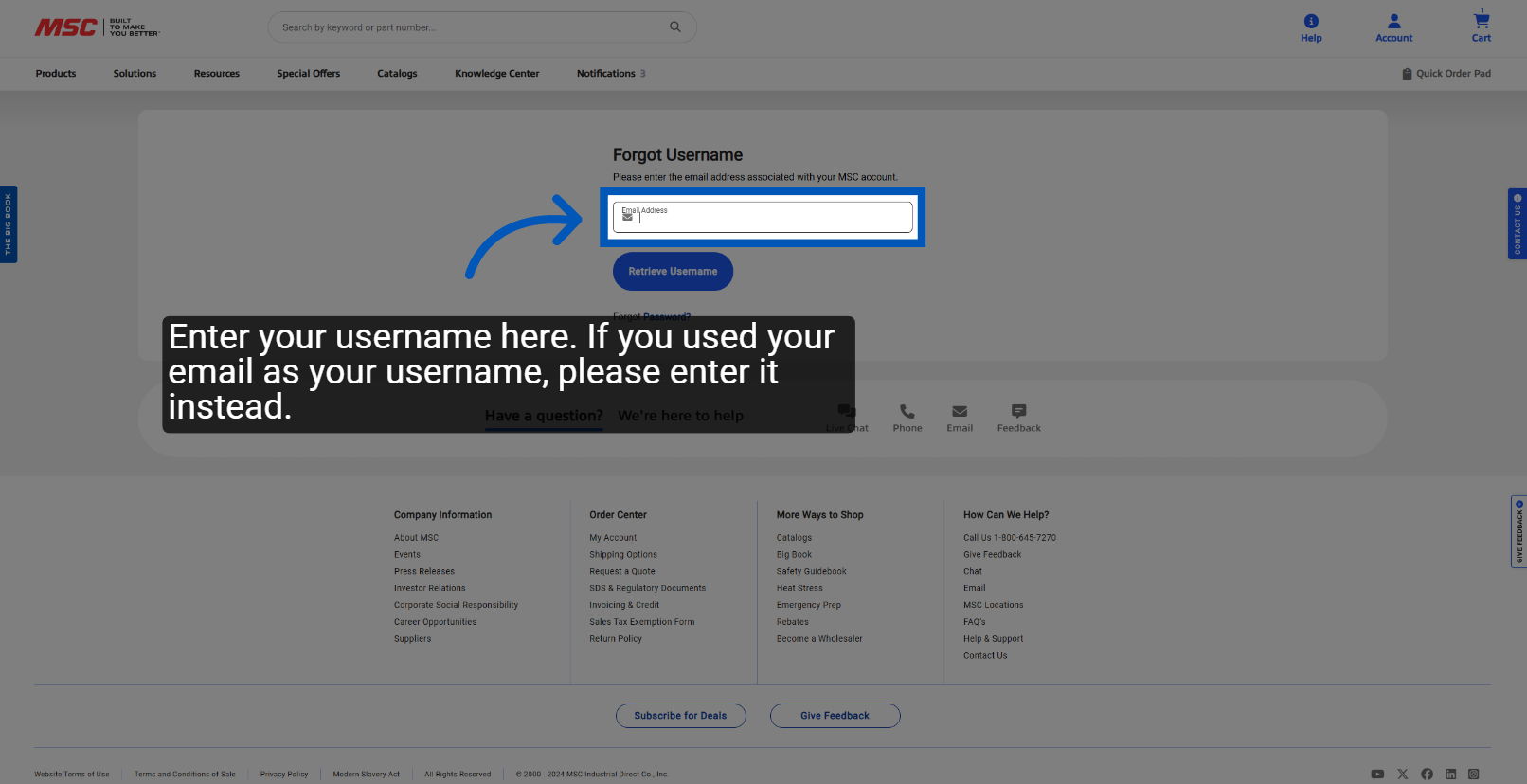
Retrieve Username - Enter the email associated with your account and click "Retrieve Username." You will see a message confirming your request and that an email is being sent.
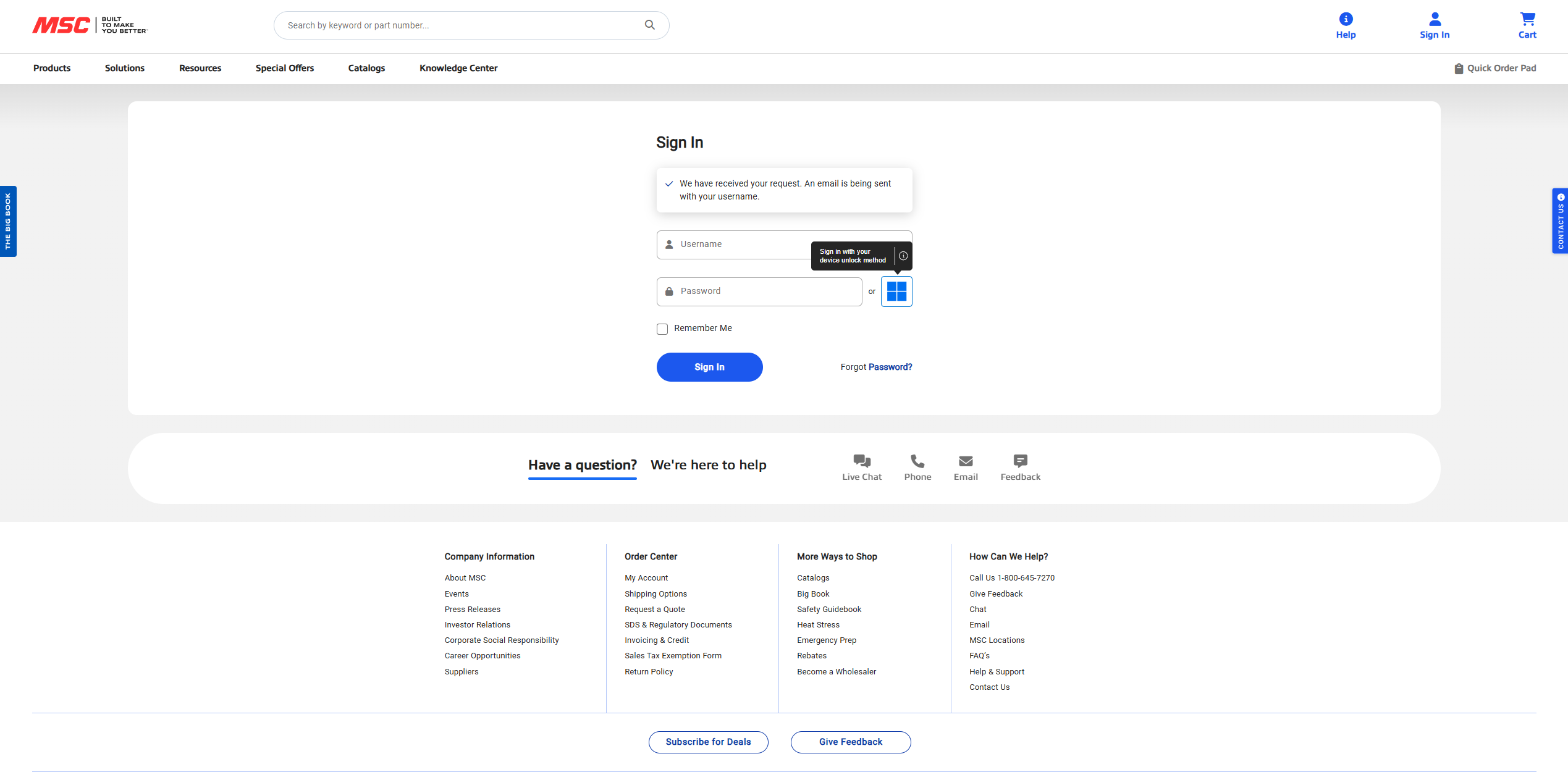
Link on Email - The email you receive will contain your username in it. Click the link in the email you and you will be brought back to the Log in screen with your username populated.
To request a quote, please login to your existing account or register a new one. This helps us provide you with a personalized experience and keep track of your requests.